

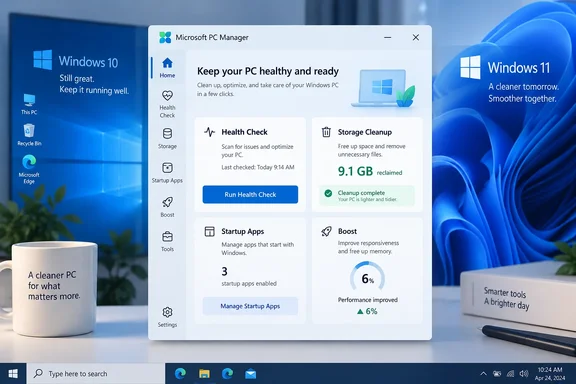
Microsoft PC Manager’s Boost button delivers a modest result
Microsoft promotes PC Manager as a streamlined way to improve Windows performance. PCMag’s testing examines that proposition directly, moving beyond the promise of a free utility that collects maintenance controls in one interface. Its broader description of PC Manager as a consolidated Windows optimization app also appears in the publication’s earlier coverage.
Microsoft’s product page lists compatibility with Windows 10 build 19042.0 and later, plus Windows 11, and says the application is free. Its service agreement identifies the Microsoft Store as the distribution channel. PCMag additionally reports compatibility with Arm-based and traditional x86 PCs, although the official product-page text reviewed here does not specify processor architectures. Compatibility with Windows 10 should be kept separate from the operating system’s support status: Microsoft’s support guidance dates the end of ordinary free Windows 10 support to October 14, 2025. Installing a maintenance utility does not change that lifecycle.
The central feature is a prominent Boost button. Microsoft describes its underlying work as cleaning temporary system files and releasing or optimizing memory. PCMag describes the operation as freeing memory by closing unnecessary processes and removing temporary files. Those are specific maintenance actions; whether they help a particular task depends on what was consuming resources before the button was pressed.
PCMag tested Boost on a Windows 11 desktop with a 3.6GHz 12th-generation Intel Core i7 processor, 16GB of RAM, and a 512GB Samsung PM9A1 PCIe 4.0 NVMe SSD. The tester compared Task Manager memory usage and ran PCMark 10, a benchmark with several workload-specific results, before and after the operation. These are PCMag’s measurements, not WindowsForum testing.
| PCMag measurement | Reported change after Boost |
|---|---|
| System memory usage | Reduced by 5% |
| Overall PCMark 10 score | Increased by 9 points |
| Video Conferencing result | Increased by 5.3% |
| Writing result | Increased by 1.8% |
| Photo Editing result | Increased by 0.5% |
| Spreadsheets result | Decreased by 2.7% |
| Video Editing result | Decreased by 1.9% |
The mixed results are more informative than the small rise in the headline score. A reader who mainly works with spreadsheets cannot take the overall increase as a demonstrated improvement in that workload. Equally, the lower spreadsheet result does not establish that Boost consistently slows spreadsheets: the reporting does not provide repeated runs or a measurement of normal run-to-run variation. The defensible finding is that this particular before-and-after comparison produced small changes in both directions, with no significant subjective improvement.
The reported memory reduction also needs its own interpretation. PCMag calls it a 5% reduction without establishing whether that means five percentage points on Task Manager’s display or a relative decrease. It should not be converted into an amount of RAM saved. More broadly, lower memory usage and faster task completion are separate measurements; PCMag observed the former without noticing a substantial change in the latter.
Smart Boost automates maintenance. PCMag describes it as responding to high memory usage, while Microsoft’s service agreement describes “Intelligent Acceleration” cleaning temporary files and memory when temporary files reach 1GB. Those descriptions should not be merged into a universal trigger rule for every release. Anyone considering background automation should review the conditions shown by the installed version before enabling it.
PC Manager’s Health Check makes a stronger case through storage recovery
Health Check is where PC Manager’s convenience becomes more concrete. It scans the machine, groups recommendations, and lets the user expand categories before applying changes through Optimize Now. In PCMag’s test, the recommendations covered removable data, application usage traces, unused applications, and selected Windows defaults.
The report describes usage traces as small files and settings left behind by programs. It also identifies cleanup categories including Delivery Optimization files, the DirectX shader cache, temporary files, and thumbnails. PC Manager presented network status and hardware information alongside those recommendations, including details about the motherboard, network adapters, and sound hardware.
After applying cleanup recommendations, PCMag says PC Manager reported freeing 9.1GB and removing 2,915 usage traces. A second scan reported another 15.3MB and three traces. The publication subsequently reported a 48-point PCMark improvement after the Health Check work, although individual workload results again changed only modestly and some declined.
The storage result gives readers a clearer reason to try the utility than the benchmark changes do. It identifies capacity that became available for other uses, according to the app’s own accounting. The trace count is less useful as a measure of benefit: thousands of small remnants can sound substantial without telling the reader how much capacity or processing time they consumed.
Microsoft’s Windows performance guidance explicitly identifies low storage space as one possible cause of poor performance. It also names excessive startup activity, outdated software, and aging hardware. This supports using cleanup when storage pressure is part of the problem, while leaving the diagnosis open when a machine has adequate space and a different bottleneck.
Health Check’s defaults need a separate decision
PCMag found that Health Check’s proposed restoration of defaults included resetting the taskbar and enabling PC Manager at startup. The tester wanted neither change. These recommendations sit beside cleanup operations, but they affect preferences and ongoing behavior rather than simply removing dispensable files.
The first-run experience deserves the same attention. PCMag reports that options to start PC Manager automatically and restore Windows defaults were checked in its welcome dialog. Users who want occasional, manual cleanup should review those choices before proceeding, especially on a machine whose taskbar or other settings have already been configured deliberately.
Microsoft’s service agreement separately lists Taskbar Repair and Reset Default Apps among PC Manager’s functions. Taskbar Repair restores the default taskbar interface. A recommendation using the word “repair” therefore needs to be read in terms of the actual proposed action: restoring a default can be appropriate for a broken configuration, but an intentionally customized configuration is a different situation.
Deep Cleanup’s 13GB was a finding, not another confirmed saving
PCMag’s Deep Cleanup scan identified another 13GB of potentially removable data. That included application caches, with Slack accounting for 778MB, as well as categories such as logs, temporary files, Recycle Bin contents, and Widget data.
The report describes that 13GB as data the application could clean. It should not be added to the 9.1GB already reported as freed and presented as a confirmed combined saving. The distinction between a scan’s estimate and an operation’s completed result is essential when evaluating any cleanup utility.
Storage Management extends the inspection to large files, downloads, and duplicates. Its usage chart divides occupied space into applications, other data, Recycle Bin, system data, and user files. PCMag particularly liked Smart Select for duplicate removal, while Microsoft’s agreement independently lists large-file identification, downloads management, and duplicate-file handling among the application’s functions.
These categories call for different decisions. A temporary-file recommendation is not equivalent to a suggestion involving a download or a duplicate of a user file. PC Manager can make candidates easier to find, but the user still needs to decide which copies and downloads have continuing value before authorizing their deletion.
PC Manager simplifies Windows controls but leaves Task Manager a role
PC Manager’s Apps area provides process termination, startup management, and application removal in a simpler interface. PCMag found clearly labeled End buttons useful for applications whose background processes continued after their main windows were closed. The trade-off was reduced sorting flexibility: the tested interface offered alphabetical sorting, whereas Task Manager exposed more ways to examine resource use.
That difference helps determine which tool to use. If the unwanted application is already known, a short list with an End button may be enough. If the question is which application is consuming CPU time or memory, Task Manager’s resource-oriented view is more useful for diagnosis. Microsoft’s performance guidance likewise recommends Task Manager for inspecting CPU, memory, disk usage, and startup activity.
Startup controls address a different timescale from ending a process. Ending an application deals with its current execution; changing a startup entry affects whether it launches automatically in a later session. PC Manager makes both actions accessible, but users should choose the one that matches the problem rather than treating them as interchangeable optimization buttons.
PCMag also describes a Deep Uninstall feature that removes application code, associated registry entries, and residual files. Microsoft’s agreement confirms application-uninstallation functionality, but the more detailed description of Deep Uninstall rests on PCMag’s reporting. This is best approached as deliberate application removal, not as an extra cleanup option to select merely because it promises a larger space saving.
The registry distinction is worth preserving. PCMag reports that PC Manager does not perform broad registry optimization, apart from removing entries associated with applications handled through Deep Uninstall. It would therefore be inaccurate to describe the utility as never touching the registry. Its reported behavior is narrower: registry changes can accompany an explicitly requested uninstall.
PC Manager’s security and toolbar features consolidate existing functions
The System Protection area brings together Windows security and maintenance entry points. PCMag describes access to virus scanning, Windows Update, default restoration, network checking, and taskbar repair. Microsoft’s service agreement says virus and threat protection uses Windows Security Center. PC Manager should consequently be understood as another route to those protections, not a separate replacement for Windows Security.
Pop-up management targets application pop-ups rather than website advertising. Microsoft’s terms say it blocks advertising pop-ups from applications the user selects, including through manual blocking. That scope is useful for someone bothered by desktop interruptions, but it should not be advertised as a general browser ad blocker.
The optional mini-toolbar provides another kind of convenience. PCMag reports CPU and network-status displays, search through Edge, and customizable access to tools such as Calculator, Captions, and Notepad. Web-based weather and currency-conversion functions also appear among the options. The toolbar stays above application windows unless hidden, making it a preference decision rather than an essential optimization component.
PCMag’s OpenClaw report needs a version boundary
PCMag additionally describes an Agent Management area, previously called Clawboard, for OpenClaw AI agents. The reported capabilities include showing resource and token usage, stopping tasks, uninstalling OpenClaw, and setting up agents through what it calls Microsoft’s MXC sandbox.
The official PC Manager product page and service agreement available for this review do not document those named agent capabilities, and the reporting does not establish an app version or rollout boundary. Treat this as a reported feature in PCMag’s examined environment, not an assured capability of every PC Manager installation or a verified security guarantee for running agents. Readers considering PC Manager specifically for OpenClaw management need that availability and isolation detail settled before making it part of a workflow.
PC Manager’s local cleanup comes with a separate data-collection policy
PC Manager’s privacy terms make an important distinction between data processed to perform maintenance and data collected about the product’s operation. The description of local cleanup is specific: Microsoft says information accessed for those functions is processed on the device and is not sent to its servers. It also says PC Manager will not read file contents or personal user information for those operations.
The same agreement separately lists data collected on Microsoft’s servers. Categories include click events, function settings, system diagnostics, file metadata such as size and type, operating-system and PC Manager versions, hardware information, language and regional settings, application names and background processes, and a device identifier described as irreversibly hashed. Most listed categories have a stated storage period of 90 days; user-submitted feedback has a stated period of 180 days.
PCMag describes the utility as local and reports seeing no network activity while using it. That observation can stand as a description of the test session, but it cannot establish that PC Manager never communicates with Microsoft. Local maintenance and server-side telemetry coexist in the published agreement. The practical privacy assessment needs both halves.
The account language also warrants attention. PCMag describes features as not tied to a Microsoft identity, while the published agreement says users need to register and sign in to a Microsoft account to use the service. The available evidence does not resolve that difference into a reliable, universal account requirement for every distributed version. Someone choosing the utility specifically for account-free operation should not rely on the review’s broader assurance.
Feedback introduces another explicit data path. Microsoft’s terms describe an optional pop-up-management program in which users can submit screenshots of unwanted pop-ups. The agreement says participants can leave that program through Settings. Because these are user-supplied images, the local-processing statement for ordinary pop-up blocking should not be extended to screenshots a user elects to send.
PCMag lists permissions that include access to system resources, installing services—including a service with maximum privileges—and managing other applications. Those capabilities fit the utility’s maintenance role, but they also explain why its provenance and policy matter. Microsoft’s agreement directs users to the Microsoft Store and warns that it cannot guarantee the behavior of unauthorized third-party installers.
The privacy decision is consequently specific, not a judgment based on the nationality of a development team or the familiarity of the Microsoft name. A reader comfortable with the stated collection can weigh it against the convenience offered. A reader whose requirements exclude those categories has a concrete reason to prefer the existing Windows controls instead.
Choose PC Manager for a defined maintenance task
Try PC Manager when its consolidated interface solves a practical problem for you: identifying cleanup candidates, reviewing startup applications, or finding maintenance controls that are otherwise scattered across Windows. Users already comfortable with Storage settings, Task Manager, and Windows Security can continue using those tools without taking on another maintenance application.
A cautious first session can follow the controls described in PCMag’s test:
- Obtain Microsoft PC Manager through the Microsoft Store. Microsoft identifies that as its supported distribution route.
- Review the welcome screen before accepting its selections. Clear automatic-start or restore-default choices if you do not want those behaviors.
- Run Health Check and expand the recommendation categories. Separate storage cleanup from app removal, startup changes, and taskbar or default-setting changes.
- Apply only the actions you have selected intentionally. PCMag reports that individual optimizations can be run separately, so the interface does not require accepting every recommendation together.
- Read the completion result as a report of what happened. Keep the amount actually reported as freed separate from additional space that a subsequent scan merely identifies.
- Leave Smart Boost disabled unless you want automatic maintenance and understand the trigger shown in your installed version.
For a storage task, success is reclaimed capacity from categories you meant to remove. For a startup task, success is the intended application no longer being configured to launch automatically. For a performance task, a lower memory display is only one observation; the meaningful question remains whether the activity that felt slow has improved.
The reporting does not document a general PC Manager undo operation for deleted files, Deep Uninstall, or the collection of changes applied through Health Check. Do not assume that uninstalling PC Manager will reverse maintenance it has already performed. The supported conservative alternative is to deselect an uncertain action and use a narrower Windows control.
Windows 11 already provides a narrower cleanup route
Microsoft documents the following storage actions for Windows 11:
- Open Settings > System > Storage.
- Select Temporary files to review removable categories.
- Select the categories you intend to delete, then choose Remove files.
For Storage Sense on Windows 11, Microsoft gives Settings > System > Storage > Storage Sense > Run Storage sense now. Its Windows 10 instructions differ: open Settings > System > Storage, turn on Storage Sense, select Configure Storage Sense or run it now, and use Clean now under Free up space now. These are separate version-specific paths, not one universal sequence.
For investigating resource use on Windows 11, Microsoft recommends opening Task Manager with Ctrl + Shift + Esc and examining Processes, Performance, and Startup apps. That route provides a useful alternative when the problem is an unidentified heavy application rather than a known collection of removable files.
The practical takeaways are straightforward:
- PCMag’s Boost test produced a nine-point PCMark increase and no significant perceived speed improvement, so a dramatic acceleration should not drive the installation decision.
- Health Check reported reclaiming 9.1GB, making storage cleanup the clearest tangible benefit in this test.
- Review default restoration and startup recommendations separately from file cleanup, because they change how the PC is configured.
- Treat the additional 13GB found by Deep Cleanup as potential removal, and inspect downloads, duplicates, and other user-file categories before proceeding.
- Evaluate Microsoft’s server-side data-collection disclosures alongside its local-processing promises.
- Keep company-managed PCs within the organization’s approved maintenance process rather than applying a personal-PC cleanup workflow.
Enterprise approval should follow PC Manager’s capabilities
For administrators, PC Manager’s value is a support and change-control question. It exposes actions that affect running processes, startup entries, installed applications, stored data, and selected Windows defaults. Those are the same capabilities that make it convenient for a home user, but they also create a reason to evaluate the utility before allowing general use on managed endpoints.
PCMag recommends that IT installations consider disallowing it. The more precise operational conclusion is that approval should be deliberate: decide whether end users should have this additional interface, which tasks belong with support staff, and whether its data handling meets organizational requirements. The available evidence does not show that PC Manager bypasses existing policy, and it should not be described as doing so.
Microsoft’s Windows privacy guidance discusses Group Policy and mobile device management controls for Windows data collection. Those controls should not automatically be treated as dedicated PC Manager telemetry settings. The application has its own published collection categories, and an organization reviewing it needs to preserve that distinction.
The same discipline applies to the reported agent-management functionality. A panel that can start, monitor, stop, or uninstall an agent adds a different administrative use case from temporary-file cleanup. Until the feature’s version scope and sandbox behavior are documented, it should not become the basis for an enterprise agent-isolation decision.
PC Manager’s strongest case is the amount of maintenance friction it removes. PCMag’s test shows a convenient route to reclaimed storage and clearer access to familiar controls, while the performance figures support modest expectations. Choose it for the specific cleanup or management task it makes easier, keep consequential changes under review, and use the result of that task—not the promise on the Boost button—to decide whether it earns a continuing place on the PC.