

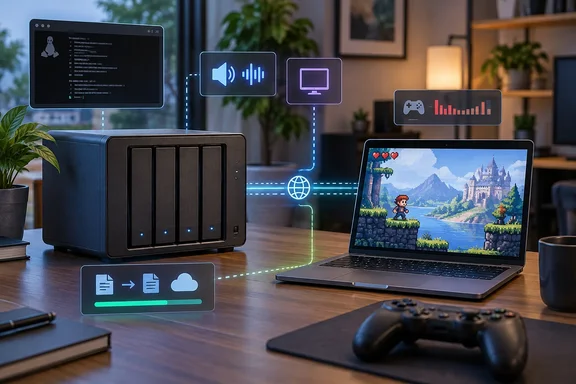
His experiment ran into four problems: headless audio and display capture, delay across the whole streaming chain, very uneven game and emulator demands, and competition with the NAS's normal jobs. His GPU passthrough attempt made the last one worse. The hardware's published specifications help explain several of these.
The hardware: a strong NAS, not a gaming PC
Khurshid's article doesn't say which F4-425 Pro configuration he tested. That matters, because the model ships in more than one. CNX Software says the F4-425 Pro is an update of the F4-425 Plus Intel N150 NAS with a more powerful Intel Core 3 N350 "Twin Lake" octa-core processor or Core i3-N305 octa-core "Alder Lake-N" processor. The two differ mainly in memory: 8GB of RAM on the Core i3-N305 model against 16GB of RAM on the Core 3 N350 variant. The system software is Linux-based. The new models ship with the latest TOS 7 built on top of Linux 6.12.
TechRadar's review adds an important caveat for gaming. The N350's maximum burst clock of 3.9GHz fractionally exceeds the N305's 3.8GHz. However, the N350 is an Atom-architecture Alder Lake-N part rather than a Core-class one. Per-core performance and integrated GPU capability are both lower. This lines up with one of Khurshid's findings, covered below: eight cores don't help much when a game or emulator needs a few fast ones.
The spec sheet also explains why "headless" is a real issue on this box. Electronics-Lab lists the display output as 1x HDMI 2.1 connection strictly dedicated to command-line terminal access (media playback output is not supported). In practice, the NAS has no ready-made desktop display for a streaming host to capture.
Section summary: The F4-425 Pro is a capable eight-core NAS. Its low-power CPU, weak integrated graphics and terminal-only HDMI port all work against it as a game host.
Problem one: a headless box has no screen or speakers to capture
Khurshid started with Steam Remote Play, which is the obvious choice for a Steam library. It's already built into Steam, so he could spend his time testing whether the NAS could run games at all. Valve's Steamworks documentation describes Remote Play as a way to extend Steam games to phones, tablets and TVs, or to play on another computer. Khurshid's experience was that it needed little setup. That was true for his system and isn't a promise for yours.
He then switched to Sunshine as the host and Moonlight as the client. Sunshine can launch any application, not just Steam titles, so he wasn't limited to what worked through Steam. The extra flexibility came with extra work:
- Audio: Sunshine has to capture an audio device on the host. A normal desktop has speakers or a monitor attached. A NAS usually doesn't. On Linux, that can mean choosing the right PulseAudio or PipeWire sink. Sunshine's configuration documentation has an
audio_sinksetting for picking the capture device, and avirtual_sinksetting that streams audio while muting the host speakers. - Display capture: Sunshine's getting-started guide warns that capture on most Wayland desktops will fail unless you give Sunshine the
cap_sys_admincapability for KMS capture. It also says you may need to remove that capability for X11 capture to work. For hosts you start over SSH, the documentation shows how to set theDISPLAYvariable, or runstartxfirst if you're only logged into a text console.
Khurshid says that once audio and display were sorted, the setup gave him much less trouble. Sorting them out was simply part of the job.
Checklist for a headless Linux host (based on Sunshine's documentation):
- Install Sunshine from a package built for your distribution if one exists. The project recommends these over the AppImage and Flatpak.
- Decide how you'll capture the screen: KMS (grant the capability) or X11 (remove it if it's set).
- Choose a real or virtual audio sink, and check that sound actually reaches the client.
- Pair Moonlight using the PIN in Sunshine's web interface, which by default runs on port 47990 of the host.
- If mouse, keyboard or gamepad input doesn't work, add the user that runs Sunshine to the
inputgroup.
Section summary: Most of the work in NAS game streaming is providing a virtual screen and speakers for software that expects real ones.
Problem two: network speed is only part of the delay
Khurshid first assumed the network would decide how responsive the stream felt. In reality, each frame is rendered, captured, encoded, sent, decoded and displayed, and your input has to travel back the other way. V-Sync adds another display interval. Buffering can smooth out jitter, but it adds delay too.
Moonlight's own FAQ breaks delay down the same way. It lists network latency, decode latency, frame-queue latency and render latency separately. It explains that frame-queue time should usually stay under one frame interval, about 16 ms at 60 fps. It also explains why game streaming is so sensitive to small network hiccups: Netflix and YouTube buffer video to hide them, and a real-time stream can't do that without adding noticeable delay.
Khurshid found that setting the stream and the display to modest, matching refresh rates made things easier to manage. Aggressive V-Sync or buffering made the picture smoother but less responsive. That's why he'd use this setup for strategy games and RPGs, not competitive shooters. That's his judgment from his own setup, not a measured rule for every genre, but it's a sensible place to start.
Section summary: Faster Ethernet shortens only one step. Encoding, decoding, V-Sync and buffering all add delay.
Problem three: "it runs games" depends heavily on the game
With streaming working, Khurshid tested games that suited the hardware. He found Stardew Valley, Terraria, FTL: Faster Than Light, Into the Breach, Vampire Survivors and Balatro easy to justify. He reports that Half-Life 2 and Portal 2 ran smoothly at 1080p and 60 fps. These are his results on his unit. He didn't publish benchmarks or per-game settings.
Lutris and Heroic added access to other storefronts, but whether a game worked under Wine or Proton still varied from title to title. He says Destiny 2 stayed problematic because of its anti-cheat, and that games with unusual launchers or Windows dependencies could need extra work.
Emulation was the use he found most convincing. RetroArch cores for the NES, SNES, Game Boy, Game Boy Advance, Sega Genesis and original PlayStation fit the NAS well, because ROMs, saves and emulator settings stay in one place instead of being copied to every machine. He also warns that "emulation" covers a huge range. He describes RPCS3, the PlayStation 3 emulator, as depending on modern CPU performance and Vulkan-capable graphics. Ryujinx didn't work for him at all.
He also notes that some emulators depend on a small number of fast cores, and more cores don't make up for weak single-core performance. TechRadar's point about the N350's lower per-core performance gives that observation a hardware explanation.
Section summary: Older 2D games, indie titles, older Source-engine games and retro emulation are realistic. Demanding emulators and anti-cheat games are not.
Problem four: gaming competes with everything else the NAS does
A NAS usually handles short CPU bursts, storage, networking, containers and background services. A game keeps the CPU or graphics busy for long stretches, and encoding the stream adds more load. Khurshid says he had to think about temperatures and fan noise. He also warns that a system that games fine on its own may behave differently while it's serving files, running backups, running containers or hosting virtual machines. He didn't publish temperature, utilization or noise figures, so test on your own hardware with your own workload.
His advice is to check resource use before starting a heavy game during a storage-intensive job. A game running on the NAS uses the same CPU, memory and possibly GPU that your file serving and backups depend on.
GPU passthrough: the complicated option
For his most ambitious test, Khurshid built a Windows gaming VM and passed an NVIDIA GeForce GTX 1070 8GB through to it. Getting the VM running was easy. Getting the card to behave was not. He reports that he had to:
- Enable IOMMU in the firmware.
- Identify the GPU and its HDMI audio function as separate PCI devices.
- Stop the host from loading the NVIDIA driver before the VM started. When the host grabbed the card first, the VM couldn't initialize it.
- Use a dummy HDMI plug and set up the guest to offer the right display resolution.
- Deal with HDMI audio separately.
He doesn't say which hypervisor, firmware settings or driver configuration he used, and he doesn't say how the GTX 1070 was physically connected. The last point stands out. None of the spec listings reviewed here mention a PCIe expansion slot. Electronics-Lab describes the internal NVMe storage as three PCIe 3.0 x1 M.2 2280 NVMe slots supporting drives up to 8TB each. So a desktop graphics card would need some kind of adapter or external connection. Treat his passthrough section as a list of obstacles, not a guide you can copy on this NAS.
His conclusion on this part is blunt: he ended up maintaining a whole Windows gaming PC inside his NAS, when a desktop with the same GTX 1070 would have been far simpler.
Section summary: Passthrough can work, but it turns a storage appliance into a fragile gaming VM that you have to maintain.
The verdict: a shared game library, not a gaming PC replacement
Khurshid says the best use for his NAS is hosting lightweight PC games and emulators that several devices can reach. It makes sense if the NAS is already running and has spare capacity. You get one central library, and the client can stay small and cheap. If playing modern games would mean buying a GPU, building a VM, fixing passthrough, faking audio and display devices and tuning the stream, he'd skip the NAS and buy a gaming PC.
That's the right conclusion. Storing your library centrally and actually running games on the NAS are two very different jobs. If you're thinking of trying it:
- Good fits: retro emulation, indie games, older 3D titles, turn-based strategy.
- Poor fits: competitive shooters, anti-cheat games, PS3 and Switch emulation, modern AAA games.
- Before you start: check your NAS model's CPU class and graphics, plan how you'll provide audio and a display, and watch temperatures while backups or other heavy jobs are running.
Anyone setting up Sunshine and Moonlight at home, or weighing a NAS against a small gaming PC, will find these four problems worth checking first.
References
- Streaming games from a NAS seemed like a great idea until I hit these 4 problems How-To Geek · 2026-09-28T10:30:13+00:00
- I tested the TerraMaster F4-425 Pro — and while this NAS delivers an improvement on predecessors, it still falls short of what others are bringing to the same party techradar.com
- Frequently Asked Questions · moonlight-stream/moonlight-docs Wiki · GitHub github.com