

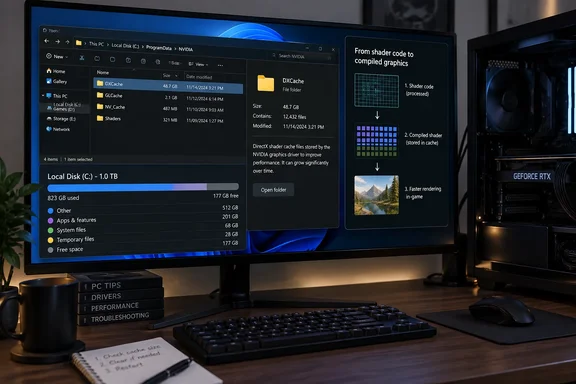
One writer's 40GB surprise
XDA's Abhinav Raj said he found DXCache holding 40GB across 946 files on a 1TB NVMe SSD. His entire graphics driver install, by comparison, took up less than 1GB. That measurement comes from his own PC. NVIDIA hasn't confirmed it, and most people shouldn't expect the same number.
His setup explains a lot of it. At some point, probably years ago while chasing stutter in a game, he had set NVIDIA's shader cache limit to Unlimited. He also changes graphics drivers often for testing and benchmarking. As he put it, Unlimited doesn't give you a big cache. It gives you a cache with no ceiling.
Summary: This is one heavy user's extreme case. The underlying behaviour still applies to anyone with an NVIDIA GPU, so it's worth understanding.
What DXCache actually does
Shaders must be compiled for your GPU. NVIDIA's Control Panel reference says Shader Cache Size caps the disk space the driver may use for compiled shaders. It says shader compilation can cause stutter and that cached shaders can spare later runs of the same game from repeating that work.
Shader compilation can contribute to stutter during an initial run. Cached shaders can reduce that work on later runs, though other causes of stutter remain.
The cache isn't the same thing as junk. It's there so your PC doesn't repeat work. Clearing it gets you space back, and you pay for it with some recompiling (and possibly stutter) the next time you play.
Summary: DXCache trades disk space for smoother gameplay. The question is how much disk space you want to spend.
The 16GB default NVIDIA doesn't show in the app
In the NVIDIA app, go to Graphics > Global Settings and find Shader Cache Size. The options run from Disabled through several fixed sizes, then Driver Default, then Unlimited.
What does Driver Default actually mean? The app doesn't say. Raj pointed out that neither the app nor the Control Panel puts a number on it. The figure appears in NVIDIA's support article on deleting shader cache files, which tells users to set the cache back to Driver Default (currently 16GB). The same article adds that larger sizes can provide optimal performance with larger game libraries.
A few details matter here:
- 16GB is a limit, not a reservation. If you play three indie games, your cache won't get anywhere near it.
- Fixed limits clear themselves out. NVIDIA's Control Panel documentation says the driver deletes older shaders to make room for new ones as the cache nears its limit. It also warns that a limit set too small can throw away shaders you still use and bring the stutter back.
- Unlimited removes the configured size ceiling. Other cache behavior can still depend on the driver version.
- Older docs list different values. NVIDIA's Control Panel reference lists Disabled, Unlimited, 128MB, 256MB, 512MB, 1GB, 5GB, 10GB and 100GB. It doesn't mention a 16GB default. That page dates from 2023, so the options in your app may not match it exactly.
NVIDIA's own guidance is sensible: choose a limit big enough for the games you play regularly, but not so big that it eats into the space you actually have free.
Summary: If you ever picked Unlimited while troubleshooting, that's probably the cause. Driver Default or a fixed size stops the growth.
Why Windows cleanup tools miss it
Raj's normal cleanup routine never touched the folder: uninstalling apps, removing games and running Storage Sense. That makes sense. The cache isn't an installed program, so there's nothing to uninstall. It belongs to the driver, not to any game, so deleting a game leaves its compiled shaders behind.
Microsoft describes Storage Sense as a tool that clears things like temporary files and the Recycle Bin. Its documentation doesn't say it touches third-party GPU caches. Disk Cleanup's "DirectX Shader Cache" checkbox sounds like the right tool, but Raj says it only clears Windows' own D3DSCache folder, not NVIDIA's. Users on Steam's forums have reported the same thing. One described the Windows tool as clearing only the D3DSCache folder, which is barely used for anything any more. Treat that as community testing, not an official Microsoft statement. The safe conclusion is that running Windows cleanup tools doesn't mean NVIDIA's cache has been cleared.
A point where the sources disagree
Raj said installing a new driver doesn't touch DXCache, and neither does uninstalling the old one. He believes the compiled shaders from every driver he swapped out piled up over time.
NVIDIA's Control Panel reference says the opposite: installing a new driver deletes the cache, and you may see stutter the first time you run a game afterwards. We couldn't settle this from the evidence available. Here are two possible explanations:
- The Control Panel note is from an older driver generation, and cache handling may have changed since.
- Where the cache lives has changed. Steam community users report that newer drivers keep DirectX shaders at
%AppData%\..\LocalLow\NVIDIA\PerDriverVersion\DXCache, not the olderLocalpath. Another user said their DXCache was underLocalLow, notLocal, and that they had no NV_Cache folder at all.
These are user reports, not NVIDIA documentation. In practice, check both Local and LocalLow before you decide your cache is small, or that it's huge.
How to check and clear the NVIDIA shader cache
Step 1: Check the size
- Press Win + R, type
%LOCALAPPDATA%\NVIDIA, and press Enter. - Right-click DXCache, choose Properties, and look at the size. Do the same for GLCache, which holds OpenGL shaders.
- Also check
%USERPROFILE%\AppData\LocalLow\NVIDIA, since some driver versions reportedly keep the cache there.
A storage analyzer like WizTree, which Raj used, will show the same folders sorted by size.
Step 2: If it's too big, follow NVIDIA's reset steps
NVIDIA's support procedure goes like this:
- Open the NVIDIA app and go to Graphics > Global Settings.
- Find Shader Cache Size, set it to Off, and click Apply.
- Restart the PC.
- In File Explorer, open
%USERPROFILE%\AppData\Local\NVIDIA, then open DXCache and GLCache and delete everything inside both. NVIDIA's instructions say to delete all contents from both folders. - Also delete the contents of
%USERPROFILE%\AppData\Local\NVIDIA Corporation\NV_Cache, if that folder exists. - Open the NVIDIA app again, set Shader Cache Size to Driver Default, click Apply, and restart once more.
Step 3: Choose a limit you can live with
On a 512GB laptop, a fixed limit may suit you better than the default. On a 2TB desktop full of big games, 16GB or more is reasonable. Just don't leave it on Unlimited.
Common problems
- "File in use" errors: Close all games and launchers. Turning the cache off and restarting first (steps 2 and 3) is what prevents this. If a few files still won't delete, skip them.
- Can't find AppData: It's hidden by default. Typing the environment variable into the Run box or the Explorer address bar gets you there directly.
- A folder is missing: That's not an error. Some folders only appear with certain drivers or APIs. Clear the ones you have.
- Stutter afterwards: This is normal while shaders rebuild. The first session in each game may hitch, and later sessions should be smooth again.
- Stay inside the cache folders: Delete only the contents of these cache folders. Don't delete everything with "NVIDIA" in the name.
What this says about GPU caches
Shader caches are a sensible idea, and modern games with huge shader libraries depend on them. The problem is visibility. NVIDIA gives you a setting but doesn't show how big the cache has grown, and the default's actual size is only written down in a troubleshooting article. That's a UX gap, not a scandal. Most people who never touch the setting will never have a 40GB folder.
To be fair to NVIDIA, the setting that caused Raj's problem is one he chose himself, and it was probably a reasonable fix for stutter at the time. His point still holds for anyone who changed a GPU setting years ago and forgot about it: check that setting again. With SSD space getting more expensive, a few minutes in AppData could free up space you didn't know you'd lost.
Clarification (September 27, 2026): We removed an editing artifact and qualified earlier wording that suggested first-run stutter and cache pruning behave the same way on every system.
References
- Nvidia had quietly taken 40GB of my C: drive for a feature that barely mattered at all - XDA XDA · 2026-09-27T11:00:17+00:00
- Deleting NVIDIA Shader Cache files | NVIDIA nvidia.custhelp.com
- Manage 3D Settings (reference) nvidia.com