

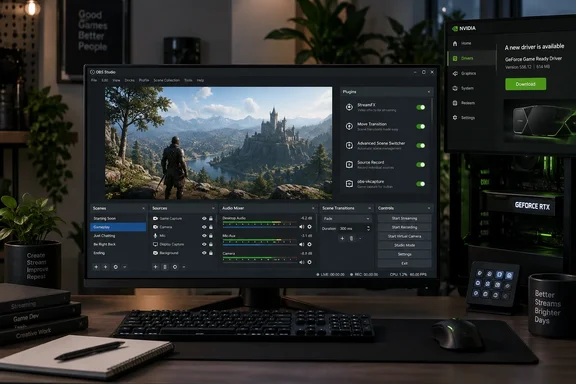
Below is what changed, which version you should be running, and how to set it up on Windows 10 or Windows 11 without your first stream turning into a black rectangle.
Which OBS version is current?
According to Wikipedia's release data, the stable release is 32.2.2, dated 14 August 2026. The OBS Project's own download page shows the same version and date for Windows, macOS and Linux. OBS's GitHub releases page also lists a build called 33.0.0-beta4, but it's clearly marked as a pre-release. It went up on September 25 and is not the stable version.
The difference matters. Some download sites and older guides blur the two together. If you stream or record for work, stay on 32.2.2 for now and treat the 33.0 beta as something to test on a spare machine.
The release timeline, according to the OBS Versions tracker:
| Build | Type | Release date |
|---|---|---|
| 32.2.0-beta2 | Beta | June 22, 2026 |
| 32.2.0-rc2 | Release Candidate | July 16, 2026 |
| 32.2.0 | Stable | July 21, 2026 |
| 32.2.2 | Stable (hotfix) | August 14, 2026 |
| 33.0.0-beta4 | Pre-release | September 25, 2026 (per GitHub) |
The tracker lists 32.2.0-beta2 as released on June 22, 2026, 32.2.0-rc2 on July 16, 2026, and 32.2.0 on July 21, 2026, which it classifies as stable.
Summary: Stay on 32.2.2 for production work. The 33.0 builds are betas.
What 32.2.2 fixes
The 32.2.2 hotfix is short. Its main Windows fix: OBS resolved an issue where plugins might not load properly on the first start after updating OBS on Windows. If your plugin docks disappeared right after an update and came back after a restart, this is probably why.
The other hotfix item only affects Macs. Due to a Qt update, OBS Studio 32.2.x fails to launch on macOS 12. OBS now stops the app from running there, and for macOS 12, users should use OBS Studio 32.1.2.
The earlier 32.2.1 hotfix is also in this build. It fixed game capture failing after updating OBS if the previous hook was still in use. That's a Windows problem: Game Capture works by hooking into the running game, so a leftover hook from the previous version could break capture after an upgrade.
NVIDIA users: check your driver
This is the change most likely to cause trouble on gaming PCs. The OBS Project's 32.2 release notes say the NVIDIA SDK was updated to version 13 in this release, which means the minimum supported driver version is now 570. If you experience any issues with NVENC, please ensure that your GPU driver version is fully up to date.
What this means in practice (my reading, not an OBS statement):
- If you haven't updated your GeForce or RTX driver in a while and you use NVENC, check the driver version before you upgrade OBS.
- If NVENC stops appearing as an encoder option or fails to start after the update, check the driver first.
- A driver below 570 is the most likely cause of NVENC trouble after this update, but a new driver won't fix every encoder problem. Encoder settings, profiles and scene load still matter.
Other changes in 32.2
Because 32.2.2 includes everything from 32.2, users coming from 32.1 will notice several interface changes. From the GitHub release notes:
- New Add Source dialog. The old dropdown for adding sources is gone, replaced by a new dialog. If a tutorial tells you to click "+" and pick from a list, expect a different window.
- Better frame rate picker. The FPS selector was improved.
- Audio mixer changes. In the new mixer, mute and monitoring work independently of each other, and the redundant "Monitor Only" option was removed from Advanced Audio Properties. OBS also fixed audio mixer state getting out of sync when changing settings via websockets or plugins, which helps anyone controlling OBS from a Stream Deck or remote-control tool.
- Capture devices. New capture devices now use a fallback frame rate by default.
- HDR and images. There's a new filter for composing SDR into HDR, and Image Slide Show sources now include .webp files when you add a folder.
- Multitrack video. It gained dynamic bitrate support, and its configuration is now limited to the Custom service.
- Windows hardening. The notes list "Applied process mitigation policies for Windows" and "Improved DLL loading behavior on Windows." They give no further detail, so don't read these as fixes for any specific vulnerability.
- Bug fixes. Among them: display capture sometimes capturing black after a duplicator failure, virtual camera reset failures, and NVENC using the wrong bitrate in CQVBR mode.
The Mac change is worth knowing if you work across platforms. OBS Studio versions built for Intel-based Macs but running on Apple Silicon Macs will automatically update to OBS Studio built for Apple Silicon Macs. If an installation was using third-party plugins, those plugins will no longer load until replaced with Apple Silicon versions.
The release notes also describe the OpenGL gain as a slight improvement on low-end machines. Don't expect it to make an old laptop a streaming machine.
Summary: New users will mostly notice the redesigned source dialog and audio mixer. Existing users should check their NVIDIA driver and plugins.
Downloading safely
Download pages that repackage OBS are common, so it helps to know what official distribution looks like. OBS's download page states that the Windows release supports Windows 10 and 11. It offers:
- an installer
- a BitTorrent download
- a ZIP package
- links to GitHub and previous releases
The same page lists macOS 13.0 and newer. On Linux, the official options are a Flatpak on Flathub and a PPA for Ubuntu 24.04 and newer.
Some download sites list Google Play and Apple App Store links as "official OBS Studio" downloads. OBS's own download page only covers the desktop platforms and doesn't point to any mobile-store app. Treat any mobile app using the OBS name as unverified.
There's also a documentation mismatch. OBS's System Requirements page, last dated 2021, still lists macOS 11 "Big Sur" or later. The current download page says macOS 13.0 and newer, and the 32.2.2 notes send macOS 12 users back to 32.1.2. Follow the download page and the release notes.
One more check you can do yourself: the OBS Versions tracker notes that Windows installers are digitally signed by OBS Project Corporation, and you can verify this by checking the file properties after downloading. Right-click the installer, open Properties, and look at the Digital Signatures tab. GitHub also publishes SHA-256 checksums for each release file if you want to compare hashes.
Windows requirements
OBS's minimum requirements for Windows are short:
- a DirectX 10.1-compatible GPU
- Windows 10 or Windows 11
OBS also warns that meeting these requirements doesn't mean your PC can actually stream or record well. How much CPU you need depends on the encoder, resolution, frame rate and how complex your scenes are. If your recordings stutter, those are the first four settings to look at.
First-time setup on Windows
OBS's Quick Start Guide lays out a short setup process:
- Run the Auto-Configuration Wizard. It opens the first time you launch OBS. It looks at what you want to do, your hardware and, if you're streaming, your network. You can run it again later from Tools → Auto-Configuration Wizard.
- Add sources to your scene. OBS starts with an empty scene. Click + in the Sources dock at the bottom of the window. The main capture types are:
- Display Capture: your whole screen
- Window Capture: a single app window
- Game Capture: Windows only, the fastest way to capture 3D games
- Video Capture Device: webcams and capture cards
- Check your audio. OBS captures desktop audio and your microphone by default. If the meters in the Audio Mixer don't move, or the wrong device shows up, pick the devices manually under Settings → Audio.
- Check output settings and do a test run. Review Settings → Output, then click Start Recording or Start Streaming in the Controls dock. OBS strongly recommends a test of a few minutes before your first real recording or stream.
What success looks like: the audio meters move when you speak and when your PC plays sound, the preview shows your source instead of black, and a short test recording plays back smoothly.
Common problem: black screen on laptops
On laptops, the most common failure has nothing to do with bad settings. It comes from having two GPUs. OBS's GPU Selection Guide explains that most modern laptops have an integrated GPU for the desktop and a discrete NVIDIA or AMD GPU for games. OBS can only run on one of them. If OBS is on the integrated GPU and your game is on the discrete one, Game Capture won't work. In rare cases, the mismatch can even crash the game.
OBS's fix for Windows 10 version 1809 and later, and Windows 11:
- Close OBS Studio.
- Open Settings → System → Display → Graphics.
- Add a desktop app (the option may say "Classic App" or "Desktop App"), click Browse, and select
C:\Program Files\obs-studio\bin\64bit\obs64.exe. - Pick a mode based on how you capture:
- High Performance for Game Capture and Window Capture
- Power Saving for Display Capture
You can't get both from one setting. If you need Display Capture and Game Capture at the same time, you'll have to test which mode works on your machine. OBS's guide doesn't promise this fixes every black-screen problem, but it's the first thing to check.
Summary: If a laptop shows a black preview, set OBS's GPU preference in Windows before you change anything in OBS.
What's in the 33.0 beta
The 33.0 beta hasn't reached stable yet. Its release notes on GitHub list two changes that matter for plugin users:
- Plugin loading overhaul. First-party plugins move to a new folder named
core, and third-party plugins get a new install location and folder structure. Existing third-party plugins will keep loading from the old locations until OBS Studio 34.0. - Browser engine update. The Chromium Embedded Framework behind browser sources and docks jumps from a July 2024 release to a September 2026 one.
The beta also enables NVENC on Arm64 and adds hotkeys for audio monitoring. It removes support for Ubuntu 24.04, which doesn't affect Windows users but does affect Linux builds.
If you run a lot of plugins, now is a good time to check whether each one is still maintained. A plugin that hasn't been updated in years is the most likely to stop working when 34.0 drops the old locations.
Bottom line
OBS Studio is still free, open source and GPLv2-licensed, with no watermark or subscription. None of that is new. What's new in 32.2.2 is:
- the Windows fix for plugins that failed to load on the first launch after an update
- a minimum NVIDIA driver of version 570 for NVENC
- a redesigned source dialog and audio mixer
Check your NVIDIA driver, install from OBS's own download page, run the wizard and do a test recording. Leave the 33.0 beta alone unless you have a spare machine to try it on.
References
- OBS Studio | Video & Streaming | Open-Source Screen Recording, Streaming Software Analytics Insight · 2026-09-28T21:30:00+00:00
- Releases: obsproject/obs-studio github.com
- Release OBS Studio 32.2.2 · obsproject/obs-studio github.com