

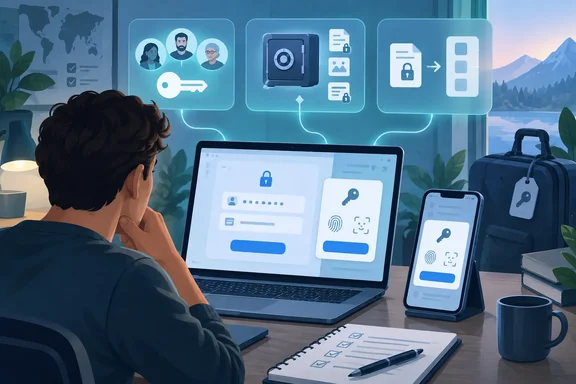
MakeUseOf's Oluwademilade Afolabi makes this argument in a piece published October 6, 2026. This article takes his framework and checks it against vendor documentation from Dashlane, Proton, Bitwarden and the FIDO Alliance. The examples below are illustrations, not a ranking.
Audition the manager before you move in
A password manager mostly lives inside browser login fields, Android autofill prompts and passkey dialogs. A small compatibility bug there annoys you every day. The author suggests a short trial with throwaway accounts before you import hundreds of logins:
- Save a new login through the browser extension.
- Autofill it on both desktop and mobile.
- Change the password and see whether the vault notices.
- Create and use a passkey on a site that supports them.
- Go offline and check that an already-synced vault still opens.
- Restart the device and note how much friction unlocking adds.
This checklist is the author's proposal, not a vendor procedure. It also doesn't prove every product behaves the same way. In particular, the vendor documentation I reviewed doesn't establish consistent offline behaviour across managers. Treat step 5 as a test to run yourself, not a feature to assume.
Passkey support depends on platform details
Passkeys are where compatibility details bite. Bitwarden's May 2024 announcement said its mobile passkey support on Android requires Android 14 and Google Play Services. That is a dated, product-specific requirement, so check current documentation. The same announcement said Android mobile browsers may need extra configuration, and that only Chromium-based browsers were supported at that time.
Proton's passkey page says passkeys are supported in its browser extension and on Android and iOS. It adds that Android supports passkeys only from version 14, and that some phone makers haven't added support. It also lists a known Samsung issue in which a gray square appears in place of Proton Pass. Proton also says passkeys work on any of its plans. That is a vendor claim, not an independent compatibility test.
The practical lesson is to test on your own combination of operating system, browser, app and website. That matters most on a mixed Windows, Android and iPhone setup.
Plan recovery while you can still log in
A zero-knowledge service can't hand back a forgotten master password. The provider doesn't hold what it needs to decrypt your vault. How you get back in therefore depends on preparation. The two examples differ in an important way.
Bitwarden: Emergency Access for a trusted contact
Bitwarden says it can't retrieve or reset an individual user's master password. Its Emergency Access feature must be set up in advance. It is a Premium feature, and it also covers members of paid organization plans, subject to organization policy.
Bitwarden's help page describes the setup:
- Go to Settings, then Emergency access, in the web app.
- Select Add emergency contact.
- Enter the contact's email.
- Choose View or Takeover access.
- Set a wait time and save to send the invitation.
The contact must have a Bitwarden account, free or premium, on the same server geography.
The two access levels differ a lot. View lets the contact read vault items. Takeover lets them create a new master password and gain permanent read/write access. That replaces your password and removes your configured two-step login methods. You can approve a request early or reject it. If you do nothing, access is granted when the wait time ends. Pick the wait time carefully. It needs to be long enough for you to reject an unexpected request and short enough to be useful in a real emergency.
Emergency access covers items stored in the vault. It doesn't unlock accounts or records kept elsewhere.
Dashlane: a recovery key plus identity verification
Dashlane's support article, updated September 18, 2026, describes a different mechanism. You generate a random 28-character account recovery key ahead of time and store it. If you forget your master password, you combine the key with an identity check.
The boundaries matter:
- The identity check uses an email code or an authenticator-app token. If you can't reach either, the key won't work.
- A master-password account can use the key only once, then must generate a new one. Passwordless accounts may reuse theirs.
- Only one key is active at a time. Changing your master password invalidates it.
- Dashlane advises storing the key outside Dashlane, offline, and not on your device or online.
- On Friends & Family plans, each member sets up their own key.
- Without a recovery method, a reset can erase the vault's data.
Dashlane says you can store the key in a Secure Note shared with a trusted contact. That contact still can't use it without access to your email codes or authenticator tokens.
Don't confuse recovery with sharing. Dashlane's recovery key restores your own access. Bitwarden's Emergency Access lets someone else in. Both need setup before the crisis.
Where to keep your TOTP codes
Keeping authentication codes in the password manager is convenient, because one tool fills both password and code. A separate authenticator adds separation if the vault is ever compromised. Both are defensible. The author's warning is the part to keep: don't put your password, second factor and only recovery path on the same phone and call that a disaster plan.
Know how you'll leave
Lock-in is easy to ignore with 30 logins. It hurts after years of passkeys, notes, custom fields and attachments. The details of exporting differ by product.
CSV is common but limited
Most migrations use CSV because nearly every manager reads it. CSV files aren't encrypted, so anyone who gets the file can read it. Dashlane recommends deleting CSV exports from your device when you finish. For anything you must keep, its CSV guidance suggests a USB drive stored somewhere secure.
CSV also leaves things out. Dashlane's CSV documentation says:
- Passkeys can't be exported this way. They may appear in the file but won't work after import.
- Secure Note attachments aren't included and must be saved separately.
- 2FA tokens aren't exported directly, though an otpSecret column in the credentials file holds the setup code. You can use it to re-enroll that login elsewhere.
- The export is a ZIP of separate files for credentials, IDs, payment information, personal information and Secure Notes.
Dashlane also offers an encrypted DASH file, but it is meant for importing into Dashlane. Per the vendor's documentation, it isn't a route to other managers.
Proton Pass offers an encrypted export
Proton's documentation says you can export from the browser extension, web app and Windows app, but not from the mobile apps. There are three choices:
- A ZIP containing a PGP-encrypted JSON file.
- An unencrypted ZIP.
- A CSV file.
Proton recommends encryption for backups or transfers. It also warns that the other formats depend on which one the destination manager accepts. To import an encrypted export into another manager, you first decrypt it. On Windows, Proton's guide uses GPG4Win and the data.pgp file inside the extracted ZIP. The result is a readable JSON file.
In other words, the safest format to store isn't always the easiest to import. Weigh that before you choose.
Credential Exchange helps, with caveats
The FIDO Alliance describes Credential Exchange as specifications for moving credentials, including passwords and passkeys, securely between managers. The goal is to avoid an unencrypted file in the middle. Don't assume it works everywhere. Support depends on the operating system and on both managers.
Dashlane's documentation gives a concrete example:
- On Apple devices, it requires iOS 26 or macOS 26 or later.
- On Apple platforms it is in the Dashlane app but not the browser extension.
- On Android, it requires Android 10 or later with current Google Play Services.
Per Dashlane, it can move passwords, passkeys and verification codes between participating managers. I also saw the FIDO Alliance's specification-status page described as listing the format as a Proposed Standard and the protocol as a Working Draft. I couldn't confirm that wording in the fetched page text, so check the status yourself.
Run a test migration first
Before paying for a multi-year subscription, build a small vault with representative data. Include a login with a custom field, a note with an attachment, a TOTP entry and a passkey. Export it and import it into the manager you might move to. Then check what survived. This is editorial advice rather than a vendor requirement. It follows directly from the documented gaps above.
Treat any unencrypted export as exposed credentials while it exists. Keep it only where you must, protect that location, and delete temporary copies once you've verified the migration. If you want more control over where your vault lives, the author notes that self-hosting a Bitwarden-compatible vault with Vaultwarden is an option. It takes more work.
Quick pre-commit checklist
| Question | What to verify |
|---|---|
| Does autofill work? | Test your own browsers, Windows PC and phone |
| Are passkeys supported? | Check OS and browser requirements for your setup |
| Can you recover access? | Set up recovery before importing your vault |
| Can someone else get in? | Configure emergency access and agree the wait time |
| Where do TOTP codes live? | Keep a separate path back in |
| Can you leave? | Do a test export and import, and inspect the results |
Bottom line
The author's central point holds up against the documentation. Passwords are what go into the vault, but daily friction, recovery design and export options decide whether you'll still be happy in two years. Vendor pages show real differences in what each product can do. They are also marketing and support documents, not independent tests. Run your own short trial before you commit.
References
- Passwords aren't the only consideration when it comes to choosing a password manager MakeUseOf · 2026-10-06T15:00:15+00:00
- Set up and use Dashlane's account recovery key – Dashlane support.dashlane.com
- Passwordless Authentication and Login | Proton proton.me