

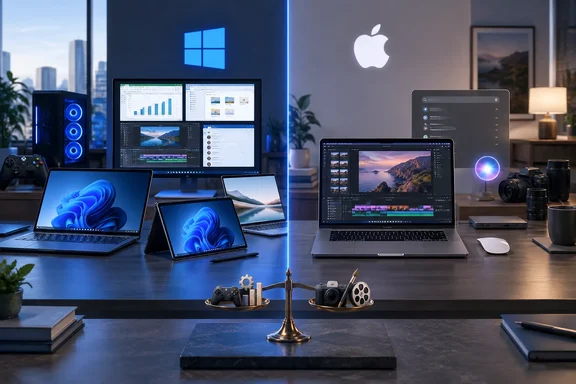
The comparison covers 16 categories, including authentication, accessibility, phone integration and security. Its verdicts are editorial assessments, not a published set of directly comparable performance measurements. Microsoft’s documentation supports important Windows capabilities discussed below, but it does not establish that one operating system is universally faster, more reliable or easier to use.
Start with hardware and indispensable software
PCMag awards Windows the hardware category because of the variety of available machines: conventional laptops, detachable tablets such as Surface Pro, convertibles, gaming desktops and handhelds. It also highlights discrete Nvidia and AMD graphics options and the ability to build a desktop from separately selected components.
The practical distinction is whether the computer can accommodate your requirements. Someone who needs direct touchscreen input, a pen-enabled convertible or a particular graphics configuration has a different purchasing problem from someone who wants a conventional laptop for browser-based work.
Upgradeability belongs on that checklist, but it should be evaluated at the individual-PC level. PCMag’s platform-wide advantage for Windows does not mean every Windows laptop has replaceable memory, an upgradeable GPU or the same repair options.
Software requirements can be even more decisive. According to PCMag, Windows retains an advantage for custom business applications and older software, whereas macOS offers a strong selection of creative applications. That supports a sensible purchasing order: identify the applications you cannot replace before comparing interface preferences.
For IT buyers, PCMag’s compatibility judgment is a starting point rather than certification for a particular application. A business dependent on custom code needs evidence that its actual software works on the proposed machine; a general category win cannot supply that assurance.
Gaming is a compatibility decision first
PCMag also favors Windows for gaming, citing its larger compatible game catalog and wider choice of graphics hardware. It notes that macOS has Steam and an expanding selection of major releases, but that Apple’s Game Porting Toolkit still requires developer work to bring Windows games across.
The useful distinction is between a game being available on a platform and a developer having tools to port it. A porting toolkit does not make an existing library immediately playable.
For a buyer whose computer must also be a gaming machine, the relevant shortlist is the games they actually intend to run. PCMag’s gaming verdict supports choosing Windows when broad compatibility is the priority; it does not provide frame-rate measurements for competing computers.
Windows multitasking has a documented, usable advantage
PCMag prefers Windows 11’s window arrangement tools to macOS’s tiling and Stage Manager. That preference is subjective, but the underlying Windows mechanism is well documented.
Microsoft explains that Snap Layouts presents arrangements tailored to the display’s size and orientation. Large landscape displays can offer three windows side by side, while portrait displays can offer top-and-bottom arrangements. Snap Assist then helps fill the remaining spaces with other applications.
On Windows 11, the supported workflow is straightforward:
- Activate the window you want to arrange.
- Press Win+Z, or hover over its maximize button.
- Select a zone in one of the available layouts.
- Use Snap Assist to place other open applications in the remaining zones.
The result is an organized workspace without manually sizing each window. For someone comparing a document with a spreadsheet or keeping a reference beside an editor, this is an immediately usable feature rather than an abstract interface score.
Microsoft’s developer documentation also explains two limitations. Applications with customized title bars may fail to expose the hover menu correctly, and applications with large minimum window dimensions may not fit a selected zone. A missing menu or an awkwardly fitting application therefore does not necessarily mean Snap itself is unavailable.
PCMag calls interface customization, the Dock versus taskbar, and Finder versus File Explorer ties. Those results are worth separating from its multitasking verdict: a preference for Windows window placement does not require a preference for every part of the Windows interface.
According to PCMag, both file managers offer tabs and document previews, while both platforms provide virtual desktops. For many buyers, those shared capabilities will matter more than differences in folder colors or launcher animations.
Phone Link’s value depends on your phone—and account
PCMag calls mobile integration a tie, praising Apple’s coordination between its own devices while finding Windows particularly useful for Android owners. Microsoft’s requirements make clear why that verdict needs device-specific interpretation.
For Android, Microsoft lists Windows 11—or Windows 10 with the October 2022 update or later—alongside Android 10 or later and a shared Wi-Fi network. Pairing uses Phone Link on the PC and Link to Windows on the phone, signed in with the same Microsoft account.
Microsoft explicitly says Phone Link does not support work or school accounts. Its Android experience also does not support multiple Android profiles. Administrators should therefore avoid treating this consumer-account feature as a universal Entra-connected workplace workflow.
For an eligible Android phone, the pairing sequence is:
- Open Phone Link on the PC and sign in with your Microsoft account if prompted.
- Open or install Link to Windows on the phone and use the same account.
- Choose QR-code pairing on the PC and scan the displayed code using Link to Windows.
- Approve the Android permissions needed for the features you intend to use.
Those permissions determine what becomes accessible from the desktop. In Phone Link, Settings > Features lets you enable or disable supported categories such as messages, notifications, calls and photos.
Android app access is not universal
Microsoft documents a separate Apps experience that displays applications installed on a supported Android phone in windows on the PC. The applications remain phone applications; this is not a promise that any Android app can be installed directly into Windows.
Apps support is limited to selected devices with Link to Windows preinstalled. Microsoft names supported models and families from manufacturers including Samsung, HONOR, OPPO, ASUS, vivo and Xiaomi. Running multiple phone apps simultaneously has additional device and software requirements.
For iPhone owners, Microsoft lists Windows 10 with the May 2019 update or later, or Windows 11, a PC supporting Bluetooth Low Energy, and iOS 16 or later. The documented experience centers on calls, messages, notifications and contacts, rather than the Android Apps feature.
Microsoft also warns that granting message access can expose sensitive texts, including two-factor authentication codes, in Phone Link. That is a concrete reason to choose synchronization permissions deliberately, particularly on a shared computer.
Where PCMag favors macOS
PCMag gives macOS the advantage in initial setup and included applications. It describes creating a Mac without an Apple account as easier than choosing a local account during Windows setup, and highlights iMovie, GarageBand and Apple’s office applications as valuable additions.
The purchasing implication is the amount of additional software a person needs. Someone satisfied by those Apple applications may place considerable weight on the bundle. Someone already committed to particular cross-platform applications may give it much less weight.
Authentication goes the other way in PCMag’s assessment. It favors Windows Hello’s fingerprint and compatible-camera sign-in options over the Mac’s Touch ID and Apple Watch unlocking. These are hardware-dependent benefits: the presence of Windows 11 alone does not establish that a computer includes a suitable camera or fingerprint reader.
PCMag also awards Windows its accessibility category, citing alternative input options, eye tracking and captioning. That broad verdict should be applied to a specific access requirement, rather than used to rank every assistive workflow. The comparison itself credits Apple features such as Personal Voice and Live Captions.
Treat the AI and stability verdicts as attributed judgments
PCMag’s strongest macOS claims concern Golden Gate’s Siri AI and search integration. It reports that Siri AI connects with Spotlight for file searches and app actions, and describes Safari automation features. It contrasts those capabilities with what it characterizes as reduced operating-system integration in Windows Copilot.
These Golden Gate details remain PCMag’s reporting here. Independent confirmation of their release availability, supported hardware and regional scope is not established by the evidence available for this comparison. That gap matters if a particular AI function is the reason for buying a computer.
PCMag’s own earlier Golden Gate opinion piece also illustrates how heavily priorities affect the result: it favored Windows for mobile-platform connectivity and gaming despite Apple’s announcement. That is additional commentary from the same publication, not independent corroboration of the September comparison.
Likewise, PCMag awards macOS the combined security-and-stability category, reasoning that Apple’s control of hardware and software reduces configuration complexity. Its comparison does not provide crash-rate measurements or a controlled security study. Readers should understand that award as the publication’s assessment, not a quantified risk reduction.
Use the category results to narrow a purchase
The most useful way to apply the comparison is to put non-negotiable requirements first:
- Favor Windows candidates when your requirements include particular Windows applications, a broad PC gaming library, touchscreen or pen input, or configurable desktop hardware.
- Favor Mac candidates when Apple’s included applications and integration with your existing Apple devices directly serve your daily work.
- For Android integration, establish whether your exact phone supports the Phone Link functions you want; basic pairing and multi-app access are different capabilities.
- For accessibility, authentication and AI, verify the specific hardware-dependent function rather than assuming the operating-system name guarantees it.
PCMag’s equal overall ratings leave room for very different buying decisions. A required application, supported input method or compatible game can settle the choice before interface polish ever enters the discussion.
References
- macOS Golden Gate vs. Windows 11: The Results Will Shock Superfans on Both Sides - pcmag.com pcmag.com · 2026-09-21T15:46:58+00:00
- Support snap layouts for desktop apps on Windows 11 - Windows apps | Microsoft Learn learn.microsoft.com
- Phone Link requirements and setup | Microsoft Support support.microsoft.com