

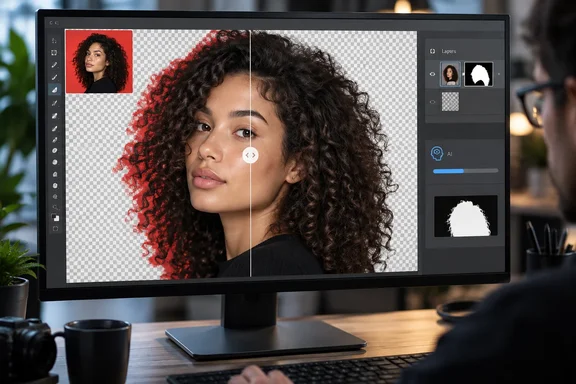
What Enhance Edge does
Enhance Edge targets the halo problem. Cut a subject out of a busy background and a thin fringe of the old background color often stays on the edge. Hair, fur and semi-transparent materials show it most.
Adobe's release notes say the tool uses RGBA diffusion to eliminate color fringing and capture fine detail that standard selections miss. Adobe's beta notes say it analyzes pixels at the edge of a mask, removing background color fringing while preserving fine details.
Adobe's beta documentation also says the feature is particularly good at removing high contrast background colors from hair and fur. Those are Adobe's descriptions of intended results, not measured performance.
How to use it
Adobe's beta documentation describes the workflow, and the Contextual Task Bar is where it starts:
- Open or place the image you want to cut out.
- Select the pixel layer and run Remove background from the Contextual Task Bar. Photoshop adds a layer mask.
- Optionally put a Solid Color fill layer underneath the masked layer. A contrasting backdrop makes leftover fringing easy to see.
- Select the mask and choose Enhance edge from the Contextual Task Bar. Adobe's beta notes say you can also right-click a layer mask. Adobe says you can run Enhance Edge on any Layer Mask, not only those made by Remove Background.
- Wait for processing. It needs an internet connection, and Adobe says a confirmation message appears on completion.
The cost: 20 credits per use
Enhance Edge is a generative AI feature. Adobe's beta notes say it costs 20 credits and requires an internet connection. They also say Content Credentials are recorded on the output layer.
CG Channel suggests regular users will probably need a separate Firefly subscription. I couldn't confirm that in Adobe's documentation, so check your own plan's credit allowance before relying on the tool.
The September beta notes mention credit quota warnings. They say credit quota warnings were added at 90% and 70% usage. That should help if you run through credits quickly.
How well does it work?
Fstoppers covered an independent hands-on test of the beta by Unmesh Dinda. His finding is that Enhance Edge does not improve the mask. It keeps the mask identical and generates new edge detail on the inside.
The same report says it shines on moderate-resolution images with messy, contrasty backgrounds. It also says manual methods such as the Minimum filter preserved fine detail better in some cases. This was a test of the beta, not of the shipping 27.11 build. Treat it as one tester's view, not a verdict.
A sensible approach, based on the documented steps and cost:
- Test the cutout against a contrasting background first.
- Spend the 20 credits only where the fringe is a real problem.
- Keep manual mask cleanup for high-stakes, fine-detail work.
GPT Image 2 joins the model list
Adobe says 27.11 brings GPT Image 2 directly into Photoshop. You can use it to generate new images and to make edits from natural-language prompts. CG Channel reports it works in Generate Image and in Prompt to edit, the latter introduced in Photoshop 27.10. This is support for an existing workflow, not a new feature.
GPT Image 2 is one partner model among several. It sits alongside Adobe's own Firefly models and other partner models, so you pick per task. The material I verified doesn't detail credit costs for each model.
Fixes and other changes
Adobe's community notes list several bug fixes:
- The Canvas Size dialog did not retain the previously used units.
- Image > Apply Image preview did not work with the modern UI enabled and GPU disabled.
- The New Guide dialog did not recognize the unit set in Preferences.
- Edit > Stroke used the previously selected color instead of the newly chosen color on the first attempt.
One community commenter reported that oversaturated colors from Camera Raw and Lightroom Classic in 27.10 appear fixed. The same commenter said "edit in" from Lightroom with Denoise on still isn't fixed. That's a single user report, not an Adobe statement.
CG Channel also reports two other items: renaming or deleting entries in the New Document dialog's Recents tab, and a Windows performance gain based on usage data from users who haven't opted out. Adobe's quoted wording is "measurable performance improvement on common workflows", with no figure given. I couldn't confirm either item in the Adobe pages I could read. Treat them as reported, not verified.
Windows requirements
Don't read this as "Windows 10 or later" and leave it there. Adobe's 27.x requirements, as summarized in my research notes, give more detail:
- Intel/AMD: Windows 10 version 22H2 or 21H2 LTSC, and Windows 11 versions 23H2 and 24H2.
- Hardware: 8 GB RAM minimum (16 GB or more recommended), AVX2 support, and a DirectX 12 GPU at feature level 12_0 or later with 1.5 GB of GPU memory.
- Storage: 10 GB of free disk space minimum, with an internal SSD recommended.
- Windows on ARM: Windows 10 ARM64 version 20H2 or later, 8 GB RAM minimum and 4 GB of GPU memory.
- Online features: an internet connection and registration are needed for activation and online services.
I couldn't open Adobe's requirements page directly, so check it before you roll this out across a fleet.
Model retirement
Adobe's model documentation includes a time-sensitive note. Google is deprecating Gemini 2.5 (Nano Banana) from October 2, 2026. Adobe says Photoshop begins removing support with version 27.11 and later. If any of your workflows depend on that model, test them now.
Bottom line
Enhance Edge is a practical fix for a long-standing cutout annoyance, but it's a metered one. For IT admins and creative teams on Windows, the checks are simple. Confirm hardware and OS against the 27.x requirements. Check how many generative credits your plan includes. Test Enhance Edge on real assets before deciding whether it replaces manual cleanup.
References
- Photoshop's Enhance Edge: Does AI Fix Hair Halos? fstoppers.com
- Adobe releases Photoshop 27.11 - cgchannel.com cgchannel.com · Tue, 06 Oct 2026 09:40:58 GMT
- Adobe Photoshop on desktop release notes helpx.adobe.com