

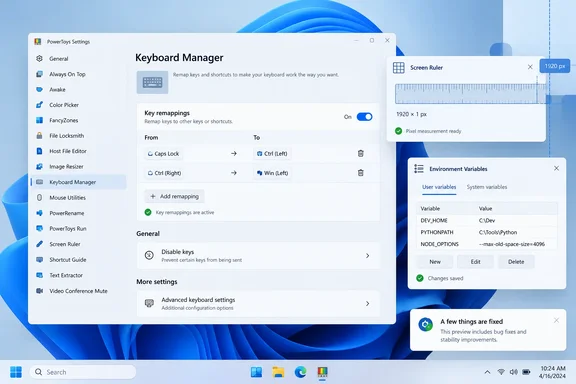
PowerToys Preview v0.101.2652.0 Closes Out a Busy v0.101 Preview Cycle
To make sense of this build, it helps to know how the v0.101 preview line has been working. Microsoft has been shipping preview builds in quick succession, and each set of release notes compares itself with the previous preview. The direct predecessor, Preview v0.101.2632.0, described itself as including "the latest features, fixes, and improvements since PowerToys Preview v0.101.2601.0." That build added real features. It gave Command Palette copyable command deep links with consent prompts and permission management, and it gave Environment Variables a Remove duplicates action to the PATH editor.
The wording for v0.101.2652.0 is narrower. Its notes say it includes "the latest fixes and improvements since PowerToys Preview v0.101.2632.0," and the word "features" is gone. The changelog matches. Almost every entry fixes validation, rendering, resource use or compatibility in an existing tool. GitHub marks the release as a pre-release, and it is tied to signed commit 747c7d3.
The preview channel is something users choose. An earlier v0.101 preview added an update channel selector and a guided Bug Report flow with progress and a GitHub shortcut to PowerToys Settings. That selector is how users move between stable and preview builds. If you never changed it, this build is not aimed at you.
Several fixes in this build tidy up work from earlier previews. Screen Ruler's device-independent pixel unit, repaired here, first appeared a few builds back. The Environment Variables crash fix continues a run of localization-related startup fixes. Both are covered below.
Keyboard Manager Now Rejects Win+L Remaps Instead of Silently Accepting Them
The Keyboard Manager change is the one most likely to affect someone's daily setup. Microsoft's notes say the utility "blocked unsupported remappings containing Win+L, including combinations with extra modifiers, with validation errors instead of silently accepting them" (pull request #49759).
Before this build, you could create a remap that included Win+L, which Windows uses as its lock-workstation shortcut. The editor would save it without complaint, even though the remap could not work as configured. Now the editor shows a validation error, and that covers variants with extra modifier keys too. The highlights call this "validation for unsupported Win+L remappings that include extra modifiers."
Be clear about what this does not do. It does not add Win+L remapping, and it does not change how Windows handles the lock shortcut. Microsoft calls these remappings unsupported. The only change is that PowerToys now says so when you try to create one.
If you already have a remap that uses Win+L, it never behaved as intended, and after upgrading the editor will flag that combination as invalid. The notes don't say what happens to such entries already saved in your settings, and they give no migration guidance. If a remap you depend on includes Win+L, check it in the Keyboard Manager editor after you update.
Keyboard Manager has had a lot of work in this cycle. Preview v0.101.2432.0 added an Alone condition for single-key remaps, enabling different tap and hold behavior while preserving key and mouse combinations. As the remapping options grow, it makes sense for the editor to catch combinations that can't work.
Screen Ruler's DIP Unit Can Be Saved Again, With One Migration Catch
Screen Ruler gets two fixes, and one of them comes with the release's only explicit instruction to users.
The first is about accuracy. Pull request #50093 "corrected bounds-mode edge detection at the first pixel row or column and prevented large color differences from being mistaken for matching pixels." Bounds mode works by finding where an element's edges are. Before the fix, it could measure wrongly at the very edge of the detection area, or treat pixels of very different colors as matching. Anyone who measures UI elements to the pixel should get more reliable readings.
The second fix restores a unit that was only recently added. Screen Ruler gained display-independent pixels as an optional measurement unit in Preview v0.101.2432.0. That same change also corrected the fallback millimeter conversion. Device-independent pixels, or DIPs, are the scaled units Windows UI frameworks use for layout, as opposed to physical screen pixels. They are useful to developers checking a design at different scaling levels. In the builds before this one, the DIP secondary unit apparently could not be selected and saved properly. Pull request #50696 "fixed selecting and saving Device-independent pixels as the secondary measurement unit."
Here is the catch, in Microsoft's words: "Users upgrading from old enum-based centimetre settings may need to reselect their preferred unit." In other words, the way Screen Ruler stores its unit setting has changed. If you had centimetres chosen under the old format, your choice may not carry over. The fix is simple: after upgrading, open Screen Ruler's settings and check the secondary unit. If it's wrong, pick your preferred unit again.
Environment Variables Stops Crashing on UTF-8 Code Page Systems
The Environment Variables fix affects fewer people, but for them it is serious. If the tool crashes at startup, you can't use it at all. Pull request #50688 "fixed startup crashes with localized titles when Windows uses the UTF-8 system code page and corrected environment-change notification decoding."
The UTF-8 system code page is an optional Windows setting that switches the legacy non-Unicode code page to UTF-8. People who turned it on and use PowerToys in a language with localized window titles could see Environment Variables crash when it opened. The same pull request also corrects how the tool decodes environment-change notifications. Those are the messages that tell running software that variables have changed.
The notes don't list affected languages or Windows builds, and they offer no workaround for older versions. The fix does follow related work in the previous preview, which addressed WinUI startup crashes reported in CJK environments by initializing window titles before title-bar setup across several utilities. Localized window titles have caused startup failures for PowerToys utilities more than once in this cycle. That is our reading of the two changelogs; the notes don't connect them. If you use the UTF-8 code page and Environment Variables still wouldn't open after v0.101.2632.0, this is the build to try.
Command Palette, Window Walker and Window Hopper Get the Smaller Fixes
The rest of the changelog is a series of smaller fixes, each limited to specific behavior.
Command Palette gets three. The redundant More button is now hidden when there are no overflow actions left, and Ctrl+K context menus still work. Shortcut, submenu and focus handling also improve (#49769). A reliability fix (#50485) stops one failing extension event handler from blocking other listeners, so property and item updates keep reaching active subscribers. Put simply, one badly behaved extension should no longer stall updates for the rest. Window Walker, the window-switching part of Command Palette, now includes owned windows marked as taskbar applications (#50693). Microsoft's example is LabVIEW project windows. This only covers windows that meet that specific condition. It does not mean every hidden or background window will now show up.
Window Hopper gets a group of rendering and resource fixes in #50495. Preview memory use is lower, clicks pass through transparent overlay areas again, a live-thumbnail fallback kicks in when snapshot capture fails, and the page-indicator bar no longer renders as an opaque block. The notes don't say how much memory is saved. Window Hopper has needed rendering repairs before: Preview v0.101.2522.0 restored the overlay visuals and fixed backdrop, thumbnail, and icon rendering.
The remaining user-facing changes are narrow:
- Power Display keeps saved monitor settings when you edit a profile while a display or its capabilities are unavailable, and it keeps color-preset selections in sync as capabilities change (#50509).
- Shortcut Guide no longer shows taskbar indicators for every application. The full guide now shows them only when the selected shortcut manifest asks for them (#50672).
- Peek now cleans up web previews reliably when they close, and it handles managed temporary-file cleanup outside the finalizer path (#50636). This is an internal change, and the notes describe no user-visible symptom.
- ZoomIt's Settings help text now correctly lists Ctrl+K and Ctrl+W for the black and white sketch pads (#50689). Only the help text changed. The shortcuts themselves did not.
The Power Display fix matters most for laptop users who dock and undock. A profile edited while an external monitor was unplugged should no longer lose that monitor's saved settings.
Choosing and Verifying the Right v0.101.2652.0 Installer
The release comes with four installers covering two install scopes and two CPU architectures. Microsoft's installation documentation explains the scopes. The Per User installer puts PowerToys in %userprofile%\AppData\Local\Programs for the current account only. The Machine wide installer puts it in %ProgramFiles%, where every user on the PC can run it. The documentation says you get app updates normally with either installer.
| Scope and architecture | Filename | SHA-256 |
|---|---|---|
| Per user, x64 | PowerToysUserSetup-0.101.2652.0-x64.exe | 0D2BEF1B473F332477BF58426FE09E81439B240687073CA38FB03BDE447A1666 |
| Per user, ARM64 | PowerToysUserSetup-0.101.2652.0-arm64.exe | 1FCA3813B0D9F4CC091332C7E0BAE7A2BDC924DD078258DE189702BC6D48553B |
| Machine wide, x64 | PowerToysSetup-0.101.2652.0-x64.exe | 4C025A3F32C9DE6E2C40A39483329C813102E9C682E57B99C17E722C0A05728F |
| Machine wide, ARM64 | PowerToysSetup-0.101.2652.0-arm64.exe | 6FB6AA1E04C1E7C29A1824AB1733F74E79775366B536B79D36C76B0DCB0F905B |
According to Microsoft's documentation, PowerToys needs Windows 11, or Windows 10 version 2004 (20H1, build 19041) or newer, on a 64-bit x64 or ARM64 processor. Setup installs the latest stable Microsoft Edge WebView2 Runtime through the bootstrapper.
To install the preview manually:
- Download the installer that matches your processor (x64 or ARM64) and the scope you want (per user or machine wide) from the release's assets on GitHub.
- Before running it, compute the file's SHA-256 hash, for example with PowerShell's
Get-FileHashcmdlet, and compare the result with the value in the table. If they don't match, don't run the file. - Run the installer and follow the prompts. If PowerToys is already running with update checks enabled, the documentation says the built-in checker shows a toast notification when a new version is available, and you can also check manually from PowerToys Settings.
For scripted installs, the documentation says the executable accepts standard installer switches, including /quiet for a silent install, /passive for a progress-bar-only install, and /log to write to a specific file. The documentation's WinGet command, winget install --id Microsoft.PowerToys --source winget, installs the standard package. Nothing in the evidence shows that it delivers this pre-release build, so for fleet testing, use the GitHub installers and their hashes.
What this means for you
If you're on the preview channel, update. If you're on stable, carry on as you are. There are no security fixes, no CVEs and no new tools in this build, so no stable user needs to switch channels for it. Preview users get fixes that make Keyboard Manager and Screen Ruler behave correctly and stop a crash that some users hit.
- Preview-channel users should install v0.101.2652.0, particularly if they use Screen Ruler, Keyboard Manager, Environment Variables, Power Display or Window Hopper.
- Anyone with a Keyboard Manager remap that includes Win+L should check it after upgrading, because the editor now reports those combinations as unsupported.
- Screen Ruler users who had centimetres set under the old settings format should check the secondary measurement unit after upgrading and reselect it if needed.
- Systems with the Windows UTF-8 system code page turned on, running a localized PowerToys interface, are the ones that benefit from the Environment Variables startup crash fix.
- Administrators testing the preview should choose the machine-wide installer for shared PCs and check every downloaded file against the published SHA-256 hash before deploying it.
For the PowerToys preview channel, v0.101.2652.0 looks like the end of a feature push. The recent previews added Command Palette deep links, a PATH duplicate remover, DIP measurements and tap-versus-hold remapping, and this build fixes the edge cases around them. That is what should happen before these changes reach a stable release. For now, preview users will be told the build is available by the in-app update checker, and stable users will get these fixes once Microsoft ships them in a stable release.
Update: PowerToys Preview v0.101.2684.0 Adds Language Controls and Command Palette Improvements (September 26, 2026)
Microsoft has now released PowerToys Preview v0.101.2684.0, the next preview after v0.101.2652.0. This is not solely a fix build: it adds a PowerToys UI-language selector in General settings, including an option to follow the Windows display language and a “Restart now” action to apply a new selection.
Command Palette receives most of the changes. Window Walker searches can now combine an application name and window title in one multi-word query, such as “explorer downloads.” Microsoft also refreshed parameter text boxes for theme-aware colors and clearer focus feedback, expanded WinGet progress and outcome notifications, fixed a Dock startup race that could hide center bands, and clears bookmark placeholder fields after a successful launch.
Keyboard Manager also fixes a practical elevation issue. When PowerToys runs as administrator, ordinary visible “Run program” mappings now launch through Explorer without inheriting that elevated context. Hidden, elevated, and alternate-user launch modes retain their existing behavior.
For administrators, setup and servicing have been improved for PowerToys context-menu components, including File Locksmith, PowerRename, Image Resizer, and New+. Their host processes should shut down more reliably during updates or removal, reducing servicing timeouts.
Update: PowerToys Preview v0.101.2712.0 Adds Quick Access Shelf and Dock Controls (September 30, 2026)
Microsoft released PowerToys Preview v0.101.2712.0 on September 30, 2026, following v0.101.2684.0. Its GitHub release notes introduce an opt-in Quick Access Shelf prototype for pinned Command Palette commands in collapsed compact mode, with an overflow menu and Alt+number shortcuts. Users can also select Command Palette as the application opened by the Copilot key through Windows Settings.
The Dock gains a configurable Win+Alt+J shortcut that reveals it and moves focus there; pressing it again returns focus to the previous window. The shortcut is registered only while the Dock is enabled. New copyable deep links lead directly to individual settings and extension options, automatically expanding, scrolling to and highlighting the destination.
For multi-monitor users, Microsoft has improved Dock layout preservation across Miracast reconnects, display renumbering, port changes and resume. Secondary displays without an existing layout now inherit the primary Dock’s layout, while nonempty layouts remain intact. One caveat: intentionally empty secondary Docks are also populated after being disabled and re-enabled. Custom display names provide another way to identify monitors in Dock settings.
The build also fixes duplicate context-action invocation, stale icons appearing in reused Command Palette rows and Mouse Jump’s undersized Settings preview. Extension authors receive specific migration guidance: replace SetDockLabelWidth and ClearDockLabelWidth with SetDockLabelReservations, SetDockLabelWidthLimits and their corresponding clear helpers.
References
- How to Install PowerToys on Windows 11 and Windows 10 | Microsoft Learn learn.microsoft.com