

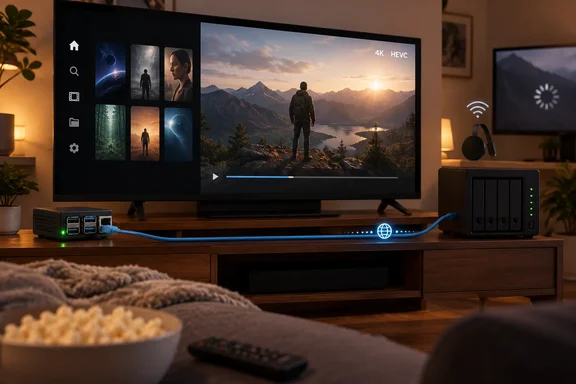
XDA Developers tested a 4GB Raspberry Pi 4 Model B with LibreELEC 12.2.1, Kodi, and the Jellyfin for Kodi add-on, reporting smooth playback of a UHD 4K Blu-ray rip over Ethernet after an older Chromecast had buffered. That outcome is plausible on the hardware: Raspberry Pi specifies that the Pi 4 has hardware H.265/HEVC decoding up to 4K at 60fps and a Gigabit Ethernet port, while LibreELEC officially supports current Pi 4 images.
For Windows users running Jellyfin on a mini PC, desktop, NAS, or home server, the useful takeaway is to treat the Pi 4 as a focused endpoint. It can remove several common bottlenecks from local playback, but it cannot repair every problem that produces the spinning buffer icon.
What the Pi 4 changes in a Jellyfin setup
LibreELEC is deliberately narrow. It boots into Kodi instead of asking the user to manage a general-purpose Linux desktop, an Android TV launcher, advertising surfaces, or a collection of unrelated apps. For a television attached to a server full of locally owned media, that is a feature: the client’s job is to discover the server, expose the library, and decode the selected file reliably.
The Pi 4 is old enough to be inexpensive on the used market, but it has the hardware traits that matter for this use case. It includes a 64-bit quad-core Cortex-A72 processor, 1GB Ethernet, dual micro-HDMI output, and hardware HEVC decode at up to 4K60. LibreELEC’s Raspberry Pi guidance places the Pi 4, Pi 400, and Pi 5 in a materially different class from earlier boards because those models have native HEVC decoding.
That distinction explains why a Pi 4 is a much safer target than a Pi 3 or older board for current 4K libraries. LibreELEC says Pi 0, Pi 1, Pi 2, and Pi 3 devices rely on software decoding for HEVC, with newer releases leaving older hardware suited primarily to SD media. Installing an old image to make a Pi 3 behave more like a legacy media appliance may still work for older H.264 files, but it trades away present-day Kodi releases, add-on compatibility, and security fixes.
XDA’s choice of a 4GB Pi 4 was therefore sensible, although the RAM figure should not be mistaken for the main reason a 4K movie played. Video decode capability, the display chain, codec compatibility, network throughput, and whether Jellyfin has to transcode the file are more consequential than adding memory to a single-purpose Kodi client. A 2GB Pi 4 can be viable for this narrow job; a Pi 5 adds headroom, but it is not a requirement merely to play local HEVC content.
Direct Play, not the board alone, is the likely buffering fix
The reporting’s strongest practical result is not that a Raspberry Pi somehow eliminates buffering. It is that Kodi can give Jellyfin a client profile that permits direct playback of many files. Jellyfin’s own Kodi documentation says the add-on can direct-play nearly all files when the network is fast enough, putting very little additional load on the server.
That changes the workload substantially. In a Direct Play session, the Jellyfin server sends the original file without converting it. If a client cannot accept the video codec, audio format, subtitles, container, resolution, or bitrate constraints, Jellyfin may need to remux, direct-stream, or fully transcode the media instead. Video transcoding is the expensive case, and HDR-to-SDR conversion can be especially punishing without suitable GPU acceleration.
A 4K MKV that pauses on one device and runs smoothly on another may therefore be revealing a client-compatibility problem, a server-transcoding limitation, or a network problem—or more than one at once. The Pi 4’s HEVC decode support is a clear advantage for an HEVC Blu-ray rip. Kodi’s broad local-media focus also helps. But the test does not establish that the older Chromecast’s buffering was caused solely by its Wi-Fi connection, nor that every Jellyfin deployment will see the same result.
Admins should verify this in the Jellyfin dashboard during playback. The session details reveal whether the server reports Direct Play, remuxing, Direct Stream, or Transcode. If a Pi-based client begins buffering while showing Direct Play, investigate Ethernet, switches, cabling, NAS throughput, and the server’s storage path. If it shows Transcode, inspect the triggering stream: unsupported subtitle formats and audio tracks are frequent culprits, while video transcoding can overwhelm modest Windows hosts or NAS appliances.
The same check is valuable before buying new equipment. If an existing Chromecast is forcing an expensive video transcode but the server has no hardware acceleration configured, upgrading the server’s Intel Quick Sync, Nvidia NVENC, or other supported acceleration path may solve the issue for every client. If the existing player already Direct Plays and only fails on high-bitrate local files, wiring the endpoint may be the more direct fix.
Ethernet is the advantage, but not a security feature
XDA is right to recommend Ethernet where it is practical. A direct wired path removes Wi-Fi signal quality, radio congestion, roaming behavior, and channel contention from a high-bitrate local-media stream. The Pi 4 has native Gigabit Ethernet, so it is easy to make it a fixed wired appliance behind a TV.
But Ethernet is a reliability and capacity advantage here, not “more connectivity security.” A wired client still needs normal network hygiene: current updates, a protected home LAN, strong administrative credentials on Jellyfin, and no casual exposure of management services to the public internet. Security does not automatically improve because an HDMI client is connected by cable rather than Wi-Fi.
The comparison with Chromecast hardware also needs a correction. Older Chromecast models are Wi-Fi-first devices, but Google offered Ethernet through the Chromecast Ultra power adapter, and Chromecast with Google TV models could use a separately sold Ethernet power adapter. Google’s current Google TV Streamer includes built-in Gigabit Ethernet. A Pi 4 may be a better value for a self-hosted Kodi endpoint, but it is not the only Google streaming hardware that can be wired.
The useful comparison is architectural. The Pi’s Ethernet port is built into the board, and LibreELEC gives the owner a local appliance they can configure around Kodi and self-hosted media. Google’s current hardware is built around Android TV, commercial applications, casting, certified DRM, and a managed consumer platform. Those are different products serving overlapping but not identical needs.
Kodi’s library sync explains the one annoyance XDA found
The article’s complaint about slow library updates has a likely explanation. Jellyfin for Kodi has two main ways to operate: an add-on mode that behaves more like an app interface and a native mode that synchronizes selected Jellyfin libraries into Kodi’s local database. XDA did not specify which mode was selected, so the exact cause cannot be settled from its test.
Jellyfin’s documentation warns that its full Kodi integration can consume time at startup because it synchronizes metadata into Kodi’s local SQLite database. Jellyfin recommends the Kodi Sync Queue server plug-in so clients can retrieve updates made while Kodi was offline instead of waiting for a more extensive periodic sync. That is a far more useful first troubleshooting step than assuming the microSD card or Pi 4’s processor is at fault.
For a user whose priority is browsing speed rather than Kodi-native integration, Jellyfin’s add-on mode may reduce the database-management burden. Jellyfin says this mode typically avoids the wait associated with keeping Kodi’s metadata store synchronized, though browsing information is requested from the server and may take a second or two longer. The choice is between a more native Kodi library experience and a lighter client-server interaction model, rather than a simple performance setting.
The submitted setup also uses HDMI-CEC so the TV remote controls Kodi. That makes the device act much more like a conventional streamer without a keyboard and mouse. It is a sensible finishing step, although CEC behavior can depend on the TV, AVR, HDMI path, and whether the manufacturer has enabled the relevant controls.
HDR and streaming-service limits remain real tradeoffs
A Pi 4 with LibreELEC is well suited to personal libraries, Plex, Jellyfin, and Emby clients through Kodi add-ons. It does not provide the straightforward app certification, DRM support, and commercial-service reliability expected from Google TV, Roku, Apple TV, or a mainstream smart-TV platform.
The HDR limitation is also more nuanced than XDA’s summary. LibreELEC documents support for static HDR formats including HDR10 and HLG on appropriate hardware and displays, but it does not support Dolby Vision or the dynamic HDR10+ format in its Linux/Kodi implementation. A file carrying a compatible HDR10 fallback may still play acceptably, while a Dolby Vision-dependent title may not deliver the expected result. Users with a library built around Dolby Vision remuxes should regard that limitation as a purchase-stopping compatibility check, not a footnote.
There are setup costs as well: a suitable power supply, microSD storage, case and cooling where appropriate, HDMI cable quality, initial imaging, Kodi configuration, Jellyfin authentication, and occasional maintenance. Those costs are modest for enthusiasts, but they are why this is best understood as an appliance project rather than a drop-in consumer-dongle swap.
For a Windows-based Jellyfin server, the Pi 4 route is most compelling when the goal is clear: a wired, quiet, direct-playing Kodi endpoint for HEVC and HDR10/HLG files. The next time a stream buffers, check Jellyfin’s playback mode before replacing hardware. That one line—Direct Play or Transcode—will tell you whether the answer is a better client, a better network path, or a better server.
References
- I replaced my Chromecast with a Raspberry Pi running Kodi, and it plays everything without buffering XDA · 2026-09-18T12:30:16+00:00