

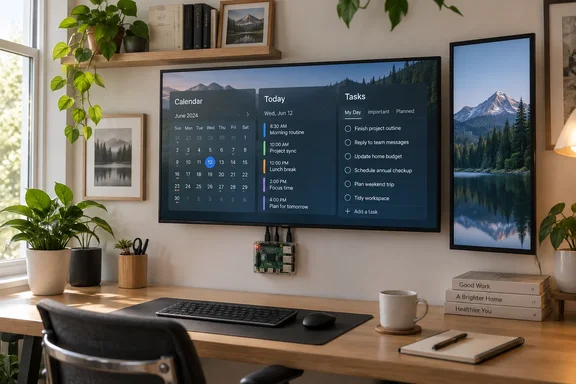
XDA Developers highlighted the project in its September 21 coverage. The developer’s documentation adds several details worth understanding before building one: updates normally arrive through 60-second polling, only one Microsoft account can be connected at a time, and the companion app deliberately has no login. Those boundaries make this a more specific proposition than a universal family calendar appliance.
What appears on the wall
WallCalToDo combines a monthly calendar, today’s agenda, and a to-do list on one screen. In portrait orientation, the calendar sits above the agenda and tasks; in landscape, the calendar occupies the left side, with the other two panels stacked on the right. The interface selects its layout from the browser’s aspect ratio rather than requiring a separate layout setting.
That automatic layout does not rotate the Raspberry Pi’s video output. A vertically mounted monitor still needs operating-system-level rotation so Chromium sees a tall, narrow desktop. A normal landscape installation avoids that additional configuration.
The account support is intentionally asymmetric. According to the repository, WallCalToDo can connect multiple Google accounts and let users choose individual calendars, but Microsoft To Do is limited to one Microsoft account at a time. Lists discovered under that account have their own visibility toggles. Microsoft integration here means tasks through Microsoft Graph; the documented calendar integration is Google Calendar, not Outlook Calendar.
For a household already using several Google calendars and one central Microsoft task account, that combination could be sufficient. It does not establish support for combining every household member’s separate Microsoft To Do account into one display. That is an important fit check before repurposing hardware or arranging a wall mount.
“Real time” means polling, followed by an immediate screen update
The synchronization mechanism is more precise than the “real time” description in XDA’s summary. WallCalToDo’s Node/Express backend checks Google Calendar and Microsoft To Do periodically. Its documented default, controlled by POLL_INTERVAL_MS in server/.env, is 60 seconds. Once it detects a change, it sends updated data to the display through a WebSocket connection, without reloading the page.
There are therefore two separate stages: discovering the cloud-side change and delivering it to the wall screen. Delivery from the backend can happen immediately after detection, but detection waits for a poll. Treat the display as a periodically refreshed view of your schedule rather than assuming that checking off a task on a phone will change the wall at exactly the same moment.
The project documentation says the interval can be shortened to roughly 15–20 seconds. It also describes incremental synchronization: Google sync tokens and Microsoft delta queries allow the backend to request changes instead of repeatedly retrieving everything. Those are documented design choices, not independently measured latency or resource-use results.
Microsoft’s Graph documentation confirms that both To Do task lists and task collections support delta queries for maintaining a local cache. Graph exposes lists through /me/todo/lists and tasks through the corresponding list’s tasks endpoint. This explains how an independent display can follow changes in Microsoft To Do without requiring users to maintain a separate task database manually.
Completed-task cleanup also has a useful boundary. WallCalToDo’s documentation says its first poll after midnight on Monday clears completed tasks from the wall’s displayed collection. It does not delete the underlying Microsoft To Do tasks; editing or marking one incomplete can bring it back onto the display.
The hardware is straightforward; account setup takes work
The developer identifies a Raspberry Pi 3B as the minimum, rather than the 3B+ listed in XDA’s summary, and recommends a Pi 4. The repository attributes the extra headroom chiefly to Chromium, which renders the kiosk interface. For a 1GB Pi 3B, its hardware notes recommend Raspberry Pi OS Lite with a minimal kiosk compositor instead of a full desktop.
The beginner setup path, however, uses the desktop edition of Raspberry Pi OS. A Pi 3B owner should recognize that the lighter configuration is a different setup path, not assume the full-desktop walkthrough implements that recommendation automatically. The documented hardware list also includes a power supply, a microSD card of at least 16GB, an HDMI monitor, and a computer to prepare the card.
This is a source-code installation with a backend and two web interfaces to build, rather than a finished appliance image. Google and Microsoft connections require provider API credentials and OAuth authorization. The companion app supplies Client ID and Client Secret fields for each service, so entering credentials does not require editing an environment file.
One easily missed requirement affects the order of the build: connect new accounts using Chromium on the Pi itself, with a keyboard and mouse available, before committing to unattended kiosk operation. The documented OAuth redirects use localhost, which refers to the device running the browser. Opening the account-connection flow on a phone would therefore point the redirect at the wrong device. Everyday settings changes can subsequently be made from a phone or laptop on the same network.
After authorization, the developer’s setup procedure checks that the display shows real events and tasks before enabling kiosk startup. If it remains empty, the documented first checks are to allow one default polling interval and inspect the backend log with sudo journalctl -u wallcaltodo -f. Account-connection failures should also produce an explanatory banner in the companion interface.
Privacy mode hides content, but does not secure administration
The companion app controls calendar and list visibility, themes, location, temperature units, and privacy mode. Its privacy toggle removes event titles while retaining their colored calendar indicators, and replaces the agenda and task contents with a placeholder. This lets the wall retain its calendar structure without displaying the details of appointments or reminders to visitors.
That visual privacy feature is separate from access control. The repository explicitly says the companion app has no login or passcode and trusts the home network. Hiding the schedule on the monitor does not add authentication to the settings interface.
For that reason, the project’s own guidance is to keep the service private rather than expose it publicly. It suggests a private remote-access option such as Tailscale for administration away from home. A shared or untrusted network deserves particular caution because the application itself supplies no administrator sign-in barrier.
WallCalToDo’s practical appeal is strongest when its existing boundaries match the household: Google-backed calendars, one Microsoft To Do account, a trusted local network, and a display intended for viewing rather than touch interaction. Verify those account connections and the on-screen result while the Pi and monitor are still accessible; the project’s documented setup puts wall mounting after software configuration and kiosk verification.
References
- This DIY project turns your spare Raspberry Pi and monitor into a fancy wall calendar XDA · 2026-09-21T01:06:50+00:00
- GitHub - kevinclayland/WallCalToDo · GitHub github.com
- Use the Microsoft To Do API - Microsoft Graph v1.0 | Microsoft Learn learn.microsoft.com