

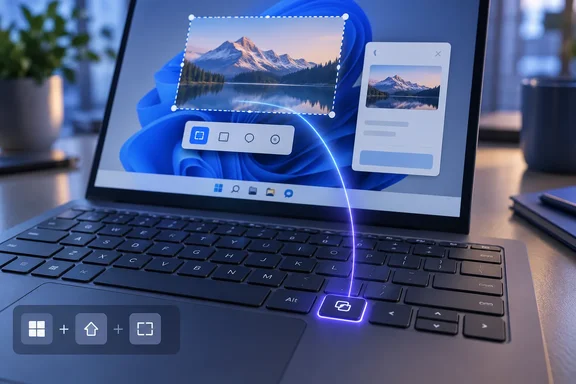
The guide is worth expanding because it mixes two separate tools. One is a built-in Windows 11 setting that is still rolling out. The other is Microsoft PowerToys, which can do much more but has its own limits. Below is what each one does, what's confirmed, and where things tend to break.
Why so many people want to remap the key
Microsoft pushed for this key, and the hardware followed. As XDA Developers summarized it, in 2024, Microsoft strongly encouraged manufacturers to include a dedicated Copilot key on Windows 11 laptops. In some cases, this meant replacing the right Ctrl key and the Context Menu key with Copilot, reworking the typical keyboard layout.
Anderson's own example is a Dell XPS 14, where the Copilot key sits between Alt and the arrow keys. He says that made it easy to hit by mistake while moving around Excel. Readers on a Microsoft Q&A thread have raised the same issue. One left-handed user wrote that they use my right hand to press Ctrl and plus/minus keys on keypad to zoom in and out in Photoshop, which stops working once Right Ctrl is gone.
Section summary: The key often takes the place of Right Ctrl or the Context Menu key. That's a real problem for keyboard-heavy users and people who rely on assistive technology.
Option 1: The built-in Windows 11 setting
You can do this without installing anything. Anderson points readers to Settings > Bluetooth & devices > Keyboard, where there's an option to customize the Copilot key. He describes these choices:
- Launch Windows Search
- Act as Right Ctrl
- Act as the Context Menu key
- Open one of several packaged apps installed on the PC (he uses YouTube Music)
The Right Ctrl and Context Menu options are the new part. Microsoft's release notes for KB5124010 say the update "introduces a new Windows 11 setting that lets you remap the Copilot key to function as the Right Ctrl or Context Menu key, helping preserve familiar keyboard shortcuts and accessibility workflows." KB5124010 is the September 22, 2026 non-security preview update. It covers Windows 11 versions 24H2, 25H2 and 26H2 (OS builds 26100.9550, 26200.9550 and 26300.9550).
Version and rollout caveats
- It's a gradual rollout. Microsoft lists the Copilot key change under the update's gradual-rollout features and says feature availability depends on device and market. Installing KB5124010 may not show the setting right away. Windows Central said the option had appeared inconsistently on Windows 11 during testing.
- Optional now, Patch Tuesday later. Anderson expects most PCs to get these options through the October Patch Tuesday update. If you want it sooner, Microsoft's release notes say to go to Settings > Windows Update > Advanced options > Optional updates.
- 24H2 Home and Pro users are running out of time. BleepingComputer notes that KB5124010 is the final preview update for Windows 11 24H2, which reaches end of support in October 2026. Microsoft's notes put Home and Pro end of updates at October 13, 2026. Enterprise and Education stay supported until October 12, 2027.
- You need the key itself. Microsoft says this behavior can appear on any Windows 11 device with a dedicated Copilot key. A desktop with an ordinary keyboard won't gain anything.
The Right Ctrl catch
If you map the key to Right Ctrl, Microsoft warns that shortcut combinations that include RCtrl+Win and RCtrl+Shift will not work as normal. Users are recommended to use the Left Control key for these combinations. Microsoft also says that if your laptop maker ships its own Copilot key utility, you should use either that or the Windows setting, not both. Two tools fighting over one key won't go well.
One more point: this setting only covers the functions described above. It can't send an arbitrary shortcut like the screenshot hotkey. That's where PowerToys comes in.
Section summary: The built-in setting restores Right Ctrl or Context Menu, or launches Search or an app. It arrives through KB5124010 in stages, and the Right Ctrl option has some shortcut limits.
Option 2: PowerToys Keyboard Manager (screenshot button and more)
PowerToys, Microsoft's free utility suite, is available from the Microsoft Store or GitHub. Its Keyboard Manager can turn the Copilot key into almost any shortcut. The important detail is that the Copilot key doesn't send a single keystroke. It sends a key combination, so you need Remap a shortcut, not Remap a key.
The combination depends on the hardware. Anderson's XPS 14 reports Win + Shift + F23, and so did a Microsoft Q&A answer, which stated that Copilot uses the Windows + SHIFT + F23 shortcut. Microsoft's PowerToys documentation lists two known implementations, Win + C and Left Shift + Windows + F23. Check what your laptop actually reports before assuming.
Step-by-step: make the Copilot key a screenshot button
- Install PowerToys and open it.
- Select Keyboard Manager in the sidebar and make sure it's turned On.
- Click Remap a shortcut. Don't use "Remap a key."
- Add a new remapping. In the physical shortcut (input) column, click Select (the pencil icon) and press your Copilot key. Check what it records. Win + Shift + F23 is common, but it isn't guaranteed.
- In the mapped-to (output) column, choose Key/Shortcut, click Select, and press Win + Shift + S.
- Click OK in the top-right corner to save.
How to tell it worked: Press the Copilot key. The Windows screen-capture overlay should appear just as if you'd pressed Win + Shift + S. Microsoft's documentation says remappings apply as soon as you press OK, with no restart needed. You're not adding a new screenshot tool here. The key is just triggering the shortcut Windows already has.
Other mappings from the same menu
The same steps work for other shortcuts. Only step 5 changes:
| Copilot key sends | What it does | Notes |
|---|---|---|
| Win + Shift + S | Screen capture overlay | Handy if the PrtSc key is hard to reach or labeled with an unclear icon |
| Win + V | Clipboard history | Useful if you copy and paste all day |
| Win + . (or Win + 😉 | Emoji, GIF and kaomoji picker | KB5124010 also adds Emoji 17.0 support to this panel |
| Win + Alt + K | Call mute in supported apps | Anderson cites Teams. Support depends on the app, so test before a meeting |
| Start App (e.g., wt.exe) | Launches a program | Anderson suggests Windows Terminal or Voidtools' Everything search |
To launch an app, set the output action to Start App and browse to the executable. Microsoft's documentation adds a few more controls: arguments, a working directory, elevation level (Normal, Elevated or Different User), and what to do if the app is already running (show the window, start another instance, close it, and so on).
Section summary: In PowerToys, use Remap a shortcut, capture whatever combination your Copilot key sends, and set the output to Win + Shift + S for a screenshot button. The same method works for clipboard history, emoji, mute or launching an app.
Gaming and chat keybinds: a workaround and a warning
Anderson also suggests binding the key inside apps, such as Discord push-to-talk or deafen, or Alt + F10 for Instant Replay in the NVIDIA app. The catch is that the key sends a multi-key combination, so some apps won't accept it. He says Discord is one of them. His fix is to have PowerToys remap the Copilot key to a spare key like F24 first, then bind F24 in the app. Microsoft confirms F13 through F24 can be mapped.
Microsoft's documentation is more cautious about games. It recommends not running Keyboard Manager while gaming, saying that intercepting key presses currently affects frame rates and that some keyboard APIs games use don't work with it. For chat apps running alongside a game, the F24 trick is reasonable. For in-game binds, you may want to switch Keyboard Manager off.
Troubleshooting: when it doesn't work
Most PowerToys remapping problems come from one of these:
- PowerToys isn't running. Mappings only work while PowerToys runs in the background with Keyboard Manager enabled. This is also your quick way to undo a bad mapping: close PowerToys or turn Keyboard Manager off.
- Elevated apps ignore the key. Microsoft says remapping won't work in a window running as administrator unless PowerToys is also running as administrator.
- Another app is grabbing keystrokes. Software that hooks the keyboard can conflict with Keyboard Manager. Microsoft's fix is to turn Keyboard Manager off and back on.
- The sign-in screen. Keyboard Manager doesn't work on password screens.
- The capture shows a different combination. That's normal. Use whatever your hardware reports.
- The Settings option is missing. You may not have KB5124010 yet, or the gradual rollout hasn't reached your PC. Don't combine it with a manufacturer's key utility.
The bigger picture
Microsoft is retreating, slowly. A key that was promoted as a gateway to AI is now getting an official setting to behave like the Ctrl key it replaced. Anderson also says a "Do nothing" option is expected in a future Windows 11 update. Microsoft hasn't documented that option yet, so treat it as a report for now.
For most people the choice is simple. If you just want your old Right Ctrl or Context Menu key back, use the built-in setting when it shows up. It doesn't need extra software running in the background. If you want a one-press screenshot button, use PowerToys, at least until Windows supports arbitrary shortcuts natively.
References
- September 22, 2026—KB5124010 (OS Builds 26300.9550, 26200.9550, and 26100.9550) Preview | Microsoft Support support.microsoft.com
- Windows 11 KB5124010 update released with 46 changes and fixes bleepingcomputer.com
- Remap the Copilot key to Ctrl in Windows 11? - Microsoft Q&A learn.microsoft.com