

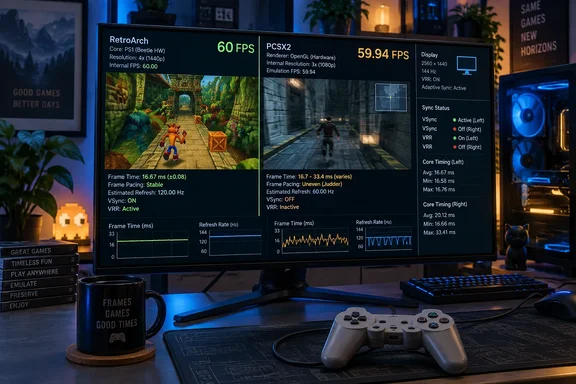
In a September 22 explainer, XDA described the familiar experience of returning to old games, improving their presentation, and finding that their movement still felt wrong. Its author had combined higher rendering resolution, frame-rate modifications, and CRT-style filtering—changes that affect different parts of the experience and cannot be evaluated as a single upgrade.
The broader distinction has support beyond that account. Monitor vendor KTC’s emulation explainer also distinguishes running at full speed from presenting frames evenly, identifying refresh mismatch, synchronization, shader load, and latency as separate considerations. That is explanatory guidance rather than an independent benchmark, but it reinforces the right starting point: a steady FPS counter is evidence of throughput, not proof of faithful timing.
RetroArch’s statistics explain what a 60 FPS counter leaves out
“60 FPS” looks like a complete answer because it reduces a complicated process to a familiar target. In emulation, however, the number can describe output without establishing how often the original game creates a new image, whether the game is advancing at its intended speed, or how evenly the monitor displays those images.
Libretro, the project behind RetroArch, makes those distinctions explicit in its synchronization documentation. RetroArch can expose the frame timing requested by an emulation core, the display refresh rate entered in its configuration, and the rate at which it is actually outputting frames. A core is the emulation component RetroArch uses to run a particular system or supported collection of software. Those three measurements are related, but they answer different questions.
The documentation also includes an important warning for anyone using an overlay to assess an older game: neither the core’s reported timing nor the output FPS necessarily falls to 30 when the content itself runs at 30 frames per second. Internal frame doubling can keep those readings higher. Seeing 60 on the screen therefore does not establish that the game is producing 60 distinct stages of movement each second.
RetroArch separates requested timing from delivered output
The following readings are more useful together than a single headline counter:
| RetroArch statistic | What it describes | What it can help establish |
|---|---|---|
Core AV_INFO->FPS | The exact frame timing requested by the core. | The cadence the emulation component is asking RetroArch to maintain. |
Video->Refresh | The configured Vertical Refresh Rate value. | The display timing RetroArch has been told to use. |
Video->FPS | The current rate of actual video output. | Whether output is tracking the expected synchronization target. |
Audio->Underrun | Recent periods when the audio buffer is close to emptying. | Whether audio is struggling to keep pace with video. |
Audio->Blocking | Recent periods associated with audio running ahead. | Whether synchronization trouble exists in the other direction. |
Libretro says that with variable refresh rate enabled, Video->FPS should match Core AV_INFO->FPS. With variable refresh rate disabled, output should settle close to the configured display refresh rate divided by the VSync swap interval. These are specific relationships to check, rather than a blanket instruction to make every number read 60.
The swap interval determines how many display-refresh opportunities separate presented frames in the fixed-refresh configuration described by Libretro. At 120 Hz, an interval of two produces a nominal 60-frame output cadence. At 180 Hz, an interval of three serves the same purpose. The interval is part of the timing arrangement, not a quality slider where a higher or lower value is automatically better.
Frame pacing adds another dimension. As a simple mathematical illustration, a counter could total 60 frames over a second even if some appeared closer together and others farther apart. The count would be correct while the delivery was uneven. That example is not a measurement of a particular emulator; it explains why an average alone cannot describe motion.
Input response is a further question. Libretro documents latency controls separately from synchronization controls, including settings that limit how far processing can run ahead of the displayed image. Consequently, evenly delivered frames do not by themselves establish low latency. A game can have convincing scrolling while still feeling less immediate under the controller, and changing the synchronization settings should not be treated as a universal controller fix.
The practical diagnostic gain is substantial. A repeated hitch in scrolling, a menu running too quickly, and a delayed response to a button press are different observations. Writing all three off as “bad emulation at 60 FPS” hides the distinction that would help identify a useful next step.
PCSX2 patches show why 60 FPS can change the game itself
An emulator must preserve enough of the original machine’s behavior for the software to run correctly. Increasing the frequency of video output does not, on its own, rewrite every timing assumption inside a game. A frame-rate patch may need to change the game’s internal calculations as well as remove a cap.
The PCSX2 patches repository provides a particularly clear example in its patch for the NTSC-U release of The Simpsons Skateboarding, identified as SLUS-20114. The patch description says it removes the frame-rate cap and runs the simulation at 60 FPS, while warning that some elements, including the user interface, run quickly. That warning is part of the patch’s documented behavior, not evidence that every PCSX2 enhancement has the same problem.
The accompanying comments reveal the work behind the modification. They describe changing the timestep from 33 milliseconds to 16 milliseconds, along with adjustments associated with animation speed, gravity on slopes, and stationary turning speed. The patch also includes a condition intended to apply its changes in the game executable rather than the separate full-motion-video player.
Those details explain why “unlock 60 FPS” can be a misleadingly simple label. A timestep is the interval used when advancing a simulation. If a game’s movement and animation calculations depend on that interval, changing how often the game updates can require corresponding changes elsewhere. The PCSX2 patch exposes several such dependencies in one title without establishing that every PlayStation 2 game uses the same design.
The interface warning is equally instructive. The patch can target the main simulation and still leave another part of the experience behaving differently. A successful opening level does not necessarily demonstrate that menus, videos, scripted sequences, and every movement mechanic retain their original timing.
A frame-rate patch needs a gameplay comparison
XDA’s author reported a more disruptive example in Prince of Persia: The Two Thrones: a wall-running section that became impassable while using a 60 FPS modification in a PS2 emulator, then worked again after returning to 30 FPS. The author also mentioned a 144 Hz display. That remains XDA’s account rather than an independently reproduced diagnosis; the evidence does not establish the patch version, the game revision, or that the monitor caused the failure.
The distinction is important. A fixed 144 Hz display can create an uneven presentation cadence for 60-frame content, but that alone does not prove why a wall-running mechanic would stop working. The documented PCSX2 patch example supports the broader concern about game-specific timing changes. It does not verify the exact cause of the Prince of Persia incident.
For a player deciding whether to keep a modification, the useful comparison is therefore broader than watching the FPS readout. Does movement proceed at the expected speed? Do menus animate normally? Does the same scripted action behave correctly? These questions follow directly from the kinds of changes and limitations documented in the patch repository.
A reasonable diagnostic inference is to compare the affected behavior with and without the frame-rate modification while keeping the display configuration unchanged. That separates a change to game behavior from a change to presentation. It is not a universal repair procedure, and patch controls differ by emulator and installation, so there is no single verified switch sequence to prescribe for every title.
Higher resolution and CRT-style filtering belong in a different category. They alter presentation, and a demanding shader can affect performance, but neither establishes that the game’s simulation has been converted correctly to another update rate. Combining all those changes at once makes it harder to discover which one improved the experience and which introduced a new difference.
The decision need not become an argument against enhancements. A well-behaved frame-rate modification can be a worthwhile way to play. The choice is whether its documented compromises are acceptable for that particular game, rather than whether 60 is inherently a more faithful number than 30.
RetroArch must reconcile console timing with the monitor’s clock
Even an unmodified game can encounter a timing mismatch. The original hardware’s cadence and a modern monitor’s selected refresh rate are not guaranteed to be identical merely because both are commonly described as “60.”
Libretro’s synchronization guide uses NTSC NES and SNES content requesting approximately 60.1 Hz as an example. That is close to 60 Hz, but not equal to it. It also explains why a driver-level frame cap set at exactly 60 can interfere with exact-content synchronization: the cap can prevent output from reaching the slightly higher rate the core requests.
The small numerical difference accumulates. As an illustration using rounded figures, a source producing 60.1 frames each second generates roughly one extra frame over ten seconds compared with a display presenting exactly 60 each second. That arithmetic does not predict the hitch interval of a configured emulator, because synchronization can adjust how the clocks interact. It does show why “only a tenth of a frame” is not a permanent nonissue.
There are two broad approaches in Libretro’s guide. With fixed refresh, RetroArch can reconcile content timing with a suitable display cadence, using dynamic rate control to keep audio and video aligned. With supported variable refresh rate, the presentation system can instead follow the core’s requested timing more directly.
Fixed refresh favors evenly divisible rates
For fixed-refresh operation, Libretro recommends a display rate close to an evenly divisible multiple of the core’s requested rate. Its examples are approximately 60, 120, 180, or 240 Hz for NTSC-like content, and 50, 100, 150, or 200 Hz for PAL-like content. These are categories for configuring synchronization, not a claim that every console or game from either region uses precisely the same clock.
A nominal 120 Hz mode has an obvious relationship with nominal 60-frame content: each content frame can occupy two refresh cycles. A nominal 144 Hz mode has no equivalent whole-number relationship, because 144 divided by 60 is 2.4. Without a suitable alternative synchronization arrangement, frames cannot all occupy the same integer number of refresh cycles.
That is why buying a faster monitor does not automatically solve this particular problem. The relevant question is whether the selected mode and synchronization method suit the content. A high-refresh display operating in a compatible fixed mode can be useful; running the same display at an awkward fixed multiple can make the configuration less straightforward.
Libretro’s guide specifically identifies 75, 90, 144, and 165 Hz as problematic fixed-refresh choices for the content rates under discussion, recommending variable refresh for smooth synchronization at those modes. This should be understood within the guide’s RetroArch configuration, rather than expanded into a claim that those refresh rates are unsuitable for PC gaming generally.
Variable refresh follows content, within the display’s limits
Variable refresh rate, or VRR, allows the display timing to follow arriving content within the supported operating range. RetroArch’s relevant control is named Sync to Exact Content Rate, with G-Sync and FreeSync included in the label in Libretro’s guide. Some references use “Framerate” rather than “Rate” in that name.
The benefit is specific: Libretro says this arrangement can synchronize to the core’s originally intended speed without using the configured Vertical Refresh Rate value to adjust content timing. It is therefore useful for the near-60-but-not-exactly-60 problem. It does not fix an incorrect game patch, add missing simulation updates, or prove that input latency has been minimized.
The monitor and display driver must also have VRR enabled. Selecting the RetroArch option alone does not establish that the rest of the path is working. Similarly, an external cap at precisely 60 FPS can undermine the arrangement when the core requests approximately 60.1.
VRR has a lower operating boundary, too. Libretro warns that behavior around low-framerate compensation can affect pacing on some displays, including cases where that boundary is close to the content’s output rate. Low-framerate compensation uses repeated display refreshes to accommodate content below the normal VRR range, with behavior depending on the implementation.
For a display that behaves poorly near that boundary, Libretro explicitly offers fixed-refresh synchronization as an alternative. VRR is a useful timing method, not a requirement that should be retained despite worse results. The guide’s fallback is to stop using exact-content synchronization inside RetroArch and configure the fixed-refresh swap-interval method instead.
Configure RetroArch around one synchronization method at a time
The most useful change is procedural: establish a coherent timing configuration before experimenting with latency and visual effects. Libretro warns that changing several settings at once can fix one problem while introducing another, or leave the user unable to identify which adjustment helped.
These instructions apply to the controls documented in RetroArch’s synchronization guide. They are not PCSX2 instructions, and the evidence does not identify a minimum RetroArch release or establish an identical menu layout across every version and interface. The documentation itself uses both modern Settings paths and a System > Video Settings > Synchronization grouping; the named controls are more dependable identifiers than assuming one path is universal.
Before changing several options, retain a record of the current values so individual changes can be reversed. That is a troubleshooting precaution, not a claim that RetroArch provides an automatic rollback system. Avoid importing an entire “best settings” recipe while trying to isolate a timing fault.
Establish the display rate for fixed-refresh operation
For a fixed-refresh configuration, start with the actual display mode and RetroArch’s estimate of its timing:
- Select a display refresh mode appropriate to the content, using the guide’s near-60 multiples for NTSC-like content or near-50 multiples for PAL-like content. Setting a number inside RetroArch does not itself establish that the monitor is operating in that mode.
- Make sure Vertical Sync is enabled and working. Libretro also recommends full-screen operation when estimating refresh timing, because a desktop compositor can interfere with the measurement.
- Open
Settings > Video > Output > Estimated Screen Refresh Rate. Allow its running average to settle rather than accepting the first changing number. - Use the accept action on the estimate to configure RetroArch with that measured value. The corresponding configured field is
Settings > Video > Output > Vertical Refresh Rate. - Set VSync Swap Interval to Auto unless a specific problem gives you reason to configure it manually. Libretro prefers Auto in ordinary circumstances because it can respond to related setting changes.
The estimate matters because Libretro says operating-system-provided refresh information is not sufficiently accurate for this task in every case. Its guide calls for roughly 0.1 percent accuracy for dynamic rate control to smooth out drift. Entering “60” simply because that is the display mode’s familiar label can miss the distinction the measurement is intended to capture.
For manual swap-interval configuration, the guide gives straightforward examples: one at 60 Hz, two at 120 Hz, and three at 180 Hz, all targeting approximately 60-frame content. Use the actual configured display rate when evaluating the relationship. A manually selected interval that made sense before changing the monitor mode may no longer make sense afterward.
When using the fixed-refresh method with a manually selected interval other than one, Libretro says to keep Black Frame Insertion and Sync to Exact Content Framerate disabled. These are alternative timing arrangements that should not be piled together. A collection of individually useful options can become an incoherent configuration.
Success is more than seeing the target FPS. After the averages settle, video output should track the expected refresh-rate-and-swap-interval relationship, scrolling should remain consistent, and audio should avoid recurring crackles or synchronization pauses. If the refresh estimate itself continues to fluctuate substantially, Libretro recommends repeating the measurement rather than treating an unstable result as authoritative.
Configure exact-content timing for a VRR display
For variable-refresh operation, the documented arrangement is different:
- Enable VRR for the display and in the graphics driver. The exact controls depend on the monitor and driver, so no universal Windows click path is established here.
- In RetroArch’s video synchronization controls, enable
Sync to Exact Content Rate (G-Sync, FreeSync), or the corresponding “Framerate” label. - Keep Vertical Sync enabled and set VSync Swap Interval to either Auto or one.
- Disable Black Frame Insertion rather than combining it with this synchronization method.
- Check any external frame-rate cap. Libretro advises that a cap should be at least slightly above 60, rather than exactly 60, for content such as NTSC NES or SNES that requests approximately 60.1 Hz.
- Compare
Video->FPSwithCore AV_INFO->FPSonce output has settled. The guide says those values should match with VRR operating.
In this mode, Libretro says the configured Vertical Refresh Rate value is not used to adjust timing toward the display rate. Keeping that value accurate remains good practice, but it is not the mechanism that makes exact-content VRR work. That is a meaningful difference from the fixed-refresh procedure.
If output is substantially above the expected rate, the documentation identifies improperly engaging VSync or VRR, together with disabled audio synchronization, as possible causes. If output is substantially below it, a wrong swap interval or insufficient performance are among the possibilities. The reading narrows the investigation; it does not identify a unique cause by itself.
Keep audio synchronization in the diagnosis
Leave Settings > Audio > Synchronization > Synchronization enabled. RetroArch’s dynamic rate control is designed to synchronize video and audio together, and Libretro cautions that obtaining proper synchronization without it is nearly impossible.
For non-VRR operation, Maximum Timing Skew controls how far RetroArch is willing to adjust the core’s requested speed to match the configured timing arrangement. The guide says the default is generally suitable. Increasing it indiscriminately is not an accuracy upgrade: it permits larger differences between requested timing and the timing used to achieve synchronization.
Audio therefore acts as a diagnostic signal. Repeated popping, crackling, or short pauses can be evidence that the audio and video paths are not agreeing, rather than an unrelated sound problem. Fixing the timing relationship is more informative than simply muting the audio while watching the FPS counter.
RetroArch troubleshooting should remove interference before chasing latency
Once the basic synchronization method is coherent, remaining problems can come from workload, external overrides, or more aggressive latency settings. Libretro’s guide addresses these in a deliberate order. That order is valuable because a PC can be capable of emulating the system while still encountering inconsistent presentation under a particular combination of settings.
Start with observations rather than assumptions about GPU power. A heavy CRT shader at a high output resolution increases the work needed for presentation. Threaded video can help hardware reach the required speed, yet Libretro also identifies it as a source of poorer frame pacing and audio synchronization. A setting can improve throughput while weakening the consistency the player is trying to recover.
For measurement inside RetroArch, the documentation provides a statistics display at Settings > User Interface > On-Screen Display > On-Screen Notifications > Notification Visibility > Display Statistics. This exposes the timing and audio readings discussed earlier. Libretro notes that an external monitoring program can itself introduce a small amount of jitter, making the built-in display a useful starting point.
Let the application run normally before interpreting audio statistics. Libretro cautions that recent menu access, slow motion, or fast-forward can affect the readings. A transient value immediately after one of those actions should not be treated as proof of a persistent fault.
Check external overrides before changing the emulation core
Driver and utility settings can defeat an otherwise sensible RetroArch configuration. Libretro’s first external check is that the graphics driver is not overriding the application to force VSync off. For VRR, both the driver and display need to participate, as described above.
External frame caps require particular care. The guide says a fixed-refresh setup using a 240 Hz display and a swap interval of four still needs 240 potential vertical-refresh opportunities per second to synchronize correctly to 60 actual content frames. Its recommendation is that an external cap for non-VRR operation should be at least as high as the selected display refresh rate.
This is a counterintuitive but practical distinction. A cap chosen to match the game’s nominal FPS can interfere with the presentation machinery used to deliver that rate. The cap belongs in the synchronization review even when it appears to be set to the “right” number.
Libretro also identifies overlays and active recording or streaming software as potential sources of interference. Temporarily removing them is a diagnostic comparison, not a claim that Discord, Steam, or a capture application universally breaks emulation. If a recording workflow matters more than achieving the last improvement in pacing, the documentation explicitly recognizes that trade-off.
Full-screen mode is another controlled comparison. The guide says both ordinary windowed mode and windowed full-screen mode can contribute to pacing problems, and identifies disabling Windowed Full-Screen Mode as something to test. This should remain a test of the affected setup, not an unsupported rule that every Windows 10 or Windows 11 emulator must avoid borderless presentation.
Multiple displays and moving content on a secondary screen also appear among Libretro’s possible sources of interference. The guide notes that Windows 10 and Windows 11 compositing handles multiple active sources better than in the past, while still treating the behavior as configuration-dependent. There is no basis here for diagnosing every multi-monitor PC as faulty or prescribing a system-wide change before simpler checks.
Reduce optional workload without confusing the result
Within RetroArch, Libretro lists Threaded Video, demanding shaders, renderer choice, and core-specific options as possible influences on synchronization. Test them individually. Disabling a shader and switching the renderer simultaneously may improve the result, but it will not reveal which change was responsible.
Threaded Video deserves special caution because the trade-off can run in either direction. Turning it off may improve pacing on a sufficiently capable system; on weaker hardware, it may remove the mechanism that allowed the content to approach its intended speed. Keep it only if the resulting compromise is preferable for the actual game and machine.
Likewise, renderer APIs such as Vulkan, OpenGL, and DirectX 11 can interact differently with the system or core. The documentation supports trying an alternative if problems persist. It does not establish a universally best renderer, and changing APIs is not evidence that the original API is generally defective.
Core overclocking is another variable. Libretro notes that it can raise system requirements enough to prevent full-speed operation. A user who has increased emulated performance as part of an enhancement package should include that change in the investigation rather than assuming the host PC’s low average utilization rules out a timing problem.
The guide also mentions GPU power-state changes as a possible contributor on some powerful graphics cards. It suggests considering a maximum-performance power-management setting where the driver provides one, particularly if the GPU repeatedly shifts between low- and high-power states. This is a conditional troubleshooting option, not a reason to change every Windows power setting or conclude that more electrical consumption automatically improves emulation.
Aggressive latency settings can reduce synchronization headroom
RetroArch includes Frame Delay, Automatic Frame Delay, Run-Ahead to Reduce Latency, and Run Pre-Emptive Frames among its latency controls. Libretro advises reducing or disabling these when synchronization remains unstable, because excessive settings or insufficient performance can prevent proper timing even on otherwise capable hardware.
This is a genuine trade-off. Lower response delay may be desirable, but a configuration that cannot deliver frames reliably has not necessarily improved the overall experience. Establishing stable synchronization first creates a baseline from which a latency change can be judged meaningfully.
Audio Latency is especially easy to misread. Libretro warns that setting it too low can cause stuttering while RetroArch waits to refill the smaller buffer when audio synchronization is enabled. With synchronization disabled, the result can instead be poor audio output. The guide identifies 64 milliseconds as the default chosen to avoid these problems.
That buffer value is not a measurement of total controller-to-screen latency. It is an audio setting with consequences for synchronization. Treating every setting containing “latency” as something to minimize can therefore make a game feel less consistent despite the intention to improve responsiveness.
Finally, controls such as Hard GPU Sync, Max Swapchain Images, and Waitable Swapchains can limit how far processing runs ahead of the displayed image. Availability depends on the renderer. Libretro says relaxing those constraints can provide more performance headroom when smooth pacing is the priority, at the expense of increased latency.
The guide does not promise that all remaining faults are configurable away. Some content exceeds the available hardware’s capabilities, and some cores have less consistent timing. An alternative core designed for lower-specification hardware is one documented option, but there is no evidence here to rank particular cores or promise identical compatibility and accuracy.
What this means for your Windows emulation setup
If an emulated game feels wrong, first decide whether the symptom is altered gameplay, uneven presentation, or delayed response. That classification determines whether to investigate a game patch, the display synchronization path, or latency-related settings. Buying hardware or importing a large settings preset before making that distinction can leave the original problem unresolved.
For a game with a frame-rate modification, compare its behavior against the unmodified timing before blaming the monitor. For an unmodified game with periodic scrolling hitches, inspect the core-requested rate, actual video output, and selected display mode. For stable-looking motion with unsatisfactory response, recognize that synchronization is only one part of the experience and avoid treating a higher FPS reading as a latency measurement.
The most concrete takeaways are these:
- A RetroArch reading of 60 FPS does not establish 60 unique gameplay frames, because the documentation says internal frame doubling can keep the reported rate higher than the content’s own rate.
- A 60 FPS patch should be assessed title by title, including movement, menus, and scripted sequences; the PCSX2 patch for The Simpsons Skateboarding explicitly documents faster interface behavior.
- For fixed-refresh RetroArch operation, use a display mode close to an even multiple of the content rate, measure the refresh estimate, and keep the VSync swap interval consistent with that mode.
- For VRR operation, enable exact-content synchronization alongside working display-and-driver VRR, keep VSync enabled, use Auto or one for the swap interval, and leave Black Frame Insertion off.
- Keep audio synchronization enabled and investigate persistent underrun or blocking readings after normal playback has settled, rather than assuming audio problems are separate from video timing.
- Change one variable at a time, and relax demanding shaders or aggressive latency settings when they prevent stable pacing rather than preserving them solely because they are labeled enhancements.
Users whose games already behave correctly need not undertake an exhaustive tuning exercise. Libretro explicitly allows stopping once the result is satisfactory. The point of the procedure is to resolve an observed fault, not to turn every emulator installation into an ongoing pursuit of perfect-looking statistics.
There is also no supported reason here to replace a working PC. The evidence identifies several configuration and game-modification causes that can exist independently of raw host performance. Hardware becomes the relevant decision when measurements and controlled comparisons indicate the system cannot sustain the required workload, not merely because an old game feels unfamiliar.
Better emulation needs a baseline beyond 60 FPS
The strongest lesson from XDA’s experience is methodological. Enhancements should be evaluated against a known baseline, with an understanding of what each one changes. Higher resolution, a new simulation rate, a CRT-style shader, and a different synchronization method may all be desirable, but they do not solve the same problem.
The available evidence also sets limits on what can be concluded. XDA’s Prince of Persia wall-running account is not a confirmed universal bug. The PCSX2 patch demonstrates timing dependencies in one identified game release. Libretro’s guide supplies a detailed RetroArch procedure, not a guarantee that the same menu options or outcomes apply to other emulators.
Nor does an exact-content VRR configuration establish a complete recreation of an original console-and-display setup. It addresses a documented timing relationship. The supplied evidence does not measure end-to-end controller latency, compare CRT motion with modern display behavior, or benchmark every core mentioned in the discussion.
What it does establish is enough to make a better decision: reported frame rate, simulation behavior, presentation cadence, and audio synchronization deserve separate checks. A reliable setup is one in which the intended game behavior survives the enhancements and the output remains consistent under normal play.
The next useful step is a controlled comparison on the game that actually feels wrong. Restore a timing baseline, select one coherent synchronization method, and add improvements back individually. That makes the result explainable—and makes it possible to keep the enhancements that genuinely improve play without mistaking a perfect-looking counter for a faithful experience.