

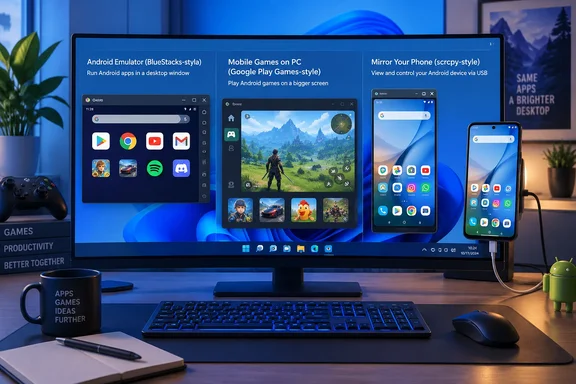
The list holds up. The catch is that "Android on Windows" now means three different things, and each one has its own requirements and limits. Here's a practical guide to what works, what's needed, and where it goes wrong.
First, the WSA situation
Windows Subsystem for Android (WSA) was Microsoft's built-in way to run Android apps on Windows 11. It worked through the Amazon Appstore. Microsoft said the Amazon Appstore on Windows and all applications and games dependent on WSA will no longer be supported beginning March 5, 2025. Microsoft's support page says that from that date, WSA and the Amazon Appstore are no longer available in the Microsoft Store.
Microsoft never made much noise about it. Redmondmag noted that there seems to have been no other public announcement from Microsoft about the end of Window Subsystem for Android beyond that notice in the documentation. What about existing installs? Answers on Microsoft Q&A were mixed. One said WSA should still work if it's already installed, but Microsoft will stop supporting it—meaning no more updates or fixes. Another user said that after the March 5 update, their WSA completely vanished. Either way, it's unsupported software, and you shouldn't build new plans around it.
Summary: WSA is gone from the Store and unsupported. Everything below is a third-party or Google route.
The three routes that remain
| Route | What it actually does | Best for |
|---|---|---|
| BlueStacks (emulator) | Runs a full Android environment on your PC | General apps, testing, multiple accounts, old APKs |
| Google Play Games on PC | Google's own client for games in its PC catalog | Supported mobile games |
| scrcpy | Shows and controls your physical Android phone on the PC | Apps already installed on your phone |
People tend to lump these together, but they're different tools. According to Google's help page, Play Games on PC is for playing mobile games on Windows. It won't run any app you like. scrcpy doesn't run Android on your PC at all. It streams your phone's screen to the PC and sends your keyboard and mouse input back to the phone.
Situation 1: Playing Android games on a PC
This is the obvious one. How-To Geek says it's the main reason people reach for BlueStacks and Google Play Games. You get keyboard and mouse controls, no phone battery drain or overheating, and often higher resolutions and frame rates on a much bigger screen.
If you want the Google route, check the hardware first. Google's published minimum requirements for Play Games on PC are:
- OS: Windows 10 version 2004
- Storage: SSD with 10 GB free
- Memory: 8 GB RAM
- Graphics: Intel UHD Graphics 630 or comparable (Google recommends a gaming-class GPU such as the Nvidia GeForce MX450 for better performance)
- CPU: 4 physical cores (8 logical cores recommended)
- Other: A Windows admin account, and hardware virtualization turned on
Setup tips from Google, and common failure points:
- Turn on virtualization in your BIOS/UEFI firmware before you install. If it's off, you won't get past the requirements check.
- During installation you may be asked to turn on Windows Hypervisor Platform. Say yes.
- Google says to make sure the SSD is set up as the main drive.
- You need a personal Google Account, and your Play country must be set to a supported region. Google lists supported countries, and some regions may also require an age check.
- If your PC falls short of the minimums, Google warns some games may not run well. You can filter the catalog to hide games that may struggle on your PC, and performance warnings appear on a game's details page.
Games in Google's catalog are the safest option here. BlueStacks will try to run a much wider range of titles, but nobody guarantees they'll work.
Summary: Games in Google's catalog are the easiest option. BlueStacks is the fallback for games Google doesn't offer.
Situation 2: Apps with no proper desktop version
How-To Geek's examples are Instagram and Snapseed. The author says Instagram's Android app beats its website, and that the Microsoft Store version is just a website wrapper. Snapseed is a popular Android photo editor with no Windows version. Those are the author's opinions, but anyone who has used a mobile-first app in a desktop browser will recognize the frustration.
The article is also honest about the downsides. Some apps misbehave in an emulator, lose features, or work badly with a mouse. Apps built for touch are easier on a touchscreen laptop. Without one, some just won't be very usable. So yes, it's easier than you think. That doesn't mean every app will work.
Situation 3: Testing a sketchy app before it reaches your phone
The idea: install the questionable app in BlueStacks first. Check its permissions and how many ads it shows, and watch for red flags like requests for sensitive data. Sign in with a throwaway Google account so the app never touches your main account or your phone.
That's a sensible habit, but treat it as risk reduction, not certification. BlueStacks is still software running on your Windows PC, with network access. None of the documentation reviewed here explains how BlueStacks isolates apps from the rest of your PC, so don't assume it's a secure sandbox. My advice, based on general security practice:
- Never type real passwords, payment details, or personal data into an app you're evaluating.
- A throwaway Google account protects your main account. It does nothing to protect your PC.
- If the app does something odd, delete the whole emulator instance.
Summary: Useful for spotting obvious bad behavior. It doesn't prove an app is safe.
Situation 4: Two accounts in the same app, side by side
This is where BlueStacks really stands out. Its Multi-instance Manager runs several separate Android environments at once, and each one can have its own Google account. BlueStacks' support documentation lists "use different accounts at the same time" as a feature, along with playing several games together and farming in games.
How to set it up, per BlueStacks' documentation for BlueStacks 5:
- Open the Multi-instance Manager.
- Click the "Instance" button and follow the on-screen instructions. You'll pick an Android version: Nougat 32-bit, Nougat 64-bit, Pie 64-bit, Android 11, or Android 13.
- You can also copy an existing setup with "Clone instance".
- Sign in to each instance with a different Google account, install the same app in each, and log in with a different account in each one.
- Use the grid icon to arrange your running instances on the desktop automatically.
Watch your resources. How-To Geek warns that each instance uses your PC's resources, so two copies of a demanding game can slow things down. BlueStacks offers an Eco mode to cut power use when several instances are running. It also has a Disk cleanup tool to free up space BlueStacks isn't using. Also keep in mind that separate instances only get around the account-switching problem. Whether an app's own rules allow multiple accounts is a different question.
Situation 5: Reviving old apps and games no longer on the Play Store
How-To Geek remembers the era when big publishers went all in on mobile: EA's Mass Effect Infiltrator, Dead Space, several Need for Speed titles, Assassin's Creed Identity, and Angry Birds Epic. They're all long gone from the Play Store. If you can find the installation files (APKs), BlueStacks can install them in seconds.
The author's own results were mixed. Dead Space Mobile had badly broken graphics even in a separate Nougat 32-bit instance, while Angry Birds Epic ran perfectly. Those are one person's tests, not general compatibility results.
This is also the riskiest of the five situations. The article recommends reputable sites such as APKMirror. APKMirror's FAQ says all uploads are verified before publishing, and that it checks new versions of an app carry the same cryptographic signature as the original. That's the site's own claim, and it's a good sign. Other APK sites make no such promise.
Common installation errors, according to APKMirror's FAQ:
- "There was a problem parsing the package": usually the APK needs a newer Android version than the one you're running. Look for an older build, or in BlueStacks, try an instance with a newer Android version.
- Signature mismatch: the APK was signed with a different key than the version already installed.
- Wrong CPU architecture: for example, an APK that only includes arm64 code on a 32-bit environment.
- "Get this app/game from Play" screen: Google's Play Integrity API lets developers block sideloaded copies, so some apps refuse to run unless installed from the Play Store.
The scrcpy alternative
Is the app already on your phone? Then you may not need emulation at all. scrcpy's GitHub page describes it as mirroring Android devices over USB or TCP/IP with keyboard and mouse control, without root or an app installed on the phone. It runs on Windows, Linux, and macOS.
Prerequisites and tips from the project:
- Your phone needs Android 5.0 (API 21) or later. Audio forwarding needs Android 11 or later.
- Turn on USB debugging on the phone. On some devices, especially Xiaomi, you also need to enable a separate "USB debugging (Security Settings)" option and reboot before keyboard and mouse control will work.
- Lowering the resolution (for example,
scrcpy -m1024) can greatly improve performance. - Right-click is Back, middle-click is Home, and Alt+F toggles fullscreen.
- The project warns that its GitHub repository is the only official source. Don't download releases from random websites.
The verdict
How-To Geek's point is right: WSA's demise didn't end Android on Windows, it just scattered it across several tools. My take: use Google Play Games on PC for games in its catalog, BlueStacks for general apps, testing, and multiple accounts, and scrcpy for apps already on your phone. Be careful with old APKs from the internet.
None of these routes brings back what WSA was supposed to be: Android apps built into Windows. There's no single tool for every job anymore, but for anyone who just wants Angry Birds Epic on a 27-inch monitor, that's no big loss.
References
- Check if your PC can run Google Play Games on PC - Google Play Help support.google.com
- Running Android apps on Windows is easier than you think, and it's worth the effort in these 5 situations - How-To Geek How-To Geek · 2026-09-30T12:00:14+00:00
- How to create and manage instances using the Multi-instance Manager on BlueStacks 5 – BlueStacks Support support.bluestacks.com