

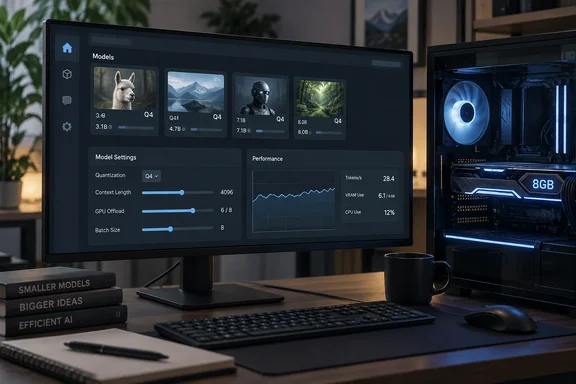
This is not a benchmark lab result. The numbers are from one person's machine and should be read that way. The method holds up, though, and LM Studio's own documentation, plus a growing set of low-VRAM guides, supports the key settings.
Several small models instead of one big one
Jonker's setup has three layers:
- Qwen 3.5 9B at Q4_K_M is the main model. It handles long tasks, agent work, anything that touches files, and coding-adjacent jobs.
- Gemma 4 E4B at Q4_K_M is the fast model for quick questions. Jonker says it accepts images and audio and reached up to 70 tokens per second, depending on setup and workload.
- LFM2.5 1.2B Instruct has one job: web lookup through Brave Search. It did badly when asked to write a structured study guide. It was also the only tiny model in Jonker's tests that called the search tool properly without making things up.
It's the same idea as a toolbox. You don't reach for a sledgehammer to hang a picture frame, and you don't need to load your heaviest model to ask what time zone Lisbon is in.
Quantization is central. Jonker would rather run a bigger model at Q4 than a smaller one at Q8, which matches common community advice for a fixed memory budget. Jonker also prefers Unsloth's quantized builds when they exist. That's a personal preference based on reputation, not a proven quality guarantee.
Jonker also explains why Qwen can handle longer context than expected on 8GB: only 8 of its 32 layers keep a growing KV cache, so memory grows slowly as the context gets longer. Jonker usually keeps Qwen at 20,000–40,000 tokens and can push to about 60,000 when little else is running. Those limits depend on this exact model, quant and machine. Don't treat them as a promise for every 8GB card.
Section summary: Assign models to tasks and use Q4 quants to stretch an 8GB budget. Treat the author's speeds and context limits as one person's results.
Load settings matter as much as the model
The most useful point in the piece is that many problems Jonker blamed on weak hardware or bad models were really load-setting mistakes. Load settings are chosen before the model starts, unlike per-chat settings such as temperature. They decide whether the model fits in VRAM at all.
GPU offload
This decides how many of the model's layers stay on the GPU. Whatever doesn't fit goes to the CPU and system RAM, which is much slower. When Jonker pushed Qwen past what the card could hold, speed fell from about 20 tokens per second to about 9. Partial offload is also how Jonker ran gpt-oss 20B, and later Gemma 4 12B. Both ran slowly, and the Gemma run left the PC hard to use for anything else.
LM Studio's command-line tool lets you script this. InsiderLLM's LM Studio guide shows lms load commands with --gpu max, --gpu 0.5 for half the layers, --gpu off for CPU only, and --gpu auto. The same guide notes an estimate mode that prints estimated GPU and total memory usage without actually loading the model.
One detail matters on Windows. InsiderLLM describes a "Limit to Dedicated GPU Memory" option that prevents spilling into shared GPU memory. It adds that when a model is too large, LM Studio auto-reduces offload and puts the remainder in system RAM — which is faster than using shared GPU memory. If you've seen a model crawl while Task Manager showed shared GPU memory climbing, this setting is worth checking.
The penalty for a bad fit can be much worse than Jonker's 20-to-9 drop. An LMSA low-VRAM guide cites benchmark tests in which overflow cut speed from a readable 46 tokens per second down to a painful 1.5 tokens per second.
Context length
Context is how much text the model can hold at once. Every token uses memory through the KV cache, the model's working memory for the conversation. Agent workspaces use context very quickly. Jonker says one agent turn can use 20,000 tokens within minutes.
Don't trust the memory estimate blindly. Jonker relies on LM Studio's Estimated Memory Usage figure on the load screen, which is a good habit. RunAIHome, however, warns that the estimator is a beta feature that doesn't fully account for KV-cache growth during long generations. In practice, a model can load fine and then run out of room in the middle of a long session.
KV cache quantization
Jonker sets both KV cache types to q8_0 and says this roughly halves the cache's memory use with a quality loss small enough to ignore. LM Studio's API reference supports the general idea: Lower precision values (e.g., 4-bit or 8-bit quantization) significantly reduce memory usage during inference but may slightly impact output quality. It also says the effect varies between different models.
Two technical caveats apply:
- LM Studio's documentation says value-cache quantization requires Flash Attention. If the V-cache setting seems to do nothing, check that Flash Attention is on.
- LM Studio's REST documentation says controls such as Flash Attention and KV cache offload only affect models loaded by its llama.cpp-based engine. Other runners may name these settings differently or not offer them.
A user report on LM Studio's GitHub bug tracker adds a CUDA-specific catch. It says that with default llama.cpp build options, asymmetric K/V cache quantization types cannot be offloaded to GPU. Setting both caches to the same type, as Jonker does, avoids that problem.
Section summary: Adjust GPU offload first, keep an eye on context, and test KV cache quantization on your own workload. Check the dedicated-memory limit on Windows.
Troubleshooting on an 8GB card
Putting the XDA workflow together with the LM Studio guidance, here is a sensible order for tuning:
- Start with a Q4_K_M build of the model you want. Check the memory estimate before loading.
- Set context to what the task needs, not the maximum. RunAIHome's advice: If you set 32K "just in case" but your chats are short, drop it to 4096 or 8192.
- Turn on Flash Attention if your model and hardware support it. InsiderLLM says it has been on by default for CUDA since LM Studio v0.3.31, and it's required for V-cache quantization.
- Try q8_0 KV cache for both key and value. Then check output quality on real tasks, not just a "hello."
- Lower GPU offload gradually until the model fits with some room to spare. Watch tokens per second. A sharp drop means you've crossed the limit.
- If you see a KV cache allocation error, LocalLLM.in recommends that you reduce context length, enable quantization, free up system RAM by closing other applications, reduce GPU layer offload, or use a smaller/more quantized model.
You know it's working when speed stays steady through a long session, instead of starting fast and slowing to a crawl as the conversation grows.
One local server, many apps
This is where the 8GB limit starts to matter less. LM Studio can run as a local server with an OpenAI-style API, so a single loaded model can serve several apps. Jonker's list:
- Obsidian Copilot, for chatting with a notes vault locally.
- Eigent, which runs agents on the same model. Jonker says learning Eigent is how they figured out most of the load settings.
- OpenPencil and Open CoDesign, design tools that accept OpenAI-compatible endpoints. Open CoDesign also supports local Ollama.
- MCP servers inside LM Studio. A filesystem connector let Qwen sort a folder of PDFs into subfolders, and Brave Search gave the models web access.
A privacy caveat: a local model doesn't make every connected tool local. Brave Search is, by definition, a call to an outside service. Check each plugin's behavior before you assume nothing leaves your PC.
Coding skill and tool-calling skill are different
Jonker makes a point that many hobbyists learn the hard way. Design tools mostly generate HTML and CSS, so a coding model works better there. Jonker uses qwen2.5-coder 7B, a common pick for 8GB cards, and skips the chattier Gemma for that work.
Being good at code doesn't make a model good at calling tools. Jonker cites an 8GB benchmark where a coding fine-tune of Qwen 3.5 9B failed nine tool calls in a row because it kept leaving out a required field. For agent and tool work, Jonker recommends the base Qwen models.
Small models also need tighter instructions. Qwen once produced a wireframe file but ignored a grayscale-only rule and made it colorful. Eigent only finished reliably once Jonker narrowed the task. On limited hardware, prompt discipline counts as a performance setting too.
The bottom line
Is this a replacement for a 24GB card or a cloud subscription? No, and Jonker doesn't claim it is. They still use cloud AI tools almost every day for tasks with more steps than a local model can handle without constant supervision. What has changed is how Jonker reads a 30B model announcement: they now look for a smaller sibling and community quants instead of assuming they're locked out.
For WindowsForum readers with a mid-range GPU, the takeaway is simple. Specialize your models, measure speed as you change settings, and don't let an optimistic memory estimate talk you into a context size your card can't hold. Upgrading the GPU is the expensive fix. Tuning load settings costs nothing.
References
- My 8GB GPU shouldn't run flagship local LLMs, but this workflow makes it work anyway XDA · 2026-09-27T16:30:18+00:00
- LM Studio Low VRAM Guide: Run Local AI on 4GB-8GB GPUs | LMSA lmsa.app
- Use -DGGML_CUDA_FA_ALL_QUANTS=ON in llama.ccp builds (for mixed K/V cache schemes) · Issue #1701 · lmstudio-ai/lmstudio-bug-tracker github.com