

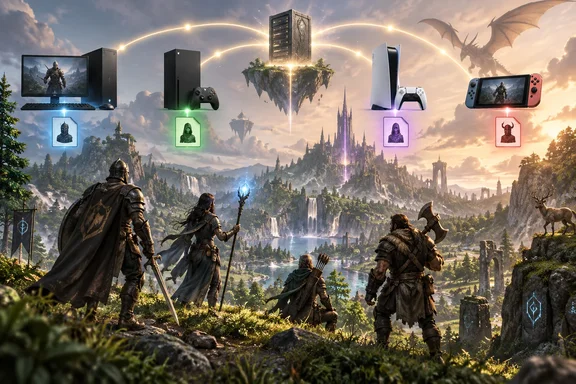
This guide covers what Jagex has confirmed, how to set up a cross-platform world, how party limits work, what running a dedicated server on Windows involves, and the multiplayer bugs Jagex is still fixing after launch.
The short version
- Crossplay: Yes. It covers PC (Steam, Epic Games Store, Jagex Launcher), Xbox Series X|S, PS5 and Nintendo Switch 2.
- Cross-progression / cross-save: No. Saves stay on their own platform.
- Regular co-op cap: Four players (the host plus three).
- Dedicated server cap: Six players.
- Where dedicated servers run: 64-bit Windows or Linux, or a rented host. Consoles can't run one.
Crossplay: confirmed at 1.0
Jagex released Dragonwilds 1.0 on September 15, 2026, after Early Access began in April 2025. Its release notes list PS5, Nintendo Switch 2, Xbox Series X|S and PC through Steam, Epic Games Store and the Jagex Launcher. Pocket Tactics confirms that PC players can use Steam, Epic Games Store, or the Jagex Launcher, with everyone able to join the same crossplay world.
Crossplay is not switched on automatically. Jagex's 1.0 notes say:
- You choose crossplay for a world when you load it.
- Crossplay worlds show up in the world browser.
- Hosts can turn crossplay on or off every time they host a multiplayer world.
- Dedicated servers have their own crossplay options.
Dork explains it plainly: crossplay is a world setting, so it must be enabled by the host rather than assumed to be active everywhere. If your Xbox friend can't find your Steam world, check this setting first.
There's also an account requirement to know about. How To Video Game reports that online play requires an Epic Games account on every platform. On Steam it's created silently behind the scenes; on consoles you may be walked through linking. That fits a Steam Community thread from Early Access in which players complained about the Epic account requirement. Jagex's own documents don't cover this, but if one friend can't go online at all, an unlinked account is a sensible thing to check.
Summary: Crossplay is on all four platforms and every PC storefront, but only when the host enables it for that world.
Cross-progression: not supported
Jagex's June 2026 console FAQ answered the save question directly. Saves do not carry over between platforms. Steam Cloud Save works, but progress won't move to new platforms. The same FAQ said Steam players could bring existing characters into crossplay sessions with players on other platforms, but Early Access saves could not be moved to the console versions.
Pocket Tactics puts it the same way: you can use your existing Nintendo Switch 2 character to play with other console players, but you can't transfer that save to PS5, Xbox, or PC.
What this means in practice:
- Crossplay is about who you play with. It isn't about where your character lives.
- Steam Cloud Save only syncs between PCs running the Steam version. It won't send a Steam character to an Xbox.
- Pick your main platform carefully. If you play on a Windows PC at home and an Xbox in the living room, you'll have two separate characters.
One Windows-specific point, which is our own reading rather than anything Jagex has confirmed: the 1.0.0.5 patch notes mention "Windows/XBOX Game Pass versions" as a separate build. Don't assume a Game Pass PC save and a Steam save sync with each other. Jagex hasn't documented that they do.
How to set up a cross-platform world
Jagex's official flow has three parts: turn on crossplay when you load the world, find the invite code in the pause menu, and enter that code from the world browser. The detailed menu steps below come from third-party guides that match that flow:
- Host: Load or create a world. Dork says the host first chooses whether that world is Friends-only or Public, then decides whether crossplay is enabled. Pocket Tactics calls the path "Edit Settings" then "Crossplay."
- Host: Enter the world, then open the pause menu. Dork reports that the pause menu displays an alphanumeric Invite Code in the top-right corner, in the format XXXX-XXXX.
- Host: Send the code to your friends however you like: Discord, text or a note on the fridge.
- Friends: According to Dork, they select Play from the main menu, choose the Invite Code prompt in the bottom-right corner, enter it and confirm to join the host's world.
What success looks like: your friend loads into your world, and the world shows up as crossplay-enabled in the browser.
Picking Friends or Public: Dork notes that a Public world is discoverable by other players through the browser, so it comes with rather more scope for unexpected visitors. For a private group across platforms, Whisper of the House suggests you enable Crossplay and set a password if you do not want unrelated players joining.
Why the code stops working: Pocket Tactics says the code changes whenever the host reloads the world, so grab a new one if someone can't connect. Games.gg reports the same thing. Jagex hasn't documented this, but treating each code as good for one session only costs you a glance at the pause menu.
Summary: Turn on crossplay, open the pause menu, share the code, and friends join from Play. If a code fails, get a fresh one.
Party size: four for regular co-op, six on a dedicated server
Jagex's console announcement says you can play alone or with up to three friends, so a regular hosted world holds four players. Pocket Tactics agrees that standard co-op gives a four-player party.
For larger groups, Jagex's dedicated-server guide says a server can hold up to six players as of version 0.11 (March 2026). As Dork puts it, five or six friends will need to consider a dedicated server instead.
| Mode | Max players | Who can host | Crossplay |
|---|---|---|---|
| Player-hosted world | 4 | The host's game, including on console | Host turns it on per session |
| Dedicated server | 6 | 64-bit Windows/Linux PC, cloud machine, or Shockbyte | Set in server options |
Dedicated servers: the Windows part
Can a console player host? For normal worlds, yes. Jagex's own patch notes mention PS5 players creating password-protected crossplay worlds. Dedicated servers are another matter. Jagex's guide says the server software runs only on 64-bit Windows or Linux, so consoles can't run one. Pocket Tactics says console players must join a dedicated server rather than host one, and games.gg says console players cannot host a dedicated server from a PS5, Xbox, or Switch 2. Jagex hasn't said this in those words, but it follows from the platform requirements it does list. A console group that wants a world that's always online needs a PC or a rented server.
Jagex lists three ways to host:
- Shockbyte, its third-party hosting partner. Jagex calls this the easiest option, and it has a set price.
- A computer you own at home. Jagex rates this as hard, and you pay the electricity.
- A cloud machine you set up yourself. Jagex rates this as the hardest.
Shockbyte is the official partner, but it isn't the only choice. Other hosting companies, such as XGamingServer, publish their own crossplay setup guides for Dragonwilds servers.
Self-hosting on Windows: requirements
- OS: 64-bit Windows or Linux.
- RAM: 2 GB plus 1 GB per player. Two players need 4 GB and six need 8 GB. Jagex quotes these figures for the server alone, so leave extra memory for Windows itself.
- Ports: UDP 7777 by default. A second server uses 7778, and so on. Your firewall, every router and your ISP must forward those ports. Jagex warns that some ISPs block port forwarding entirely.
- Software: "RuneScape: Dragonwilds - Dedicated Servers" is free on Steam. You can also install it with SteamCMD using app ID 4019830.
Setup steps from Jagex's guide
- Install the free dedicated-server product through Steam or SteamCMD.
- Optionally, add the launch options
-log -NewConsolein Steam's Properties so you get a live console window. - On Windows, the config file goes in
RSDragonwilds\Saved\Config\WindowsServer\DedicatedServer.ini. Jagex says you need to copy the values from the Linux template and create this file yourself. - Fill in the required values: Owner ID (your Player ID, shown at the bottom of the in-game Settings menu), Server Name, Default World Name and Admin password. The server won't start without an Owner ID.
- Save the config before you start the server. Changes made while it's running are lost.
- To move an existing world onto the server, stop the server and back up the server's
Saved\Savegamesfolder. Then copy your local.savfile fromC:\Users\your_username\AppData\Local\RSDragonwilds\Saved\SaveGamesinto it. - Start the server. Players find it on the Public tab of the Worlds screen by searching for the exact world name, which is case-sensitive.
Troubleshooting dedicated servers
- People can see the server but can't join: Jagex says port forwarding has probably failed somewhere along the route.
- The server has disappeared from the list: Check that versions match. The server's version is at the top of its log, and the client's version is in the top-left corner of the game. Jagex says mismatches are likely after every update or hotfix. Shockbyte servers update when restarted.
- Still missing: Check you searched the world name the server is actually running, check the required config values are set, and read
RSDragonwilds.log.
Summary: Dedicated servers give you six slots and an always-on world. On Windows, most problems come from ports, version mismatches and editing the config at the wrong time.
Known issues: crossplay has had a rough first two weeks
Most guides skip this part. Jagex's 1.0.0.5 patch notes went up on September 23, 2026, and were later updated to say the hotfix went live on September 25. Console versions still had to go through platform certification, which Jagex expected to take several days. Jagex said it acted on player feedback that recent updates had knocked crossplay offline, and that it wanted to spare Nintendo Switch 2 players a disrupted weekend. If you're mixing PC and console right now, PC may have the fix before your console friends do.
Multiplayer fixes in 1.0.0.5:
- Players could not connect to multiplayer servers that already had more than two people. This included Xbox clients that couldn't join once two users were in the world.
- PS5 could crash when creating a password-protected crossplay world in some cases.
- Joining a modded dedicated server from a console could corrupt the player's save.
- Dedicated-server owners could not edit their server worlds from consoles.
- Xbox players whose Privacy and Safety settings block online play will now be told so.
- DLSS and FSR upscaling were added for the Windows/Xbox Game Pass versions.
Jagex is also still looking into world and character save corruption and testing ways to recover lost saves. It has removed the Edit Appearance button, which it says is the most common cause, until the problem is fixed. Some restored worlds have been reset to default settings, so Custom or Creative worlds may now be listed with your Normal saves. A crash when choosing Play Online without an internet connection is also known, with a fix planned for 1.0.1.
Practical advice: If a save goes missing, it's most likely this corruption bug, not a missing cross-save feature, and moving platforms won't recover it. Keep an eye on Jagex's patch notes. If you self-host, back up Saved\Savegames regularly, as Jagex's guide recommends. Until console players have 1.0.0.5, avoid joining modded dedicated servers from a console.
Bottom line
Mixed groups can play together without much fuss: one crossplay setting and an invite code, with four slots in a regular world or six on a server. What you give up is portable progress. Your character stays on the platform where you made it. Jagex is working through the launch bugs, but for now, keep backups and give your console friends a few days to get the 1.0.0.5 fix.
References
- RuneScape Dragonwilds crossplay and cross-progression guide - Pocket Tactics Pocket Tactics · 2026-09-26T15:55:52+00:00
- 1.0.0.5 Patch Notes: Expected Friday - RS: Dragonwilds dragonwilds.runescape.com