

Unless we say otherwise, the product details below come from the vendor's own documentation. We did not test the app, and no one has independently audited its privacy architecture.
What SideNote Pro actually is
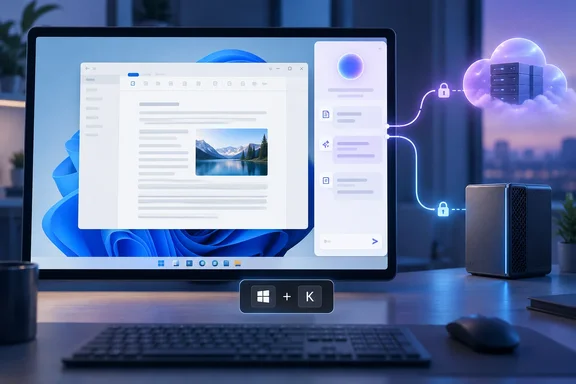
The developer describes SideNote Pro as a "docked BYOK AI tool," not a general-purpose assistant. It can be summoned from anywhere with a global shortcut, kept above other windows, docked to the right edge of the screen, or retracted into a slim drawer leash. According to its FAQ, it is built with WinUI 3 on the Windows App SDK, runs on .NET and ships self-contained. In other words, it is not a website wrapped in a desktop window. You install it from the Microsoft Store.
The basic workflow:
- Summon it: The default global shortcut is Ctrl+Shift+Space. You can change it in Settings under Keyboard. If another app already owns the combination you pick, the vendor says SideNote Pro tells you and goes back to your previous working shortcut.
- Put it away: In drawer mode, Esc shrinks the panel into a small leash at the screen edge. Clicking the leash brings the panel back at the size and position you left it.
- Pick a layout: It can float, dock to the right edge, or stay on top of other windows.
- Startup: Launch at Windows sign-in is on by default. It uses the per-user Run key, so no admin rights are needed, and only the leash or tray icon appears at sign-in. If you prefer to decide what starts with your PC, this is the first setting to check.
In short, SideNote Pro is a native side panel you call up with a hotkey. It is meant to cut down on switching between your work and a browser tab.
BYOK: you bring the model and you pay for it
"Bring your own key" is the core of the product. SideNote Pro ships with no AI credentials and no endpoint of its own, so requests go from your machine directly to the provider you configure. Dynamic Business, which profiled the app, says users can connect to cloud or local providers (for example OpenAI, Ollama, LM Studio, or other API-compatible endpoints), using their credentials.
The vendor FAQ also lists ready-made entries for Anthropic, Google Gemini and DeepSeek. A "Custom OpenAI-compatible" option accepts any endpoint that speaks the OpenAI chat-completions protocol, including a corporate gateway or proxy. You can keep several provider profiles, each with its own model and reasoning-effort setting, and switch between them from the composer.
The catch is cost. The licence covers the Windows application only. You pay your chosen provider directly, for what you use, under their pricing. Also note that an OpenAI developer API key is billed separately from a consumer ChatGPT subscription. A ChatGPT Plus plan does not pay for anything here.
Is BYOK cheaper than a flat subscription? The vendor's own answer is that it depends on how you use it. Light or occasional use usually costs less. Heavy daily use of an expensive model can cost more. A reviewer at WinningPC, a site that discloses affiliate links, was blunt about the trade-off: "you control costs and can go fully local for privacy, but you need an API account before the assistant is useful at all."
The features, with their limits
Selected-text actions
Five built-in actions work on text you select in almost any Windows app: Ask SideNote, Summarize, Rewrite, Explain and Translate. Ask SideNote captures the selection and waits for your question. The other four send immediately with a fixed instruction. A fresh install comes with default shortcuts:
| Action | Default shortcut | Behavior |
|---|---|---|
| Ask SideNote | Ctrl+Shift+A | Waits for your question |
| Summarize | Ctrl+Shift+S | Sends immediately |
| Rewrite | Ctrl+Shift+R | Sends immediately |
| Explain | Ctrl+Shift+E | Sends immediately |
| Translate | Ctrl+Shift+T | Sends immediately (target language set once in Settings) |
Custom actions let you write your own instruction, place a {{selection}} placeholder where the captured text should go, assign an optional hotkey, and choose whether the action sends straight away or waits for you to review it.
Here is how capture works. When you press an action shortcut, SideNote Pro sends a native Ctrl+C to the active app and then tries to put your previous clipboard contents back. The vendor says it does not poll the clipboard or watch your selections. The main failure point is a Windows security boundary: if the source app is running elevated and SideNote Pro is not, capture fails, nothing is sent, and the app tells you. So if an action works everywhere except one admin tool or elevated terminal, elevation is the likely reason. If all your shortcuts stop working, check whether global shortcuts have been paused from the tray menu.
Documents, screenshots and folders
- Documents: PDF, DOCX, TXT and Markdown. Text is extracted on your machine, and only the extracted text goes to the provider. DOCX handling does not run macros or load external resources. There is no OCR, so scanned PDFs are rejected. The workaround is to attach the page as an image and use a model that can read images.
- Screenshots: You can capture a region, the active window, one monitor or the whole desktop, or paste from the clipboard. The limit is five images per request. Protected or DRM content may capture as blank. Image understanding depends on your model, and many small local models handle text only.
- Local folders: You add a folder yourself; the app does not crawl your drives. The index is built locally using BM25-style keyword ranking, with no embeddings and no vector database. When you ask a question, the app sends up to ten matching excerpts, not the whole folder, and the answer lists the source files and PDF pages. There is also no background watcher, so you refresh the index manually. Because matching is by keyword rather than meaning, a question worded differently from your documents can miss relevant material.
History and export
Conversations are stored locally under %LOCALAPPDATA%\SideNote Pro\. History is searchable and threads can be pinned. You can turn history off, set a retention period, or encrypt it with Windows DPAPI for your account. You can export a whole thread to Markdown or save a single response as PDF. One quirk: PDF export only handles Latin script. The WinningPC review noted that CJK, Arabic, and emoji are replaced with placeholders, so use Markdown export for those.
The privacy claims, examined
The Dynamic Business profile says conversations, history, folder indexes, and other data remain on the user's device and that the product offers no telemetry, product analytics or advertising. The vendor FAQ says the same and adds that no account is needed. Its licensing service receives only licensing and device data, never prompts, files or API keys. Keys are stored in per-profile credential files protected by DPAPI, not in settings.json.
However, "stored locally" and "processed locally" are not the same thing. If you use a cloud provider, everything you submit goes to that provider: your prompt, recent conversation context, captured selections, extracted document text, images and folder excerpts. The vendor's homepage is unusually frank about this: "We will not tell you that everything stays on your computer, because that is only true when you run a local model." The AI provider you configured does receive the requests you submit, under its own privacy, retention and billing policies.
For IT administrators, that makes SideNote Pro's data handling mostly a question of which provider you approve. An Ollama or LM Studio setup keeps inference on the device. A public cloud endpoint is subject to that provider's retention terms. The telemetry-free claim is also the vendor's own statement. Security-conscious teams should check it with their usual network monitoring before rolling the app out widely.
Pricing and compatibility
- Individual: $49 one time, one user on up to two devices. There is a 30-day full-featured trial, which needs an internet connection to start. The FAQ also lists a 14-day refund window.
- Business: $349 one time for 10 user licences, arranged by email.
- Enterprise: from $1,499 for custom volume licensing.
- Platform: Windows 11 x64 only (Home, Pro, Enterprise, Education). Windows 10 is untested and unsupported. There are no ARM64, macOS, Linux, mobile or web versions.
The ARM64 gap matters more than it might look. Many of the Snapdragon laptops sold as AI PCs are exactly where you would expect a tool like this to run, and they are not supported.
Who should try it, and who shouldn't
SideNote Pro suits people who spend the day in desktop apps and keep switching to a browser chatbot: writers, support engineers, project managers and developers reading stack traces. It is a particularly good fit if your organization already has an approved API provider or a local model setup.
It is a poor fit for mixed-OS teams, ARM laptop users, anyone who expects AI usage bundled into the price, and non-technical users who have never set up an API key. It also competes with Copilot, which already ships with Windows 11. SideNote Pro's case rests on letting you choose the model, the one-time price and the hotkey actions, not on AI features Copilot lacks.
Our view, based on general industry experience rather than hands-on testing: the documentation is refreshingly specific about limits, which is more than most AI utilities offer. Use the 30-day trial to check three things: whether your model handles the images you plan to send, whether keyword folder search finds what you need, and whether your provider's data retention terms are acceptable for the content involved.
References
- SideNote Pro: Native Windows 11 AI Assistant - Dynamic Business Dynamic Business · 2026-09-27T05:30:04+00:00
- SideNote Pro 1-Year Free License Key - AI Assistant 2026 winningpc.com
- Features | SideNote Pro sidenotepro.com