

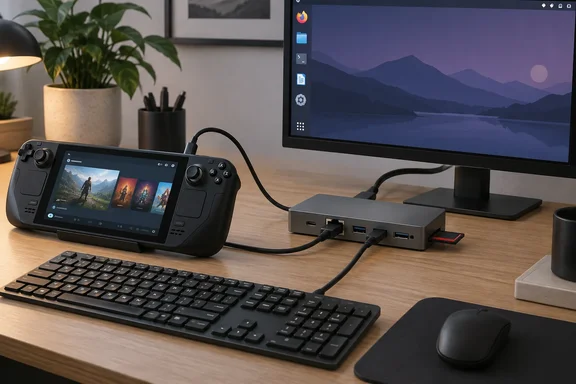
Steam Deck Desktop Mode Runs Out of Ports Before It Runs Out of Power
The author's reasoning is simple. The Steam Deck feels good to hold, is lighter than many rival handhelds, and never feels underpowered for everyday work despite being older. The weak point is connectivity: one USB-C port has to carry both power and every peripheral. Without a dock, the machine can't charge while driving a monitor, keyboard and wired network.
Valve's own specifications show how little the hardware has changed. The LCD Steam Deck has a 7nm AMD APU with a four-core, eight-thread Zen 2 CPU and 8 RDNA 2 compute units, 16 GB of LPDDR5 memory, a 7-inch 1280×800 60Hz display, a 40Whr battery and a 45W USB-C PD 3.0 power supply. It runs SteamOS 3, which is based on Arch Linux, and Desktop Mode uses KDE Plasma. Valve lists exactly one external port for controllers and displays: USB-C with DisplayPort 1.4 Alt Mode and USB 3.2 Gen 2.
The author sums up that port correctly: 10 Gbps USB 3.2 Gen 2, DisplayPort 1.4 Alt Mode and USB Power Delivery, and not USB4 or Thunderbolt. That one fact shapes every dock decision after it. A dock can offer many ports, but it can only pass through what the Deck's port can negotiate.
Desktop Mode itself has improved. SteamOS 3.7.8, the first stable release of the 3.7 branch, arrived on May 22, 2025. It moved Desktop Mode from Plasma 5.27.10 to Plasma 6.2.5, sped up switching between Desktop and Game modes, and fixed a common cause of hangs when entering Desktop Mode. For someone who spends the day in the Linux desktop, those changes matter more than any gaming benchmark.
The Dock Checklist Behind a Working Steam Deck Desk Setup
The author lists five hard requirements for a dock: at least one monitor output, Ethernet, ports for a keyboard and mouse, charging over the same cable, and an SD card slot. The card reader is the one they won't give up, because they import a lot of photos and would otherwise need another USB port and a separate adapter.
Valve's official Docking Station covers most of that list, but not the card reader. Its published specifications include three USB-A 3.1 Gen 1 ports, gigabit Ethernet, HDMI 2.0, DisplayPort 1.4, USB-C power passthrough and a short captive USB-C cable. Valve lists display support up to 4K at 60Hz or 1440p at 120Hz, and notes that MST multi-monitor output currently needs both the HDMI and DisplayPort outputs in use. If your workflow includes an SD card, the official dock fails that requirement before any other comparison matters.
Valve has said from the start that its dock is optional. When the Docking Station went on sale in October 2022, Valve told buyers they were welcome to use any other USB-C dock or hub. It said the SteamOS work behind its own dock also improved compatibility with third-party hubs and docks, and that it had added scaling, resolution and refresh-rate settings for external displays. That is a general statement of intent, not a guarantee for any particular product. It does explain why the author can call the official dock unnecessary.
The author also says most docks need no drivers on SteamOS, and credits support for newer Realtek chipsets. That is their experience, and no chipset list or SteamOS version supports it. There is a contrast worth knowing: OWC's support manual for the Thunderbolt Go Dock states that "Downloading and installing a Realtek driver is required for enabling proper network function" on the platforms it documents. The author reports Ethernet working without that step on SteamOS. Anyone planning to rely on wired networking should confirm it works on their own unit before depending on it.
OWC Thunderbolt Go Dock and Razer USB4 Dock Both Worked on a Non-Thunderbolt Port
The author tested two docks built for faster hosts than the Deck, the Razer USB4 Dock and the OWC Thunderbolt Go Dock, and reports that both worked well. It's a useful finding, because many people assume a Thunderbolt dock is pointless or broken on a plain USB-C machine. On a port like the Deck's, these docks fall back to ordinary USB-C operation, and the author found that enough for their needs.
The OWC dock's listed hardware explains why it suits this author. Its device ports include two Thunderbolt 4 ports, a 10Gb/s USB 3.2 Gen 2 Type-C port, two 10Gb/s USB 3.2 Gen 2 Type-A ports, a USB 2.0 port, HDMI, 2.5 Gigabit Ethernet, a 3.5mm audio port and an SD 4.0 UHS-II card slot. The HDMI port is HDMI 2.1 with HDR support. The power supply sits inside the dock: OWC says it "eliminates heavy power brick hassle", which suits a desk where the Deck's charger would otherwise be one more cable.
Be careful with the power figures. OWC rates the Thunderbolt 4 host port at up to 90W to the host computer. That is what the dock can supply, not what the Deck will take. Valve specifies a 45W supply for the LCD Steam Deck, so a 90W dock simply has plenty of headroom. The extra wattage doesn't make the Deck charge or run any faster than its own design allows.
Razer's product materials describe its USB4 Dock as a 14-port unit with HDMI 2.1, DisplayPort 1.4, Ethernet, SD and microSD readers, and USB-A and USB-C ports. Razer advertises up to 4K at 120Hz on a primary display for compatible hosts. Those are ratings for USB4 and Thunderbolt laptops. The author's report is the Deck-specific evidence here: both docks worked for one monitor, peripherals and charging.
Where the Steam Deck's 4K 144Hz Result Needs a Qualifier
The one problem the author hit came from the OWC dock's Thunderbolt 4 downstream ports. Their monitor's USB-C input didn't recognise those ports as display outputs, so the monitor fell back to DisplayPort Alt Mode. The author blames the monitor rather than the dock or the Deck, and that is a sensible guess from one test. OWC's own manual says the dock supports up to two displays, "host GPU and DSC dependent". On a host without Thunderbolt, the Thunderbolt-only ports shouldn't be expected to behave as they do on a laptop.
Switching to the dock's HDMI 2.1 port, the author reports 4K at 144Hz. Their monitor supports 240Hz, and they put the gap down to the bandwidth of the Deck's USB 3.2 Gen 2 port. This is where readers should set their expectations by Valve's figures, not the anecdote. Valve's published ceiling for the Deck's external output is 8K at 60Hz or 4K at 120Hz, delivered through DisplayPort 1.4 Alt Mode, not through the USB 3.2 data link. The author's 144Hz result is higher than Valve's rating.
Neither the author nor Valve explains how 144Hz was reached. Monitors can negotiate different signal formats, but this one result doesn't show which format was used or whether it holds for other hardware. The practical advice is plain: plan around Valve's 4K at 120Hz figure, and treat anything above it as something one particular setup happened to achieve.
The author also keeps things simple. They use one external monitor, say that more would stretch the hardware too far, and point out that their dock has only one display output that doesn't depend on Thunderbolt anyway. For a small desktop, one good monitor is the realistic goal.
Why Gaming Moves Back to the Handheld Screen
Even with a working 4K desk setup, the author undocks to play most of the time. The Deck isn't powerful enough to run games well on a 4K monitor, and they find it feels snappier on the built-in screen than through the dock. Valve's specs back up the general point: the GPU was built to drive a 1280×800 panel, and a 4K display has several times as many pixels.
This split is the useful lesson. A docked Deck handles desktop work at a monitor's full resolution, while games are better on the handheld's native screen. Staying on the dock during the week also means the battery is full when the author takes it to the couch.
The author's other peripherals avoid using dock ports: Bluetooth earbuds for audio, a mechanical keyboard, a wireless trackball that helps with their tendonitis, and a Bluetooth controller for docked play. SteamOS 3.7.8 made Bluetooth audio more useful on a desk. It enabled the HFP/HSP headset profiles so the microphone in headsets and earbuds can be used, though for now that can only be selected in Desktop Mode. It also added battery-level readouts for supported Bluetooth devices.
Steam Deck LCD Wake-From-Sleep Has Partly Changed Since SteamOS 3.7.8
The author says that on their LCD Deck, the power button is the only way to wake it from sleep; the keyboard and mouse don't work. They describe this as a limitation fixed on the Steam Deck OLED. That was once the full story, but it now needs updating.
SteamOS 3.7.8's release notes say Bluetooth controllers can now wake LCD units from sleep, which was previously only possible on OLED models. The same notes list a known issue: controllers that use Bluetooth LE don't currently work with Bluetooth wake on LCD models. The change covers Bluetooth controllers only. Nothing in Valve's notes says a USB keyboard or mouse on a dock can wake an LCD Deck, so the author's power-button routine is still the safe assumption for desk peripherals.
For an LCD owner who, like the author, plays docked games with a Bluetooth controller, pressing a button on the controller may now wake the machine, provided the controller doesn't use Bluetooth LE. The same update fixed a bug where Bluetooth devices could still wake the Deck after Bluetooth had been turned off in Desktop Mode.
What a Docked Steam Deck Needs Before You Buy Anything
Choose the dock by your workflow, not by its label. A USB4 or Thunderbolt dock can work well on the Deck, but you pay for downstream Thunderbolt features the Deck's port can't use. Valve's official dock is fine if you don't need a card reader or 2.5GbE. If you do, a third-party dock with the right ports suits you better.
If the Deck will stay plugged in most of the week, change one setting. SteamOS 3.7.8 added a Battery Charge Limit control under Settings → Power. Valve says limiting the charge to 80 percent can help long-term battery health when a Deck is constantly charged, and gives docking as its example. The author didn't mention using it, but their routine is exactly the case Valve describes.
- Confirm the dock's host connection supports USB-C DisplayPort Alt Mode and USB Power Delivery, because the Deck has no Thunderbolt or USB4 to fall back on.
- Use a regular HDMI or DisplayPort output on the dock for your monitor, since Thunderbolt-only downstream ports may not act as display outputs when connected to the Deck.
- Plan your monitor setup around Valve's published maximum of 4K at 120Hz, and treat the author's 4K at 144Hz as the result of one particular setup.
- Check that the dock has a full-size SD reader if you import photos, since Valve's official dock doesn't have one.
- Turn on the 80 percent Battery Charge Limit in Settings → Power if the Deck will spend most days docked.
- On an LCD Deck, expect to wake it with the power button when using desk peripherals, though a non-LE Bluetooth controller can now wake it after SteamOS 3.7.8.
The author isn't claiming the Deck has become a workstation. The point is that Valve's four-year-old handheld already has the processor, memory and KDE Plasma desktop to handle everyday work, and the only real bottleneck is one USB-C port. A dock that has the right ports, powers the device and sends video through a standard HDMI output turns it into a small desktop during the week without taking away the handheld. With SteamOS still adding features aimed at docked use, like charge limiting and Bluetooth controller wake, that setup is likely to keep getting better.
References
- My Steam Deck is a desktop for most of the week, and a dock was the only thing it needed XDA · 2026-09-24T13:00:16+00:00
- Steam Deck :: Tech Specs steamdeck.com