

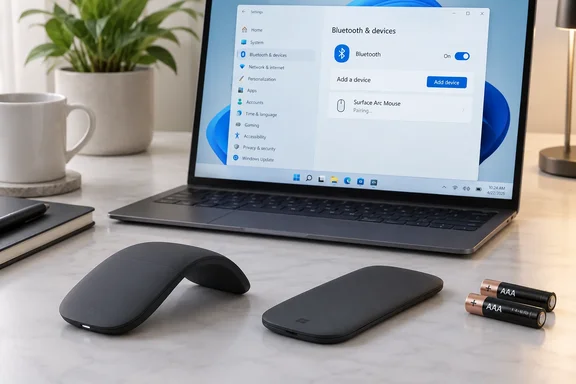
The Surface Arc Mouse's bend is its power switch
Microsoft describes the Surface Arc Mouse as designed to fit to your hand and snaps easily to fit in your bag. The shape change does more than make it easier to pack. The support page says to turn on your mouse, snap it into the curved position. Snap your mouse flat to turn it off. There's no separate power switch to find.
That affects battery life directly. Microsoft advises that to help save battery, snap the mouse flat to turn off your mouse when you're not using it. If you leave it curved on your desk overnight, it stays on. Flattening it before it goes in your bag also switches it off, so it won't wake up inside the bag.
The Microsoft Store listing calls it slim, light, and ready to travel and notes it is battery-operated. Microsoft also sells a separate "Surface Arc Mouse for Business" SKU. The setup page lists it but doesn't describe any different requirements or procedures, so nothing here suggests the business version pairs or behaves differently.
Windows 11, Windows 10 and the Bluetooth 4.0 requirement
The requirements are brief. Per Microsoft, to get set up, you'll need a PC that's running Windows 11 or Windows 10 with support for Bluetooth 4.0 or later. The mouse connects only over Bluetooth. The setup page doesn't mention a USB receiver, so a desktop without Bluetooth needs a Bluetooth adapter first. If you don't know which Bluetooth version your PC has, Microsoft has a separate help article called "What Bluetooth version is on my PC?"
Windows 10 still appears on the compatibility list, but the operating system's support status has changed. Microsoft ended Windows 10 support on October 14, 2025. Windows 10 PCs keep working, but they no longer get standard technical assistance, feature updates or security updates unless the device is enrolled in Extended Security Updates. The mouse will pair with a Windows 10 machine. That compatibility says nothing about whether the machine itself is still a sensible platform.
Microsoft also says the mouse supports Swift Pair in Windows for faster pairing. Swift Pair is Windows' pop-up pairing feature: when a compatible device in pairing mode is nearby, Windows shows a notification so you don't have to dig through Settings. The Microsoft Store listing for the Arc Mouse puts a condition on this. It says the mouse pairs with your Windows 11 Home/Pro and Windows 10 PC right out of the box when you enable Swift Pair. If Swift Pair notifications are turned off on your PC, the pop-up won't appear, and you'll pair through Settings instead.
Pairing the Surface Arc Mouse step by step
Microsoft's procedure is short, but the order matters. Turn the mouse on before trying to pair it.
- Bend the mouse into its curved position to turn it on.
- Press and hold the pair button on the bottom of the mouse until the LED light starts to flash (about 5 seconds).
- On your Windows PC, select Connect if a notification appears for your mouse, then wait for it to get set up. This is the Swift Pair path.
- If no notification appears, add the mouse manually using the path for your version of Windows, shown below.
- Confirm it worked: once your mouse is paired, the LED light will stop flashing. The light will stay on until you turn off your mouse.
Manual pairing on Windows 11
On Windows 11, Microsoft's path is Start > Settings > Bluetooth & devices > Add device > Bluetooth > Surface Arc Mouse > Done. The mouse should appear in the device list only while its LED is flashing. If it isn't listed, hold the pair button again before you start the scan.
Manual pairing on Windows 10
The Windows 10 path uses the older Settings layout: Start > Settings > Devices > Bluetooth & other devices > Add Bluetooth or other device > Bluetooth > Surface Arc Mouse > Done. Use this path only on Windows 10. In Windows 11 the Devices category has been replaced by "Bluetooth & devices."
Swift Pair is not a separate method you need to set up. It's a shortcut. If it doesn't appear, the manual Settings route does the same job.
Touch gestures stand in for the scroll wheel
The Arc Mouse has no conventional buttons or wheel. According to Microsoft, your mouse recognizes when you click or scroll on the touchpad. The documented basic gestures are:
| To do this | Gesture |
|---|---|
| Left-click | Click with one finger on the left side of the touch surface |
| Right-click | Click with one finger on the right side |
| Scroll up or down | Move one finger up or down on the surface |
| Scroll left or right | Move one finger left or right on the surface |
Horizontal scrolling with one finger is useful in wide spreadsheets and timelines, where most wheel mice need a tilt-wheel or a modifier key. The trade-off is that where your finger rests counts for more. Clicking in the middle of the surface, instead of clearly on the left or right side, is the most likely reason a click registers wrong.
General pointer behavior is handled in Windows. On Windows 11 it's under Start > Settings > Bluetooth & devices > Mouse. On Windows 10 it's under Start > Settings > Devices > Mouse. That's where you change pointer speed, scroll amount and primary button.
Mouse and Keyboard Center unlocks deeper Arc Mouse customization
The support page recommends the Microsoft Mouse and Keyboard Center, a free Microsoft app for personalizing its keyboards and mice, but it doesn't list which Arc Mouse functions the app controls. Independent coverage gives more detail. SurfaceTip reports that Surface Arc Mouse is among the mice the app supports, and it walks through configuring and remapping the left-click, right-click, three-finger click, scrolling behavior, and DPI settings on Surface Arc Mouse. That makes the app the place to go if you want to remap the touch surface or change tracking sensitivity beyond what Windows Settings offers.
Firmware is a separate matter. Microsoft's Download Center hosts a Surface Arc Mouse firmware v2.2 package. The listed steps are to double click the msi package, complete the driver installation 2, reboot the PC 3, connect the Surface Arc Mouse, keep it still for about 10 minutes. The listing doesn't clearly say what the update changes. Treat it as something to try when a specific problem sends you there, not a routine step for a mouse that's working fine.
AAA batteries and the Bluetooth battery readout
The mouse runs on replaceable batteries, not a built-in rechargeable cell. Microsoft says this mouse uses 2 AAA batteries. When you need to change the batteries, flip the mouse over, press the small tab to open the battery door, then replace the batteries. The support page doesn't show battery orientation, so follow the markings inside the compartment.
To check the charge, Microsoft suggests you select Search, type Bluetooth, and then open Bluetooth & other devices settings. The battery level appears next to your mouse. Checking this readout before a trip is easier than having the mouse die mid-presentation. Microsoft publishes no battery-life estimate on the page, so how long a set of AAAs lasts depends on use and how reliably you flatten the mouse.
When Surface Arc Mouse pairing fails
Microsoft's general troubleshooting guide for Surface mice and keyboards lists Surface Arc Mouse among the devices it covers. Several of its fixes apply directly to Arc Mouse problems. Some of its paths are written in the Windows 10 Settings layout, so Windows 11 users should use the equivalent Bluetooth & devices pages.
- Check the batteries first. Make sure they're seated correctly, and replace them if the mouse still doesn't respond.
- Test for power by holding the pairing button for 5–7 seconds. A blinking light means the mouse has power, and no light points to the batteries.
- If the pairing light flashes three times and then turns off, the mouse is already paired to another PC within range. Remove it from that PC's Bluetooth device list, then pair it again on the one you want to use.
- Turn airplane mode on for 10–15 seconds and then off again to reset the PC's radios.
- Temporarily disconnect other Bluetooth devices, since Microsoft says too many connected devices can interfere with the mouse connection.
- Remove the mouse from the PC's Bluetooth list and pair it again from scratch.
- Try the mouse on another PC. If it works there, the problem is probably with the original machine.
The same guide explains a delay that looks like a fault but isn't. To save power, Bluetooth mice go into hibernation after 8–10 minutes without use, and it can take several seconds to reconnect when you touch them again. A short lag after a coffee break is expected. Lag that continues during active use is worth troubleshooting. Some faults are hardware, though: in a Microsoft Q&A thread, one owner reported that a left-click that kept releasing mid-drag followed the mouse itself across two Surface Pro machines, even after fresh batteries.
What this means for you
If you've just bought an Arc Mouse, you only need to remember three things: bend it to turn it on, hold the bottom button until the LED flashes, and use Settings if the Swift Pair pop-up doesn't appear. If you're troubleshooting, work through the checks in order from cheapest to most involved: batteries, the three-flash already-paired signal, airplane-mode reset, then remove and re-pair. Save firmware updates and remapping in Mouse and Keyboard Center for when basic setup already works and you want to change how the mouse behaves.
- The Surface Arc Mouse needs Windows 11 or Windows 10 and Bluetooth 4.0 or later, and it connects only over Bluetooth.
- Bending the mouse flat turns it off, which is the main way to save its two AAA batteries.
- A steady LED after pairing means success. Three flashes and then darkness means the mouse is still paired to another nearby PC.
- The Windows 11 manual pairing path starts at Settings > Bluetooth & devices, and the Windows 10 path starts at Settings > Devices.
- Battery level appears next to the mouse in Windows' Bluetooth device settings.
- Windows 10 PCs can still pair the mouse, but Windows 10 itself reached end of support on October 14, 2025.
Microsoft's documentation for the Surface Arc Mouse hasn't changed much over the years, and neither has the device's basic design. That's why this guide is so short: you need a Bluetooth 4.0 PC, a couple of AAA batteries and about five seconds of holding a button. The real decision for most readers is about the PC, not the mouse. A Windows 10 machine will still pair with it, but a Windows 11 PC, or one enrolled in Extended Security Updates, is the platform that will keep getting updates.
References
- Use Surface Arc Mouse | Microsoft Support Microsoft Support · 2026-05-03T00:00:00+00:00
- Configuring Surface Arc Mouse with Microsoft Mouse and Keyboard Center surfacetip.com
- Troubleshoot problems with your Surface mouse or keyboard | Microsoft Support support.microsoft.com