

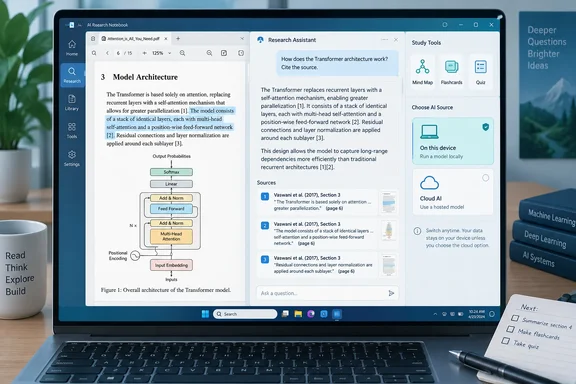
This piece covers what the reviewer reported, what SurfSense's own documentation says about running it on a Windows PC, and where the privacy claims need a closer look.
What SurfSense is
The project's GitHub README describes it this way: "SurfSense is a free, open-source desktop app for the documents you already have. Drop them in, ask questions and get answers that cite their sources, then turn the same documents into a briefing, a slide deck, a report, a study guide or a podcast." The project's website says it ships as a normal desktop installer for Windows, macOS and Linux. For Windows users, that means it installs like any other app. You don't need to set up Docker to try it.
Some details from the README that matter before you install:
- Large download. The README says the installer carries the parser, the retrieval model, the podcast voice and the local model servers, so the app works with the network off.
- Free, with an optional licence. The app and its updates are free. A licence adds plugins and priority support and gates nothing else, so an expired licence still leaves you the app and every future update.
- Self-hosted stack is community-supported. The Docker stack in this repo (surfsense_backend, surfsense_web, compose files) stays open source and installable, and is community-supported: no SLA and no hosted service behind it. The desktop app is the supported path for new users.
- Licence. Mirrors of the upstream README list the project as Apache-2.0.
Section summary: SurfSense is a free, Apache-licensed desktop app for Windows, macOS and Linux. It focuses on documents you already have, and the hosted-server version is now a secondary, community-supported option.
Setup: you pick the model first
The reviewer's first impression was that SurfSense makes you choose an AI model before you can do any real work. You can run a model locally so the whole workflow stays on your PC, or point SurfSense at an OpenAI-compatible endpoint to use a cloud model.
To help with the local choice, SurfSense can scan your hardware and suggest models it thinks your machine can run. The reviewer tested it on an older laptop with about 16GB of memory and Intel HD 620 integrated graphics. SurfSense rated Qwen3 0.6B as a sensible fit and flagged Qwen3 1.7B as already beyond its comfort zone. That's a single reported result from the build the reviewer used, not an official minimum spec. It is still a useful warning: integrated graphics from 2016-era laptops won't run a capable local model at a pleasant speed.
The SurfSense website says the app installs with Ollama built in, and its one-time setup screen has you pick a small language model that runs on the CPU. It also treats the model as a replaceable setting: a local Qwen or Llama through Ollama, or OpenAI, Anthropic and anything OpenAI-compatible.
The reviewer used this flexibility. After looking at the local options, they connected a stronger cloud model to work through the paper and kept the rest of SurfSense's tools. The review doesn't name that model or provider, so no conclusions about answer quality should be tied to a specific LLM.
Connecting a local model server (llama.cpp, vLLM, LocalAI and others)
If you already run a local model server, SurfSense's documentation (currently filed under its "legacy" local-models section, so menus in newer builds may differ) describes these steps:
- Open Workspace Settings.
- Go to Models.
- Select OpenAI Compatible.
- Set the API Base URL.
- Add an API key only if your server requires one.
- Choose the models you want to enable.
- Save the connection.
Which URL you enter depends on where SurfSense runs, according to the same documentation:
| Your setup | Base URL pattern |
|---|---|
| SurfSense and the model server on the same PC, no Docker | [url]http://localhost[/url]:<port>/v1 |
| SurfSense in Docker, model server on the host PC | [url]http://host.docker.internal[/url]:<port>/v1 |
| Model server on another machine on your network | http://<host>:<port>/v1 |
The documentation lists common default ports: llama.cpp 10000, vLLM 8000, LocalAI 8080, LiteLLM Proxy 4000, and text-generation-webui 5000. Check that your server actually uses the port you enter.
How to tell it worked: Run curl [url]http://localhost[/url]:<port>/v1/models from Windows Terminal. A working server returns JSON containing a data array.
Common failures, per the docs:
- 404 error: SurfSense uses the URL exactly as you typed it, so a missing
/v1is the most common cause. If/v1is already there, the server probably doesn't expose/v1/models, and you need to turn on its OpenAI-compatible mode. - Connection refused: The server isn't running or the port is blocked. On Windows, check whether Windows Defender Firewall is blocking the port, especially when the server is on another machine.
- No models found: The server is up but hasn't loaded a model. Load or serve one, then refresh model discovery in SurfSense.
- Ollama or LM Studio users: Don't use the generic OpenAI-compatible option. The documentation says to use the native Ollama provider, because Ollama uses its own routes such as
/api/tags, and the LM Studio provider, which already has the default URL filled in.
The reviewer admits all of this makes the first few minutes busier than NotebookLM. You're thinking about hardware, model size and API keys before you've asked a single question. For someone who just wants answers from a PDF quickly, the reviewer wouldn't recommend SurfSense first.
Section summary: You get lots of model choice and a clear connection process, but you also do more work before your first question. Most connection problems come down to a missing /v1, a stopped server, or using the generic provider when a native Ollama or LM Studio option exists.
The privacy claim, and its limits
SurfSense leans heavily on privacy. Its README says the app does not upload any of it. The index is local. Parsing, chunking and embedding happen on your computer, into SQLite under ~/.surfsense. The README also says outbound connections are off by default. An egress panel lists every destination the app can reach and you switch on the ones you want. A mirrored copy adds no telemetry, no crash reporting.
Those are the developer's claims, and they only hold for some configurations. If you connect OpenAI, Anthropic or another cloud endpoint, as the reviewer did, your prompts and the retrieved text chunks go to that provider under its terms. The local index stays local, but the parts of your document used to answer a question do not. The README itself makes a similar point: SurfSense cannot tell you whether that satisfies a particular regulation. That depends on your own controls and your regulator. All the app can tell you is which machine your documents are on.
For IT admins, the egress panel is a feature you can actually test. If documents must stay on the machine, allow no cloud model endpoints and confirm with your own network monitoring. Don't rely on marketing copy.
Section summary: SurfSense can run fully local, but running it doesn't guarantee local processing. Your model choice decides where your document text ends up.
Chat and citations: the main strength
For testing, the reviewer used "Spectre Attacks: Exploiting Speculative Execution," the paper by Paul Kocher and nine co-authors posted to arXiv on January 3, 2018. It covers the CPU side-channel flaw that led to years of Windows microcode and kernel patches. It's a fair test of any research assistant: the paper is dense and technical, and its arguments build on each other.
The reviewer said SurfSense held up better than many document-chat tools once the questions moved past "what is this about?" They could ask why a step was needed, what would happen if one part changed, or why the authors designed an experiment a certain way, and usually got an explanation of how the ideas connect instead of a rewording of the same paragraph. Follow-up questions stayed in context, so they could narrow in on a point without starting a new chat.
Chat answers include numbered citations. Clicking one opens the matching source chunk next to the conversation. The reviewer also used this to navigate the paper, asking SurfSense to find the best sections for the high-level attack, the conditional-branch example, and the proof-of-concept implementation. SurfSense returned each location with its source chunk attached.
There's a limit. Citations point to extracted chunks, not exact positions in the PDF, so you may land in the right section and still need to scroll to the sentence.
Fairness to Google matters here, because this is a one-person hands-on test, not a benchmark. Google's own NotebookLM guide says it provides citations that link to the most relevant passages in your sources. It also turns content into FAQs, briefing documents, timelines, study guides and Audio Overviews. Source-grounded answers aren't unique to SurfSense. The reviewer's "held up better" is a personal impression from one paper and one undisclosed model. The real difference is who controls the model and where your data goes, not proven answer accuracy.
Section summary: Chat with follow-ups and side-by-side citations was the reviewer's favourite feature. Treat the quality comparison with NotebookLM as anecdotal.
Studio: summaries, mind maps, flashcards and quizzes
SurfSense's Studio creates artifacts from whichever sources you select. The reviewer lists summaries, mind maps, flashcards, quizzes, documents, slides, webpages, PDFs and podcasts. They focused on the learning tools:
- Summary: Good for getting your bearings. It organised the paper's main ideas with enough detail to show which sections deserved a closer look. It lost some of the reasoning that targeted chat questions bring out, and it didn't include clickable citations. For checking facts, the reviewer went back to chat.
- Mind map: More detailed than expected, breaking the paper into concepts, relationships, methods and examples. The problem is space. Studio artifacts sit in a fixed right-hand column that the reviewer couldn't resize, even with empty space in the middle of the window. A dense map in a narrow panel means a lot of zooming and panning.
- Flashcards: A good fit for the narrow panel. The deck mixed broad and specific questions. You can reveal answers, shuffle, and mark each card "Got it" or "Needs review."
- Quiz: Multiple-choice questions graded instantly. Misses are collected on a results screen where you can review them or retake only the ones you got wrong. The SurfSense website describes its quiz output as multiple-choice questions with source citations, which is useful given the summary's lack of citations.
The reviewer's suggested workflow uses these tools in stages:
- Read the summary to get oriented.
- Use chat with citations to work through confusing sections.
- Open the mind map to see how the ideas relate.
- Finish with flashcards or a quiz to check what you retained.
One caution: generated study aids are only as reliable as the model behind them. With a small 0.6B local model, expect more mistakes. For technical material like Spectre, check anything important against the cited source before relying on it.
Section summary: The study tools add value after the first read, but the summary lacks citations and the mind map is cramped in its fixed panel.
Bottom line
SurfSense doesn't beat NotebookLM on convenience, and the reviewer doesn't say it does. You get a free, open-source Windows app that can keep its document index on your PC. It can use a small local model or a cloud model you already pay for, and it adds citation-backed chat plus a useful set of study tools. In return you accept a longer setup, a large download, and some rough edges, like the fixed Studio panel.
The trade-off is roughly this:
- NotebookLM suits people who want the fastest path from PDF to answers.
- SurfSense suits people who care about where their documents are processed, want to pick their own model, or already run Ollama, LM Studio or llama.cpp at home.
Keep in mind that SurfSense is changing quickly, and the build you download may not match the one tested on September 29. The fixed panel may be fixed, and menus may have moved. The privacy question stays the same in every version: choose a local model and your documents stay on your PC; choose a cloud API and the text used to answer your questions goes to that provider.
References
- I thought NotebookLM was the best AI PDF tool until I tried this MakeUseOf · 2026-09-29T14:30:18+00:00
- GitHub - danielabelski/SurfSense: An open source, privacy focused alternative to NotebookLM for teams with no data limit's. Join our Discord: https://discord.gg/ejRNvftDp9 · GitHub github.com
- Other Local Servers | SurfSense Docs surfsense.com