

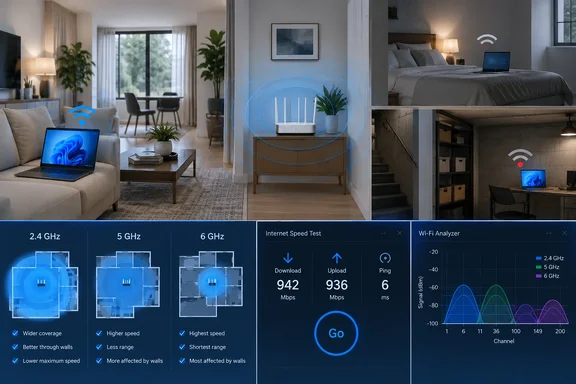
The guide covers several problems that can look alike from a Windows PC. A weak signal, a crowded channel, an unsuitable frequency band, and an older adapter struggling with a router setting can all leave the user with an unreliable connection. Separating those possibilities makes the advice useful—and helps avoid changing security settings to solve a coverage problem.
Microsoft’s Wi-Fi guidance starts with a baseline, not a router purchase
Microsoft recommends running several network speed tests at different places in the home and recording the results before changing anything. After adjusting the network or equipment placement, repeat the tests to see whether performance improves. A network speed-test app from the Microsoft Store is one supported way to make those measurements.
The practical value is the comparison between locations. A good result near the router does not establish that the connection is adequate at the desk where the PC is actually used. Equally, one poor result in a distant room does not identify which router setting needs changing.
A useful testing sequence follows directly from that guidance:
- Run several speed tests in the places where you normally use the Windows device.
- Record the results by location so that you can compare the same places later.
- Use a Wi-Fi analyzer to examine signal strength and nearby networks where performance is poor.
- Make a targeted change based on the evidence: placement for weak coverage, for example, or channel selection for congestion.
- Repeat the tests at the original locations and compare the results.
As a practical refinement, changing one variable at a time makes the comparison easier to interpret. If you move the router, rename the networks, and change the channel together, an improvement will not tell you which change helped. This is a diagnostic approach rather than an additional Windows requirement.
A speed-test app and a Wi-Fi analyzer serve different purposes. Microsoft uses the former to establish performance before and after changes, and the latter to examine signal strength and channel conditions. A faster test result shows an improvement in the measured outcome; a network graph helps explain which wireless conditions might be contributing to it.
Router changes also have a prerequisite: access to the router’s administration interface. Microsoft says this is usually reached through a web browser, but it does not supply a universal address, login, or menu sequence. Those details vary by access point. The setting names below identify what to look for; they are not Windows Settings controls.
The right Wi-Fi band depends on the room and the device
Microsoft describes three consumer Wi-Fi frequency bands: 2.4 GHz, 5 GHz, and 6 GHz. Their trade-offs make band selection a useful troubleshooting step, particularly when a device works well near the router but poorly elsewhere. The highest-frequency option is not automatically the most useful connection in every room.
| Band | Microsoft’s documented strengths | The limitation that affects your choice |
|---|---|---|
| 2.4 GHz | Longer range, better performance through walls and obstacles, and broad device compatibility. | Lower throughput, fewer non-overlapping channels, and more potential interference from other equipment using the band. |
| 5 GHz | Generally higher throughput, more non-overlapping channels, and less congestion. | Shorter range and poorer wall penetration than 2.4 GHz; support is less common among some connected household devices. |
| 6 GHz | High throughput and low congestion, with strong performance for demanding tasks near the router. | Shorter range, weaker wall penetration, and a requirement for compatible router, client hardware, and drivers. |
For basic browsing and email, Microsoft says 2.4 GHz will often be sufficient. It points to 5 GHz as a better fit for higher-throughput activities such as movie streaming and gaming on an Xbox One. For 6 GHz, its recommendation is explicitly conditional: the connection can provide the best performance when the device is close to the router and supports the necessary technology.
That creates a useful decision rule. Where distance and walls are the main obstacles, trying 2.4 GHz is supported by its coverage characteristics. Where the device is closer to the router and needs more throughput, 5 GHz—or 6 GHz on compatible equipment—is worth comparing. The result still needs to be checked in the room where the device will be used.
The 6 GHz requirement deserves particular attention. Microsoft’s home-layout guide describes it through Wi-Fi 6E and calls for a compatible router, Windows device, and network-adapter drivers. Its general “Applies To” label for Windows 10 and Windows 11 does not mean every PC running either operating system can use every band. Nor should the Xbox One example for 5 GHz be read as a statement about that console supporting 6 GHz.
Separate SSIDs make band comparisons easier to understand
An SSID is the network name shown when you choose a Wi-Fi connection. Microsoft recommends different names for the bands so that you can tell which network you are using. That makes it easier to compare a particular device’s experience on 2.4 GHz and 5 GHz, rather than guessing which connection produced a result.
Some networks use one name for multiple bands. Microsoft says Windows will automatically connect to the best available band in that arrangement. A shared name therefore offers convenience, while separate names offer clearer visibility during troubleshooting.
The documented benefit of separate names is identification—not a guaranteed speed increase. If a single-name network already works reliably, the guide does not establish a performance reason to rename it. If the purpose is to compare bands, however, distinguishable names make the experiment easier to follow.
Router placement addresses weak coverage before channel tuning
Microsoft’s central coverage warning is straightforward: if the signal is too weak, changing channels cannot make the connection reliably usable on its own. That puts placement ahead of channel optimization when the analyzer shows poor signal strength at the device’s normal location.
The guide recommends reducing the number of walls and obstacles between the access point and the device. Where possible, move the router toward the middle of the home or room and place it higher. A corner or a position under a desk can reduce signal strength, while objects such as a metal filing cabinet can interfere with the connection.
Microsoft’s separate “10 tips to help improve your wireless network” guidance reinforces those placement recommendations. It identifies a central location as preferable for building-wide coverage and notes that walls, floors, and metal objects can weaken wireless signals. For a two-story building with the access point downstairs, it suggests placing the equipment high on a shelf to help reach upstairs devices.
These are useful changes to test before assuming the PC needs replacement hardware. The supported action is to improve the physical path between the existing access point and client, then measure again. Neither Microsoft page promises that central placement will overcome every wall or cover every building.
The device’s position deserves attention too. Microsoft recommends moving it closer where practical, without placing it immediately beside the access point, and checking its orientation. It also notes that the user’s position can contribute to signal loss. A location test should therefore reflect how the device is actually used, rather than only how it performs when temporarily held in a more favorable spot.
If neither the router nor the device can move, Microsoft suggests trying a network extender. That is a conditional alternative, not a finding that an extender is always preferable. The guide supplies no model-specific placement procedure or measured improvement, so it cannot support a promise that adding one will solve a particular dead zone.
Wi-Fi channels and channel width solve different problems
Once coverage is adequate, channel congestion becomes a more useful line of investigation. Microsoft recommends a Wi-Fi analyzer with a network-graph feature so that you can inspect nearby access points and compare conditions around the home. If an app does not provide that feature, it advises trying another.
For 2.4 GHz, Microsoft identifies channels 1, 6, and 11 as the non-overlapping choices to consider. It recommends comparing the nearby access points on those channels, taking signal conditions into account, and considering overlapping networks when the main choices otherwise look similar. Its illustrated discussion uses the awkward phrase “strongest low signal”; without treating that as a universal measurement threshold, the actionable point is to compare both channel occupancy and signal conditions rather than pick a number blindly.
A practical application of the documented advice is:
- Inspect the 2.4 GHz network graph at the locations where the connection performs poorly.
- Compare channels 1, 6, and 11, including the nearby access points using them.
- Favor a less crowded choice while considering the signal conditions shown by the analyzer.
- If the choices look similar, account for access points on overlapping channels as well.
- Apply the selected channel through the router’s administration interface and repeat the performance tests.
The 1/6/11 recommendation belongs to 2.4 GHz. Microsoft gives different guidance for 5 GHz: overlap is less of an issue, so consider the channel with fewer access points for the signal conditions. The guide does not provide an equivalent manual 6 GHz channel-selection procedure, and the 2.4 GHz rule should not be carried over to it.
An automatic channel setting is also a legitimate option. Microsoft acknowledges that some routers select a suitable channel well and others do not. That supports checking the results of Auto, rather than assuming manual configuration must be better. A manual change earns its place when the before-and-after comparison shows that it helps.
A 20 MHz setting is a targeted 2.4 GHz compatibility test
Channel width is a separate control from channel number. Microsoft describes 20 MHz and 40 MHz operation on 2.4 GHz, noting that 40 MHz can offer higher throughput but does not work well with some older adapters and drivers. Its proposed test applies when the connection remains unreliable despite strong signal strength and a clear channel.
For that situation, Microsoft recommends signing in to the access point and finding Channel Width. If it is set to Auto, 20/40 MHz, or a similar combined option, try 20 MHz, then check whether reliability improves.
The trade-off is explicit: the narrower setting gives up the higher-throughput potential of 40 MHz in pursuit of compatibility. It is not a blanket instruction to reduce channel width across every wireless network. It is also not a substitute for moving equipment when the signal is weak.
Success here means a more reliable connection in the affected configuration, not necessarily the highest speed-test number. If the device already has strong signal strength and consistent performance, Microsoft’s compatibility branch gives no reason to change the width merely because the setting exists.
WPA3 and legacy security require a separate compatibility check
Microsoft also warns against older wireless-security configurations. It identifies WPA3 as the current standard, advises avoiding WEP, and says hiding an SSID should not be treated as a security measure. These recommendations address protection and connection compatibility; they do not fix a signal path blocked by walls.
One specific warning concerns mixed WPA+WPA2 mode. Microsoft explains that a device may try WPA2 first and fall back to WPA if it cannot connect. Some older adapters do not handle that fallback reliably, which can produce intermittent connection failures.
That warning has a narrow scope. WPA+WPA2 should not be silently rewritten as WPA2+WPA3, and it does not establish that every setting described as “mixed” or “transition” mode has the same fault. The precise security option matters.
Before choosing a security mode, establish that the devices involved support it. In “Faster and more secure Wi-Fi in Windows,” Microsoft documents a way to inspect the Windows adapter’s reported capabilities:
- Open Command Prompt or Terminal.
- Run
netsh wlan show drivers. - Examine Radio types supported for the reported wireless standards.
- Examine Authentication and cipher supported in infrastructure mode for supported authentication methods, including WPA3 Personal where available.
This command reports adapter and driver capabilities; it does not configure the router or certify the rest of the household’s equipment. Microsoft’s related guidance identifies router support, Windows support, and a compatible wireless adapter as prerequisites. Checking only one side leaves the compatibility question incomplete.
The useful conclusion is to keep the investigations separate. Weak coverage calls for placement and band tests. Strong signal with unreliable 2.4 GHz operation may justify the channel-width test. A legacy authentication configuration needs a security review. Weakening security is not one of Microsoft’s remedies for poor coverage.
What this means for your Windows Wi-Fi troubleshooting
Start with measurements at the places where the connection fails, and leave settings that already work alone. Microsoft’s guide is most valuable when used as a sequence of targeted tests rather than a checklist of changes to apply all at once.
- Record several speed-test results around the home before making changes, then repeat the same location checks afterward.
- Compare bands according to distance, obstacles, and device support; a nearby 6 GHz connection and a wall-separated 2.4 GHz connection serve different circumstances.
- Address weak signal strength through placement, obstacle reduction, or device position before expecting a channel change to help.
- Keep channels 1, 6, and 11 within the 2.4 GHz discussion, and judge automatic or manual channel selection by the results in your home.
- Try 20 MHz on 2.4 GHz only for the documented compatibility case: unreliable service despite strong signal strength and a clear channel.
- Review obsolete security settings independently, checking device support before changing authentication modes and avoiding WEP or hidden network names as supposed fixes.
The next useful step is a measured comparison on the network you already have. Microsoft’s guidance gives Windows users concrete ways to distinguish a placement problem from a channel, band, or compatibility problem—and a reason to consider additional equipment only after those tests show where the existing setup falls short.