

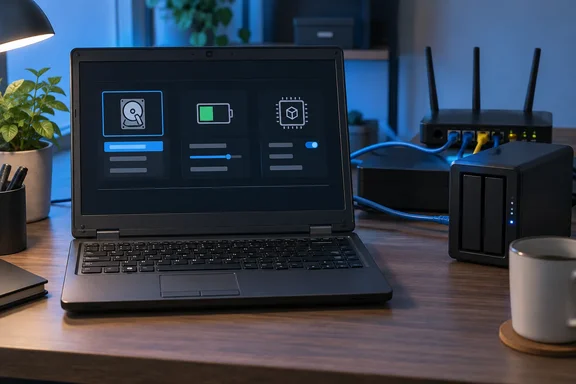
The advice is sound, but it needs some qualifiers. Unraid, umbrelOS and TrueNAS each boot differently, laptop firmware varies a lot between makers, and "enable virtualization" covers more than one switch. Here's a version-aware walkthrough based on each vendor's own documentation.
Why these three settings matter
A NAS is supposed to run for months without anyone touching it. Any setting that controls what happens on the next reboot, what the battery does on constant AC power, or whether VMs can run later is easier to fix now than after the machine is holding your photo library.
- Boot order decides whether the laptop comes back up after a restart or sits at a firmware screen.
- Battery protection decides whether the battery ages quietly or stays at full charge around the clock.
- Virtualization decides whether "I'll run Home Assistant in a VM later" means flipping a toggle in the web UI or pulling the server back onto your desk.
Summary: None of these settings is complicated. Getting any of them wrong just costs you more time after deployment than before it.
Check 1: Boot from the right device
Each NAS OS has its own boot arrangement, so find out which one you're using before you touch the boot menu.
Unraid
For years Unraid booted only from a USB flash drive, which also carried the license. That changed with version 7.3. Unraid now says Internal Boot lets you install and boot Unraid from an internal drive: NVMe, SSD, eMMC, or an existing storage device. Unraid also treats it as optional: if your USB flash boot setup is reliable and fits your server, you do not need to switch just because internal boot exists.
Where Unraid boots from and how it's licensed are two separate things. According to Unraid, Internal Boot (where Unraid boots from) and licensing (what hardware your license is tied to) are separate choices. You can get the full performance and reliability benefits of Internal Boot while keeping flash-based licensing, which is especially relevant for older systems without TPM. That's useful to know if your laptop is older and may lack a TPM.
A new install still starts from a USB drive. Unraid's documentation says to set that USB drive as the first boot device in BIOS/UEFI. On first boot, the onboarding wizard lets you keep flash boot or move to one internal device or two mirrored ones. If you choose internal boot and the machine won't start afterwards, the fix is manual: Unraid attempts to update the UEFI boot order automatically. If that does not take effect, manually move your internal boot device(s) to the top of your BIOS/UEFI boot order, save changes, and reboot.
There's a further catch in the 7.3.0 release notes. When boot-pool devices are added, removed or replaced, the notes say to verify the BIOS boot order manually. They also carry a warning: Do not roll back to 7.2.6 or earlier after enabling internal boot or TPM-based licensing.
Two more Unraid requirements affect the firmware visit:
- Unraid's BIOS checklist says to disable Secure Boot, because Unraid OS doesn't support it.
- Internal boot requires boot storage that can be accessed by built-in Linux drivers during startup. Devices that require third-party drivers or post-boot configuration cannot be used for internal boot.
umbrelOS
Umbrel's amd64 installation guide gives two paths:
- Run from USB. You flash the umbrelOS image to a USB drive of at least 32 GB (Umbrel says a USB SSD is ideal) and boot from it. If the laptop doesn't boot from it automatically, set USB first in BIOS and leave it there, because umbrelOS boots from that drive every time.
- Install to internal storage. Here the USB stick is only the installer. You pick the target drive, which gets erased, then power off, remove the stick and boot from the internal drive. The trade-off: umbrelOS then shares that drive with your apps and data, and it can't join a Storage Manager pool.
TrueNAS
TrueNAS documentation describes the installer USB as media that is temporarily attached to the system to install TrueNAS onto its permanent boot device. The installer asks you to pick a target and erases it on a clean install, so read the drive list carefully. TrueNAS also says to disable Secure Boot, or set it to "Other OS", so the laptop can boot the installer. It notes that on Intel chipsets made in 2020 or later, UEFI is likely the only boot mode.
USB first, or a one-time boot menu?
Campanale puts USB at the top of the boot order on his DIY NAS builds, even when the NAS itself doesn't boot from USB. That way a recovery stick boots on its own without him hammering a hotkey at power-on. It's a reasonable personal choice, but it has a downside: a USB stick left in the port can take over the next unattended reboot.
Most laptops have a one-time boot menu for occasional recovery. Keep the normal boot order pointed at your installed system and use that menu when you need the stick. Boot order also can't rescue a recovery drive that was written badly or doesn't match the firmware's UEFI/legacy mode.
Summary: Match the boot order to your OS's install method. After any change to boot devices, check the order yourself rather than trusting an installer to have done it.
Check 2: Protect a battery that lives on AC power
Campanale's second point is that a laptop plugged in 24/7 can wear its battery by sitting at full charge. Lithium-ion wear depends on temperature and state of charge, so the concern is real. He gives two options: remove the battery, or turn on a charge-protection mode in firmware. Removing it is best for the battery's lifespan, but it also removes the built-in UPS, which is one of the main reasons to use a laptop at all.
He says these modes often cap the charge at 80%. Treat that as one example, not a standard. Microsoft's Surface documentation shows how different the numbers can be. Surface's Battery Limit is a UEFI setting Microsoft recommends for devices that stay on power permanently. When it's enabled, the battery stops charging at 50%, not 80%. To turn it on:
- Hold Power + Volume Up while starting the Surface to open Surface UEFI.
- Go to Boot configuration > Advanced Options and set Enable Battery Limit to On.
- On Surface Go models, use Boot configuration > Kiosk Mode instead.
Microsoft says the setting is built into models such as Surface Pro 7 and later and Surface Laptop 3 and later. Some older models need a firmware update first, including Surface Pro 3, Pro 4 and the original Surface Laptop.
Other brands put this feature in different places, under names like conservation mode, charge threshold or battery health management. It may be in firmware or only in a vendor utility. Look up your exact model. If your laptop has no such option, you're back to Campanale's choice: remove the battery or accept that it will age faster.
One practical note: a worn battery on an old laptop may give you far less runtime than you expect. Test it. Pull the AC plug while the NAS is idle and time how long it keeps running before you rely on it to shut down cleanly.
Summary: Find your laptop's own charge-limit feature. Expect the cap to vary by brand (Surface uses 50%), and measure the real backup runtime.
Check 3: Turn on virtualization only if you'll use it (and know which switch)
The third check is hardware virtualization. Campanale points out that Docker containers don't need it, but full VMs do in practice. He also says Home Assistant runs best in a VM. His wording, that VMs simply won't work without the setting, is a bit strong. QEMU can emulate a machine entirely in software, just much more slowly. So the accurate version is that hardware acceleration is what makes VMs practical.
There are also two separate settings, and they're easy to mix up. Unraid's checklist lists both:
- Enable hardware virtualization features (e.g., Intel VT-x or AMD-V) for virtual machines (VMs).
- Enable IOMMU support (Intel VT-d or AMD-Vi) for PCI device assignment to VMs.
VT-x or AMD-V is the one you need to run VMs. VT-d or AMD-Vi only matters if you want to pass physical hardware straight through to a VM, such as a GPU or a USB controller. On a laptop, passthrough is usually awkward anyway.
Menu names vary by maker. Unraid advises that you look for settings labeled Virtualization, Intel VT-x, Intel VT-d, AMD-V, or AMD-Vi and set them to Enabled.
There's one laptop-specific catch that the original advice doesn't mention. Many repurposed laptops end up on Wi-Fi. Unraid recommends that if the server is on Wi-Fi, VMs should use the Private NAT (virbr0) network bridge, because Wi-Fi interfaces support only a single MAC address, which restricts the use of public bridges and custom network types. If you want VMs to show up as separate devices on your home network, use Ethernet. Umbrel's install steps assume a wired connection to your router anyway.
Summary: Enable VT-x or AMD-V for VMs, and turn on the IOMMU setting only if you need passthrough. For bridged VM networking, plug in Ethernet.
Is a laptop actually a good NAS?
Campanale argues that a laptop may be close to ideal. His reasoning: NAS appliances rarely use desktop processors, the built-in battery acts as a UPS, and external drive enclosures (DAS) make up for the limited internal bays.
That argument has limits:
- The battery doesn't cover a DAS. He notes this himself: externally powered enclosures still lose power in an outage, unlike 2.5-inch drives powered from the laptop.
- USB-attached storage is a less robust setup than drives on proper SATA ports, especially for RAID-style pools.
- Heat and fans in an old laptop are built for bursts of work, not constant load.
For a light file server, a media host or a small Home Assistant setup, an old laptop is a reasonable, low-power choice. Just treat the battery as a way to shut down cleanly, not as a replacement for a real UPS.
Pre-flight checklist
- Choose your OS and how it will boot: USB, internal drive or mirrored internal drives.
- Set the normal boot device, or plan to use the one-time boot menu for recovery.
- Disable Secure Boot if your NAS OS requires it (Unraid does, and TrueNAS says to for the installer).
- Turn on your maker's battery charge limit, then test real runtime on battery.
- Enable VT-x or AMD-V if you'll run VMs. Enable VT-d or AMD-Vi only for passthrough.
- Use Ethernet if you want bridged VM networking.
- Double-check the target drive before any installer erases it.
If you've converted a laptop into a NAS, share in the forum's storage and home-server threads which firmware options your model had and how long its battery really lasted.
References
- Before you turn an old laptop into a NAS, check these 3 BIOS settings first How-To Geek · 2026-09-30T15:30:16+00:00
- Create an Unraid USB drive | Unraid Docs docs.unraid.net
- Installing umbrelOS on amd64 | umbrelOS Support umbrel.com