

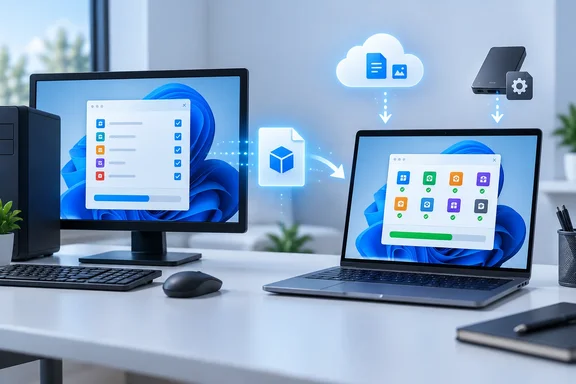
The approach fixes a real gap. Microsoft's own migration tools restore settings and put pinned apps back on the Start menu, but for most programs they don't reinstall anything. UniGetUI fills that gap with a list you pick yourself. Knowing which tool handles which part of the move is how you avoid spending a week putting a new PC back the way you had it.
How a UniGetUI bundle speeds up a Windows 11 PC migration
UniGetUI is a graphical front end for the command-line package managers Windows users already have. Its maintainer describes it as a GUI for WinGet, Scoop, Snap, Chocolatey, Pip, Npm, .NET Tool, PowerShell Gallery and more, on Windows 10 and 11. The feature that matters for a new PC is simple. The project page says you can "Export package lists to import on another machine. Backup your setup to recover in seconds when migrating."
A package manager installs software from a curated repository, so you don't have to visit each vendor's site and click through an installer. Bott's guide uses only WinGet, Microsoft's command-line package manager. He calls UniGetUI "basically a wrapper" around it for this purpose. WinGet can install silently from a known package ID, so an exported list of those IDs can be replayed on another machine. Devolutions says UniGetUI can then line up the installs, choose the right package manager for each one, and flag conflicts. Devolutions blog
Who runs the project has changed. Mart?? Climent created UniGetUI, and Devolutions now maintains it. The project's README says it remains free, open source and MIT-licensed. The README also warns that wingetui.com and unigetui.com are fake websites run by a third party. It names Devolutions' site and the Devolutions/UniGetUI GitHub repository as the only official sources. That warning is practical: if you search for the old "WingetUI" name, you could end up on the wrong download page.
The bundle itself is a small text file. Bott saves his as JSON. The project's documentation lists JSON, .ubundle, YAML and XML as supported formats, and its command-line reference describes commands that import bundle content from a file or raw content, export the current bundle, and install the bundle through UniGetUI's shared operation pipeline. Home users will use the graphical workflow. Administrators may find the command-line route useful for repeat builds.
Cleaning house before you export the bundle
Bott's first step comes before the new PC is even switched on: clean up the old one. Open Settings > Apps > Installed apps and uninstall programs you no longer use. He suggests asking whether you still need third-party security software. There's no point in carefully moving junk to a new machine. He also says not to bother removing the apps built into Windows at this stage.
Next, protect your data. Make sure your documents are synced to OneDrive, Google Drive, Dropbox or another cloud service. If you don't use one, copy them to an external drive. The UniGetUI bundle contains no documents at all.
If you sign in with a Microsoft account and your files already sync to OneDrive, Bott also recommends running Windows Backup on the old PC. The Microsoft account requirement is narrower than it sounds. Microsoft's support documentation says the Windows Backup app is currently aimed at consumer devices signed in with a personal Microsoft account, such as outlook.com or live.com addresses. Work or school accounts don't work with it. Microsoft adds that the "Remember my apps" setting isn't available for work or school accounts. The "Other Windows settings" option can roam for organizational accounts only where the organization allows it through Enterprise State Roaming in Microsoft Entra ID.
"Credentials" also needs clarifying. In Windows Backup's settings choices, the relevant item is "Accounts, Wi-Fi network and passwords." That means Wi-Fi profiles and web credentials Windows stores. It doesn't include your password manager's vault or every app's saved login. Personalization settings such as wallpaper, theme and Start layout need a OneDrive sign-in and enough free space. Microsoft says a free Microsoft account includes 5 GB of OneDrive storage.
Building the bundle on the old PC
Install UniGetUI on the old PC first. The project recommends the Microsoft Store. Bott also gives a command for an elevated PowerShell window: winget install Devolutions.UniGetUI. The project's own documentation spells the command more precisely: winget install --exact --id Devolutions.UniGetUI --source winget. The longer version pins the exact package ID and source, which removes any doubt about which package WinGet picks. That's the safer version to type. Bott also suggests signing in with a GitHub account from the icon in the lower-left corner if you have one.
His sequence for creating the bundle, based on the UniGetUI interface in his screenshots, goes like this:
- Click the navigation bar icon to switch to the Installed Apps view.
- Click Filters to open the Sources list.
- Make sure both options under the WinGet heading are selected and the Local options are not.
- Tick the checkbox beside the "Package Name" column heading to select everything listed.
- Click "Add selection to bundle."
- When the command bar changes, click Save As and save the file.
- Copy the file to a flash drive or cloud folder you can reach from the new PC.
Labels may differ slightly between versions. UniGetUI updates often, and its recent release notes mention a refreshed interface with WinUI-style immersive overlays. Save the file right away. One user explains in a feature request on the project's tracker that creating a new bundle will delete the old one, so build the complete list in one go.
The Local PC audit is the step people skip
With the Installed Packages page still open, Bott suggests one more check. In Sources, select Local PC and clear everything else. That shows software UniGetUI can see but can't match to a repository package. Much of it will be components Windows or Microsoft 365 installed automatically, plus OEM utilities for your specific hardware.
What's left is your manual download list. Bott names two categories that usually end up there: older apps that were never added to the package repository, and security, backup and other system tools that install kernel drivers and so can't be installed from it. Write these down or take a screenshot before you retire the old machine. After it's wiped, working out what was on it is guesswork.
Restoring Windows Backup and the bundle on the new Windows 11 PC
During setup on the new PC, sign in with the same Microsoft account you used for the backup. Microsoft says Windows will detect the backup and offer to restore it. If you've backed up more than one PC, More options lets you choose which one. You get your settings and Wi-Fi information back, and your pinned apps return to where they were.
Here's where Windows Backup stops. Microsoft's documentation says Store apps are restored when you select their pins. For apps that aren't in the Store, Windows sends you to the web to download the installer. Files come back when you sign in to OneDrive. For a PC full of desktop software, that leaves a long list of downloads, which is the gap UniGetUI covers.
Microsoft's older answer to this problem has also gone. Its support page for transferring files and settings to a new Windows PC now says that feature is no longer available and points to Windows Backup instead. The same page says the old transfer flow never moved installed applications, saved passwords or sign-in credentials anyway.
Before you reinstall anything, Bott suggests running Windows Update, opening the Microsoft Store, clicking the Downloads icon in the lower-left corner to install pending updates, and checking the PC maker's site for driver and firmware updates. Then install UniGetUI from the Store and load the bundle:
- Click the icon at the bottom of the navigation bar to switch to Package Bundles.
- Click Open and choose the file you saved on the old PC.
- Use the checkbox at the top to select every package, then clear any you've decided you don't need.
- Click "Install selection."
You'll know it worked when the bundle's packages appear in the list before you click install. If you choose a file and nothing appears, don't assume it installed. A 2024 bug report against UniGetUI 3.1.1 described a JSON bundle that fails silently on a second machine, with no error message. That report is old, but the check costs nothing.
Bott says packages install without asking you to make choices. The exception is UAC: you'll need to approve a User Account Control prompt for each app that installs with administrator rights. Expect to stay near the machine while it runs. It's quick, but you can't leave it unattended.
Trust, repositories and what automation cannot carry over
Installing silently from a repository means trusting whoever submitted each package. UniGetUI says so in its README: it isn't affiliated with the package managers it integrates with, and packages come from third parties, so you should review sources and publishers before installing. Microsoft's WinGet documentation likewise advises installing only apps you trust, especially when running as administrator. A bundle of apps you personally chose from your own machine is lower risk than a list someone else gives you. The UAC prompts are still your last chance to catch anything unexpected.
There's another safety boundary worth knowing if you use advanced features. The project's maintainer has said on its discussion forum that, "for security reasons, import/export does not import/export dangerous settings." Features such as pre- and post-install commands inside a bundle have to be enabled deliberately. A basic migration bundle doesn't need them.
Then there's what no package list can move. Reinstalling a program doesn't bring back its preferences, license activation or signed-in session. Bott's last steps are all manual, in this order:
- Set up your password manager (WinGet will already have installed it).
- Sign in to your browser to sync favorites, extensions and settings.
- Sign in to your cloud storage to start syncing files, or restore them from your external backup.
- Download and install the local-only apps from your audit list.
The order makes sense. Once the password manager is working, every later sign-in is easier.
What this means for you
If you're a home or small-office user moving between personal Windows PCs, you can start using this approach today at no cost. The main thing to take from it is how the jobs divide: Windows Backup handles settings, OneDrive or another cloud service handles files, UniGetUI handles app installs, and you handle licenses and sign-ins. If your PC is signed in with a work or school account, the Windows Backup half of Bott's workflow doesn't apply as written. The UniGetUI bundle can still reinstall apps, but whether that's allowed on a managed PC depends on your organization. Ask IT before you run package installs on a company device.
- Download UniGetUI only from the Microsoft Store, Devolutions' website or the Devolutions/UniGetUI GitHub repository, because the project warns that wingetui.com and unigetui.com are fake.
- Uninstall apps you don't use before exporting, so the bundle only rebuilds software you actually want.
- Save the bundle right after creating it and keep a copy off the old PC, because starting a new bundle can replace the old one.
- Filter UniGetUI to Local PC and write down the third-party apps that aren't in the bundle, especially security, backup and driver-based utilities.
- Expect Windows Backup to restore settings, Wi-Fi information and app pins on personal Microsoft accounts, not to reinstall desktop programs or migrate password-manager vaults.
- Plan to approve a UAC prompt for each app that needs administrator rights, and confirm the bundle's packages appear in the list before you start installing.
This approach will stay useful because Microsoft has stepped back from direct PC-to-PC transfer and now relies on Windows Backup, which restores settings well but leaves most desktop apps for you to download. UniGetUI turns that part of the job into a text file you can make on the old machine in a few minutes and reuse on the next one. That also makes it a good record of your software to keep, whether or not you're replacing a PC right now.
References
- My favorite Windows app makes moving to a new PC so easy – and it’s free - ZDNET ZDNET · 2026-09-23T11:43:42+00:00
- README.md github.com
- Back up and restore with Windows Backup | Microsoft Support support.microsoft.com