

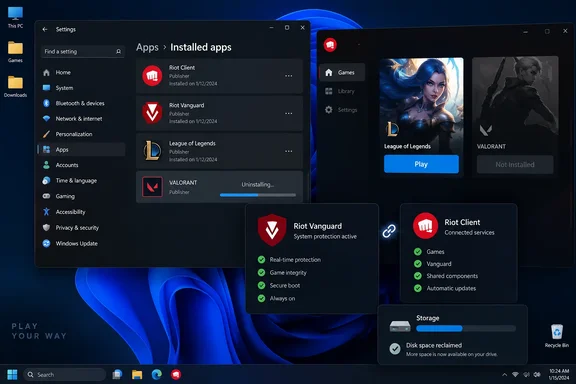
Shattered’s September 21 guide highlights this problem under a promise to save 27GB in 11 steps. Its central warning is useful, but the storage figure should not become a target that encourages readers to keep deleting files until they reach it. The guide’s 25–28GB estimate is not a verified measurement of your installation, and Riot’s documentation does not establish it as a guaranteed saving.
The same keep-Vanguard rule applies to Teamfight Tactics on Windows. Riot’s League Vanguard FAQ, dated June 2, 2026, explicitly says TFT on PC uses the League client and requires Vanguard. There is no need to infer that requirement from a supposed standalone TFT installation or from whether a registry script happens to find a separate TFT entry.
Removing Valorant leaves League’s Vanguard dependency intact
Riot describes Vanguard as security software with a client component and a kernel-mode driver. For this uninstall task, the important consequence is straightforward: Vanguard serves more than one game. Removing Valorant does not make Vanguard redundant while League or another Vanguard-dependent title remains in use.
Riot’s League FAQ states that Vanguard is automatically removed only when all software requiring it has been uninstalled. That is the governing rule for a PC containing both Valorant and League. A separate entry in Windows’ installed-app list identifies something you can uninstall; it does not establish that nothing else needs it.
This arrangement also predates 2026. Riot’s February 6, 2024, League patch 14.3 notes discussed the planned Vanguard requirement for League and TFT, including compatibility checks and a revised rollout schedule. Those notes describe a rollout plan, not its eventual completion date, but they establish that shared Vanguard requirements were already being introduced years before this September 2026 cleanup guide.
Keep the removal boundary simple:
| Component | Decision when keeping League on Windows | Practical reason |
|---|---|---|
| Valorant | Uninstall the game. | This is the application you want to remove. |
| Riot Vanguard | Keep it installed and available. | League and TFT on PC require it. |
| Riot Client | Keep it. | It remains part of the launch and maintenance workflow for the game you are keeping. |
| Clearly identified Valorant-only leftovers | Inspect after uninstalling; cleanup is optional. | Their removal should not expand into deleting shared directories. |
| Broad Riot parent folders | Leave them alone during this procedure. | Their contents may extend beyond Valorant. |
Removing Valorant consequently serves a storage or game-library decision. If your actual objective is to eliminate Vanguard from the computer, keeping League playable on that Windows installation is incompatible with that objective under Riot’s documented requirement.
There is also a useful distinction between closing Riot Client and exiting Vanguard. Riot Client can be closed before uninstalling the game. Riot says exiting Vanguard disables it until the computer is restarted; doing that accidentally does not, by itself, mean you must reinstall the anti-cheat.
An 11-step Valorant uninstall keeps the deletion boundary narrow
This workflow is for a Windows PC where Valorant is installed and League or TFT is already working. Have access to an administrator account if the uninstaller requests approval. The Windows removal interface described here does not establish that every Windows version remains supported by Riot’s current games.
Do not uninstall Riot Vanguard or Riot Client during this procedure. Also avoid service-deletion commands and bulk “remove everything Riot” scripts. None is needed to request removal of Valorant itself.
- Confirm that the game you are keeping works. Open Riot Client and launch League, or the League-client installation used for TFT. Establishing a working starting point lets you distinguish an existing launch problem from something that appears after removal. If League already fails, record that failure before changing the installation.
- Identify Valorant’s installation drive. Use the location actually used on your computer. The
C:\Riot Games\VALORANTpath shown in the Shattered guide is an example to inspect, not a reason to assume that every installation resides on C:. - Record free space before uninstalling. The guide supplies the read-only PowerShell command
Get-PSDrive C | Select-Object Used, Free. Use the relevant drive letter if Valorant is installed elsewhere, and retain the result for comparison. Measuring only after removal leaves you without a baseline. - Close the games and Riot Client. Exit Valorant and League normally, then close Riot Client from its Windows system-tray icon if it remains open. Riot’s support instructions identify closing the games and launcher as part of preparing for removal work. Leave Vanguard alone for this selective uninstall.
- Open Windows’ app-removal interface. Press the Windows key, search for “Add or remove programs,” and open the matching Settings result. On Windows 11, the relevant page is Installed apps; on Windows 10, it is Apps & features. These are alternative interfaces for selecting the application, not additional removal stages.
- Select Valorant only. Find the entry named VALORANT and choose Uninstall. Read the selected application name before confirming, particularly if the filtered list also contains Riot Client and Riot Vanguard. Let the game’s uninstaller finish before attempting manual cleanup.
- Complete any requested restart. If Windows or Riot requests a restart, finish it before judging the result. If you previously chose Exit Vanguard, Riot’s FAQ says restarting the computer is necessary to use it again. Do not substitute driver manipulation for that documented restart requirement.
- Check the removal result in Windows and Riot Client. Confirm whether Windows still lists Valorant as installed and whether Riot Client offers to install it instead of launch it. Treat disagreement between those views as a reason to stop and investigate—not permission to delete shared services or parent folders.
- Launch League or TFT again. Check that the game you kept opens without a Vanguard installation or error prompt. This is the most useful immediate functional check because it exercises the software you intend to continue using. Reaching the client is a launch check, not a guarantee against every possible later gameplay fault.
- Inspect optional leftovers conservatively. Look only at a confirmed Valorant installation directory and clearly Valorant-specific data, such as the
%LOCALAPPDATA%\VALORANTlocation identified by Shattered. Before deleting anything, confirm the exact directory and consider whether you want to preserve its local configuration. If ownership is unclear, leave it; removing every leftover is unnecessary for the basic uninstall. - Measure the same drive again. Repeat the free-space check and compare it with the baseline. Keep Vanguard and Riot Client in place regardless of whether the result matches 27GB. The successful outcome is Valorant removed, the retained game working, and the actual storage change understood.
The optional folder cleanup deserves less automation than the original guide gives it. Its PowerShell examples combine recursive deletion, forced removal, and suppressed errors. Those choices make the exact path especially consequential and reduce the feedback available when something goes wrong.
For this task, there is no need to run those deletion commands. Leave C:\Riot Games, %APPDATA%\Riot Games, and C:\ProgramData\Riot Games outside the cleanup scope. A folder named after the publisher is too broad a deletion target when another of that publisher’s games remains installed.
A PowerShell inventory cannot authorize a full Riot teardown
Shattered includes a read-only preflight script that searches the Windows uninstall registry, checks Vanguard-related names, and prints a recommendation. Read-only operation limits what the script itself can damage. The recommendation still needs scrutiny before a user acts on it.
The script searches one registry location and matches a fixed list of display names: VALORANT, League of Legends, and Teamfight Tactics. Its final branch announces that a full teardown is safe when no other matching title is found. That conclusion is broader than the search: the code establishes only that its particular query did not return another matching name.
For the scenario here, the reader already knows the decisive fact: League or TFT must remain playable. A script reporting no match does not override that requirement. There is no need to solve a general software-inventory problem to decide that League’s required anti-cheat should stay installed.
The service check has a similar, narrower role. The guide proposes:
Get-Service vgc, vgk -ErrorAction SilentlyContinue |
    Select-Object Name, DisplayName, Status, StartType
Treat this as optional diagnostic output, not a pass-or-fail certificate for Vanguard. The inspected Riot documentation does not establish the guide’s exact Running, Automatic, and Boot display values as a universal expected result from this command. In particular, a missing row in this query is not enough to conclude that Valorant’s uninstaller improperly removed a driver.
Nor should readers edit startup settings simply to make their output resemble a sample table. The supported requirement is that Vanguard operates correctly for League. Launching the retained game and responding to its actual error or installation prompt provides a more relevant next step than chasing a particular PowerShell display.
Riot’s recovery path does not require reinstalling Valorant
If League requests Vanguard after Valorant has been removed, use League or Riot Client to restore the dependency. Riot’s Vanguard removal-and-reinstallation instructions say launching Riot Client or a Vanguard-dependent game reinstalls Vanguard automatically after it has been removed. Valorant itself is not required for that recovery.
Distinguish that case from having merely exited Vanguard. Riot’s FAQ says the application starts with the computer and requires a restart after being disabled. Restarting is the documented response to that state; an exit operation should not be described as automatically requiring a restart-and-reinstall cycle.
If an actual Vanguard error appears, retain the exact error code. Riot’s FAQ explains that access can be restricted because of an outdated Windows installation or particular system configurations, so a launch failure is not automatically evidence of a botched Valorant removal. The timing of a problem helps with diagnosis but does not identify its cause.
Riot’s general fallback guidance is to complete necessary Windows updates, restart the computer, and, if the issue remains unresolved, reinstall League and Vanguard. That is a broader recovery action than this selective uninstall. It belongs after identifying the failure, not as an obligatory final cleanup step.
The commands sc delete vgc and sc delete vgk belong to a different procedure: Riot’s manual removal of Vanguard itself, performed in an elevated Command Prompt and followed by a restart. They should not be run simply because Valorant is gone. A reader keeping League would be deleting a dependency they then need to restore.
The same restraint applies to the guide’s suggestion to start Vanguard components manually when League fails. The inspected support material does not establish that as a universal repair. Use Riot’s documented restart and installation behavior before attempting service-level changes.
Keep League working and measure the storage result
Choose the selective uninstall if you want Valorant off the PC but still intend to play League or TFT. Stop after the normal removal and functional check if the result meets that goal; optional residue cleanup should have a clear benefit and a clearly identified target.
The 27GB figure is best replaced by a before-and-after measurement. Shared components deliberately remain installed, and the result should reflect the files removed from your computer. A smaller-than-advertised gain is a reason to inspect the installation location and removal outcome, not a reason to broaden the deletion scope.
- Uninstall the VALORANT entry in Windows, while retaining Riot Vanguard and Riot Client.
- Keep Vanguard for Teamfight Tactics on PC as well as League; Riot’s current FAQ explicitly covers both.
- Record free space on Valorant’s actual installation drive before and after removal instead of relying on a fixed 27GB promise.
- Leave broad Riot folders and Vanguard services untouched, even if an inventory script fails to detect another game.
- Launch the retained game afterward, and use Riot’s restart or automatic Vanguard-reinstallation path if needed.
The practical endpoint is simple: Valorant is removed and League or TFT remains usable with its required software intact. When you eventually stop using every Vanguard-dependent game, removing the shared anti-cheat becomes a separate decision. Until then, preserving it is part of a successful uninstall—not unfinished cleanup.
References
- Uninstall Valorant, Keep League of Legends: Save 27GB in 11 Steps (2026) shattered.io · 2026-09-21T18:30:15+00:00
- FAQ de Riot Vanguard (League of Legends) - League of Legends Support support-leagueoflegends.riotgames.com
- Patch 14.3 Notes leagueoflegends.com