

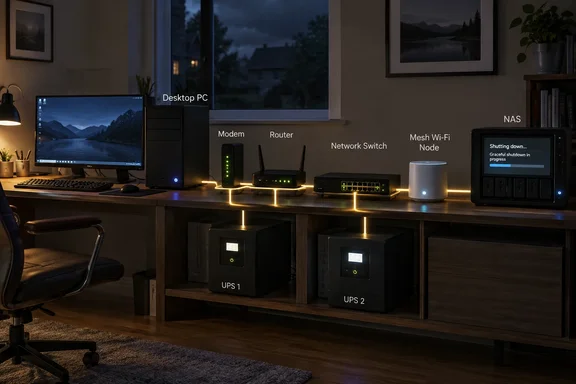
That's the argument Tanveer Singh makes in a new XDA Developers piece. He says the modem, router, switch, access points, mesh nodes and any NAS or home server need backup power too. Otherwise your protected PC becomes "little more than a fancy box." We agree with the premise. Some of the article's numbers and promises need qualifying, though, and the practical details that decide whether a backup plan actually works are missing. Here's the fuller version.
The core problem: power is a chain
XDA's main point holds up. A UPS only powers what's plugged into its battery-backed outlets. If the PC is on a UPS and the network gear isn't, an outage takes you offline even though your monitor never flickers. Your internet provider can be working perfectly and it won't matter if your own router is dark.
The weak spots in a typical home setup:
- Modem or ONT (optical network terminal): the box where your provider's line enters the house. If it goes dark, nothing downstream reaches the internet.
- Router: handles addresses and routing for the whole home network.
- Switches: if your NAS, desktop or access points connect through a switch, it has to stay powered.
- Mesh nodes and access points: Wi‑Fi devices lose their connection even if the main router survives.
- NAS or home server: the device where losing power suddenly does the most damage.
Section takeaway: list every box between your PC and the internet. Anything on that path without battery backup is a single point of failure.
Fiber customers: check which backup you actually have
Fiber customers should check what their existing backup covers, because it's easy to assume more protection than you have.
Verizon's support pages are a good example. Verizon says the Fios ONT needs electricity to run every Fios service. Its PowerReserve accessory runs on 12 D‑cell batteries and provides at least 24 hours of basic voice service, including 911 calls. Verizon states plainly that PowerReserve won't power Fios Internet or TV, cordless phones, alarm systems or other peripherals. If a fiber installer left a battery box on your wall, don't assume it keeps your broadband running.
Verizon's newer Cellular Wi‑Fi Backup service shows the same dependency. It automatically moves your home network onto a registered Verizon smartphone's mobile data if Fios goes down. Verizon's FAQ says it can work during a power outage only if the Fios router has a backup power source, such as a generator or battery unit. It also notes that Fios routers don't include a battery. The phone has to stay on, within Wi‑Fi range and on a stable mobile signal. Verizon also says the service doesn't guarantee continuous coverage and may end sessions during extreme network congestion.
Other providers will have their own rules, but the lesson is general: keeping your network powered and keeping your internet connection are two separate goals. A UPS handles the first. It can't fix an outage on your provider's side.
This is also where XDA overpromises. The article says separate UPS units for network gear guarantee "100% network uptime" and total data uptime. A UPS gives connected devices power for a limited time. It can't guarantee your ISP stays up, that the battery holds out through a long blackout, or that every device behaves.
Section takeaway: find out which of your devices need wall power, and which services any existing backup covers.
The NAS: the goal is a clean shutdown
XDA says a NAS arguably needs a UPS more than a PC does, since it often holds the only copy of photos, backups, VMs and camera footage. That's a fair point. But the article frames the goal as keeping the NAS running, and that's the wrong emphasis.
For home setups, the NAS's UPS is mainly there to buy time for a controlled shutdown before the battery runs out. XDA says sudden power loss can permanently corrupt data. That can happen, but it doesn't happen every time. The real point is that a clean shutdown greatly lowers the risk.
Synology's DSM is a good example of how this works. When the Synology NAS enters Safe Mode, it stops all services and unmounts volumes in order to prevent data loss and shut down before the UPS dies. Synology's documentation adds that regardless of which option is selected, Synology NAS will automatically enter Safe Mode when it is low on power. On DSM 7 and later, Synology calls this state Standby Mode rather than Safe Mode, so check the labels on your version.
Setting up UPS support on a Synology NAS
- Check compatibility. Make sure your UPS is on Synology's compatibility list, and whether it connects over USB or SNMP.
- Connect the signal cable. For most desktop UPS units that's USB. The power cable alone doesn't tell the NAS anything.
- Turn on UPS support. A recent NAS UPS setup guide from RaidSize describes the steps: open Control Panel, go to Hardware & Power, and select the UPS tab, where you enable UPS support and pick the type: USB for a directly attached unit, SNMP for a network-managed one, or Synology UPS server if the NAS gets its UPS signal from another Synology box.
- Choose when to shut down. You can trigger Safe Mode after a fixed time on battery or at low battery. RaidSize argues that for most home setups low battery is the better default, since it rides out brief cuts instead of shutting down for a two-second flicker. One caveat from the field: a SynoForum user testing a small, older UPS wasn't prepared that safe mode would be entered somewhere around 60-62% of battery remaining. What counts as "low battery" depends on the UPS, so test it rather than assume.
- Decide what happens when power returns. DSM can tell the UPS to switch off after the NAS enters Safe Mode. Synology's help page says that if you enable this, you should also tick Restart automatically after a power failure in Control Panel. Otherwise the NAS may stay off after power comes back.
- Test it. Pull the UPS plug from the wall during a quiet moment. Confirm the NAS registers the outage, shuts down at the threshold you picked and restarts when power returns.
The switch matters too
If one NAS connects to the UPS by USB and shares its status with other devices over the network, the network path has to stay up during the outage. Synology says all Synology NAS should be connected to the same network. The network device (e.g. switch or hub) to which each Synology NAS is connected should be plugged into the same UPS device. If the switch loses power, the shutdown signal never reaches the other devices, and they go down hard. The network gear XDA says people forget turns out to be part of your NAS data protection.
TrueNAS and other Linux-based systems typically use Network UPS Tools (NUT) to do the same job. The labels differ, but the idea is the same: the storage box needs a signal from the UPS, not just power from it.
Section takeaway: a NAS on a UPS without a working shutdown signal is only partly protected. Connect the cable, set the threshold, put the switch on backup and test.
Sizing: VA ratings are only part of the story
XDA suggests a 1000VA UPS for a 4‑bay NAS (possibly smaller), 850–1000VA as a typical NAS range, 450VA for a 4–8 port switch, and a mini DC UPS for a router. XDA also says what should drive the decision: your drives' actual power draw, spin-up surges, and headroom so the UPS isn't running at its limit. That caveat matters more than the headline numbers. The number of drive bays tells you little. Four sleepy 2.5‑inch SSDs and four enterprise hard drives spinning up at once are very different loads.
Practical sizing rules:
- Check both ratings. A UPS has a VA rating and a watt rating. Your load has to fit within both, and the watt figure is often much lower than the VA number printed on the box.
- Leave headroom. APC's battery-life FAQ says runtime drops as load rises, and recommends not going beyond 80% of the UPS's rated capacity. Running near the limit empties the battery faster and shortens its life.
- Measure what the devices really draw. A plug-in power meter tells you more than any spec sheet.
- Decide what the UPS is for. Riding out a two-minute flicker, buying five minutes for a NAS shutdown and keeping Wi‑Fi up through a two-hour blackout are three different sizing problems.
- Check the outlet labels. This is general industry knowledge rather than anything in XDA's piece: many consumer UPS units have a mix of battery-backed and surge-only outlets. A router plugged into a surge-only socket will go dark with everything else.
Mini DC UPS units deserve one more caveat. XDA recommends a DC "router UPS" with a 10,400mAh battery. These can work well, but only if the output voltage and connector match your router's power input exactly. Check the barrel plug and voltage before buying.
On cost, XDA estimates $200–$300 for full coverage, $20 for a router mini UPS, $60 for a 450VA unit and $120–$150 for a NAS-class UPS. Those are XDA's own estimates. Treat them as rough guidance rather than current prices, which vary by region, retailer and model.
Section takeaway: size from measured watts, with 20% or more spare capacity, and a specific runtime goal.
Maintenance: UPS batteries wear out
XDA says a backup setup like this "will last for years without any upgrades." The UPS hardware might. The batteries won't last forever.
APC's FAQ says most of its lead-acid batteries last three to five years, depending on environment and how often they discharge. Heat matters a lot. APC says the ideal operating temperature is 20–25°C (68–77°F), and every 8°C (15°F) above that roughly halves battery life. That's worth remembering if your network gear lives in a hot closet or attic. APC also says to run full runtime calibrations only once or twice a year, since frequent deep discharges shorten battery life.
A UPS that has quietly lost most of its capacity feels fine right up until the power goes out.
A realistic plan
| Tier | What to protect | Main goal |
|---|---|---|
| 1 | PC | Save work and shut down cleanly |
| 2 | Modem/ONT + router | Keep the local network and internet link powered through short outages |
| 3 | Switch + access points/mesh nodes | Keep Wi‑Fi and wired links up; carry the NAS shutdown signal |
| 4 | NAS/home server | Controlled shutdown before the battery runs out |
A whole-house battery or generator covers all four tiers at once. As XDA notes, that usually costs much more. For most home users and small offices, a few correctly sized units, one near the PC, one near the network gear and one for the NAS, cover most of the risk.
The bottom line: XDA is right that a lone PC UPS protects less than people think. But the real protection comes from the less exciting details. Know which devices sit between your PC and the internet. Know what any provider-supplied battery actually powers. Make sure the NAS gets a shutdown signal and the switch carrying it stays on. Size by measured watts, and replace the batteries before they fail.
References
- Your UPS keeps your PC setup alive, but everything else still falls apart during an outage XDA · 2026-09-27T20:30:17+00:00
- NAS UPS Setup: Graceful Shutdown on Synology & TrueNAS raidsize.com
- Fios Digital Voice PowerReserve | Verizon Support verizon.com