

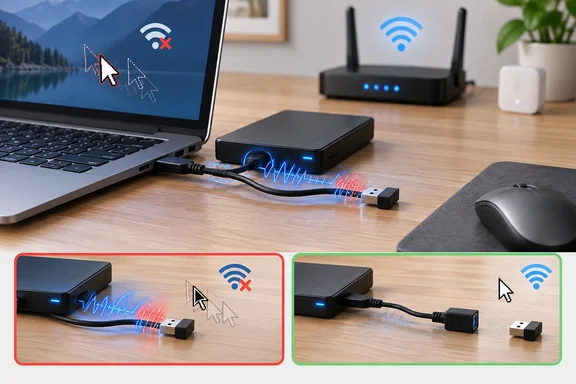
This is not new, and it is not a conspiracy. It is a documented physics problem that has been on record for more than a decade. It is worth knowing about because you can test for it in about thirty seconds with a free, reversible check: unplug the drive.
What Intel documented in 2012
The main reference is an Intel white paper titled USB 3.0 Radio Frequency Interference Impact on 2.4 GHz Wireless Devices, dated April 2012. The USB Implementers Forum still hosts it in its document library. Intel stated its goal plainly: "to create an awareness of radio frequency interference to wireless devices operating in the 2.4 GHz ISM band as a result of certain USB 3.0* devices and cables."
The key word is "certain." Intel did not say every USB 3.0 product breaks every wireless device. It described a real risk that depends on design, shielding and distance.
Why a wired standard can disrupt radio
USB 3.0 does not transmit Wi-Fi or Bluetooth signals. The problem is electrical noise from the wires. USB 3.0 SuperSpeed signals at 5 Gbps, and this is the same mode later renamed USB 3.1 Gen 1 or USB 3.2 Gen 1. As Access Agility explained in its summary of Intel's findings, USB 3.0 data must be scrambled before it is sent, which creates noise that can reach the 2.4–2.5 GHz range.
That range is where 2.4 GHz Wi-Fi, Bluetooth and most proprietary mouse and keyboard dongles operate. Patent filings in this area say the same thing. One observes that SuperSpeed signalling sharply raises noise between 2.4 and 2.5 GHz, which can degrade nearby wireless connections.
Because the noise sits inside the radio's own band, a receiver can't filter it out without also losing the signal it wants. The result is a worse signal-to-noise ratio, which means shorter range, lower throughput or dropped connections.
Where the noise comes from
Intel identified more than one source. According to the paper, the noise can come from a USB 3.0 connector on the computer, the connector on the external device, or the USB 3.0 cable. This affects the fix: a well-shielded drive won't help much if its cable is poorly shielded.
The numbers from Intel's lab
Intel's tests were controlled lab setups, not a prediction for your desk:
- Noise floor: In an RF absorber chamber, a near-field probe placed next to an external USB 3.0 hard drive showed the 2.4 GHz noise floor rising by nearly 20 dB once the drive was connected. That is a noise-floor measurement from one setup. It does not mean Wi-Fi throughput drops by 20 dB.
- Mouse test: Intel plugged a wireless mouse dongle into a notebook, with a USB 3.0 hard drive on the adjacent port over a 3-foot cable. With the drive disconnected, the mouse worked normally at 2, 3 and 5 feet. With it connected, the mouse still worked at 2 feet but lagged significantly at 3 feet or more.
- Idle drives count too: The mouse lag was about the same whether data was being written to the drive or it was simply connected with the link established. Intel said it saw a similar effect with a flash drive, and that Bluetooth was also affected, although it didn't publish the Bluetooth results.
The idle-drive finding is the one people miss most. Many users assume the interference only happens during a big file copy. In Intel's test, just having the SuperSpeed link up was enough. Devices differ, so don't treat "activity doesn't matter" as a rule either. What it does mean is that an idle drive isn't automatically safe.
Section summary: USB 3.0's 5 Gbps signalling produces broadband noise that overlaps the 2.4 GHz band. The connector, the device or the cable can radiate it. Intel measured real effects on a wireless mouse at ordinary desk distances, even with the drive idle.
Routers: the same problem, amplified
Routers are a particularly bad case. Many have a USB 3.0 port for network storage or printers, often only a few centimetres from the 2.4 GHz antennas.
TP-Link published a support FAQ for its routers with USB 3.0 ports. It says that in rare cases a connected USB 3.0 device can make the 2.4 GHz band unstable while 5 GHz keeps working normally. The symptoms TP-Link lists:
- Very low or unstable speeds on 2.4 GHz clients
- High ping even though the device shows as connected
- Intermittent drops
- The 2.4 GHz network disappearing, coming back briefly after a reboot, then disappearing again
TP-Link says the risk is highest when the USB device sits close to the router's antennas. Unplugging the device restores normal operation, which is also the quickest way to diagnose it.
This matters more than you might think. Your laptop and phone probably prefer 5 GHz or 6 GHz, but a lot of smart-home gear (cameras, plugs, sensors) is 2.4 GHz only. A NAS drive plugged into the router could quietly be making your doorbell camera flaky.
Some reporting says router makers redesigned hardware or moved antennas across the industry in response. Individual vendors have published guidance, as TP-Link did, but I couldn't independently verify broad claims about industry-wide redesigns or specific settings to disable ports. Treat those as unconfirmed.
Laptops and PCs: design helps, but doesn't guarantee a fix
Hardware makers have tried to engineer around this. Intel's own suggested mitigations included better shielding on USB 3.0 peripherals and on the computer's USB 3.0 ports, plus careful placement of wireless antennas.
Huawei's support page for Windows 10 and Windows 11 PCs shows both sides of this. The company says it shields the USB 3.0 ports on its computers. It still warns that because peripheral designs vary, some radiation from USB 3.0 devices can reach the antennas. Huawei lists these symptoms after connecting a USB 3.0 flash drive or hard disk:
- Being unable to connect to Wi-Fi at all
- Connecting, but with slower speeds or freezes
In other words, a well-designed laptop reduces the risk but can't account for a cheap plastic-cased hub or a thin unshielded cable.
How to troubleshoot it on Windows
Here's a sequence that goes from free and reversible to more involved. Each step also tests the diagnosis.
- Confirm the suspect. When the problem shows up (mouse lag, Bluetooth audio dropouts, weak 2.4 GHz Wi-Fi), unplug every USB 3.0 drive, hub and dock nearby. If things improve right away, you've probably found the cause. If not, look elsewhere: channel congestion, distance, drivers or other 2.4 GHz devices.
- Separate the dongle from the noise. Move the wireless receiver to a port as far as possible from the USB 3.0 device, ideally on the opposite side of a laptop. In Intel's test, a USB 2.0 extension cable that moved the dongle to the other side of the notebook restored normal mouse response at every tested distance. A USB 2.0 port stacked directly above the USB 3.0 port did not help. As one peripheral maker points out, a USB 2.0 port can still be affected if it sits right next to an active USB 3.0 port.
- Use a short extension cable for the dongle. Getting the receiver off the chassis and onto the desk, closer to your mouse, improves both distance from the noise and line of sight. ASUS gives similar advice and warns that distance reduces the effect but may not remove it completely.
- Move the drive to USB 2.0 if speed doesn't matter. A USB 3.0 device plugged into a USB 2.0 port runs at USB 2.0 speed and doesn't produce SuperSpeed noise. TP-Link recommends this for router-attached storage and says it eliminates the interference in that case, at the cost of much slower transfers. It works well for a printer or an archive drive you rarely use.
- Upgrade the cable or enclosure. Huawei recommends well-shielded devices (such as all-metal flash drives or enclosures) and well-shielded cables with foil and braid layers. A longer cable to move the device away from the computer also helps, especially away from the display hinge area where laptop antennas are often located.
- For routers: Try a shielded USB 3.0 extension cable to move the drive away from the antennas, or put the device in a shielded enclosure. TP-Link lists both as options.
- Change bands where you can. If a Wi-Fi client supports 5 GHz, connecting it there avoids this particular overlap. It won't help Bluetooth peripherals or 2.4 GHz-only smart-home devices, so this is a partial workaround.
- Check the Windows power setting. Huawei also suggests setting Power Saving Mode under Wireless Adapter Settings (in the advanced power plan options) to Maximum Performance to improve reception where the signal is weak. This compensates for a weak signal rather than fixing the interference, and not every system shows this option.
Success is simple to recognise: the mouse tracks smoothly at your normal distance, Bluetooth audio stops dropping, and 2.4 GHz clients hold a steady connection while the USB 3.0 device stays plugged in.
As for home-made shielding, such as foil wraps or improvised enclosures: shielding is a real fix at the design level, but DIY attempts are fiddly and easy to get wrong. Try it last, if at all.
Section summary: Unplug first to confirm. Then increase distance, move slow devices to USB 2.0 and use better-shielded cables and enclosures. Changing bands helps Wi-Fi but not Bluetooth.
Perspective: a real problem, not a crisis
"USB 3.0 is breaking your Wi-Fi" makes a good headline, but it overstates things. More accurately, some USB 3.0 devices, ports and cables can degrade nearby 2.4 GHz reception, and how badly depends on shielding, distance and antenna placement. Plenty of people use USB 3.0 drives next to Bluetooth mice every day with no trouble.
It's also wrong to call this a secret. Intel published it, the USB-IF hosts the paper, and router and PC makers have support pages about it. Few end users know about it, though, which is why so many people spend hours in the wrong places. One Pi-hole forum user wrote in 2021 that they posted a warning so that nobody else would waste as much time as they had chasing a 2.4 GHz problem that turned out to be USB 3.0.
This is a useful reminder that there's more to a faster interface than its speed. Faster signalling can cause electromagnetic side effects that hardware makers have to engineer around. Intel's paper covered the original 5 Gbps USB 3.0. It shouldn't be read as a measurement of every later USB generation, although patent filings describe the concern as applying to high-speed contacts "USB 3.0 or greater."
The bottom line
If a 2.4 GHz device starts misbehaving and nothing seems to explain it, check what's plugged into the nearby USB ports. Unplug the drive and see if the problem goes away. If it does, you probably don't need a new router or mouse, just a short extension cable or a different port.