

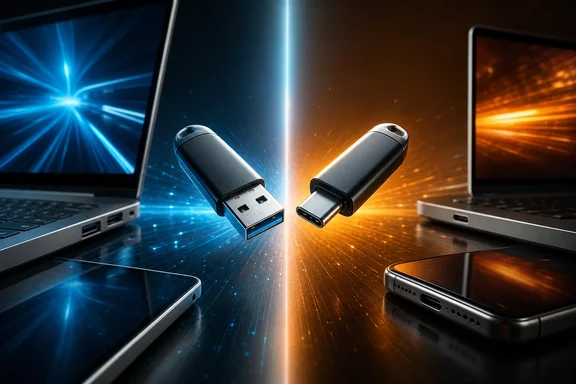
That distinction matters because “USB-C” has become shorthand for new and fast, even though it is a connector format rather than a promise of a particular USB generation. A carefully chosen USB-A drive can outperform a poorly specified USB-C drive. Conversely, a well-designed USB-C model may be the cleanest way to share files among a modern PC and compatible mobile hardware.
Start with the connector, not an assumed speed
USB-A is the familiar rectangular connector found on many existing PCs, monitors, docks, chargers, keyboards, and other accessories. USB-C is the smaller, symmetrical connector. Its plug is reversible, so either orientation connects. This is a real usability advantage, especially when a drive is handled frequently or inserted into a phone or thin laptop where ports may be less accessible.
However, connector shape and data protocol are separate decisions. USB Type-C is simply a type of connector; it is not synonymous with USB 3.2 or USB4. A flash drive with USB-C can implement USB 2.0 and support data operation up to 480Mbps. A drive with a legacy USB-A plug can implement a faster USB standard.
USB 3.2 Gen 1 is specified at 5Gbps, well above USB 2.0’s 480Mbps ceiling. USB 3.2 also includes 10Gbps Gen 2 and 20Gbps Gen 2x2 transfer rates. These figures establish what the interface can potentially carry, rather than what a particular thumb drive will necessarily deliver while reading or writing files.
The practical consequence is straightforward: do not compare products by “USB-C versus USB-A” alone. Compare the stated USB data capability as well. A USB-C drive limited to USB 2.0 can have a far lower interface ceiling than a USB-A drive using USB 3.2 Gen 1. The newer-looking plug does not change that.
Why advertised interface speed is not the same as file-copy speed
Even a drive attached through a fast USB link is still a storage product. Its controller, NAND flash, cache behavior, available free space, and the nature of the workload can affect observed performance. Interface ratings are ceilings, not a guarantee that every copy operation reaches them.
This is particularly important for writes. Manufacturers’ quoted peak read and write numbers can be useful for narrowing a shortlist, but they may not reveal what happens after a small high-speed cache is exhausted. For a drive used to carry a few documents or install files occasionally, short-burst performance may be adequate. For a drive intended to receive large Windows backups, archives, virtual-machine files, or video footage, sustained write behavior matters more.
Independent testing of one dual-connector Type-A/Type-C drive rated for a 10Gbps interface illustrates the issue. In a 450GB write test, the drive slowed sharply after its secondary cache ran out. Its speed dropped and varied between 15MB/s and 100MB/s, spending much of that transfer near the lower end. That result does not mean every 10Gbps drive performs this way, nor does it establish that dual-connector drives are poor in general. It does show why a fast port label and an attractive peak specification cannot settle a large-transfer buying decision.
A lower-rated interface can limit a good storage design, while a weak storage design can fail to exploit a fast interface. Both sides of the equation matter.
The whole connection sets the limit
File transfer is an end-to-end process. The drive, the computer or mobile device, and any required cable or adapter each affect the result. The connection operates at the slower compatible capability rather than at the highest number printed on one component.
For Type-C connections, the USB Implementers Forum specifically warns that a USB 3.2 or USB4 host paired with a USB 2.0 product or USB 2.0 Type-C cable performs at USB 2.0 speed. To obtain the maximum benefit from USB 3.2 or USB4, the host, device, and full-featured Type-C cable must all provide the desired capability.
This can be easy to overlook in a Windows setup. A desktop may have multiple ports with different capabilities. A laptop may be connected through a dock. An adapter may be needed for an older port. A drive may use its own connector rather than a separate cable, but a dual-ended or cable-based setup introduces more places for the connection to fall back.
Before treating a slow copy as proof that a flash drive is defective, check the full path:
- Identify the USB capability stated for the flash drive, rather than relying on connector shape.
- Check the specification for the exact PC port being used. A USB-C port is not, by itself, confirmation of a high data rate.
- Where a cable is involved, confirm that it supports the required USB data capability, not just charging.
- Account for docks, hubs, adapters, and legacy ports that can become the limiting link.
- Test a transfer large enough to expose sustained performance, not only a brief copy that may fit within a cache.
This approach also prevents a misleading comparison. If a USB-C drive is connected through a USB 2.0 path, its result says little about what the same drive might do on a fully compatible higher-speed connection. Equally, attaching a very fast drive to a faster port cannot overcome the drive’s own controller or flash limitations.
Direct phone access is useful, but must be verified
USB-C can make portable storage more straightforward for compatible phones because a drive can connect without a separate USB-A adapter. That convenience can be valuable for moving photos, recording media, or carrying documents between a phone and a Windows PC. Yet a USB-C socket alone does not prove either fast transfers or workable external-storage support.
Apple’s current iPhone guidance demonstrates the first limitation clearly. iPhone 15 and later models use USB-C and can connect to external storage devices. But the standard iPhone 15 is specified for USB 2 data up to 480Mbps. Apple lists USB 3 data transfer support, when used with a USB 3-capable USB-C cable, for iPhone 15 Pro, iPhone 16 Pro, and iPhone 17 Pro models.
The lesson extends beyond one phone family: a device can have USB-C and still offer USB 2-class data performance. Buyers planning to use a flash drive with a phone should confirm the exact model’s external-storage support, USB data capability, and any relevant power behavior. The physical fit is only the first requirement.
For Windows users, this may shape the most sensible purchase. If the drive’s main job is moving files between a particular USB-C phone and a PC, a Type-C or dual-connector drive may reduce friction even if the phone is the bottleneck. If large transfers are primarily between older PCs with Type-A ports, a capable USB-A drive may be the more direct and economical choice. If the drive regularly moves between both kinds of hardware, a dual Type-A/Type-C model can be practical—but it should still be judged on its sustained-write results, not merely its versatility.
When USB-C is the better choice
USB-C is often the better connector choice when direct compatibility is the priority. Its reversible plug improves everyday handling, and it can eliminate adapters on compatible equipment. It is particularly appealing for a workflow centered on devices that expose USB-C ports and support external storage.
It is also a sensible way to reduce the number of accessories carried. A flash drive that connects directly to the target hardware is simpler than bringing a USB-A drive plus a separate adapter, provided the drive’s performance and storage support meet the job.
But “often more convenient” should not become “always faster” or “universally compatible.” There is no supported basis for assuming that most laptops, tablets, and smartphones have the same relevant ports or storage behavior. Exact device models still determine whether a drive plugs in directly, whether it can be used as external storage, and what speed class it can reach.
When USB-A remains the better choice
USB-A remains a rational choice for systems and routines built around traditional rectangular ports. It may avoid adapters on an existing Windows desktop or older laptop, and it is fully capable of appearing alongside USB 3.2 capabilities. If the intended machine has no suitable USB-C port, buying a Type-C-only drive can add complexity rather than remove it.
USB-A can also win on performance in a direct product comparison. A USB 3.2 Gen 1 USB-A drive has a 5Gbps interface rate, while a USB 2.0 USB-C drive tops out at 480Mbps at the interface level. That does not prove the former will always complete every transfer faster: actual results depend on the drives’ storage designs, caches, and workload. It does establish that the two products are not in the same interface-speed class.
For a drive that stays attached to one PC, connector convenience may be of minimal value. Capacity, verified write behavior, and the capability of the PC’s port should receive more weight.
A better shopping checklist
A good purchase decision begins by defining the transfer path and workload rather than starting with the connector. Ask which devices must connect directly, whether adapters are acceptable, and whether the drive will mostly read files, receive small updates, or absorb hundreds of gigabytes at once.
Then examine product information in this order:
- Connector compatibility: Will it plug directly into each required Windows PC, phone, tablet, dock, or other device?
- USB capability: Is the drive specified as USB 2.0, USB 3.2 Gen 1, Gen 2, or another clearly named capability? Avoid treating “USB-C” as the answer.
- Host and cable path: Can the intended port, cable, hub, and adapter support the capability being purchased?
- Performance evidence: Look beyond peak claims for independent testing that includes longer writes and cache-exhaustion behavior.
- Workload fit: A light-duty file shuttle has different needs from a drive used for frequent, large backup or media transfers.
The verdict: choose the connection path, then the drive
USB-C flash drives are better when their direct, reversible connection improves compatibility with the devices you actually use and when their USB capability and sustained performance are appropriate. USB-A flash drives are better when they fit the existing equipment more directly or offer a stronger performance proposition for the same workload.
The decisive point is that USB-C names the plug, not the speed. For Windows users, the safest rule is to verify the complete chain—drive, port, cable where applicable, and real storage behavior—before paying a premium for a newer connector. That turns a confusing format choice into a practical one: buy the drive that is demonstrably compatible and fast enough for your own files, rather than the one with the most modern-looking end.