

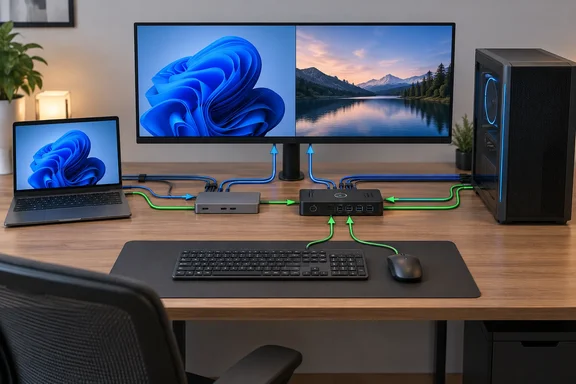
How-To Geek makes the case for combining the two in its September 20 comparison. The useful buying question is which connections you need to add and which devices you want to share. There are also important exceptions to the comparison: some products combine docking and KVM functions, and a monitor with an integrated KVM does not necessarily require either computer to output video through USB-C. StarTech and Dell document examples of both.
Start with the job your desk needs done
For conventional single-host docks and hardware KVM switches, the distinction is straightforward. Microsoft describes docking as bringing display outputs and peripheral connections together, while Dell describes KVM as sharing a keyboard, display, and mouse between computers.
| Your requirement | Hardware to consider | What it provides |
|---|---|---|
| One computer needs more connections. | A dock. | Additional display and peripheral connections through one host link. |
| Two computers need to share a screen and controls. | A KVM switch or KVM-equipped monitor. | Selection of which computer uses the shared equipment. |
| A laptop needs extra connections and must share the desk with another PC. | A dock plus KVM, or a combined KVM dock. | Port expansion and computer switching. |
These are functional categories, not guarantees about every product bearing the name. StarTech’s dual-host KVM dock, for example, incorporates display outputs, USB ports, Ethernet, and laptop charging in the same device.
What a dock adds—and what USB-C does not guarantee
A dock can bring a monitor, keyboard, network connection, and other peripherals onto one computer connection. An externally powered model can also supply power to a compatible laptop, but its power budget must cover the host and connected accessories. Microsoft’s design guidance explicitly treats host charging and downstream device power as allocations from that budget.
Consequently, compare the specified power delivered to the laptop, rather than treating the power adapter’s total wattage as the charging figure. StarTech’s 129UE-USBC-KVM-DOCK illustrates the difference: its specifications list a 180W adapter, with 90W allocated to the active computer and 45W to the second computer. Charging also requires a host USB-C port that supports the relevant Power Delivery function.
Video support needs a separate check. VESA explains that DisplayPort Alternate Mode allows a USB-C connection to carry display signals alongside USB data and power. A USB-C port without that video capability will not produce an image through a DisplayPort Alt Mode display connection, even though the plug fits.
The terminology around hubs is similarly loose in retail listings. VESA distinguishes a USB-only hub from a dock supporting DisplayPort Alternate Mode. Buying something called a “USB-C hub” therefore requires examining its actual functions: additional USB sockets alone do not establish that it can drive a monitor.
Read the speed, not just the connector name
The supplied comparison emphasizes 5Gbps and 10Gbps USB docks, 40Gbps Thunderbolt connections, and 80Gbps Thunderbolt 5. Those figures need some qualification:
- USB-IF defines USB 3.2 transfer rates of 5Gbps, 10Gbps, and 20Gbps.
- USB4 includes 20Gbps and 40Gbps implementations, with newer implementations supporting 80Gbps.
- Intel specifies 40Gbps for Thunderbolt 4 and 80Gbps bidirectional bandwidth for Thunderbolt 5, with a display-oriented Bandwidth Boost mode reaching 120Gbps in one direction.
Those are connection capabilities, not a promise that every attached device receives that entire rate. USB-IF describes USB4 as sharing a high-speed link among different types of traffic. The practical purchasing implication is to match the dock to the required displays and peripherals, rather than choosing solely by the largest number on the box.
A KVM needs a path for the picture and the peripherals
KVM stands for keyboard, video, and mouse. On a conventional setup using HDMI or DisplayPort for video, each computer also needs a USB upstream connection to the switch or monitor. That USB link is how the computer communicates with the shared keyboard and mouse. Dell’s setup guidance explicitly separates these video and USB connections.
This explains a common wiring mistake: connecting the laptop dock’s HDMI output to a KVM establishes the display path, but does not complete the keyboard-and-mouse path. The USB connection must also reach the matching computer input on the KVM. This follows directly from the separate connections in Dell’s documented topology.
An integrated monitor KVM can reduce the number of boxes, but its connections vary. The claim that one computer must use USB-C video is too broad. Dell’s U3417W manual documents a configuration using DisplayPort plus USB upstream for one computer and HDMI plus a second USB upstream connection for the other. Neither computer needs USB-C video in that arrangement.
That monitor also provides a useful example of input mapping. For the documented DisplayPort/HDMI arrangement, its USB Selection setting associates USB 1 with DP and USB 2 with HDMI 1. These are U3417W-specific menu choices; the general requirement is to associate each picture source with the USB connection belonging to the same computer.
For wireless peripherals, Dell’s guide supports connecting their USB receivers to the monitor’s downstream ports. Bluetooth devices paired directly with a computer do not become part of that monitor’s USB switching path.
How a dock and KVM work together
For a laptop and desktop sharing one monitor, the following is a wiring plan for a conventional KVM with separate video and USB host inputs. It combines the single-host docking arrangement described by Microsoft with the separate video-and-USB paths documented by Dell; it is not a claim that every dock and KVM pairing is compatible.
- Connect the laptop to the dock’s host connection, using a laptop port and cable compatible with the dock.
- Connect the dock’s HDMI or DisplayPort output to the KVM’s first computer video input.
- Connect a USB data port on the dock to the KVM’s corresponding first-computer USB upstream input.
- Connect the desktop’s video output and a USB data port to the KVM’s second computer input group.
- Connect the monitor, keyboard, and mouse to the KVM’s shared output and peripheral ports.
The intended result is that selecting either computer changes both the displayed picture and the destination of keyboard and mouse input. A picture that switches while the controls remain with the other computer points toward checking the USB connection or input association, rather than assuming the display cable completes the whole setup.
Peripheral placement determines what is shared. In this arrangement, an accessory connected directly to the laptop’s dock stays on the laptop side; an accessory connected to a supported shared KVM port follows the switch. That is a consequence of the connection layout, so decide whether devices such as an audio interface or storage reader should be laptop-only or shared before routing cables.
Be particularly careful with shared storage. Dell’s U3417W manual warns against changing USB upstream ports while attached USB storage is in use, because doing so can damage or lose data. Finish storage activity before switching that monitor’s USB connection.
A combined KVM dock can replace two boxes
The distinction between docking and switching describes functions, but manufacturers can combine them. StarTech specifies its 129UE-USBC-KVM-DOCK for two USB-C hosts, two DisplayPort monitors at up to 4K 60Hz, shared USB peripherals, Gigabit Ethernet, and charging for both computers. Those are manufacturer specifications, not WindowsForum test results.
The same specification sheet requires driver installation on Windows and macOS. That is an important deployment difference: before choosing it for a managed work laptop, establish whether the required software can be installed. A compact combined device is useful only if its display method, software requirements, and charging allocations suit both hosts.
A USB-C socket on an ordinary dock also should not automatically be treated as a video output for a KVM-equipped monitor. VESA’s explanation makes clear that downstream USB-C display connections require DisplayPort Alt Mode support on that connection. A dock’s USB-C host input and its accessory ports have different roles.
Desktop owners have another expansion route
A tower PC that simply needs more USB ports can use an internal expansion card instead of a desk dock. StarTech documents PCIe USB cards with external ports and internal motherboard-style headers; some configurations require auxiliary SATA or Molex power when connected devices exceed the power available from the slot.
The useful checks are therefore the available PCIe slot, internal space, required power connection, and desired port positions. Internal headers can also serve front-panel connections where the case provides suitable mounting. This expands the desktop’s connectivity, but does not perform the computer-selection function of a KVM.
The buying decision can stop there: choose port expansion for one computer, switching for shared equipment, or a documented combination when both are needed. Before purchasing, sketch each computer’s video and USB routes separately and confirm the charging requirement. That simple connection map exposes the missing upstream cable, unsupported video port, or unnecessary second box before it becomes a desk full of troubleshooting.