

What the MakeUseOf guide claims
The piece is written as a personal "I've been doing it wrong" story. It says the colored plastic inside a USB-A port shows whether the port is standard, high-speed or high-power. Its chart says:
- Black: USB 2.0. Fine for keyboards and mice, with slower charging.
- Blue: USB 3.0 or 3.1, described as often up to ten times faster than USB 2.0 and good for external drives.
- Teal: USB 3.1 Gen 2 or higher, with fast data and more power.
- Red or yellow: "always-on" or high-power charging that works while the PC is asleep or off.
- White: USB 1.1 or older, very slow.
The author now keeps the phone in red or yellow ports, the external drive in blue or teal ports, and the keyboard and mouse in black ones. The piece also mentions printed symbols: "SS" or "SuperSpeed" for fast data, numbers such as "SS10" for 10 Gbps, and lightning-bolt or battery icons on charging ports.
The article does admit that USB colors aren't strictly standardized, and it tells readers to check the manual to be sure. That caveat should come first, not after the chart.
Section summary: The basic habit of matching the port to the device is sensible. The chart itself claims more than color can prove.
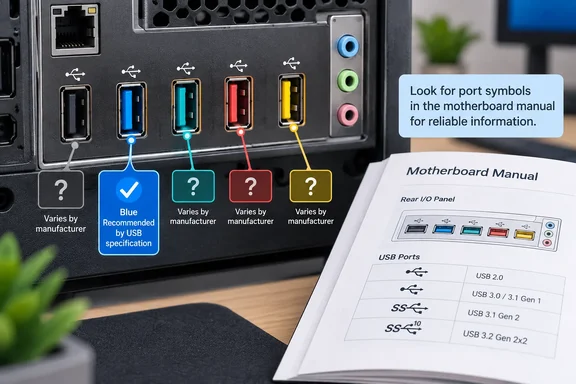
The only color with official backing: blue
The USB Implementers Forum (USB-IF), which runs the USB standard, has a compliance notice that sets the record straight. It says section 5.3.1.3 of the USB 3.0 specification names blue, Pantone 300C, as a recommended color for USB 3.0 Standard-A connectors. Blue is recommended for systems that have both USB 2.0 and USB 3.0 ports. For certification, the USB-IF does require that users can easily tell a 3.0 port from a 2.0 port on the same system. How the manufacturer does that is left up to the manufacturer.
So a blue insert is a common convention, and a color is not required. A maker can use a label, a symbol or placement instead.
Wikipedia's summary of the USB 3.x specs adds a point the MakeUseOf chart misses. USB 3.1 Gen 2 Standard‑A and Standard‑B connectors are often teal-colored, though this is nonstandard. The standard recommends that all Standard‑A plugs and receptacles capable of USB 3, including those capable of Gen 2, have blue insulators, specifically Pantone 300 C. In other words, a 10 Gbps port that follows the spec exactly may look identical to a 5 Gbps port.
Blue also doesn't tell you which version name applies. The guide site iTechGuides notes that USB 3.0, USB 3.1 Gen 1, and USB 3.2 Gen 1 are different names used over time for the same 5Gbps performance class.
Section summary: Blue is the one recommended color, and it applies to every SuperSpeed tier. Teal is a choice some manufacturers make, not a rule.
Teal, red, yellow and violet are vendor choices
Once you get past blue, each manufacturer does its own thing. The electronics reference site Industry-Electronics says of the colors used for 10 Gbps ports that there is no USB-IF normative specification for either color. ASUS and MSI often use violet; other manufacturers prefer teal. On red and yellow, it says neither color is standardized — meaning varies by manufacturer.
SlashGear adds to the confusion. It describes red as a common color representing USB 3.1 Gen 2 and USB 3.2, with speeds of 10 Gbps to 20 Gbps, and says only that these ports are sometimes always-on, depending on the manufacturer. A red port on one motherboard could be a charging port. On another it could be the fastest data port on the board. The MakeUseOf chart can't cover both cases.
Charging deserves its own warning. iTechGuides points out that a charging-colored port may stop supplying power when the computer is shut down, disconnected from AC, or configured to disable standby USB power. That setting usually lives in the firmware (BIOS/UEFI) or in the vendor's own utility. The USB-IF's Battery Charging 1.2 material points the same way: port roles and whether a port stays powered in each power state are details each device documents for itself, not something the plastic tells you.
Microsoft's Windows hardware guidance is a useful example here, though it is written for designers of Windows mobile devices and isn't a general PC rule. It says standard PC USB ports are limited to 500mA by default. It also treats higher-current charging as coming from Battery Charging 1.2 charging-port behavior, not from how the port looks.
Section summary: Red or yellow might mean always-on charging, faster charging, top-speed data, or nothing in particular. Check before you rely on it.
Speed depends on the whole connection
The claims about faster backups need a correction too. A blue or teal port only sets the maximum the host side can handle. The real speed depends on everything in the chain. iTechGuides notes that the slowest component determines performance. A USB 3.x external drive connected through a USB 2.0 hub will transfer at the slower rate.
The drive matters as much as the port. A spinning hard disk won't reach 10 Gbps just because you plugged it into a teal port. The MakeUseOf line about backups feeling "almost instantaneous" describes one person's setup, not a result you can count on.
A better way to identify your ports
Here's the order to check things, from most reliable to least:
- Read the printed markings. Look for SS, SuperSpeed, speed numbers like 5 or 10, or battery and lightning icons. The meaning can differ by vendor, so confirm it against the manual.
- Find the port diagram. Motherboard manuals and laptop spec sheets usually label each port's speed and any charging features.
- Check the firmware settings if you need a port to stay powered while the PC is asleep or off.
- Look in Windows. Industry-Electronics lists the mainboard datasheet, and the device manager in the operating system among the most reliable checks, next to printed logos. In Device Manager, the USB controllers listed under "Universal Serial Bus controllers" show which USB generations the system supports.
- Use color only as a last resort, mainly to tell blue apart from black on a PC that has both.
The balanced view
To be fair to MakeUseOf, the practical advice mostly holds up. Keyboards and mice don't need SuperSpeed ports. Putting them on USB 2.0 leaves the faster ports free, though it doesn't make the PC any faster. Blue does usually mean SuperSpeed on mainstream hardware, and red or yellow often means some kind of charging feature.
The trouble is the certainty. Words like "exactly" and a neat five-color chart suggest a standard exists when it doesn't. For a Windows user choosing where to plug a backup drive or an overnight phone charger, the color narrows it down and the manual gives the answer.
References
- I finally learned what those USB port colors mean, and I’ve been using the wrong ones all along MakeUseOf · 2026-09-30T13:30:16+00:00
- USB Color Code Meaning: What Each Port Color Means itechguides.com
- Why Some USB Ports Are Color-Coded, But USB-C Ports Aren't - SlashGear slashgear.com