

What the claim is, and what is confirmed
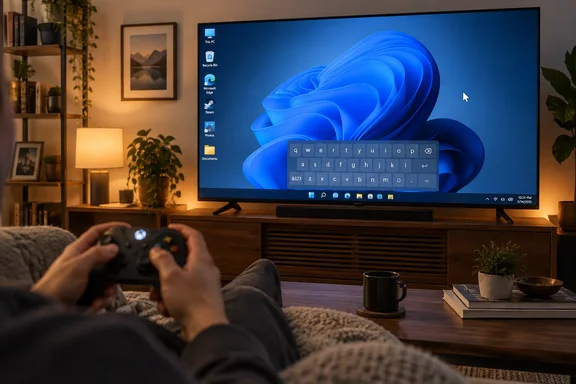
MakeUseOf author Suman Biswas says Windows 11 supports most basic controller navigation, but only on the latest 26H2 version. He also says that, in his testing, support appears limited to official Xbox controllers connected by wire or the official Xbox Wireless dongle. By default, you can only navigate the desktop and open a folder, with no further control over the desktop environment.
Treat the 26H2 requirement as the author's claim. I could not confirm it in Microsoft documentation. One third-party guide to 26H2 does say the release introduces a dedicated Xbox Mode for gaming handhelds, living room PCs and controller-first environments. That is not the same as a documented, general-purpose desktop pointer.
Microsoft's own support page describes Xbox mode as "a console inspired, dedicated gaming experience". It says the mode requires Windows 11 version 24H2 or later and is only available in supported markets. That page is not about full desktop mouse control.
Microsoft has also been adding controller-friendly desktop features piece by piece:
- A gamepad layout for the touch keyboard reached Release Preview on Windows 11 24H2, build 26100.3613. Microsoft said it lets you use an Xbox controller to navigate and type.
- Builds 26220.6682 (25H2) and 26120.6682 (24H2) added a long-press of the Xbox button to open Task View, which shows your open apps.
- WindowsForum coverage of a Game Bar gamepad cursor described the left thumbstick moving the cursor and the A button clicking. That coverage framed it as a bridge feature, not a complete desktop replacement.
Xbox mode versus real desktop control
These three things get mixed up, so here they are side by side.
| Approach | What it does | Key limits |
|---|---|---|
| Native controller navigation | Basic desktop navigation, as the author reports | Per MakeUseOf, no clicks and only limited control. The 26H2 requirement is unverified. |
| Xbox mode | A full-screen, controller-first gaming shell | Not a desktop mouse replacement. It needs 24H2 or later and a supported market. |
| JoyXoff or Controller Companion | Maps controller inputs to mouse and keyboard actions | Both need an XInput-compatible controller. |
In Xbox mode, Microsoft says only one window is displayed at a time and some desktop keyboard shortcuts are disabled. That is the opposite of a freewheeling desktop.
Option 1: JoyXoff (free)
JoyXoff's own site calls it a free and lightweight Xbox controller mapper that simulates mouse and keyboard events and media functions. Based on MakeUseOf's walkthrough and the developer's FAQ, setup goes like this:
- Download and install JoyXoff.
- Open its settings from the system tray icon, then go to Settings > General.
- Enable Run on UAC prompts and sign-in screen and click OK. The FAQ says JoyXoff restarts to apply the change.
- Optionally, open Services (run
services.msc) and look for JoyXoff Trigger Services. MakeUseOf uses this as a check that the setting registered. - Edit your bindings under Profiles > Edit bindings (Desktop), then reboot.
The developer explains the UAC setting this way: for security reasons, User Interface Privilege Isolation restricts the system interface to LocalSystem. In other words, a normal app can't drive the UAC prompt or the sign-in screen unless it runs as a service.
Compatibility: XInput, not "Xbox only"
The article says this only works with official Xbox controllers. The developer's FAQ is more precise: JoyXoff only works with XInput-compatible controllers. For PlayStation pads, it recommends an Xbox 360 emulator such as x360ce. It also says to rename the generated xinput1_3.dll to xinput1_4.dll and copy it into the JoyXoff folder.
If your controller isn't recognized, the FAQ says to uncheck the "Use Controller 1 only" option in Settings > General. The author reports he could not get a DualSense working, wired or over Bluetooth. That is one tester's experience, not proof that no workaround exists.
Two practical notes
- Fullscreen apps: profile bindings switch off automatically when a program runs fullscreen, according to the FAQ.
- Version: the site lists build 3.65.10.1 dated June 24, 2026. It includes a fix for the application failing while the UAC prompt was displayed. That list may have changed since.
About the antivirus advice
The article says Windows may flag the installer as a Trojan, calls it a false positive from unsigned code, and suggests briefly turning off real-time protection. I could not verify any of that in JoyXoff's documentation. I would not follow the advice.
If a security tool flags a download, don't bypass it unless you can independently verify the file. The site publishes an SHA256 hash for its MSI installers, and you can compare it against your download with Get-FileHash in PowerShell. Even a matching hash only shows the file is the one the site published, not that it is harmless. If you manage machines for others, route any unsigned utility through your normal approval process.
Option 2: Controller Companion ($2.99 on Steam)
The Steam listing, from developer Koga Tech Limited, says the app lets you control the mouse with the left thumbstick and scroll with the right thumbstick when Big Picture isn't running. Clicking the left thumbstick opens an on-screen keyboard. It also offers media-remote controls, display switching between PC and TV, and button remapping. The displayed price was $2.99.
The listing adds several points that refine the article:
- Controller support: it works with any XInput controller. For PlayStation pads, you need an XInput wrapper, so "not supported" really means "not without a wrapper."
- Steam dependency: Steam does not need to be running, and you can set the app to start with your PC.
- Fullscreen behavior: it disables itself for fullscreen programs. You can override that by holding Back and Start.
- Elite paddles: the paddles can't be remapped. The listing says the paddles always share the functionality of the buttons they're mapped to, and it attributes this to a Windows 10 limitation.
- System requirements: Windows 7 is the stated minimum and Windows 10 is recommended. An XInput-compatible controller is required.
MakeUseOf says JoyXoff runs into trouble when Steam is open because of Steam Input. For JoyXoff users, the fix is either to disable Steam Input or to close Steam. JoyXoff's own changelog mentions Steam compatibility fixes going back to 2017, so Steam-related conflicts have a long history. Controller Companion is the smoother choice if you switch between games and the desktop.
Who should bother
The author's own conclusion is sensible: a controller is clunky for precision work. His suggested sweet spots are handhelds without a trackpad, such as the ROG Ally or AYANEO devices, and a living-room PC driven from the couch. He also notes that you still need a real mouse and keyboard for the BIOS and Safe Mode. Those are his observations, not official guarantees.
My own read is that Microsoft's trajectory points the same way. Each of its small additions makes handheld and TV-attached PCs less dependent on a mouse. Until a native cursor mode matures, third-party mappers fill the gap. That is general industry analysis, not something any of these sources states.
Quick troubleshooting
- Controller does nothing on UAC prompts or the sign-in screen (JoyXoff): enable "Run on UAC prompts and sign-in screen."
- Inputs ignored: uncheck "Use Controller 1 only" if your pad isn't registering as controller 1.
- Stops working in a game or video: both apps auto-disable for fullscreen programs.
- PlayStation controller: you need an XInput wrapper or emulator. Results vary.
- Steam grabbing the controller: use Controller Companion, or adjust Steam Input.
Bottom line: a controller can steer Windows, but how well depends on your hardware and software choices, not just your Windows version.
References
- Your game controller can do way more on Windows than just play games - MakeUseOf MakeUseOf · 2026-10-06T13:01:15+00:00
- New on Yahoo tech.yahoo.com
- Controller Companion on Steam store.steampowered.com