

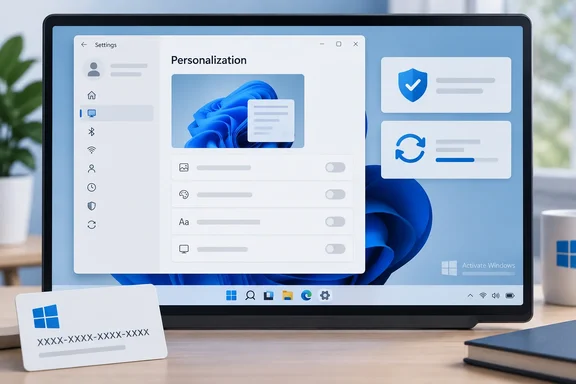
Most of his account matches years of reporting. Some of the workarounds, and a few of the broader claims, deserve closer scrutiny before you treat them as settled. Below is what holds up, what Microsoft's own documentation says, and how to check what state your PC is in.
Activation and licensing are different things
Activated and properly licensed are not the same. Microsoft's support documentation describes activation as a technical step that pairs a product key or digital entitlement with the device's hardware configuration. The company also says that activation doesn't establish whether the copy itself is genuine. It only confirms that the key or entitlement is valid for that hardware.
That matters for two groups of readers:
- People who already own a license. An "Activate Windows" message after a motherboard swap, a reinstall of the wrong edition, or a repair doesn't automatically mean you need to buy Windows again.
- People who never bought a license. A working desktop is not the same as a license entitlement. Cloudspress's explainer notes that an unactivated PC stays "without the license entitlement required by Microsoft's terms."
Summary: Activation is a hardware-to-entitlement check. Being able to use Windows without it doesn't make you licensed.
The four things that get locked
1. Dark mode
Damnjanovic calls the missing dark mode the harshest limitation. The light/dark selector in Settings is greyed out along with most other personalization controls. Microsoft's own support page puts this control under Settings > Personalization > Colors > Choose your mode, with Light, Dark and Custom options. That whole page is unavailable on an unactivated PC.
He describes two workarounds:
- Theme file method: Open File Explorer, go to
C:\Windows\Resources\Themes, and double-clickdark.theme. - Registry method: Open Registry Editor, go to
HKEY_CURRENT_USER\Software\Microsoft\Windows\CurrentVersion\Themes\Personalize, and change bothAppsUseLightThemeandSystemUsesLightThemefrom1to0.
Both are workarounds reported by the publication, not procedures Microsoft documents for unactivated systems. The guide gives no build number or test setup, so Windows updates could change how they behave. The theme-file route is the safer first try. Before editing the Registry, create a restore point and change only the two values named.
2. Wallpaper and accent color
This lines up with earlier coverage. How-To Geek's 2023 explainer listed the restrictions as the ability to change your desktop wallpaper, switch between light and dark modes, disable transparency effects, choose an accent color, and even access some accessibility options like high-contrast themes. That last item gets little attention. If you rely on contrast themes for accessibility, the lock is more than cosmetic.
The new guide's workarounds:
- Right-click an image in File Explorer and choose Set as desktop background.
- Do the same from inside the Photos app.
- Double-click any theme file in
C:\Windows\Resources\Themes. This changes the wallpaper and accent color together. - Use third-party wallpaper software. The article names Wallpaper Engine.
Here's the pattern behind it. The restriction applies to the Settings pages, not to every route Windows has for applying an image or theme.
3. Lock-screen image
On an activated PC, Microsoft's documentation sends you to Start > Settings > Personalization > Lock screen to choose Windows spotlight, a single picture, or a slideshow. Without activation, that page is locked too.
Damnjanovic's workaround uses Photos:
- Right-click the image and choose Open with > Photos.
- In Photos, right-click the image.
- Choose Set as > Lock screen.
If it worked, the new image appears the next time you lock the PC with Win+L. Treat this as reported behavior rather than a guarantee, because the Photos app updates separately from Windows and its menus have changed over the years.
4. Official Microsoft support
The fourth item is the least concrete. Damnjanovic says support agents "may" ask for proof of activation, so you could end up troubleshooting alone. That's a reasonable warning, but no published policy shows that Microsoft refuses all help to unactivated machines. Microsoft's activation troubleshooter page tells people with activation problems to contact customer support when the troubleshooter can't fix things. Cloudspress puts it more broadly: Microsoft reserves some updates, downloads, support, and services for genuine, properly licensed software. Expect friction, not necessarily a closed door.
Summary: Three locks are personalization screens, each with a reported workaround. The fourth is a risk around support access, not a hard block.
The watermark and the nagging
The watermark is the most visible change. XDA Developers quotes the full text: "Activate Windows. Go to Settings to activate Windows." Banners in Settings also keep telling you to activate before personalizing anything.
Sources differ on gaming. The new How-To Geek guide says the watermark shows in borderless/windowed full-screen mode and should disappear in exclusive full-screen. The same site's 2023 piece said this watermark is overlaid on top of everything on your display, including any full-screen applications you may be running like games. The difference may come down to how each game renders. Exclusive full-screen gives you the best chance, but it's not a promise.
It will also appear where people can see it. How-To Geek's earlier explainer says it will appear in screenshots and screencasts, on all displays that are connected to your computer. So if you plug in a projector to give a presentation, you'll see the watermark. Streamers, trainers, and anyone presenting from a lab machine should plan for it.
You'll find guides that hide the watermark with Registry tweaks. Even one of them admits the change does not activate Windows; it only hides the visible text. Making a reminder disappear doesn't change your license status.
What about updates?
The new guide says unactivated copies still get important updates, including security fixes. Microsoft's "About Genuine Windows" page backs the core of that: Windows will always be able to get critical security updates, even if the copy isn't genuine. It adds that many other updates and benefits are reserved for genuine Windows, and some downloads may require validation.
So the defensible version is this: critical security patches keep coming, and other updates and benefits may not. Claims that "everything works forever," or that unactivated PCs lose security patches, both go further than Microsoft's own wording.
Activation locks the cosmetics, your edition decides the features
The guide's most practical point is that activation status and edition are separate. Damnjanovic reports that an unactivated Windows 11 Pro install keeps Pro features such as Remote Desktop hosting, the Group Policy Editor, the full BitLocker feature set, and Windows Sandbox. That fits the XDA view that there are no restrictions to core features ever, though Microsoft doesn't list those specific Pro features for unactivated systems.
The trap: If you install Pro to get Group Policy but your license is for Home, that license won't activate the Pro install. Microsoft says plainly that the installed edition must match the license. Its troubleshooter handles both mismatches:
- Pro digital license, Home installed: the troubleshooter offers an Upgrade to Windows 11 Pro option.
- Home digital license, Pro installed: Microsoft says to clean-install Home using its media creation tool and skip the product key prompt. Windows then activates automatically from the digital license.
How to check and fix activation
If you already have a valid license, start here before trying any workaround:
- Check your status. Go to Settings > System > Activation. This page also shows whether you have a 25-character product key or a digital license.
- Check your edition. Make sure Home or Pro matches what you bought.
- Connect to the internet. Microsoft says activation requires one. A digital license tied to your Microsoft account activates once you're online and signed in.
- Run the Activation troubleshooter. It only appears while Windows is unactivated, and you need to be signed in as an administrator. Its options include activating an existing digital license and recovering after a hardware change.
- After a motherboard swap, Microsoft warns that Windows may no longer find a matching license. Linking your digital license to your Microsoft account beforehand makes reactivation through the troubleshooter possible.
- Refurbished PCs normally activate with the key on the attached Certificate of Authenticity.
- To enter a key manually, use Change product key on the Activation page.
When it works, the watermark disappears and the Personalization pages unlock.
The bottom line
The guide's headline holds up. An unactivated Windows 11 PC works, Pro features reportedly stay available on a Pro install, and critical security updates keep arriving. It's useful for test benches, short-lived VMs, or the gap between building a PC and buying a key.
A few cautions:
- The workarounds may not work on every Windows 11 build.
- The support risk is real but not absolute.
- Security updates are covered; Microsoft doesn't promise every other update or benefit.
- Running unactivated isn't the same as being licensed.
You can switch to dark mode with a theme file, but you can't get a license that way. If you'll be presenting, streaming, or keeping the machine long term, activate it.
References
- Windows 11 without activation is surprisingly usable, here are the 4 things that get locked How-To Geek · 2026-10-02T16:31:13+00:00
- Activate Windows | Microsoft Support support.microsoft.com
- Personalize your Colors in Windows | Microsoft Support support.microsoft.com