

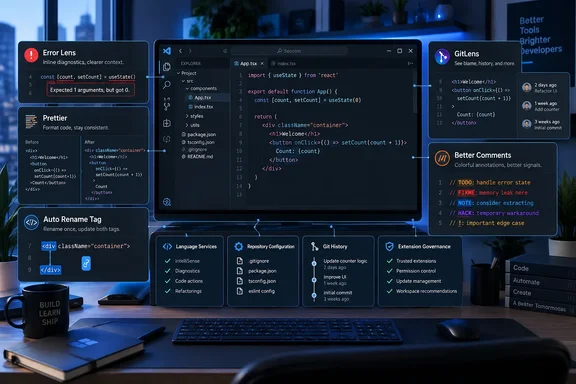
The five picks—Error Lens, Prettier - Code formatter, Auto Rename Tag, GitLens, and Better Comments—are all established Marketplace extensions with clear purposes. Microsoft’s own documentation also shows that VS Code has absorbed part of the territory covered by the list over time: built-in formatters exist for JavaScript, TypeScript, JSON, HTML, and CSS, while linked editing handles automatic paired-tag updates in HTML and Handlebars.
For an individual developer, the practical takeaway is narrower than “install all five.” Error Lens and GitLens add genuinely distinct views into information VS Code otherwise makes less visible. Prettier can be essential, but only where a repository has made it part of its formatting policy. Auto Rename Tag is a compatibility extension for languages outside VS Code’s native linked-editing coverage, rather than a universal must-have.
Error Lens changes the presentation, not the diagnostic
Error Lens is the most immediately visible recommendation. Its Marketplace listing says it highlights lines with diagnostics, appends the diagnostic message inline, and can add gutter icons and status-bar details. The extension is valuable for developers who keep the Problems panel closed, use a smaller laptop display, or want errors visible without moving the cursor to a squiggle.
But it does not find a missing parenthesis, type mismatch, lint failure, or compiler error on its own. Those messages must already be supplied by VS Code’s built-in language support or another installed provider such as TypeScript, ESLint, Pylance, a C# extension, or a language server. If a workspace has no linter configured, adding Error Lens will not improve code analysis; it will simply have no extra diagnostics to display.
That is more than a technicality for IT teams. Error Lens can make existing feedback much more actionable during active editing, but the organization still needs consistent language tooling and project configuration. A JavaScript team that expects ESLint warnings, for example, must distribute and maintain ESLint rules; Error Lens only makes those warnings harder to miss.
The extension’s visual intensity is also a personal preference, not an automatic productivity gain. A file with dozens of lint warnings can become less readable when every message occupies horizontal space at the end of a line. Its configuration options matter: developers can limit it to errors and warnings, disable inline messages while retaining line highlights, or keep it off in repositories where generated files already produce excessive noise.
Prettier belongs in the repository before it belongs in VS Code
How-To Geek is right that Prettier eliminates tedious arguments over whitespace, quote style, wrapping, and trailing commas. The Prettier project describes its formatter as parsing source code and reprinting it according to its own rules. Its VS Code extension can become the default formatter, and Microsoft documents editor.formatOnSave as the switch that runs a formatter whenever a file is saved.
The missing context is that VS Code already formats several common web-development file types out of the box. Microsoft lists built-in formatting support for JavaScript, TypeScript, JSON, HTML, and CSS. Installing Prettier therefore changes formatting behavior; it does not merely turn formatting on. On a project without a Prettier configuration, one developer’s format-on-save action can generate a large diff that the rest of the team never asked for.
For teams, the correct unit of deployment is the repository. Commit a Prettier configuration file, install the matching Prettier dependency where the project requires one, and document the supported version. Then configure the editor extension to use it. That makes a save operation repeatable across developer machines and continuous-integration jobs instead of tying source-code style to whatever extension version happened to be installed locally.
There is a second operational concern. The Prettier VS Code extension says that, in an untrusted workspace, it uses its bundled Prettier version and does not load local, global, or plugin modules. That behavior is a security boundary, but it can also produce formatting that differs from a trusted local checkout. Developers troubleshooting unexpected output should check Workspace Trust before rewriting project configuration or assuming Prettier has ignored the repository’s settings.
Prettier is fundamental for projects that have adopted it. It is not a substitute for agreeing on formatting rules, and it should not be silently enabled across every language and every repository in an enterprise image.
Auto Rename Tag now fills a smaller gap
Auto Rename Tag automatically updates the matching HTML or XML tag when a developer changes one side of a pair. That is still useful in XML-heavy work, PHP templates, or React-related files where the extension recognizes the structure being edited. The Marketplace page also allows administrators and users to restrict the language IDs where it activates, which is sensible because it does not need to run against every file opened in VS Code.
Yet the extension’s own documentation acknowledges that VS Code added built-in auto-updating tags in version 1.44, released in 2020, through the editor.linkedEditing setting for HTML and Handlebars. When linked editing is enabled, Auto Rename Tag deliberately skips those two language modes. In other words, a large share of ordinary HTML editing no longer needs this extension at all.
The source article goes further by presenting the extension as covering XML, PHP, and React files “without conflicting” with native linked editing. Its activation settings support enabling the extension for language IDs including PHP and JavaScript/JSX, but recognition should be tested against the frameworks and templates a team actually uses. A paired tag in JSX, a server-side template, and embedded HTML inside a PHP document are not interchangeable parsing problems.
The safer recommendation is to enable VS Code linked editing first, then add Auto Rename Tag only if a developer’s file types still lack the behavior. This reduces extension count while preserving the convenience where it is genuinely absent.
GitLens is the strongest historical-context upgrade
GitLens has a better case for being meaningfully additive. VS Code’s Source Control view is effective for staging and reviewing current changes, but GitLens puts blame data, revision navigation, file and line history, annotations, and rich commit hovers close to the line under review. Its Marketplace documentation says inline blame is part of the free, open-source Community edition, alongside hovers, CodeLens, file annotations, history views, and command-palette tools.
For code review, incident response, and maintenance work, that saves a sequence of context switches: identify a line, run git blame, find the commit, inspect the diff, and establish why the change happened. GitLens can put much of that trail in the editor. It is especially useful on a mature codebase where the question is rarely “what does this line do?” and more often “why was this exception added, and what changed with it?”
How-To Geek says GitLens prompts users to create an account during onboarding, while noting that basic inline blame works without sign-in. That is broadly consistent with GitKraken’s current Marketplace description: Community features remain free, while several collaboration, AI, private-repository graph, worktree, and pull-request capabilities belong to Pro tiers or vary by repository type.
For managed environments, GitLens needs a policy decision rather than a blanket install. Its core local-Git features can be valuable without a cloud account, but admins should distinguish those functions from connected integrations that may expose repository metadata to external services. Developers who only need a current-line author and commit subject may find GitLens broader than necessary; teams that regularly investigate code history will likely benefit from the deeper tooling.
Better Comments is a convention, not a task tracker
Better Comments gives visual weight to code annotations. The Marketplace documentation confirms the default categories: ! for alerts, ? for questions, TODO for pending work, * for highlights, and // for struck-through commented code. Tags, colors, and styles can be customized in user or workspace settings.
That can be helpful in a dense source file, particularly for warning comments and migration notes that should stand out during a review. But colored TODOs do not create ownership, deadlines, searchability outside the editor, or an audit trail. A comment marked TODO remains a comment; it will not replace an issue in Azure DevOps, GitHub, Jira, or another work-tracking system.
The extension has a stronger role as a team readability convention. If a project decides that ! identifies a security caveat, TODO indicates temporary cleanup, and ? marks an unresolved design choice, those markers become meaningful to every contributor. If developers choose arbitrary tags and colors individually, the extension becomes decorative rather than communicative.
Extension governance is part of the installation decision
The missing warning from most extension roundups is that VS Code extensions are executable software. Microsoft states plainly that extensions run with the same permissions as VS Code itself: they can read and write files, make network requests, launch external processes, and alter workspace settings. Marketplace scanning, publisher verification, signatures, and block lists reduce risk, but they do not remove the need to evaluate what is being installed.
That should change the routine for Windows developers and administrators. Install extensions by their exact publisher and extension ID rather than by look-alike search results, review the publisher, repository, license, update activity, and permissions-related behavior, and keep unfamiliar repositories in Restricted Mode. Microsoft also supports enterprise allowlists through the extensions.allowed setting, letting IT specify permitted publishers, individual extensions, versions, and platforms.
For a personal VS Code setup, Error Lens and GitLens are the clearest upgrades when their information views solve a daily annoyance. Prettier should follow the project’s committed rules, Auto Rename Tag should be installed only for language modes native linked editing does not cover, and Better Comments should serve an agreed annotation practice. The value is not in accumulating five extensions; it is in making each installed extension earn its place on the machine.
References
- 5 VS Code plugins so fundamental they should be built in How-To Geek · 2026-09-16T11:00:13+00:00