

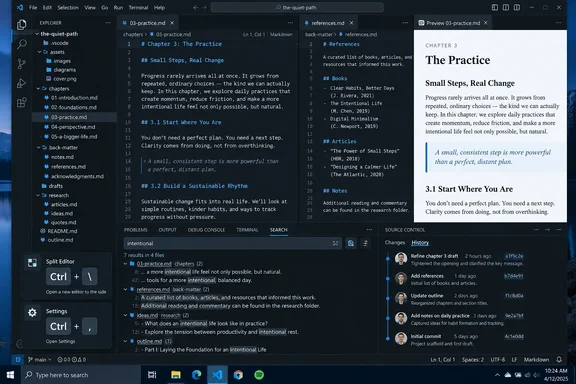
But one of XDA-Developers’ practical instructions is wrong on Windows. Ctrl+, opens VS Code Settings; it does not split the editor. Microsoft’s current default shortcut for splitting an editor into a second editor group is Ctrl+\. The distinction matters for anyone trying the setup for the first time, because pressing the shortcut given in the article sends them into configuration rather than creating the two-pane writing layout it describes.
The broader recommendation is still worth taking seriously, particularly for Windows users who write in Markdown, plain text, HTML, documentation repositories, or any multi-file format. VS Code is not a replacement for Word in every circumstance. It is, however, a capable free workspace for writers whose real problem is managing a body of material rather than applying rich page layout to a single document.
The useful part is the folder, not the editor alone
The important shift is to treat a writing project as a folder of files rather than a giant document. That approach is commonplace in software development, but it has direct benefits for writers working on technical documentation, serial articles, a tabletop campaign, a thesis with separate chapters, or a novel broken into scenes.
A project might contain chapter-01.md, chapter-02.md, a character sheet, a chronology, clipped research, image notes, and a publishing checklist. Opening that parent folder in VS Code puts all of it in the Explorer pane and gives the project one search scope. The source article correctly identifies this as a better fit than constantly juggling browser tabs or separate word-processor windows.
Microsoft’s documentation confirms that VS Code supports editor groups laid out vertically and horizontally, with tabs movable between them. The practical arrangement for writing is usually simpler than the four-pane grids developers use: one primary draft, one reference file, and perhaps a Markdown preview or outline. More panes can quickly turn a writing session into another form of distraction.
There is a small terminology trap in the source article as well. Ctrl+Enter can open a selected file to the side from VS Code’s internal Explorer or Quick Open list. It is not a general Windows File Explorer shortcut. The reliable keyboard command to split the active editor group itself is Ctrl+\, while dragging tabs remains the easiest way to build a custom layout.
Global search is where a prose project starts to benefit
VS Code’s Search view searches across files in the currently opened folder with Ctrl+Shift+F. Results are grouped by file, show surrounding text, and can be expanded before any replacement is made. Microsoft documents the ability to replace individual matches, all matches in one file, or every match across the workspace.
That is a concrete advantage over treating each chapter as an isolated file. A writer can find every use of an outdated product name, locate an inconsistent heading, check whether a character has appeared too often in a scene, or identify every draft that still uses an old publication style. It is also useful for IT teams maintaining runbooks: a renamed server, retired domain, changed PowerShell command, or revised escalation contact can be found across a documentation tree instead of corrected piecemeal.
The safety step is to search before replacing. Replacing every instance of “Sarah” with “Rachel” may alter quotations, filenames, historical notes, or a different person with the same first name. VS Code exposes the individual results, so the right workflow is to inspect exclusions first, then apply replacements selectively. Regular-expression search is available, but most writers should leave it off unless they understand exactly what the pattern will match.
This is one place where the project-folder model has a trade-off. Global search reaches files that may be drafts, source notes, templates, and archives. A clean workspace structure helps: keep current chapters in one folder, research in another, and completed or superseded drafts outside the active replacement scope.
Markdown turns VS Code into a publishing workspace
XDA-Developers focuses on Zen Mode, split panes, search, and Git, but it leaves out the most natural route for writers who publish online: VS Code’s built-in Markdown tooling. A file saved with the .md extension can be previewed with Ctrl+Shift+V, or opened in a side-by-side preview with Ctrl+K, then V.
Microsoft’s Markdown preview updates as the document changes and synchronizes scrolling between the source and rendered panes. For people writing knowledge-base articles, README files, changelogs, forum posts, GitHub documentation, or static-site content, that removes a repetitive copy-paste-preview cycle. VS Code also exposes a Markdown document’s heading hierarchy in its Outline view, which gives longer documents a useful structural check.
The limitation is equally clear: Markdown is deliberately limited. It is excellent for headings, links, lists, tables, images, callouts, and basic emphasis. It is poor at the kinds of visual page composition that matter in a contract, newsletter, manuscript submitted in .docx, print-ready layout, or a document dependent on Word comments and tracked changes from nontechnical collaborators.
Writers who need a formatted Word document at the end can still draft in Markdown or plain text, but they should test their conversion and editorial handoff early. A technically neat source file does not solve a publisher’s requirement for a house-styled .docx with comments, revision marks, and layout controls.
Git is powerful, but it is not a backup plan by itself
Git is the feature that can make VS Code genuinely better than a conventional text editor for a multi-file writing project. Once Git is installed and a repository is initialized in the project folder, VS Code’s Source Control view provides a graphical interface for seeing changed files, reviewing line-by-line differences, staging selected changes, and making a named commit.
A commit is useful as a meaningful checkpoint: “finish Chapter 4 rewrite,” “apply editor notes,” or “replace outdated product names.” Microsoft’s integrated diff editor can compare the changed text to the last committed version, while the Source Control Graph and Timeline help retrieve earlier work. For a documentation team, this also makes it possible to answer a question Word’s document history often obscures: exactly which files changed together, and what did the author say the change was for?
The source article overstates the simplicity slightly when it calls this an “infinitely detailed undo history.” Git records only what has been saved and committed. It also has a staging step: a commit includes the files or lines that were staged, not necessarily every edit currently visible in the folder. That is a strength when used deliberately, but it is unfamiliar enough that new users should make a small test repository before trusting it with irreplaceable work.
More importantly, a local Git repository is not a backup. If the laptop is lost, the drive fails, ransomware encrypts the working directory, or an accidental deletion is committed and no external copy exists, local commit history alone cannot rescue the project. Use a private remote repository, a reputable backup service, or both. Keep sensitive interview notes, client material, API keys, and private research out of any repository that may be pushed to a third-party service.
Zen Mode helps, but settings should serve the draft
VS Code’s Zen Mode is a credible alternative to paid “distraction-free writing” applications. Ctrl+K, then Z hides most of the interface, centers the editor, and enters full-screen focus; pressing Escape twice exits. Microsoft also exposes settings for what Zen Mode hides, including line numbers and the status bar.
The value is not that developers have somehow discovered concentration. It is that VS Code makes the focused editor part of the same workspace used for research, revision, file navigation, search, preview, and version control. A writer does not need to export from a minimalist drafting app merely to organize the project somewhere else.
Still, the default developer-oriented interface can be too busy for prose. The sensible setup is modest: hide the minimap if it is visual noise, disable breadcrumbs if they add no value, choose a readable font and line height, set autosave according to the project’s risk tolerance, and use a separate VS Code Profile for writing rather than altering a work development environment. Microsoft now offers a Doc Writer profile template with writing-oriented extensions and settings, though users should treat third-party extensions as software they are choosing to trust, not as harmless decorations.
VS Code earns its place as a writing app when the writing has structure: many files, recurring terminology, web-native publishing, or a need to understand what changed and when. For a one-page letter or a heavily formatted manuscript, a conventional word processor remains the faster tool. For the expanding middle ground between a note and a full publishing system, the correction to XDA-Developers’ shortcut does not weaken its conclusion: VS Code’s strongest writing feature is the disciplined project workflow already built around the text.