

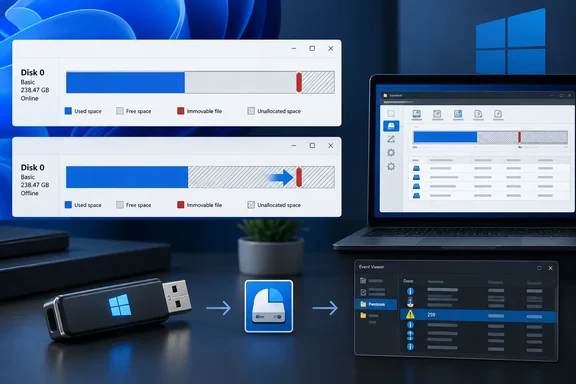
That happened to Afam Onyimadu at MakeUseOf. He tried the usual cleanup steps, got nowhere, then booted a GParted live USB and reclaimed about 50 GiB more than Windows would release. Below is what happened, why it happens, how to diagnose it properly, and what to weigh before taking a partition editor to your system drive.
The case: 342 GB free, 290 GB shrinkable
Onyimadu's figures from Disk Management:
- Capacity: 475.90 GB
- Free space: 342.15 GB
- Maximum shrink offered: 296,883 MB (about 290 GB)
That left roughly 52 GB of free space outside the shrink operation. Disk Management explained the gap with its standard warning: you cannot shrink a volume beyond the point where any unmovable files are located.
He tried two common fixes:
- Disabled hibernation to remove hiberfil.sys. The shrink limit didn't change.
- Deleted System Restore points, on the theory that shadow copy storage was sitting in a bad spot. The limit was still 296,883 MB, identical to the megabyte.
Because neither step moved the boundary, his account doesn't show which file or filesystem structure was actually blocking the shrink. That matters later.
Section summary: Free space and shrinkable space are different numbers. Deleting random things doesn't reliably close the gap between them.
Why Windows stops short
Disk Management doesn't collect empty space from all over the volume. It shrinks the volume from its end. Microsoft's documentation describes Windows relocating ordinary files automatically and trimming the end to create unallocated space. It also names the exceptions: when you shrink a partition, certain files (for example, the paging file or the shadow copy storage area) cannot be automatically relocated and you cannot decrease the allocated space beyond the point where the unmovable files are located.
Think of a bookshelf you want to shorten from the right. You can slide most books left, but one is bolted in place. However much empty shelf lies to its left, the new end can't go past that book.
A Microsoft Q&A answer from February 2026 describes the extreme version: if those files sit near the end of the partition, the maximum shrink size becomes 0 and the Shrink option is disabled. The same answer lists paging file, shadow copy storage, bad cluster mappings as things Windows can't move. Microsoft's shrink documentation adds that if dynamic bad-cluster remapping has found too many bad clusters, you can't shrink the partition at all. In that case it recommends moving the data to a replacement disk, and warns against a block-level copy because that would carry over the bad-sector table.
The official procedure applies to Windows 10 and Windows 11 (plus Windows Server 2016 through 2025) and needs Administrators or Backup Operators membership. You right-click the volume in Disk Management, choose Shrink Volume, and follow the prompts. Only NTFS volumes or raw volumes with no file system can be shrunk this way.
What the numbers actually show
Onyimadu kept each tool's units as displayed: GB/MB for Windows, GiB/MiB for GParted. But his own figures point to something simpler. Disk Management's "GB" are binary gibibytes. The math is our own, using only numbers from his report:
| Figure | As reported | Converted | Matches |
|---|---|---|---|
| Partition size | 475.90 GB (Windows) | 487,322 MiB ÷ 1,024 = 475.90 | GParted's 487,322 MiB |
| Windows max shrink | 296,883 MB | ÷ 1,024 = 289.92 GiB | The "≈290 GB" in the shrink dialog |
| GParted max shrink | 347,688 MiB | ÷ 1,024 = 339.54 GiB | The 339.54 GB unallocated shown afterwards |
| Final C: size | 139,634 MiB (GParted) | ÷ 1,024 = 136.36 GiB | The 136.36 GB C: shown afterwards |
Two things follow.
- The before-and-after numbers agree exactly. Once you convert units, the unallocated space Disk Management showed after the resize equals GParted's maximum shrink. The resize produced exactly what GParted promised.
- The gap is about 52 GiB in Windows' own units. 342.15 minus 289.92 is roughly 52.2. GParted's extra 50,805 MiB comes to 49.6 GiB, and Disk Management would label that "49.6 GB". The 53.3 figure only applies in decimal gigabytes.
There's another practical point. Used space on the volume was about 133.75 GiB (475.90 minus 342.15). GParted's shrink left C: at 136.36 GiB, so only about 2.6 GiB of headroom remained. That's fine for a brief test. It's far too little for a Windows installation that has to take cumulative updates, feature upgrades, a page file, and temp files. The maximum shrink tells you what's possible, not what's wise.
Section summary: The figures are consistent once you account for binary units. The maximum GParted shrink left C: with very little free space.
Diagnose first: event ID 259
Onyimadu couldn't tell from Disk Management which file was causing the problem. Windows does log that information, just not in the dialog. According to Microsoft's documentation, if the shrink operation fails, use one of the following methods to identify the unmovable file that's blocking the shrink operation: Check the application log for an event with ID 259.
Step by step:
- Run the shrink query in Disk Management so Windows does its analysis. (Canceling the dialog afterwards is fine.)
- Open Event Viewer → Windows Logs → Application.
- Filter for Event ID 259, logged by the defragmentation service ("defrag").
- Read the entry. Winhelponline, which covers this error, says it details information about the last unmovable file that could limit the maximum number of reclaimable bytes.
- If you have cluster numbers, run
fsutil volume queryclusterfrom an elevated prompt. Microsoft says when you provide the querycluster parameter, this command displays the unmovable file that's preventing the shrink operation from succeeding. Enterfsutil volume querycluster /?for the syntax.
What you find decides the fix. Microsoft notes that in some cases, you can relocate the file temporarily. If the page file or shadow copy storage is to blame, its documented workaround is to move the page file or stored shadow copies to another disk through Control Panel, delete the shadow copies, shrink, then move the page file back. The February 2026 Q&A answer points out that this is only feasible if there is another physical disk.
An August 2026 guide from Itechguides makes the same point: only move or temporarily disable the paging file, hibernation, or shadow-copy storage only if the diagnostic points to it. That fits Onyimadu's experience. He disabled hibernation and deleted restore points without evidence either was the problem, and nothing changed. If event 259 names an NTFS metadata file, turning features off won't help, and an offline tool starts to make sense.
Section summary: Check event ID 259 before disabling anything. It tells you whether a quick relocation will work or whether you need to go offline.
The offline route: GParted
When he'd run out of ideas inside Windows, Onyimadu wrote GParted to a USB drive and booted from it. The GParted project describes its tool as a free, GPL-licensed partition editor that runs from bootable GParted Live media on x86-64 machines. It can grow or shrink a C: drive, supports NTFS among many filesystems, and needs at least 1 GB of RAM for full functionality.
Why can GParted go further? Windows isn't running from the partition, so nothing is holding files open while it resizes the volume. Onyimadu's comparison on the same 487,322 MiB partition:
| Windows Disk Management | GParted (offline) | |
|---|---|---|
| Maximum shrink | 296,883 MiB | 347,688 MiB |
| Remaining partition | 190,439 MiB | 139,634 MiB |
| Extra space reclaimed | n/a | 50,805 MiB (≈49.6 GiB) |
He reported no errors or warnings during the resize. On the first boot back into Windows, an automatic disk check ran before the desktop appeared. The second boot was normal, and Disk Management showed a 136.36 GB C: partition with 339.54 GB unallocated.
The disk check is expected. GParted's own documentation says that after resizing or moving an NTFS partition, you should boot into Windows twice so it can run its filesystem consistency checks. Don't interrupt it or panic when it appears.
Before you try it: risks and caveats
GParted's documentation strongly recommends backing up first, and calls moving the start of a partition boundary a high-risk activity. Shrinking from the end, as Onyimadu did, is gentler than moving a partition's start. It's still not risk-free. A power cut or hardware fault mid-operation can leave the filesystem inconsistent.
A checklist:
- Back up anything you can't lose. Onyimadu gives the same advice.
- Check for BitLocker or device encryption. This isn't from his report; it's general Windows administration knowledge. Many Windows 11 PCs have device encryption on, and GParted can't resize a BitLocker-encrypted volume. You'd need to deal with encryption first, and make sure you have your recovery key before touching partitions.
- Use a laptop's power adapter. A battery dying halfway through a resize is a bad afternoon.
- Choose a sensible target, not the maximum. As the figures above show, the maximum left only about 2.6 GiB free. Give Windows real room.
- Confirm the disk and partition in GParted before you apply anything. Operations are queued, so check the list before pressing Apply.
- Expect CHKDSK on the first reboot, and let it finish.
Is this a bug in Windows? No. Disk Management reported what its online shrink could safely do with the volume in use, which is how Microsoft documents it. The better question is whether you need the extra space enough to take the offline route. If you're setting up a dual-boot or a data partition and 290 GB is plenty, the built-in tool is fine. If every gigabyte counts, check event 259 first, relocate only what the log names, and keep GParted as a backed-up last resort.
Bottom line: In Onyimadu's case the missing 52 GB was real free space behind something Windows couldn't move while running. Event ID 259 tells you what that something is, and an offline partition editor gets past it, provided you've made a backup first.
References
- Windows wouldn’t let me use the free space on my own drive, so I bypassed its limit - MakeUseOf MakeUseOf · 2026-09-27T21:00:15+00:00
- (Fix) “Cannot shrink a volume beyond the point” when Resizing a Partition Using Disk Management winhelponline.com
- Fix “Cannot Shrink a Volume Beyond the Point” in Windows 10/11 itechguides.com