

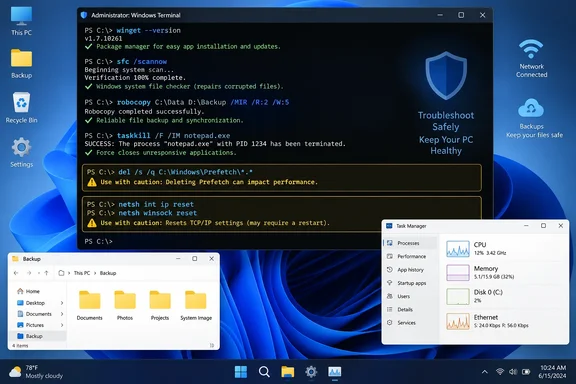
Microsoft’s current documentation confirms that all of the named utilities remain supported on Windows 10 and Windows 11, with WinGet also available on Windows Server 2025. The practical divide is between commands that make a repeatable daily task faster and commands that change or discard system state. Treating both categories as interchangeable is how a handy command prompt habit turns into avoidable troubleshooting.
WinGet is the best everyday replacement for app hunting
The strongest recommendation in the MakeUseOf list is WinGet, Microsoft’s package-management client. It can search package catalogs, install software, list applications it recognizes, upgrade packages, uninstall software, export an app list, and import that list on a new PC. For a freshly rebuilt Windows installation, that is much more useful than simply avoiding the Microsoft Store.
A basic command such as winget search chrome is a sensible way to discover package names, while winget upgrade shows packages with updates available. Before using winget upgrade --all, however, read the pending list. Microsoft notes that packages with unknown versions are ordinarily excluded unless explicitly included, and packages can be pinned to prevent automatic upgrades. Some installers also behave differently during an upgrade, including keeping an earlier version or installing a new release alongside it.
For scripts and repeatable setups, use an exact package ID and identify the source:
winget install --id Google.Chrome -e --source winget
That does more than make the command look tidy. A text search can return similarly named packages; specifying --id with -e reduces ambiguity, while --source matters if more than one repository provides a matching entry. Microsoft’s WinGet documentation also warns users to use trusted sources. WinGet validates installer hashes defined in manifests, but it remains a tool that launches installers with the permissions granted to it. It is not a substitute for deciding whether software belongs on a managed device.
For individual PCs, the convenience is obvious. For IT administrators, WinGet’s export and import commands are the more consequential features: they can record a workstation’s known application set and accelerate a replacement or rebuild. The limitations matter, too. Not every installed program is catalogued, not every vendor exposes an upgrade path that WinGet can manage cleanly, and an enterprise may block or constrain sources through policy.
SFC fixes protected Windows files, not every unexplained problem
MakeUseOf recommends sfc /scannow for crashes, hangs, and general instability. It is a good command to know, but it is often described too broadly. System File Checker verifies protected Windows resources and can replace damaged files; it cannot diagnose a failing SSD, a bad third-party shell extension, a broken application profile, an incompatible driver, or malware that has not been removed.
Microsoft’s own repair procedure places Deployment Image Servicing and Management, or DISM, before SFC when Windows component corruption is suspected:
DISM.exe /Online /Cleanup-Image /RestoreHealth
sfc /scannow
DISM repairs the Windows component store from which SFC may need to draw replacement material. Skipping it does not make sfc /scannow useless, but it can leave users at the familiar point where SFC reports that it found corruption and could not repair everything.
Run both commands from an elevated Command Prompt or Terminal. Then read the result rather than treating completion as a diagnosis. “Windows Resource Protection did not find any integrity violations” means protected system files were not the problem; it does not mean the machine is healthy. When Windows is freezing because of a storage, memory, application, driver, or network issue, repeated SFC scans waste time that should go toward Event Viewer, Reliability Monitor, disk checks, driver rollback, or application-specific repair.
Robocopy and Taskkill earn their place when the GUI fails
Robocopy is an excellent copying tool, particularly for a large directory tree, a file-server job, or any transfer that needs a log and a restart strategy. The MakeUseOf example contains a small but important typo: the executable is robocopy, not robcopy.
A cautious backup-style copy can start simply:
robocopy "D:\Photos" "E:\Backup\Photos" /E /MT:16 /ETA /LOG:C:\Logs\photos-copy.log
The /E switch includes subdirectories, including empty ones; /MT:16 requests 16 copy threads; /ETA estimates completion time; and /LOG preserves a record of what happened. Multi-threading can improve performance, especially where many files are involved, but it is not a universal speed button. A slow USB disk, a saturated network connection, antivirus scanning, or a source drive already at its limits will still dictate the transfer rate.
The detail that makes Robocopy suitable for real work is its exit code handling. Unlike many Windows commands, a nonzero Robocopy code does not automatically mean the copy failed. Microsoft documents codes below 8 as outcomes that can include copied files, mismatches, or extra files at the destination; 8 and above signals at least one failure. Anyone putting Robocopy in a batch file, scheduled task, or deployment script needs to account for that behavior.
Taskkill is the corresponding utility for processes that will not close normally. The safer pattern is to identify the process first:
tasklist | findstr /I appname
taskkill /IM appname.exe /F
The /F parameter forcibly ends a process; /T also terminates child processes it created. Use that second switch carefully. Force-ending an application can lose unsaved work, and terminating a browser, installer, updater, backup client, or business application can leave partial files or an incomplete transaction. It is a recovery tool, not an ordinary way to close software.
Cleanup and network resets need narrower use cases
The biggest correction to MakeUseOf’s checklist concerns this command:
del C:\Windows\prefetch\*.* /s /q
Windows uses Prefetch data to improve the launch behavior of frequently used programs. Clearing its contents is generally recoverable because Windows rebuilds the data, but it does not free meaningful space on a modern PC or provide a lasting performance improvement. Microsoft support material has long described the folder as self-maintaining and warned that clearing it can make Windows and applications slower to start until the cache is recreated.
In other words, the command is not likely to destroy Windows, but it solves a problem most users do not have while temporarily undoing an optimization Windows already manages. If the goal is reclaiming storage, use Windows’ Temporary Files controls or Storage Sense. Microsoft documents Storage Sense as the supported mechanism for clearing unnecessary temporary files and Recycle Bin content, with configurable treatment for Downloads and cloud content.
The user Temp directory is different: stale temporary files can accumulate, and del /q /f /s %TEMP%\* can remove files that are not in use. Even there, a command-line deletion sweep is blunter than it first appears. It will produce access-denied messages for locked files, and it gives the user no review screen. Storage settings are slower, but they show categories before removal and are the better default for an unmanaged PC.
The final three commands—ipconfig /flushdns, netsh winsock reset, and netsh int ip reset—also do distinct jobs rather than forming a generic “internet sanity” ritual. Flushing DNS is low impact and relevant when a machine is resolving a name to stale information. Resetting Winsock rebuilds the networking catalog and typically requires a restart. Resetting TCP/IP overwrites TCP/IP and DHCP-related configuration and should be done from an elevated prompt; Microsoft’s troubleshooting guidance specifies a log file, such as netsh int ip reset resetlog.txt, and a restart afterward.
That makes the escalation path straightforward: check whether the fault is one site, one device, one network, or every connection; inspect IP and DNS settings with ipconfig /all; flush DNS if name resolution is the suspected failure; and reserve Winsock or TCP/IP resets for damaged local networking configuration. VPN clients, custom DNS settings, static addressing, and specialized network software may need to be reconfigured after a reset.
Windows’ command line saves time when it makes a task more precise and repeatable. WinGet, Robocopy, Taskkill, and SFC belong in that toolkit. The commands that erase caches or reset networking should stay in the troubleshooting drawer, used because the symptom fits—not because they are easy to paste.