

The headline says four services freed "gigabytes of RAM instantly." That is not quite what the article shows. The list is four categories, one of which contains four separate Xbox services. The multi-gigabyte savings come from one of them, the AI Fabric Service, and even there the figure comes from reports by other users, not from a measurement on the author's own laptop. The other items are mostly about bandwidth, privacy, or small amounts of trimming. The guide is still worth reading, as long as you know which parts are backed by evidence.
The big one: Windows AI Fabric Service and WorkloadsSessionHost
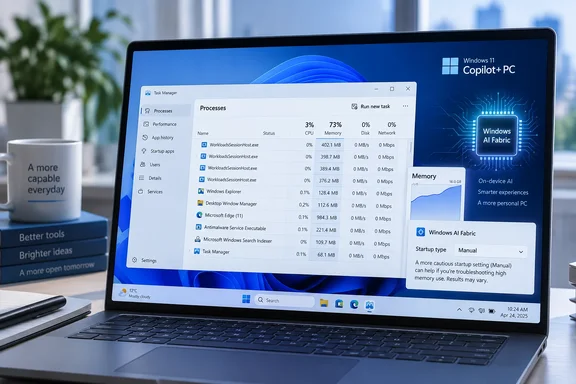
How-To Geek describes WSAIFabricSvc as the service behind Windows 11's local AI features and component integrations, including Recall, Click to Do, and Live Captions. It says the service mostly appears on Copilot+ PCs with an NPU. The memory claim traces back to a Microsoft Q&A thread from July 2026.
In that thread, the poster was running Windows 11 version 25H2, build 10.0.26200.8894, on a 32 GB Surface Laptop for Business. They reported that approximately 16 GB of 32 GB RAM was already in use, even though the computer was not running an especially heavy workload. Task Manager showed eight WorkloadsSessionHost.exe processes, and the processes were almost completely idle, but continued to retain several gigabytes of memory. Stopping the service released about 5 GB. However, after rebooting, eight WorkloadsSessionHost processes returned.
The poster also said they don't use Copilot, Recall, or Click to Do at all. That backs up How-To Geek's point that turning off Recall doesn't necessarily fix the problem.
Microsoft's response in the thread is worth reading carefully. The Q&A responder agreed the service and its worker processes appeared closely tied to the memory use. They said the data did not conclusively identify a root cause, and listed possibilities including AI model preloading, retained memory-mapped resources, aggressive resource management, or a software defect. They suggested setting the service to Manual as a temporary workaround and installing the latest cumulative updates. They also said they could not confirm whether roughly 5 GB of idle memory is expected behavior on a 25H2 Copilot+ PC.
This isn't one isolated case:
- Other 25H2 users: A separate Microsoft Q&A thread from a Lenovo ThinkBook owner asks whether there is a known memory leak issue with the Windows AI Fabric (WSAIFabricSvc) or WorkloadsSessionHost.exe on Windows 11 build 26200 (25H2).
- 16 GB machines: On Eleven Forum, a user helping a friend reported a Dell 14 Plus (Home) w/AMD and 16gb is 77% memory at boot, with WSAIFabricSvc taking 1700mb.
- OEM acknowledgment: MSI has published a support FAQ explaining that when AI features are enabled or in use, multiple WorkloadsSessionHost.exe processes may remain running in the background to preload AI models. The same FAQ says the process cannot be closed by manually selecting End task.
The counterpoint
Disabling the service isn't free of side effects. In an older Microsoft Q&A thread from 2025, one user said that when they disabled WSAIFabricSvc, the system starts acting weird – for example, I often see a "Windows Report Bug" process in Task Manager, and overall the system becomes slower and less stable. Persistence is also a problem. The July poster found that stopping the service works only until another Windows component starts the service again.
Section summary: If you have a Copilot+ PC, open Task Manager first. If you see several WorkloadsSessionHost.exe processes holding gigabytes of memory while the PC is idle, setting WSAIFabricSvc to Manual is a reasonable test. Microsoft's own Q&A responders suggested it. If you don't see those processes, this fix won't help you.
Delivery Optimization: a bandwidth fix, not a RAM fix
Delivery Optimization is Windows' peer-to-peer system for updates. Microsoft's support documentation says it can download pieces of Windows updates and Microsoft Store apps from other PCs on your local network or the internet, and can upload pieces to them, depending on your settings. It also keeps downloaded files in a local cache for a short time.
How-To Geek says the feature had a memory problem in late 2025 that Microsoft improved in a spring 2026 update. I couldn't find a specific build or release note that confirms this, so treat it as unverified. The better-supported reasons to change the setting are upload bandwidth and disk cache.
Turning off peer sharing does not turn off Windows Update. Microsoft's documentation says that with sharing off, the PC simply downloads everything directly from Microsoft. The documented Windows 11 steps are:
- Open Settings > Windows Update > Advanced options > Delivery Optimization.
- Turn Allow downloads from other devices off to stop all peer sharing.
- If you want a middle ground, leave it on and choose Devices on my local network. This is handy if you have several PCs at home.
- On the same page, Activity monitor shows what your PC has uploaded. Microsoft also offers bandwidth limits and a monthly upload cap between 1 and 500 GB.
Two practical notes from Microsoft's documentation:
- Managed PCs: If the toggle is greyed out and you see "Some of these settings are managed by your organization," your IT administrator has set it by policy.
- Clearing the cache: Open Disk Cleanup, tick Delivery Optimization Files, and delete them.
Section summary: Limit Delivery Optimization if you care about upload bandwidth or disk space. Don't expect a noticeable RAM improvement.
DiagTrack: a privacy decision
How-To Geek is upfront that Connected User Experiences and Telemetry (DiagTrack) doesn't use many resources. It calls changing it "more of a privacy fix than a speed fix," with possibly less disk activity on older machines as a side benefit.
One of its claims needs a qualifier. The article says the main benefit is "not letting Windows log your browsing." Microsoft's privacy documentation says it is Optional diagnostic data that may include information about websites you browse, along with device activity and enhanced error reporting. It does not say Windows collects your browsing under every setting. Microsoft also says your device stays just as secure and works normally if you send only Required diagnostic data.
The supported route is Settings > Privacy & security > Diagnostics & feedback, where you turn off Send optional diagnostic data. This switch limits what data is sent. It does not stop the DiagTrack service, and Required data is still collected. On a work-managed PC, these options may be locked by policy.
Xbox services: small savings with real downsides for gamers
The guide lists four Xbox services that ship with Windows 11:
| Service | What it supports (per How-To Geek) |
|---|---|
| Xbox Accessory Management Service | Xbox controllers and accessories |
| Xbox Live Auth Manager | Xbox sign-in |
| Xbox Live Game Save | Cloud saves |
| Xbox Live Networking Service | Xbox networking features |
The author says these services are set to Manual, meaning they only run when something asks for them, and that their impact is "small." I couldn't find a current Microsoft source that confirms their startup type or measures their memory use. Take the author at his word that the gain is minor, maybe worth it on a very low-end PC.
If you play games, leave them alone. The article notes that Game Pass, cloud saves, and Xbox controllers depend on them. Disabling Xbox Live Game Save to save a few megabytes isn't worth losing saved games.
The procedure, with safeguards
For changes made through the Services app, How-To Geek gives these steps:
- Press Windows + R, type
services.msc, and press Enter. - Double-click the service you want to change.
- Click Stop.
- Set Startup type to Manual or Disabled.
- Click Apply, then OK, and restart.
Delivery Optimization and diagnostic data should be changed in Settings as described above, not in the Services app.
For WSAIFabricSvc, the Microsoft Q&A poster used these PowerShell commands in an elevated session, and noted they must be on separate lines or separated by a semicolon:
Stop-Service WSAIFabricSvc -Force
Set-Service WSAIFabricSvc -StartupType Manual
Some safeguards the guide doesn't spell out:
- Write down the original startup type before you change anything. The article doesn't include restore steps, so your note is how you undo the change.
- Manual and Disabled are different. Manual lets Windows start the service when it's needed. Disabled blocks it until you change it back. Start with Manual.
- Change one thing at a time, restart, and watch what happens. How-To Geek says the same, and it's good advice.
- Check that the process is genuine. Consultant Shawn Cicoria suggests right-clicking the process in Task Manager and choosing Open file location. A legit binary is commonly under a Windows app package (WindowsWorkload manager); anything in odd paths (Temp/User folders) is suspicious.
- Skip registry hacks and forced removals found on random forums unless you know how to reverse them. Nobody has confirmed a permanent, supported fix yet.
- In a business, test on one representative device before rolling a change out across the fleet.
Bottom line
The service tweaks worth trying are the ones aimed at a problem you can actually see. On Copilot+ PCs running 25H2, WSAIFabricSvc can hold several gigabytes of memory while idle. That is documented in multiple Microsoft Q&A threads and acknowledged by at least one PC maker, and setting it to Manual is a workaround Microsoft's own Q&A responders suggested. Delivery Optimization and diagnostic data are worth setting to your liking for bandwidth and privacy reasons. The Xbox services are a minor tweak at best.
"Disable services, get gigabytes back" won't apply to most PCs. Microsoft still hasn't said publicly whether 5 GB of idle AI infrastructure is by design. Until it does, check Task Manager before you change any services.
References
- I disabled 4 Windows background services and freed up gigabytes of RAM instantly - How-To Geek How-To Geek · 2026-09-29T23:00:14+00:00
- Windows 11 25H2: WSAIFabricSvc launches 8 WorkloadsSessionHost processes and consumes about 5 GB of RAM - Microsoft Q&A learn.microsoft.com
- Windows 11 AI Features -- 8 Gig of RAM -- what I don't need | Shawn Cicoria Phd - CedarLogic, LLC cicoria.com