

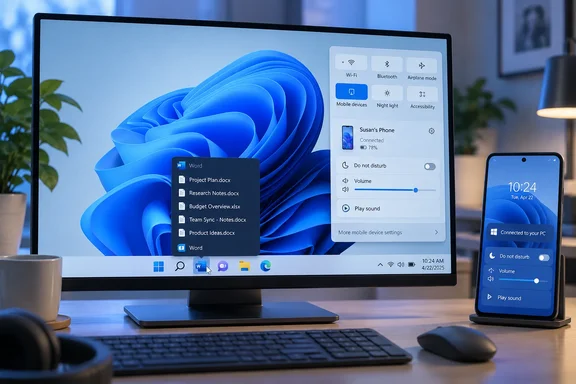
Neither change is official yet. Both are switched off by default, neither appears in Microsoft's release notes, and Microsoft makes no promise that they will ship.
What's been found, and where
Windows Latest turned on both features in Build 26340.9596 on a test PC with a linked Android phone. They had been found a week earlier. Pureinfotech reports that the taskbar change first appeared in build 26340.9577, and that according to PhantomOfEarth on X, Windows 11 build 26340.9577 introduces a hidden option that changes how Taskbar previews are displayed. Instead of showing the familiar visual thumbnails, the Taskbar can display the open windows in a list view. The same outlet says the change is controlled by the TaskbarEUIListView feature and is currently hidden from users by default.
Here's what Microsoft's own documentation confirms:
- Build 26340.9596 shipped to the Experimental channel on October 2, 2026. Microsoft's notes cover Unicode 17.0 text shaping,
~support in the File Explorer address bar, faster loading of the Settings home page, and a Cloud Rebuild entry point under Settings > System > Recovery. Neither of these two features is mentioned. - Build 26340.9577 arrived on September 25, 2026. Its listed highlights are a scrollable phone companion pane in Start and Energy Recommendations in Quick Settings. Again, neither feature is mentioned.
- Microsoft says Experimental builds are based on Windows 11, version 26H2 via an enablement package. It also warns that features in these builds may change, be removed, or never be released beyond Windows Insiders.
Bottom line: two independent sources found both features, and they work in current Experimental builds. Microsoft hasn't announced either one.
Taskbar previews: Thumbnail or List
The new dropdown is labelled "Show taskbar previews as." Windows Latest says the option appears under Settings > Personalization > Taskbar, between "Combine taskbar buttons and hide labels" and "Show smaller app icons." The dropdown has Thumbnail and List, with the former being the default. BetaWiki describes the same dropdown and says the changes are disabled by default, but can be activated by enabling the 62932453 velocity ID.
In use, with List selected, hovering over an open window on the taskbar shows a slim row with the app icon and the window title. Windows Latest tested this with the About Windows dialog (winver). In List mode the hover card just said "About Windows." In Thumbnail mode it showed the usual live preview of the dialog.
ElevenForum adds a detail the other reports leave out. It says thumbnails are the default, but if you have more than 20 windows opened for an app, their taskbar previews will automatically change to show as a list. You can change taskbar previews to always show as a list by default instead. So Windows 11 apparently still has a list mode as an automatic fallback. The new setting makes it something you can choose.
Who should actually flip this switch?
- People who keep lots of windows open. If you have a dozen Edge windows or Word documents open, thumbnails at that size are hard to tell apart. Window titles are easier to scan.
- Anyone who shares their screen. A live thumbnail can show your inbox, a Teams chat, or a spreadsheet to everyone in a meeting. A title shows much less. It still isn't a privacy guarantee, because titles often include file names and email subjects.
- People who prefer text. Some users find words quicker to read than tiny pictures.
Thumbnails are still better when your windows look clearly different from each other, like a photo editor next to a terminal. Neither option is better in every case, which is why having a choice is useful.
The XP connection
Windows Latest calls this a return to an older feature, and the history supports that. Windows XP introduced taskbar grouping: when the taskbar got crowded, it merged an app's buttons into one, and clicking that button opened a menu of window titles. Live thumbnails didn't arrive until Windows Vista and Aero. Windows 7 kept the list as a fallback, used when an app had too many windows to fit or when you were on a Basic or High Contrast theme.
Power users could also force list mode through a NumThumbnails registry value. Windows Latest reports that this stopped working in Windows 11 version 24H2. That makes the new dropdown more useful: it brings back an option that was taken away from people who had been using it.
Quick Settings gets a Mobile devices tile
The second feature lives in Quick Settings (Windows key + A). Pureinfotech reports that the control lets users toggle Do Not Disturb, toggle the phone's ring, and check whether Link to Windows is turned off.
Windows Latest describes how it looks with a phone linked:
- The tile shows the phone's name. In the test it showed the reporter's Galaxy A26.
- Clicking the arrow opens a Mobile devices page that lists linked phones, with a "More mobile device settings" link and a plus button.
- Selecting the phone shows three buttons: Do Not Disturb, Volume and Play sound, plus an On toggle and a shortcut icon.
Phone Link already has these controls. The only difference is that you no longer have to open the app to reach them. They now sit in the same panel as your PC's own volume slider and Do Not Disturb toggle, which is a sensible place for them. Play sound will probably get the most use. It's for finding a phone that's under a pile of printouts.
The empty and disabled states
- No phone linked: the tile just says "Mobile devices," and the page says "No mobile devices," with a note to connect one in Settings. From there you can open the Add device dialog, which offers Android or iPhone.
- Mobile devices turned off on the PC: the tile turns grey and the page says "Mobile devices is turned off," with a prompt to turn it back on in Settings. That's a small but useful touch, because it tells you why your phone features stopped working.
iPhone users should be aware: the Add device dialog offers iPhone pairing, but all the hands-on testing so far used an Android phone. Nobody has confirmed that the Do Not Disturb, ringer and Play sound controls work on iOS.
How to enable both features (test PCs only)
This uses ViveTool, a third-party tool. Microsoft doesn't support this method. Both Pureinfotech and Windows Latest cite the same feature IDs.
- Make sure you're on Experimental build 26340.9577 or 26340.9596. You can check with
winver. - Download ViveTool from its GitHub page and extract it to a folder.
- Open Command Prompt as administrator and go to that folder.
- Enable the taskbar list view:
vivetool /enable /id:62932453 - Enable the Mobile devices tile:
vivetool /enable /id:62103454 - Restart your PC.
- Go to Settings > Personalization > Taskbar > Show taskbar previews as and choose List. Press Win + A to look for the Mobile devices tile.
How to tell it worked: the dropdown appears between the "Combine taskbar buttons" and "Show smaller app icons" rows, and the phone tile appears in Quick Settings.
If nothing changes: check your build number first. These IDs are only reported for the two builds above. Make sure the command ran from an elevated prompt, and that you restarted afterwards. If the phone tile shows "Mobile devices is turned off," turn Mobile devices back on in Settings. Hidden features can be buggy, so don't try this on a work machine.
The verdict
Neither feature is a big deal on its own. One is a dropdown that brings back an XP-era option, and the other puts three phone buttons where Windows already keeps its volume controls. Still, they fix real everyday annoyances: thumbnails you can't tell apart, live previews showing up during screen shares, and phones that ring at the wrong time or go missing.
It's also a bit awkward that Windows 11 removed the NumThumbnails workaround in 24H2 and is now offering list mode as a new choice. For now, both features are in the Experimental channel, and Microsoft has pulled features from that channel before without explanation.
If either matters to you, the Feedback Hub is the place to say so. Microsoft says it uses Insider feedback to decide which features make it out of the Experimental channel.