

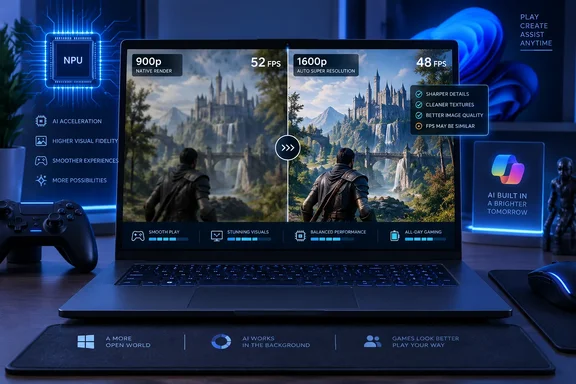
Microsoft announced the Intel expansion on September 16 through its DirectX Developer Blog, and Neowin reported the rollout the following day. This is the latest extension of a feature that began as a Snapdragon-focused Copilot+ PC capability and has since been positioned as a broader Windows gaming tool. Intel’s Core Ultra Series 3 platform is the first Intel family Microsoft has explicitly named for this Auto SR release.
The practical takeaway for owners of compatible Intel laptops is simple: Auto SR is worth testing in games that lack a well-implemented built-in upscaler, particularly when a title is limited by integrated graphics. It should not be treated as a universal frame-rate multiplier, nor as a replacement for the upscalers game developers have tuned into their own rendering pipelines.
Intel support arrives, but Microsoft’s support page has not caught up
Auto SR uses a neural processing unit, or NPU, to upscale a game that first renders at a lower resolution. Microsoft says it can apply the technique to DirectX 10-or-later games without per-game developer work. That broad compatibility is its core selling point: a player can potentially use it with older or unsupported games that will never receive an FSR, DLSS, or XeSS patch.
There is, however, a documentation mismatch on the day of the announcement. Microsoft’s DirectX blog explicitly says Intel Core Ultra Series 3 Copilot+ PCs are now supported. But Microsoft’s public Auto SR support page still lists Snapdragon X and Snapdragon X2 Copilot+ PCs, along with the ROG Xbox Ally X, in its device requirements. Its package description also refers to Snapdragon and AMD Ryzen platforms rather than Intel.
That is not evidence that the Intel announcement is speculative; Microsoft’s own DirectX team made the announcement. It does mean buyers and administrators should not use the general support page alone to decide whether a specific Series 3 laptop is eligible. The device must be a Copilot+ PC, not merely any notebook with a Core Ultra Series 3 processor, and it needs Windows 11 version 24H2 or later, current graphics and NPU drivers, and the current Auto Super Resolution Package from the Microsoft Store.
The missing compatibility matrix matters. Microsoft has not published a clear model-by-model list of supported Intel PCs, minimum driver versions, or a package version number that IT departments can use to verify deployment. Until it does, the most reliable check is on the machine itself: look in Windows 11’s Graphics settings or the Xbox Game Bar Auto SR controls after updating Windows, the Store component, and Intel drivers.
The better benchmark is the one that exposes the compromise
Microsoft’s published Intel Arc B390 examples show why Auto SR should be described as a quality-and-performance control, not a free upgrade.
In Assassin’s Creed Valhalla, Microsoft measured native 1600p at High settings at an average of 45 frames per second. Switching to a 1050p input image that Auto SR scaled to 1600p allowed Ultra High settings and averaged 52 fps. In that particular test, the feature improved the frame rate by seven fps while also permitting a higher graphics preset. It is the kind of result that makes Auto SR appealing for thin-and-light Copilot+ laptops whose integrated GPUs are being asked to drive high-resolution panels.
But Assassin’s Creed Shadows tells the other half of the story. Microsoft’s comparison starts at native 1600p with the game’s Very Low preset and an average near 31 fps. The Auto SR configuration rendered at 1050p, scaled to 1600p, and used Ultra High settings — but averaged roughly 29 fps. The visual upgrade may be worthwhile to someone who cares more about scene detail than responsiveness, but it is still a two-fps reduction.
Microsoft explains the loss: the NPU consumes power from the same device-wide CPU and GPU power limits. Reducing the graphics workload does not eliminate the cost of running the upscaling model. On a battery-powered laptop, an OEM’s power profile, thermal limits, and game workload can decide whether lower-resolution rendering produces a net performance gain.
This distinction is especially relevant for games already operating near 30 fps. A move from Very Low to Ultra High may dramatically improve foliage, draw detail, shadows, or texture quality, but a reduction from 31 to 29 fps can also worsen controller latency and frame-time consistency. Players should judge the full experience in motion rather than choosing a setting from a static screenshot.
Built-in upscalers remain the first choice
Microsoft is unusually direct on this point: when a game includes Intel XeSS Super Resolution, AMD FSR, Nvidia DLSS, or another developer-integrated upscaler, players should use the in-game option and disable Auto SR.
That recommendation is technically sound. Game-level upscalers can receive motion vectors, depth data, exposure information, reactive masks, and other inputs from the engine. Windows-level Auto SR has to work from the final rendered output it sees. It has a wider reach, but less information about the scene. The difference becomes most visible in fast motion, particles, hair, transparent effects, HUD elements, and fine text.
Microsoft acknowledges one artifact outright: interface text and fine UI details can look fainter because they are also being upscaled. Film grain and similar post-processing effects can also confuse the model, so Microsoft recommends disabling them for cleaner output. Those limitations are not unusual for an output-based upscaling approach, but they undermine the idea that the feature can be left on blindly for every game.
The best use case is therefore a DirectX game with no high-quality integrated upscaler, or one whose built-in rendering options provide only a crude resolution slider. For a game with a mature DLSS, FSR, or XeSS implementation, Auto SR is the fallback — not the upgrade.
Resolution setup will determine whether Auto SR works at all
Auto SR does not simply activate at a game’s native screen resolution. It needs the title to render within a supported lower-resolution range, then scales that output to the display. Microsoft says 800p remains the general recommended target for eligible Copilot+ PCs, while this Intel Core Ultra Series 3 rollout adds support for input resolutions up to 1080p.
That range can create some setup friction, especially on laptops with 1600p, 1800p, or 2.8K displays. Players will need to lower the game’s render resolution or, in titles that lock that control, change display mode or Windows display resolution. A game may need to be restarted before the feature engages.
The most useful setup sequence is modest:
- Update Windows 11, the Microsoft Store’s Auto Super Resolution Package, and the laptop’s Intel graphics and NPU drivers before testing any game.
- Start with a compatible DirectX 10-or-later game that does not have a preferred built-in upscaler, then select an Auto SR-supported input resolution rather than assuming the native panel resolution will work.
- Use Windows 11’s per-app Graphics settings or the Xbox Game Bar controls to enable Auto SR for one game first, instead of making it the default across a whole library.
- Disable film grain and inspect menus, subtitles, map labels, and other UI elements before committing to the feature for a long session.
- Compare frame-time behavior as well as the average fps number, particularly when the system is unplugged or set to a balanced power profile.
Microsoft says Auto SR is currently aimed at gaming scenarios up to 60 fps and that it is exploring 90-to-120-fps use cases. That future work should not be mistaken for a delivered feature. Competitive players seeking sustained high refresh rates will still need a faster GPU, lower settings, or an engine-integrated upscaler that can preserve clarity at high motion.
Broad compatibility is useful, but eligibility remains narrow
The company’s pitch is that Auto SR can improve “thousands” of existing games without studio support. In principle, that is a useful Windows-level capability: legacy titles and games with inactive development teams cannot be expected to receive tailored modern rendering features.
In practice, the hardware pool is still limited. A conventional Intel laptop with a Core Ultra processor does not automatically qualify, and neither does a gaming desktop with a powerful discrete graphics card but no qualifying Copilot+ NPU configuration. Auto SR is being broadened within Microsoft’s AI PC category, not opened to Windows gaming PCs generally.
The release also does not support every graphics stack. Microsoft’s current support documentation excludes DirectX 9, Vulkan, and OpenGL games, and notes that some formats, including certain 10-bit output paths, are unsupported. That cuts out a meaningful portion of PC libraries, including many older games and a growing group of modern cross-platform releases that use Vulkan.
For Intel Core Ultra Series 3 Copilot+ PC owners, the expansion is still a substantive addition: Windows now offers a low-effort way to experiment with higher detail settings in eligible DirectX games, even where a developer has provided no upscaling support. The realistic promise is narrower than “better graphics without losing performance.” Auto SR gives players another trade-off to tune — and Microsoft’s own Assassin’s Creed Shadows numbers show that the trade can favor image quality even when the frame-rate result goes the wrong way.
References
- Microsoft brings Auto SR to more PCs, to make games look better without losing performance Neowin · 2026-09-17T15:20:01+00:00