

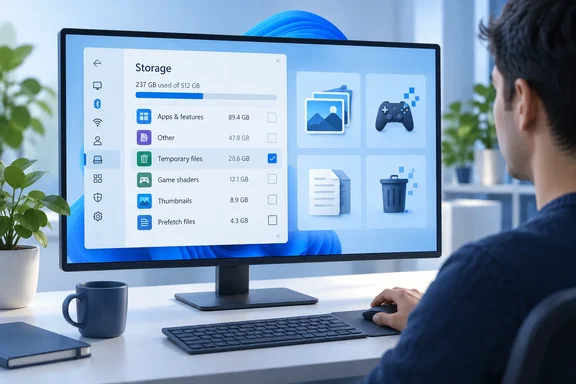
XDA’s Abhinav Raj makes this case through three familiar Windows 11 cleanup habits: selecting temporary-file categories in Settings, emptying C:\Windows\Prefetch, and deleting everything inside %temp%. The useful takeaway is not “never clear a cache.” It is clear the right cache for a specific reason—not because a maintenance checklist treats every temporary file as rubbish.
There are also important limits to the argument. The evidence supports rebuilding costs and particular troubleshooting exceptions, not a universal performance penalty or a guaranteed slowdown of a certain size.
Windows cleanup categories are not interchangeable
Microsoft describes Settings > System > Storage as a breakdown of storage consumption, including installed apps, temporary files, and system storage. Its cleanup recommendations identify candidates for removal, while Storage Sense can automatically remove selected unnecessary items. These are space-management tools, not a promise that deleting every available category improves performance.
Two categories deserve particular attention.
Thumbnails are reusable previews
Microsoft’s Windows Shell documentation explains that Windows checks the thumbnail cache when it needs a thumbnail. That avoids repeatedly generating the same preview from the underlying file. Removing cached previews therefore trades stored results for future regeneration; it does not remove the original photos or videos.
For someone frequently browsing image-heavy folders, my practical recommendation is to leave a working thumbnail cache alone unless space recovery or a specific problem justifies resetting it.
XDA also raises a privacy consideration: thumbnail data can remain after the original files have been deleted. That is a different objective from speeding up Explorer. Clearing previews for privacy should not be confused with proof that the underlying sensitive files have been securely erased.
Shader caches can prevent repeated graphics work
Epic Games provides a concrete example of both sides of shader caching. Its Fortnite support guidance says repeated DirectX shader recompilation can produce heavy stuttering in DirectX 12 mode, and clearing the relevant cache can potentially resolve that problem. It also warns that the first match after deletion may still stutter because new shaders are being compiled.
That distinction matters: a targeted reset can fix malfunctioning caching, while an unnecessary reset can trigger rebuilding.
XDA reports finding a 40 GB Nvidia cache using WizTree. That is the author’s individual observation, not an established normal size or a threshold every gaming PC should use. Investigating an unusually large folder is sensible; assuming every shader cache is oversized is not.
Delivery Optimization has its own trade-off
Microsoft documents Delivery Optimization as a download system that combines original download sources, eligible peers, and Microsoft Connected Cache where configured. Cached content can serve other devices, so this category is not merely unexplained clutter.
Its documented default cache expiration is 259,200 seconds—three days—and its default maximum cache size is 20% of disk capacity. Microsoft explicitly says policy can override those defaults. The percentage is a limit, not a claim that Windows continuously occupies one-fifth of every drive with update files.
My recommendation is to treat clearing this cache as a storage decision rather than a performance tweak. On managed PCs, its usefulness also extends beyond the individual machine: removing cached content can reduce what remains available for peer delivery.
Prefetch is not a speed-boost deletion target
XDA challenges the longstanding advice to empty C:\Windows\Prefetch as routine optimization. Microsoft’s technical explanation of prefetching supports the underlying objection: Windows can anticipate an application’s reads and issue requests together, allowing the storage system to combine some operations rather than handling them separately as the application requests them.
That gives Prefetch a performance purpose. Its contents should not be judged disposable simply because they are generated automatically.
However, XDA’s description of application launches becoming “measurably” slower should not be read as a benchmark applicable to every Windows 11 PC. The reporting does not establish a general timing penalty across applications and hardware.
The practical conclusion is narrower: do not delete Prefetch as a standing speed-up ritual. A specific diagnostic procedure is a different matter, but there is no reason here to make this folder part of ordinary housekeeping.
Emptying %temp% is a blunt instrument
The name “Temp” describes a location, not a guarantee that every file inside it has finished serving its purpose.
Microsoft’s cleanmgr documentation says programs commonly remove temporary information when they exit, and describes files unmodified for the previous week as safe deletion candidates. But that guidance does not establish XDA’s broader claim that Disk Cleanup and Storage Sense universally enforce an identical seven-day exclusion rule. An age-based safety recommendation and a verified cleanup algorithm are not the same thing.
There is a more concrete example of useful files living there. Microsoft documents that.NET single-file applications configured to extract files do so before starting. On Windows, the default extraction directory is beneath %TEMP%\.net, unless DOTNET_BUNDLE_EXTRACT_BASE_DIR specifies another location. Not every single-file.NET application uses disk extraction.
The practical implication is that removing extracted files can require an affected application to unpack them again. That is a supported mechanism, not evidence that clearing Temp makes every application noticeably slower.
A better Windows 11 cleanup routine
For ordinary space management, I recommend this approach:
- Open Settings > System > Storage. Identify the categories consuming space.
- Review Temporary files or Cleanup recommendations. Read the proposed removals rather than selecting everything reflexively.
- Use Storage Sense for recurring cleanup. Review its configuration before enabling automatic removal.
- Check the result. The immediate success criterion is recovered space—not an assumed increase in application speed.
Microsoft documents these storage-management features for Windows 11 and Windows 10.
For Fortnite’s documented DirectX 12 recompilation problem, Epic’s targeted procedure is different: close Fortnite and Epic Games Launcher, open %appdata% through Windows + R, navigate up to AppData, then into Local. Nvidia users should inspect NVIDIA\PerDriverVersion\DXCache and NVIDIA\DXCache where present; AMD users should inspect AMD\DxCache. Delete the cache contents, skip files reported as in use, and relaunch the game to test. These vendor folders should not be treated as interchangeable with Windows Settings’ general shader-cache category. Expect possible first-match stuttering while shaders rebuild.
The bottom line is simple: cleanup and optimization overlap, but they are not synonyms. Use deletion to recover needed space or address an identified fault. Otherwise, let a healthy cache keep doing the job it was created to do.
References
- I stopped clearing Windows caches after discovering it was silently costing me performance - XDA XDA · 2026-10-02T00:00:18+00:00
- Disk and File I/O performance with ETW traces: Why is System doing so much stuff? - The Old New Thing devblogs.microsoft.com
- How Delivery Optimization works | Microsoft Learn learn.microsoft.com