

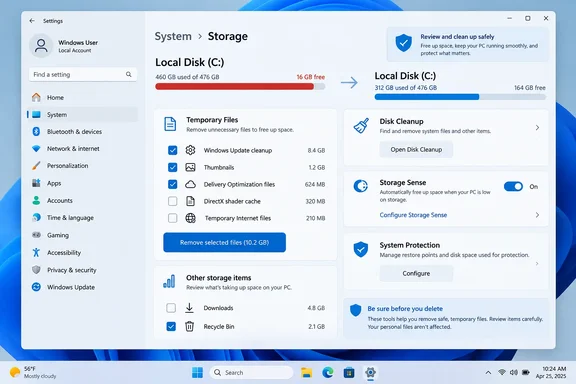
The reported 16.1GB is also a machine-specific result rather than a benchmark readers should expect. How-To Geek’s figures add up precisely from 8.48GB removed through Disk Cleanup, 1.86GB through Storage Sense and 5.76GB by reducing restore-point storage. Its Temporary Files section does not report an additional amount reclaimed, and it acknowledges overlap with Storage Sense. In other words, “four tools” describes four places to inspect, not four separate pools of space guaranteed to add up.
Microsoft’s current Windows documentation supports the underlying approach: Storage settings, Disk Cleanup and System Protection are still supported ways to recover capacity. Windows Central has also recommended Windows 11’s Storage cleanup controls as the first place to inspect before installing third-party “PC cleaner” software. The important difference is that Microsoft’s warnings are more explicit about the rollback and data-retention choices behind several checkboxes.
Disk Cleanup still exposes the deeper choices
Disk Cleanup, launched as cleanmgr.exe, remains present in Windows 10 and Windows 11 even though much of storage management has shifted into Settings. The legacy utility is valuable because selecting Clean up system files triggers an elevated second scan that can reveal categories unavailable in the first pass, including Windows Update Cleanup and old Windows installations.
The latter is the most consequential selection. A previous Windows installation is normally the Windows.old folder created after an in-place upgrade or feature update. Microsoft says it is automatically removed after 10 days, but deleting it earlier permanently removes the option to return to the prior Windows version through the normal rollback process.
That means the files are expendable only after a decision has been made: the current version is stable, required applications and drivers work, and no rollback is anticipated. On a home PC, that may be a short wait after an upgrade. On an organization-managed device, it is better handled after the IT team’s validation window, particularly where line-of-business software, VPN clients or security agents have only recently been tested.
Windows Update Cleanup is generally the lower-risk option. It removes superseded update components and is designed to reduce the footprint of cumulative servicing. But admins troubleshooting a failed update should capture relevant logs and assess the incident before aggressively removing update-related material. Cleanup is routine maintenance; it is not a substitute for identifying why an update failed.
Disk Cleanup can also offer the Recycle Bin, downloaded program files and other categories that are not necessarily “Windows clutter.” The interface provides a description for the selected category, and readers should use it. A category’s size tells you how much space is available, not whether its contents are safe to discard in your situation.
Storage Sense is safe by default—until its options change
Storage Sense is Windows’ automatic housekeeping feature. Microsoft says its default behavior focuses on unnecessary temporary files and Recycle Bin content when a device is low on space. Crucially, it does not touch Downloads or cloud-provider files under the default configuration.
That changes when the user chooses a Downloads retention period. Storage Sense can delete files in Downloads that have not been opened for a selected number of days. Those could easily be ISO images, driver packages, invoices, installers, exported reports or other files that matter. They may have been forgotten, but they are still personal files.
The same applies to the Recycle Bin. Emptying it may be reasonable on a constrained drive, but the folder exists specifically as a recovery layer for files deleted by mistake. Treat any scheduled Recycle Bin cleanup as a policy decision, not a harmless background optimization.
The more cautious configuration is straightforward:
- Leave Downloads excluded from Storage Sense unless the folder is treated as a disposable transfer location.
- Use a longer Recycle Bin retention period if the PC has adequate capacity and accidental deletion is a recurring problem.
- Run Storage Sense when disk space is low, or on a regular interval, only after reviewing which categories it is permitted to manage.
- Remember that Storage Sense works on the Windows system drive rather than serving as a general cleanup engine for every attached disk.
For OneDrive users, Storage Sense can also make inactive cloud files online-only. That normally preserves the files in OneDrive rather than deleting them, and files marked “Always keep on this device” are exempt. Still, making a file online-only changes its offline availability. A laptop user who expects access during travel should not enable that behavior casually.
Temporary Files provides the review screen
The Settings path—Settings > System > Storage > Temporary files—is the best place to inspect what Windows believes is removable before committing to deletion. It groups candidates such as temporary data, cached thumbnails, Delivery Optimization files, error reports and previous Windows installations, with estimated space beside each item.
This is the review step that the “without deleting a single file” framing skips. The Temporary Files page can include Downloads, Recycle Bin contents and previous Windows installation files. Selecting any of those has a different consequence than removing shader caches or expired update-delivery data.
There is also no reason to run every available cleanup mechanism blindly and expect a cumulative windfall. Storage Sense, Temporary Files and Disk Cleanup can identify some of the same classes of disposable content. If Storage Sense has already removed Delivery Optimization files and temporary data, the Temporary Files page will understandably show less to recover. A smaller result means the previous task may already have done its work, not that Windows is withholding space.
On Windows 11, Microsoft’s newer Cleanup recommendations view belongs in the initial inspection too. It surfaces temporary files alongside large or unused files and apps. Unlike the narrowly system-oriented workflow described by How-To Geek, it may identify user content and installed applications, so it demands the same careful review. It is a recommendation engine, not an instruction to delete everything it lists.
Restore-point storage is real space, not reserved space
The 5.76GB recovered in How-To Geek’s example came from reducing System Protection’s maximum disk-space allocation after existing restore points had consumed 17.6GB. This is a legitimate control: search for “Create a restore point,” open the System Protection tab, select the Windows drive, choose Configure, and inspect Current Usage and Max Usage.
But the wording matters. System Protection’s maximum is an upper limit, not a block of disk capacity permanently withheld from Windows on day one. Lowering it forces Windows to retain fewer or smaller generations of restore-point data, and older restore points may be discarded to meet the new ceiling. The returned space is a trade-off against the number and duration of recovery options available after a bad driver, application or system change.
Traditional System Restore generally does not modify ordinary personal documents when a restore point is applied. It focuses on system files, installed programs, drivers, the Registry and settings. Yet it is still not a backup system. A restore can remove recently installed software and reverse configuration changes, and no one should rely on it as protection for documents, photos or business data.
There is an additional wrinkle for newer Windows 11 deployments. Microsoft has introduced Point-in-time restore on supported configurations, a separate recovery feature that is broader than traditional System Restore. It can restore apps, settings and local files captured in its restore points, and it uses its own retention and storage rules. Windows users should not assume that every “restore point” label refers to the older System Protection feature—or that changing one recovery setting governs all recovery data on a modern build.
For conventional System Protection, reducing the maximum allocation is reasonable when restore points have grown disproportionately large. The prudent approach is to check the existing restore-point list first, keep at least one recent known-good point after major maintenance, and ensure that another backup method exists for data that cannot be recreated.
The useful finding in How-To Geek’s 16.1GB example is that Windows’ own tools can recover meaningful capacity without installing registry cleaners or granting a third-party optimizer broad access to the machine. The misleading part is the assurance that the tools categorically avoid personal files. They do not—unless the user leaves Downloads and other personal-data categories unselected.
For a Windows PC approaching a full C: drive, start with Storage’s Temporary Files and Cleanup recommendations, then use Disk Cleanup’s system-file scan if update remnants or a prior Windows installation are present. Adjust System Protection only after deciding how much rollback history is worth keeping. That sequence recovers the space Windows can safely surrender while preserving the recovery options and files that may matter more than a few extra gigabytes.
References
- These 4 Windows tools helped me regain 16.1GB of storage without deleting a single file How-To Geek · 2026-09-02T14:30:13+00:00