

Here's what Microsoft has confirmed, what came from one reviewer's PC, and what that means for your right-click menu.
What Microsoft is actually shipping to Insiders
The redesign first appeared in the Experimental channel. Microsoft's changelog for Windows 11 Insider Experimental build 26340.9212 describes an updated context menu in File Explorer, designed to feel faster, cleaner, and easier to tailor to the way you work. Microsoft released five preview builds across channels on August 17, and with that wave it began public testing of the customizable context menu.
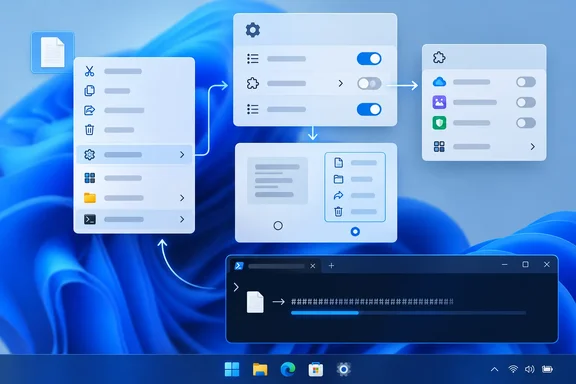
The main change is a new Settings page, not the new look. Microsoft's Windows Insider Blog groups the page into three sections:
- Built-in commands: You can switch Windows commands such as Send to and Create shortcut on or off. Microsoft says Print wasn't available in the Windows 11 context menu before, and you can now turn it on.
- App extensions: You can choose whether each app's extensions appear in the main menu or in a submenu, and you can hide the submenu completely.
- Layout: You can show Cut, Copy, Paste, Rename, Delete, and Share as a vertical list, like Windows 10, instead of a row of icons. You can also move Properties to the bottom.
To open the page, go to Settings, then Personalization, then Context menu. A "Customize menu" entry at the bottom of the new context menu also opens it.
Microsoft has already updated the feature once. Build 26340.9482 in the Experimental channel added a teaching tip for first-time users, an option to turn off the Customize menu entry, and fixes for some Send To problems. Turning off that entry doesn't affect the classic menu you get with Shift + right-click.
Section summary: The new menu gives you three kinds of control: which built-in commands appear, where app extensions go, and how the core commands are laid out. It's still in preview.
Who can actually see it right now
Rice-Jones tested on build 26340.9502, which is the Experimental build Microsoft announced on September 18. Those build notes don't mention any new context menu changes.
Reports differ on how widely the feature is available. Pureinfotech says the redesigned menu is still being tested and may not be on by default for all Insiders. It says Insiders on a supported preview build can turn it on manually with ViveTool. BigGo reports that the menu is available in both the Experimental and Beta channels. Microsoft's own feature notes describe it as Experimental-channel work. BigGo also notes that Microsoft hasn't given a general availability date.
For most people on stable Windows 11, this isn't on your PC yet. Enterprise admins don't need to rewrite any documentation this week.
One reviewer's hands-on results
The following details come from Rice-Jones's testing on his own PC. Treat them as one person's observations, not official specifications. Your results may differ.
- Eleven controls: He counted 11 controls on the Settings page. File actions such as Send to, Print, Create shortcut, Copy as path, and Rotate image each have their own toggle.
- Copy as path is off by default: He turned it on first. Turning it off only removes it from the new menu. It still appears in the legacy menu, and Ctrl+Shift+C still copies the path.
- No legacy default: He found no option to make the legacy menu the default. Older shell extensions still don't appear in the new menu.
- All app extensions start in the submenu: 19 apps were listed with their toggles off, including Microsoft's own Notepad, Paint, Photos, and OneDrive. When he right-clicked a JPEG, Edit with Paint and Edit with Photos were in the App extensions submenu, one level below the top.
- Promotion is per app: Turning on an app's toggle moves all of its commands to the top level. You can't pick individual commands.
- Some rough edges: AMD's Radeon extension showed up as a raw resource string instead of a name. An entry labeled ChatGPT turned out to be OpenAI's Codex app.
That default placement is a real trade-off. Windows Central notes that right-clicking now shows an "App extensions" submenu containing the entries added by your installed apps. The top level is less cluttered, but every app you rely on starts one click further away until you promote it.
The 7-Zip question
Rice-Jones says 7-Zip still registers the old way, so its "Extract here" entry is still under Show more options. The built-in Compress to submenu offers ZIP, 7z, and TAR at the top level, and he says it covered everything he used 7-Zip's menu entry for.
Keep that in context. Built-in compression covers what he used the menu for. It doesn't replace all of 7-Zip. If you rely on archive formats, passwords, split volumes, or 7-Zip's file manager, keep 7-Zip. You'll just take a longer route to its menu entries for now.
Where Custom Context Menu still wins
Microsoft's controls only manage commands that Windows or your apps already provide. Custom Context Menu creates new ones. (For context on the app itself: the project's public GitHub repository describes it as an app to add custom context menu entries to Windows 11. It offers Microsoft Store and GitHub release downloads, and it says the GitHub build uses a self-signed certificate that isn't recommended.) The Store version is the easier and safer choice for most people.
Rice-Jones showed the difference by building a command that copies a file's SHA-256 hash to the clipboard. Here is his setup:
- Install Custom Context Menu from the Microsoft Store.
- Create a new command. He says the editor has five fields.
- Set Exe to
C:\Windows\System32\WindowsPowerShell\v1.0\powershell.exe. - Paste this into Param, with nothing before or after it:
-NoProfile -Command (Get-FileHash -LiteralPath \"{path}\" -Algorithm SHA256).Hash | Set-Clipboard - Set it to match all files and no folders.
- Once it works, set it to hide the console window.
He reported two problems worth knowing about:
- A stray placeholder breaks it silently. His first attempt did nothing because an extra
{path}had ended up at the start of the Param box, so PowerShell tried to run the image file as a command. After he cleared the field and pasted only the line above, the hash matchedGet-FileHashoutput exactly. - The app appears only after you save a command. Its menu entry won't show up until at least one command is saved, so it looks broken right after you install it.
He also says the app is still on version 5.8.1, matching its May 2024 GitHub release. We haven't independently confirmed that. If he's right, the app is stable but isn't getting new features.
Some general notes if you try this yourself. Get-FileHash and Set-Clipboard are standard cmdlets in Windows PowerShell 5.1. The escaped quotes around {path} keep file paths with spaces together. Test on a file whose hash you already know before you rely on the command. A menu command that fails silently with the window hidden is easy to miss.
The same pattern works for other one-off tasks, such as opening a folder in a specific terminal profile or running a script on selected files. Windows' Settings page can't do that, because it only manages commands that already exist.
The click counts
Rice-Jones counted clicks from the right-click through the finished action, including the right-click itself:
| Task | Route | Clicks |
|---|---|---|
| Copy SHA-256 hash | Custom Context Menu promoted | 2 |
| Copy SHA-256 hash | Left in App extensions | 3 |
| Copy as path | Toggle on | 2 |
| Copy as path | Toggle off, via Show more options | 3 |
| Make a 7z archive | Compress to → 7z File | 3 |
| 7-Zip Extract here | Show more options → 7-Zip | 4 |
These counts are one person's routes, not a benchmark. The pattern still holds: promoted entries take two clicks, entries left in the submenu take three, and legacy entries take three or four. Out of the box, the new menu isn't faster for third-party apps, because every app starts in the submenu. It gets faster after you promote the few apps you actually use.
What to do if you have the preview
- Open Settings > Personalization > Context menu, or pick Customize menu from the bottom of the new right-click menu.
- Turn on the file actions you use, such as Copy as path or Print, and turn off the rest.
- In App extensions, promote only the three or four apps you use every day. Promotion moves all of an app's commands, so an app with many entries can fill the top level again.
- If you prefer the Windows 10 layout, turn on the inline list for the core commands.
- Keep using Shift + right-click when you need the classic menu. It still works, and turning off the Customize menu entry doesn't affect it.
- If you need a command no app provides, add it with Custom Context Menu. Windows won't create it for you.
The bottom line
Microsoft deserves credit here. For years the Windows 11 context menu was a menu you had to work around. Now it has a Settings page that lets you control it. If you only used a third-party utility to hide or rearrange entries, you probably won't need it once this ships. The feature is still an Insider preview, though, so details like defaults and the number of controls could change before release.
Rice-Jones's conclusion is right: Windows now handles clutter and placement, but it still can't create new commands. Custom Context Menu is still worth keeping for that.
Which command would you add to your right-click menu if Windows let you? Tell us in the forums, especially if Custom Context Menu has done something for you that the Settings page can't.
References
- I tested Microsoft's new Windows 11 context menu against the app I've been recommending for years XDA · 2026-09-29T17:30:17+00:00
- GitHub - panhaoyu/context-menu: Add Custom Context Menu For Windows11 · GitHub github.com
- I finally found a way to unlock Windows 11's new context menu customization pureinfotech.com