

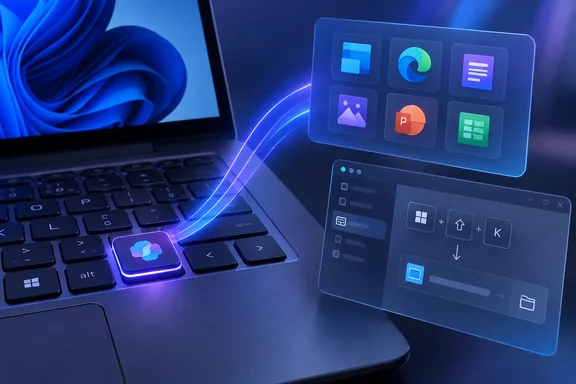
The Copilot Key Is a Three-Key Shortcut in Disguise
Most keys send one key code. The Copilot key usually doesn't. Microsoft's Keyboard Manager documentation says common examples are the Office key (Win+Ctrl+Alt+Shift) and the Copilot key (Win + C or Left-Shift + Windows key + F23). PCWorld saw the same thing: when you press the key in the PowerToys editor, it shows up as Shift + Windows + F23.
That detail shapes the whole procedure. F23 is a function key that almost no physical keyboard has, so Windows can use it as a hidden trigger without clashing with anything you normally type. It also means you have to remap the full combination, because a single-key remap won't catch it. A guide on the WellWells blog puts it plainly: because the key registers as the keyboard shortcut Win + Shift + F23. Because of this, you need to remap a shortcut, not a key. Simply rebinding F23 alone won't work.
Microsoft lists two possible signals, Win + C and Left-Shift + Win + F23, so don't assume your keyboard sends one or the other. The capture step in the steps below handles this for you: press the physical key and Keyboard Manager records whatever your hardware actually sends.
Windows Settings Offers a Short, Locked-Down Menu
Before installing anything, it's worth knowing what Windows already offers. PCWorld describes the built-in route as opening Settings, going to Bluetooth & devices > Keyboard, and finding the setting called "Customize the Copilot key on your keyboard." From there you can pick Search, so the key opens the same search box as the taskbar, or pick Custom. With Custom, PCWorld says Windows lists just two apps: "Microsoft 365 Copilot" (if installed) and "Copilot."
Microsoft's IT documentation, last updated August 18, 2026, puts the setting somewhere else. For a user signed in with a Microsoft Entra work or school account whose key isn't already mapped to the Microsoft Copilot app, it says they can select the app by going to Settings > Personalization > Text input, then selecting from the dropdown menu in the setting called Customize Copilot key on keyboard. The dropdown offers Search, Custom, or whichever app is currently mapped. So if the setting isn't under Keyboard on your PC, check Text input. The location seems to vary by build or account type, and the two sources describe different scopes. The deep link that apps and scripts can use to open this page is ms-settings:personalization-textinput-copilot-hardwarekey.
The short list of apps is deliberate. Microsoft says the Custom picker only shows apps that are MSIX-packaged and signed, and that if the app isn't listed in the app picker for the Copilot key, it's possible that the app provider hasn't registered it yet in their package manifest file as a Microsoft Copilot hardware key provider. Developers opt in by adding com.microsoft.windows.copilotkeyprovider as an app extension in their package manifest. Most traditional Win32 programs haven't done this and won't show up, whether that's an older text editor, a portable utility, or a line-of-business tool.
On managed machines there's another layer. Microsoft says admins can set the key's target app with the Group Policy setting at User Configuration > Administrative Templates > Windows Components > Windows Copilot > Set Copilot Hardware Key, or the matching CSP, ./User/Vendor/MSFT/Policy/Config/WindowsAI/SetCopilotHardwareKey. On a corporate PC, what the key does may already be decided by policy.
PowerToys Keyboard Manager Removes the App Whitelist
PowerToys Keyboard Manager works differently. It doesn't ask which apps have registered as Copilot-key providers. It watches for a key combination and runs whatever you tell it to. Microsoft documents that Keyboard Manager enables you to start applications with the activation of any shortcut, and the App field is simply the path to an executable, with environment variables expanded.
That's what PCWorld means by "any app": anything with an EXE you can browse to. Keyboard Manager also has more launch options than PCWorld's tip needs. According to Microsoft's documentation, you can set:
- Arguments to pass to the program, such as a file to open or a command-line switch.
- A "Start in" working directory.
- An elevation level of Normal, Elevated, or Different User.
- What happens if the app is already running: Show Window, Start another instance, Do nothing, Close, or End task.
- A visibility option, handy for console tools you don't want to see.
PCWorld says the defaults are fine for a basic launcher. Still, the "if running" option matters for a key you'll press often. Setting it to Show Window makes the Copilot key act like a toggle-to-front for that app instead of opening a new copy every time. Keyboard Manager can also open a URI instead of an app, so the key could launch a website or a protocol handler.
Remapping the Copilot Key Step by Step in the New PowerToys Editor
These steps follow PCWorld's walkthrough, which uses Keyboard Manager's redesigned editor. Microsoft's documentation says that starting in PowerToys 0.100, new installations open the redesigned WinUI 3 editor by default. You can switch between the new and legacy editors at any time using this toggle. The WellWells guide says the redesigned UI first showed up as an opt-in in PowerToys 0.98. If your labels don't match the ones below, you're probably on an older build or the legacy editor, so update PowerToys first.
Prerequisites
You need PowerToys installed. PCWorld installs it from the Microsoft Store. You also need the full path to the program you want to launch; if you're not sure, right-click its Start menu shortcut and open its file location. The remap only works while PowerToys is running in the background, a point Microsoft's documentation stresses.
Steps
- Open PowerToys and go to Keyboard Manager, then click Open Settings.
- Turn on both the Keyboard Manager toggle and the "Try the new editor" toggle, then click Open Editor.
- Click Add New Remapping, then click in the empty field under Trigger.
- Press the Copilot key once. The field should fill in the combination your keyboard sends, which PCWorld reports as Shift + Windows + F23. Don't press anything else, since the capture records every key.
- On the right, open the Action drop-down and choose Open App. Microsoft's documentation calls this action "Start App."
- Click the folder icon under Program Path and select the EXE of the app you want.
- Leave the other settings alone unless you want arguments, elevation, or a different already-running behavior, then click Save.
Checking that it worked
Press the Copilot key. Your chosen app should open right away. PCWorld says the new mapping works immediately and overrides whatever you picked in Windows Settings. Microsoft's FAQ agrees that a remap takes effect without restarting the PC or PowerToys.
Removing the mapping
To undo it, reopen Keyboard Manager's editor, click the three dots at the far right of the mapping's row, choose Delete, and confirm. For a quick temporary fix, Microsoft says you can close PowerToys or disable Keyboard Manager in the PowerToys settings. The key then goes back to whatever Windows Settings or policy tells it to do.
Where the PowerToys Remap Stops Working
A PowerToys remap is a software layer, and Microsoft's documentation lists where it breaks. First, it depends on PowerToys running. If PowerToys doesn't start with Windows, or crashes, the Copilot key goes back to its default without any warning.
Second, elevation. Microsoft says remapping won't work on an app or window if that window is running in administrator (elevated) mode and PowerToys is not running as administrator. The fix it suggests is running PowerToys as administrator. Keyboard Manager also doesn't work on any password screen, including the sign-in screen, even when PowerToys runs elevated.
Third, other keyboard software can interfere. Keyboard Manager works by hooking keyboard input, and apps that do the same can collide with it. Microsoft names Avid Pro Tools (2020) and Microsoft Mouse and Keyboard Center as known conflicts, and its general fix is to turn Keyboard Manager off and back on. One user on Microsoft's Q&A forum had a similar experience, saying it seems like you have to turn keyboard manager off and on again from time to time.
Fourth, gaming. Microsoft advises against using Keyboard Manager while playing games because its interception of key presses currently will impact the FPS. If you use the same PC for gaming, pausing Keyboard Manager before a session costs you nothing.
Launching an App Is the Cleanest Job for the Copilot Key
Many people want the Copilot key to go back to being the right Ctrl key it replaced on some laptops, and Microsoft's Q&A forums are full of attempts. Results vary. One HP EliteBook user reported that remapping Win(Left) + Shift(Left) + F23 to Ctrl does not result in the equivalent of "Hold down the Ctrl key while I press this other key", and ended up with a two-step workaround through Right Alt. Other users, including one with a Lenovo Yoga 7i, said a Ctrl remap worked for them.
This is the kind of result you'd expect from a key that sends a burst of three keys, which a remapper has to catch and translate. Launching an app doesn't have that problem. It's a single action on key-down with no modifier to hold, which is likely why PCWorld's tip, and this article, focus on app launching. That's our reading of the reports, not something Microsoft states. Microsoft does warn separately that remapping keys like Win, Ctrl, Alt or Shift may break gestures and some special keys, which is another reason to keep the Copilot key doing one clear job.
What This Means for Your Copilot Key Setup
If you want the key to stop opening Copilot and don't need a specific app, use Windows Settings: set it to Search and you're done, with no extra software running. If you want it to open a tool you actually use, such as a terminal, a note-taking app, a password manager, or an in-house utility, and that app isn't in the Custom picker, PowerToys is the practical route. On a work PC, check whether IT has already set the key through the Set Copilot Hardware Key policy before changing things yourself. Installing PowerToys may be restricted there too.
- The Copilot key usually sends a shortcut, Left-Shift + Windows + F23 or Win + C, so always capture it by pressing the key instead of typing the combination in.
- Windows' built-in Custom option only lists MSIX-packaged, signed apps whose developers registered them as Copilot hardware-key providers, which leaves out most classic desktop programs.
- PowerToys Keyboard Manager's Open App (Start App) action can launch any executable path, with optional arguments, working directory, elevation, and a Show Window setting for apps that are already running.
- The PowerToys mapping overrides the Windows Settings choice right away, but it only works while PowerToys is running and Keyboard Manager is on.
- If the key does nothing in an elevated window, run PowerToys as administrator. It will never work at the sign-in or password screen.
- To undo it, delete the row from the three-dot menu in Keyboard Manager, or just disable Keyboard Manager to restore the default right away.
Microsoft has deliberately kept the built-in Copilot key customization narrow and tied to app registration and policy, and PowerToys is its own answer for people who want more. Now that the redesigned editor is the default for new PowerToys 0.100 installs, sending the Copilot key to your own choice of app takes about a minute of setup. You just have to accept that the remap only lasts as long as PowerToys keeps running.