

The Windows 11 Animation Effects Toggle Pays Off Most on Aging Hardware
Shah's reasoning is simple. Windows ships with roughly the same visual defaults on a high-end gaming desktop and an entry-level laptop, and those defaults favor looks over speed. The fades, shadows, frosted-glass surfaces, thumbnail previews and smoothed fonts that make Windows 11 feel polished all have to be drawn. On hardware that is already working hard, he says, that extra drawing shows up as a delay of a fraction of a second on almost every action, including the Start menu, app switching, minimizing and right-click menus.
Other outlets that tested the same change have reported something similar. How-To Geek writes that animations and transparency require CPU and GPU time. It adds that animations introduce tiny delays into every single action. The author found the result "pretty surprising how snappy Windows felt after turning off all the superfluous animation. It's not like my computer can't handle it." A separate MakeUseOf piece from earlier this month gives a more technical reason: animations require rendering extra frames for each transition, and transparency elements like Mica rely on DWM composition to blend layers in real-time. DWM is the Desktop Window Manager, the Windows component that composes what appears on screen.
There are two separate effects here. First, you remove a delay that Windows adds on purpose: a window that used to slide into place now simply appears. Second, you may free up a small amount of graphics and processor work. The first effect happens on any PC. The second matters mainly on machines with little spare capacity.
Microsoft's Performance Guide Includes the Visual Effects Trade-Off
This is more than folk wisdom. Microsoft's support article "Tips to improve PC performance in Windows," which covers Windows 11 and Windows 10, lists visual effects as one of twelve fixes. It says plainly that Windows 11 visual effects can use system resources and that adjusting them can improve responsiveness. Its recommended step is the Adjust for best performance preset in the classic Performance Options window.
Microsoft is careful about the scope, and readers should be too. The same article notes that older PCs with outdated hardware may not improve much from any of its steps, and says upgrading may be the better long-term answer. Microsoft also suggests trying all twelve fixes, because slowness usually has several causes. Its list covers Windows updates and optional driver updates, malware scans, freeing disk space, trimming startup and background apps, and checking Task Manager for processes that use a lot of resources.
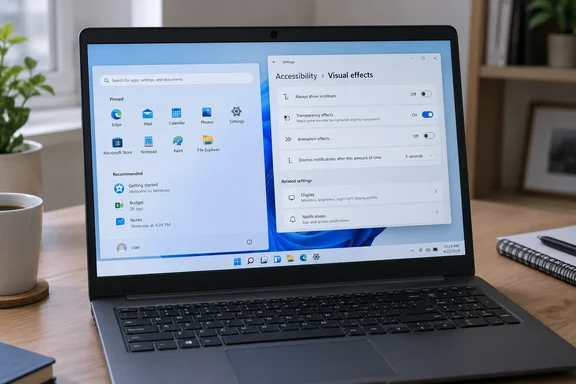
The toggles in Settings are presented a little differently. Microsoft documents Animation effects and Transparency effects on its accessibility page about reducing visual distraction. Turning off Transparency effects makes window backgrounds more opaque, and turning off Animation effects stops Windows from showing animations. The two switches are independent, so you can turn off one and leave the other alone.
Two Routes to Windows Visual Effects: Settings Toggles or the Performance Options Panel
Windows 11 offers two ways to make this change. The Settings toggles are quick and cover everything at once. The older Performance Options panel lets you choose individual effects.
Route one: Accessibility > Visual effects (Windows 11)
- Open Start > Settings > Accessibility > Visual effects.
- Turn off Animation effects. Shah says this stops Windows from fading and sliding elements in and out.
- If you want, also turn off Transparency effects on the same page. This removes the frosted-glass look from the Start menu, taskbar and Settings app.
The change applies immediately with no restart. You'll know it worked when menus and windows pop into place without a transition. To reverse it, turn the switches back on. Transparency has a second switch in a different place: Settings > Personalization > Colors controls the same setting.
Windows 10 puts these controls elsewhere. According to Microsoft's accessibility documentation, they are under Settings > Ease of Access > Display, labeled Show animations in Windows and Show transparency in Windows. Keep in mind that Microsoft ended free support for Windows 10 on October 14, 2025.
Route two: Performance Options (Windows 11 and Windows 10)
- Open Start and type Adjust the appearance and performance of Windows, then open the result. You can also search for Advanced system settings and choose Settings under Performance. How-To Geek describes this path, and both lead to the same window.
- On the Visual Effects tab, select Adjust for best performance.
- Select Apply.
This is the step Microsoft recommends. Shah reports that Adjust for best appearance is selected by default, and that choosing best performance clears every checkbox and turns off visual effects throughout the system. How-To Geek puts it the same way: the preset turns off everything.
Keep Font Smoothing and Thumbnails With the Custom Visual Effects Setting
The Adjust for best performance preset has a cost. Shah warns that it can make Windows look odd at first. Text loses its smooth edges, File Explorer shows generic icons instead of thumbnail previews, and the minimize and maximize animations disappear. The system feels fast but doesn't look good.
The fix is the third option on the same tab, Custom, which lets you choose which effects to keep. Shah recommends keeping Smooth edges of screen fonts and Show thumbnails instead of icons turned on. The other MakeUseOf piece gives the same advice independently and explains why. Font smoothing uses anti-aliasing to make text edges look pretty and less jagged and isn't an animation. The thumbnail option displays a thumbnail preview for supported images and not just the file-type icon. That piece also suggests keeping Show window contents while dragging.
These choices come down to taste and reflect writers' preferences. Microsoft doesn't rank the individual checkboxes by cost. Still, the approach makes sense: the effects most likely to feel sluggish are the ones that add motion, while font smoothing and thumbnails affect how things look, not how long they take to appear. How-To Geek offers a small example of the trade-off: the author writes, "I like having a shadow under my mouse pointer." Custom lets you make that kind of choice one effect at a time.
A sensible order is to start with the two Settings toggles, live with them for a day, and open Performance Options only if you want to go further or bring back a specific effect.
Best Performance Power Mode Trades Battery Life and Heat for Speed
Shah's second suggestion is to change the power mode. It is a separate adjustment with clearer costs. In Windows 11, go to Start > Settings > System > Power & battery and choose Best performance from the Power mode dropdown. Microsoft's power-mode documentation lists three options, Best power efficiency, Balanced and Best performance, and you can set them separately for Plugged in and On battery. Tom's Guide, writing on Yahoo Tech, notes that by default, Windows 11 is set to a Balanced Power Mode.
Microsoft's performance guide says Best performance can help the CPU run at higher performance when needed. It lists the costs right next to the instruction: the setting uses more power, drains a laptop battery faster, and may make the device run warmer. Microsoft suggests using it only when you need maximum performance and power isn't a concern. For laptop owners, choosing Best performance only for Plugged in avoids most of the battery penalty.
If the Power mode control is grayed out, Microsoft says a custom power plan may be selected. Open Control Panel > System and Security > Power Options and select Balanced, and the Settings control should become usable again. On Windows 10, Microsoft's instructions differ. Go to Settings > System > Power & sleep, choose Additional power settings, and select the High performance plan if it is listed. Microsoft also says the power-mode slider isn't available on every Windows 10 PC, because it depends on the hardware and the manufacturer.
Shah also explains that Balanced saves power by keeping the processor's minimum state low and raising clock speeds only when needed. He dismisses the hidden Ultimate Performance plan as producing more heat and power draw than most PCs need. Microsoft's consumer documentation doesn't describe either behavior in those terms. Treat both as his view and not as a specification. His conclusion that Best performance is enough for most people fits Microsoft's advice, which stops at Best performance.
Disabling Animations Won't Fix Slow Apps, Games or Storage
The benefit is real but limited. Tecnobits notes that turning off desktop effects doesn't raise game frame rates or speed up demanding applications. The benefit lies in the perceived speed when interacting with the interface: windows and menus appear sooner because we eliminate transitions. A file copy, a browser waiting on a slow site, or an app starved of memory runs just as it did before.
How-To Geek says transparency in particular helps less than people expect. Turning it off can improve performance on an older or struggling PC, but not by much, mind you, and the difference is unlikely to be noticeable on a modern machine. If you only want one switch, Animation effects is the one to change. It removes built-in waits on every PC, regardless of how capable the hardware is.
Shah goes further, arguing that a PC with plenty of free storage and few background apps may still feel slow, and that visual effects are usually why. That may be true for his laptop, but it's an overgeneralization. Microsoft's list starts with updates, drivers, malware, storage and startup apps because those are common causes of real slowness. If turning off the effects doesn't help, open Task Manager with Ctrl + Shift + Esc and check the Processes, Performance and Startup apps tabs. That's Microsoft's own next step.
What This Means for You
If your Windows 11 PC feels laggy in everyday use, turn off Animation effects today. It costs nothing, applies instantly and can be undone. Owners of fast, modern hardware who like the look of Windows 11 can leave the defaults alone. Transparency in particular is unlikely to make a difference on those machines. Save the power-mode change for when you're plugged in or really need the extra speed, because it has costs the visual tweaks don't.
- In Windows 11, turn off Animation effects under Settings > Accessibility > Visual effects first. Turn off Transparency effects there too if the PC is older or underpowered.
- If you want finer control, open Adjust the appearance and performance of Windows, choose Custom on the Visual Effects tab, and keep Smooth edges of screen fonts and Show thumbnails instead of icons turned on so text and File Explorer still look normal.
- On Windows 10, the matching switches are under Settings > Ease of Access > Display, labeled Show animations in Windows and Show transparency in Windows.
- On a laptop, set Best performance in Settings > System > Power & battery only for Plugged in. Microsoft warns that it drains the battery faster and makes the device warmer.
- If Power mode can't be changed, select the Balanced plan in Control Panel > System and Security > Power Options to hand control back to Settings.
- If Windows still feels slow after these changes, check Task Manager, Windows Update and free disk space. Visual effects affect how quickly the interface responds, not how fast apps actually run.
Turning off these effects won't make an old laptop new again, and Microsoft says as much. It does remove waits built into nearly every click, with Microsoft's own performance guide backing the change. Whether a PC feels faster afterward also tells you something: if it does, the effects were part of the problem, and if it doesn't, the cause is in storage, startup apps or background processes.