

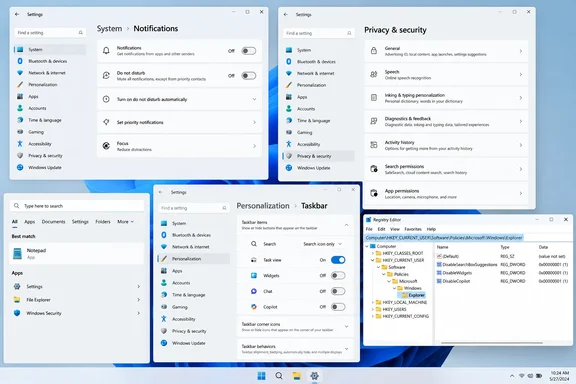
The useful takeaway is not that every Microsoft service must be removed. It is that Windows 11 has separate controls for setup messaging, recommendations, taskbar content, search behavior, and Copilot, and they should be treated as separate choices. Turning off one does not silently handle the others.
Microsoft’s own support documentation confirms that several of these controls exist specifically to govern suggested content, personalized experiences, and post-update welcome screens. The company describes them as ways to discover features and services; users who see them as interruptions can disable most of them without third-party debloating tools or wholesale changes to Windows security settings.
The setup prompts have a supported off switch
The article’s first recommendation is sound. Windows 11’s recurring “Let’s finish setting up your PC” experience is tied in part to notification settings that also govern welcome screens after updates and tips shown during use.
Open Settings > System > Notifications > Additional settings and turn off the boxes for the Windows welcome experience and tips or suggestions. The exact wording has shifted across Windows 11 releases, but Microsoft’s current guidance groups these options under Additional settings.
This will not prevent Windows Update from installing security fixes, nor will it eliminate every first-run screen attached to an individual Microsoft app. It does stop Windows itself from using the notification system to repeatedly invite the user to finish optional setup work or sample suggested features after sign-in.
For managed PCs, this is a useful distinction. IT departments can leave update notifications and important app alerts in place while reducing consumer-style setup messaging that confuses users into thinking an action is required.
The Bing-search registry instruction needs one correction
MakeUseOf recommends creating a value named DisableSearchBoxSuggestions to remove web suggestions from Windows search. The setting itself has long been used on consumer editions of Windows, but the guide’s instructions say that if the Explorer folder is absent, users can create a new DWORD value while viewing the parent Windows key.
That is the wrong place for the value.
The intended per-user location is:
HKEY_CURRENT_USER\Software\Policies\Microsoft\Windows\Explorer
If Explorer does not exist, create it as a registry key, not as a DWORD value. Then create a DWORD (32-bit) value inside that key named DisableSearchBoxSuggestions, set it to 1, and restart Windows or sign out and back in. A DWORD placed directly under ...\Microsoft\Windows will not be read as the expected Explorer policy setting.
There is a second caveat that the original guide does not explain. This is an undocumented-for-consumers registry preference rather than a clean, durable Windows Home control backed by a standard Settings switch. Microsoft’s documented enterprise search policy is ConnectedSearchUseWeb, which is available to Enterprise and Education management scenarios. Administrators should use the supported policy path where it applies instead of deploying a consumer registry tweak as though it were a formally supported cross-edition control.
For an individual Windows 11 PC, the registry setting may still be useful. But it should be documented, backed up, and tested after feature updates. A setup script or configuration baseline that creates the wrong value in the wrong key is worse than no tweak at all: it creates confidence without changing behavior.
“Recommendations and offers” are not one privacy control
The guide correctly directs readers to Windows 11’s recommendations and offers settings, but it treats those toggles as if they disable all marketing-related personalization. They do not.
Microsoft documents several separate controls: suggested content in Settings, the Windows advertising ID, Start and search personalization based on app launches, language-list sharing with websites, and device-usage choices such as Gaming, School, or Business. Those choices can influence the tips, trial offers, and service recommendations a user sees.
The Settings recommendation control is worth disabling if the goal is a quieter interface. But turning it off does not erase an advertising ID, stop browser-based advertising, remove Microsoft Store promotions, or disable content recommendations inside Microsoft-owned apps. Microsoft explicitly notes that turning off the advertising ID does not reduce the number of ads a person sees; it affects the degree to which Windows apps can personalize them.
A more accurate cleanup approach is to review the controls individually under Settings > Privacy & security > General, then inspect Personalization > Device usage if those usage categories were enabled during setup. Users should also avoid assuming that a Windows setting governs offers presented in Edge, Microsoft Store, OneDrive, or an installed third-party app. Each can have its own settings and account-level preferences.
The practical gain is clarity. Disabling recommendation cards in Settings stops recommendation cards in Settings. It is not a system-wide “no ads” switch, and Microsoft does not present it as one.
Widgets are a taskbar choice, not a proven performance fix
Turning off Widgets is the least risky recommendation in the MakeUseOf list. Right-clicking the taskbar, opening Taskbar settings, and switching off Widgets removes the entry point from the taskbar. For people who do not use weather, finance, sports, news, or third-party widgets, that is a reasonable way to reduce visual clutter.
Microsoft says the Windows Widgets experience includes interactive app cards and a personalized Discover feed. It also acknowledges that the Discover dashboard is personalized using Microsoft account preferences and that Widgets collect diagnostic data subject to the device’s diagnostic-data settings. Users who prefer a minimal desktop have a legitimate reason to turn it off.
The performance claim needs restraint. Widgets do involve background processes and network activity, but the submitted article does not provide measurements showing a meaningful battery-life, memory, or CPU improvement from disabling them. On a modern Lenovo Yoga Pro 7i or similar laptop, the visible difference is usually interface simplicity, not a dramatic speed boost.
That does not make the choice trivial. A taskbar is persistent screen space, and the weather icon can expose a content feed with one hover or click. Disabling it is a direct way to eliminate that pathway without blocking Windows updates or removing useful applications.
Copilot can be removed, but Windows features remain separate
Microsoft’s current support guidance says the standalone Copilot app can be removed from Windows 11 through Settings > Apps > Installed apps, by selecting the menu beside Copilot and choosing Uninstall. That makes the MakeUseOf instruction valid for PCs where the app appears in the installed-app list.
Uninstalling that app does not mean every AI-assisted capability on the PC disappears. Windows 11 increasingly includes AI-related features in search, Settings, Paint, Photos, and — on Copilot+ PCs — hardware-specific experiences. Those capabilities may be governed by different apps, Windows components, policies, or feature settings.
This matters for organizations as much as for home users. Removing the consumer Copilot app may satisfy a user’s preference for a different assistant, but it is not a complete AI governance strategy. Enterprise administrators need to identify the specific service, account connection, data flow, and policy control at issue rather than treating “Copilot” as one removable component.
The taskbar adjustment is also separate from removal. If Copilot remains installed but its icon is unwanted, Windows lets users hide the relevant taskbar or system-tray entry. That is cosmetic, but it prevents a pinned shortcut from being mistaken for a required Windows function.
The five changes work best as a targeted cleanup, not a ritual purge. Disable welcome prompts if they are noisy, hide Widgets if the feed is unwanted, remove Copilot if it is unused, and review recommendations with a clear understanding of what each switch actually controls.
The search change deserves the most care. Create the Explorer key first, put DisableSearchBoxSuggestions inside it, and remember that Microsoft’s supported management policy for suppressing web search results is aimed at Enterprise and Education deployments. That small registry distinction is the difference between a cleaner Start search and a tweak that does nothing at all.
References
- I turned off 5 Windows 11 features Microsoft won't stop pushing MakeUseOf · 2026-09-02T14:00:13+00:00