

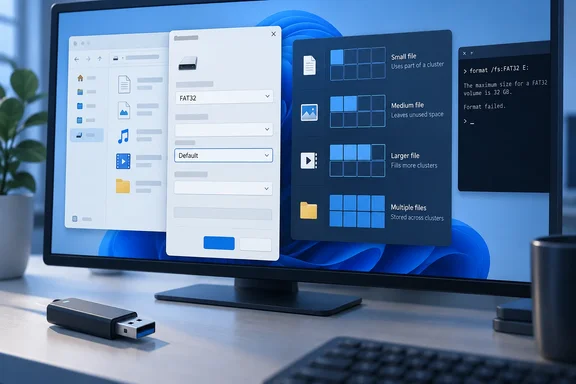
A new XDA Developers feature takes a nostalgic look at that setting and the dialog it lives in. The history holds up. Several technical details in that piece need tightening, though, and the FAT32 story at the end has an important footnote about version and interface. Below is what the setting does, why it survived, and when you should change it. (Short answer on that last one: almost never.)
A "temporary" dialog that never left
The dialog's origin story comes from former Microsoft engineer Dave Plummer. He also wrote Task Manager, so his legacy is already all over your PC. Neowin reported his account: in 1994 he and other engineers were porting a huge amount of Windows 95 code to Windows NT. NT's changes justified reworking the Format dialog, so Plummer wrote down the features it needed, opened the resource editor in Visual C++ 2.0 and built a simple vertical stack of controls.
He said the layout was meant to last only until "the elegant UI" arrived. It didn't. In Plummer's words as quoted by Neowin, "the dialog is still my temporary one from that Thursday morning." His advice to developers is to be careful about checking in "temporary" solutions.
XDA's version says Plummer built the dialog "for Windows NT 4.0." That's a bit tidier than the record. His account puts the work in late 1994, during the Windows 95-to-NT port, and NT 4.0 shipped later. Ars Technica described the dialog as looking "more or less the same" as when it appeared in the NT 4.0 era. That's a fair description of what users see. It isn't proof that the code or every option is unchanged after 30 years.
Section summary: The dialog really is a 1994 stopgap that stuck around. "Visually familiar" is the accurate claim. "Byte-for-byte identical" goes beyond the evidence.
What "allocation unit size" means
An allocation unit, usually called a cluster, is the smallest piece of disk space a file system can give to a file. Microsoft's own Win32_Volume.Format documentation describes cluster size as the smallest amount of disk space that can be allocated to hold a file.
Think of a parking garage that only rents whole spaces. A motorcycle and a pickup truck each take one space, even though the motorcycle leaves most of its space empty. That empty part is called cluster slack. Here's an illustrative example:
- With 4 KiB clusters, a 100-byte text file still takes up a full 4 KiB on disk.
- A thousand of those files hold roughly 100 KB of data but use about 4 MB of space.
- With 64 KiB clusters, the same thousand files would use about 64 MB.
XDA presents this as a simple rule: small clusters for lots of tiny files, big clusters for big files. That's roughly right, but in practice it's a trade-off:
- Smaller clusters waste less space at the end of each file. That helps most on volumes with many small files.
- Larger clusters mean a big file is tracked in fewer pieces. The cost is more slack for every small file stored alongside it.
- The file system sets its own rules. Microsoft's
formatdocumentation says FAT allows no more than 65,526 clusters, and FAT32 needs between 65,527 and 4,177,917. If your chosen cluster size can't meet those limits, the format stops.
XDA also says the default is "usually 4096 bytes." Be careful with that. Microsoft's documentation says Windows picks the size based on the volume size when you don't specify one. The actual default depends on the file system and the drive. An older WMI interface listed 4096 bytes as its parameter default, but that doesn't make 4 KiB the universal default in today's dialog.
Sectors, SSDs and LBA
XDA's explanation goes shakiest in the storage section. Its subhead claims "physical sectors went away," and it says SSDs emulate sectors "typically using 4KB allocation units." That mixes up two separate layers:
- Logical sectors belong to the storage device. A drive presents itself to the operating system as a numbered row of logical blocks. Microsoft's support documentation describes Logical Block Addressing the same way: LBA 0 is the first logical sector and the last LBA is the last one.
- Allocation units (clusters) belong to the file system. You choose them when you format, and they're built on top of the logical sectors.
Inside an SSD, NAND flash is organised into pages and erase blocks, and the controller maps those to the logical addresses Windows uses. So it's true that NAND doesn't work like a spinning platter. That doesn't mean "SSDs have no sectors." The drive still presents logical sectors to Windows, and the cluster size you choose is a separate decision from either the sector size or the NAND page size.
XDA's main point does survive: storage hardware changed underneath, and a stable addressing interface let the format dialog keep asking the same question. LBA is a good example of backwards compatibility doing its job.
The FAT32 limit has changed, but only on the command line
XDA briefly mentions that Plummer also picked FAT32's 32 GB formatting cap and that Microsoft raised it to 2 TB "earlier this year." The cap part checks out. Plummer, as quoted by Neowin, said he had to decide how much "cluster slack" was too much, and that choice limited FAT volume formatting to 32 GB.
The change itself has a narrower scope than XDA suggests. In the Windows Insider blog post for Build 26300.8170 (KB5083632) in the Dev Channel on April 10, 2026, Microsoft said it was increasing the limit for formatting FAT32 volumes via the command line from 32 GB to 2 TB. The April 17 Release Preview notes for Builds 26100.8313 and 26200.8313 (Windows 11 versions 24H2 and 25H2) included the same command-line change. That release was delivered as a gradual rollout, so availability varies by device.
What that means in practice:
- The
formatcommand can create larger FAT32 volumes on builds that have the change. - The File Explorer dialog wasn't mentioned in Microsoft's notes. The GUI still stops at 32 GB, and the 4 GiB per-file limit remains.
- This has been a long time coming. In August 2024, Ars Technica covered a Canary build that removed the cap for command-line tools while the formatting UI kept the old 32 GB restriction.
None of this makes FAT32 modern. It's still useful for cameras, car stereos, older devices and UEFI boot media. For a general-purpose external drive shared across operating systems, exFAT is usually the better choice.
Section summary: The 32 GB cap is a Windows formatting policy, not a FAT32 design limit. It has been raised for the command line on recent Windows 11 builds. Don't expect the Explorer dialog to offer 2 TB FAT32.
How to format without regretting it
Formatting erases the volume. Microsoft's own documentation warns that format can delete all data on the disk. A safe routine looks like this:
- Back up anything you need from the drive.
- Check that you've picked the right drive. Compare the drive letter, label and capacity in File Explorer or Disk Management before you click anything.
- Pick the file system: NTFS for internal Windows volumes, exFAT for large removable drives shared across platforms, FAT32 only when a device requires it.
- Leave Allocation unit size at its default. Microsoft's
formatdocumentation says "Default settings are recommended for general use." - Use Quick Format only on drives you trust. Microsoft says a quick format skips the bad-sector scan and should be used only on previously formatted volumes in good condition.
If you need to set the cluster size by hand, say for a dedicated media archive or a vendor's storage requirement, the command-line switch is /A:<size>. For example, run format X: /FS:NTFS /A:4096 from an elevated prompt, where X: is the drive you've confirmed is the target. Microsoft's documentation lists the valid sizes for each file system. Two caveats:
- NTFS compression isn't supported above 4,096-byte allocation units. Choose 64K on NTFS and you lose that feature.
- Formatting a hard drive with
formatrequires Administrators group membership, according to Microsoft.
When it finishes, format reports the total disk space, any space marked defective and the space available. If you're scripting it, the exit codes are 0 for success, 1 for incorrect parameters, 4 for a fatal error, and 5 if the user answered N at the confirmation prompt.
Why it stayed
Why hasn't Microsoft replaced a dialog its own author called temporary? Some of the reasons are speculation, so take this as analysis rather than reporting. The dialog works, few people complain about it, and any redesign risks breaking habits and scripts that IT staff have relied on for decades. The cost shows up in odd places: the dialog still can't offer large FAT32 volumes, and a mysterious drop-down still confuses newcomers.
The allocation unit question itself isn't an artifact. Every file system has to decide how to divide up space, and the trade-off between slack and overhead hasn't gone away. What is old is that Windows puts the question in front of everyone. For most readers the right answer hasn't changed since 1994: leave it on default.
References
- Windows still asks about this floppy-era setting every time you format a drive XDA · 2026-10-07T17:30:17+00:00
- Releasing Windows 11 Builds 26100.8313 and 26200.8313 to the Release Preview Channel | Windows Insider Blog blogs.windows.com
- The Format dialog is another temporary solution in Windows that stuck around for 30 years - Neowin neowin.net