

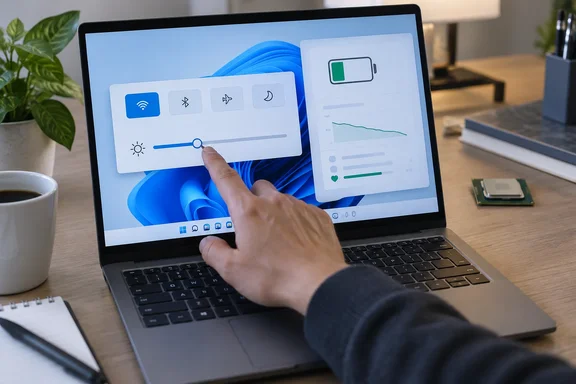
The useful takeaway is less dramatic and more actionable. Investigate the screen before condemning the silicon.
What the brightness experiment actually measured
Joshua Ramirez’s The Effect of Screen Brightness on Laptop Battery Drain, listed on ResearchGate with a Jacksonville University affiliation, tested one Dell XPS 9315. Each trial began at 70% charge, with YouTube playing, Wi-Fi enabled and Bluetooth disabled. Four trials were conducted at each brightness setting.
The reported averages were:
| Brightness setting | Time to lose five percentage points of charge |
|---|---|
| 100% | 815 seconds — 13 minutes, 35 seconds |
| 90% | 980 seconds — 16 minutes, 20 seconds |
| 80% | 1,113 seconds — 18 minutes, 33 seconds |
| 70% | 1,193 seconds — 19 minutes, 53 seconds |
These are short discharge intervals, not full-battery runtime measurements.
Calculated from those averages, lowering brightness from 100% to 70% extended the measured interval by approximately 46%. That is a meaningful difference within this test, contrary to BGR’s characterization that 70% makes little practical difference. It does not promise 46% longer runtime on another laptop.
The experiment did not measure CPU and display power separately, test brightness below 70%, or account for battery aging. Consequently, it establishes neither a universal component ranking nor a “stay below 50%” rule.
The Windows settings worth checking first
Microsoft’s battery-saving guidance independently recommends reducing display brightness, lowering refresh rate and shortening the screen-off timeout. That corroborates the practical advice without turning a small experiment into a verdict on every laptop.
For a Windows 11 laptop:
- Adjust brightness: Open Settings > System > Display > Brightness and lower the slider to a comfortable level.
- Consider refresh rate: Open Settings > System > Display > Advanced display and choose a lower rate if available. Microsoft notes that higher refresh rates use more power.
- Review power-saving settings: On Windows 11 version 24H2 or later, open Settings > System > Power & battery > Energy saver. Earlier Windows 11 versions use Battery saver.
- Check application activity: Open Settings > System > Power & battery > Battery usage to identify apps using battery in the background. Background-activity controls are available only for some apps.
The priority is readability, not a magic percentage. Try a lower setting rather than automatically choosing the dimmest possible screen.
A practical comparison on your own laptop
As a troubleshooting exercise—not a reproduction of the university-affiliated experiment—compare two brightness settings while keeping everything else as consistent as possible:
- Use the same workload, such as the same video at the same playback quality.
- Keep network conditions, power-saving settings and open applications unchanged.
- Start at a similar battery level and run each comparison for the same duration.
- Repeat before deciding that a small difference is meaningful.
The question is simply whether your laptop repeatedly loses less charge at the lower setting. This comparison cannot tell you exactly how many watts the screen or CPU consumes; it is a way to decide whether a brightness adjustment is worthwhile for your routine.
Don’t confuse power consumption with battery wear
There is another distinction worth preserving: reducing power use and restoring battery capacity are different jobs. Microsoft explains that lithium-ion batteries lose capacity with age and charge cycles. A dimmer display cannot reverse that deterioration.
Windows 11 includes a built-in report that can help investigate:
- Search Start for Command Prompt.
- Right-click it, choose Run as administrator, and approve the prompt.
- Enter:
powercfg /batteryreport
- Open the HTML file at the location printed in Command Prompt.
Microsoft recommends examining the installed-battery information, recent usage and battery usage. Microsoft Learn confirms that the command generates a report of battery usage characteristics.
Where capacity values are available, distinguish design capacity, the estimated capacity of a new battery, from full-charge capacity, the battery’s reported capacity when fully charged. Those values help separate a smaller energy reserve from unusually heavy energy consumption.
Heat also deserves attention: Microsoft warns that high temperatures can accelerate permanent capacity loss. If a battery visibly swells, stop using the device immediately rather than treating it as another settings problem.
The bottom line
BGR is right to draw attention to screen brightness, but the CPU has not been acquitted by a component-level investigation. The strongest supported advice is to start with an easy adjustment, examine Windows’ battery-usage information, and check battery condition before deciding what needs replacing. Microsoft’s own guidance supports that broader approach.
A brightness slider is a sensible first suspect—not a universal explanation for every missing hour.
References
- The CPU Is Not Your Laptop's Biggest Battery Problem - Here's Why bgr.com · 2026-10-05T00:17:00+00:00
- (PDF) The Effect of Screen Brightness on Laptop Battery Drain researchgate.net
- Battery saving tips for Windows | Microsoft Support support.microsoft.com