

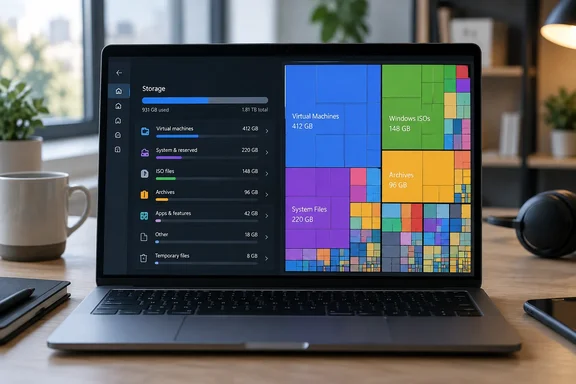
What the writer found
Carrasqueira uses a Huawei laptop, a few years old, as a secondary machine for testing software he writes about. It shipped with a 512GB drive. His habit is to install something, test it, take screenshots and shut the machine down without cleaning up. When Windows began warning about low space, he couldn't remember where it had all gone.
A WizTree scan accounted for it. According to his account, almost 200GB was tied up in virtualization and OS-testing material:
- Virtual machine files from both VirtualBox and VMware
- Multiple ISO images for different Windows versions he had tried
- A few more gigabytes of Windows Subsystem for Linux data
- Some duplication, with the same content kept both as a compressed archive and as the expanded files he actually used
Windows itself took about 30GB. He also found a 6.3GB hibernation file even though he believed hibernation was disabled.
These are one writer's results on one machine. They show how a test PC accumulates data, not what a typical PC holds. Most people don't have a pile of hypervisor disks, so your biggest items will probably be different.
How WizTree works
He describes the workflow as simple. Launch the app, pick a drive and scan. The results appear as a treemap where bigger squares are bigger files. You can also see where those files sit and how they add up inside their parent folders. He puts the installer at just over 5MB. That matches a third-party listing, which gives roughly 5MB for the installer.
The speed comes from how it scans. On NTFS drives, WizTree reads the drive's Master File Table (MFT) directly from the disk. That avoids walking every folder the slow way. Third-party descriptions note that this direct read is where administrator rights matter. One listing says a standard user can do a basic scan, while an administrator is recommended for the direct MFT read. If your first scan looks slow or incomplete, run it elevated.
Windows already does some of this
The headline says Windows "never told" him. That is a little strong, because Windows 11 does include storage tools. They work differently from a treemap.
Microsoft's support documentation says Storage settings give a detailed view of storage use. Correction: the Microsoft page itself describes categories such as Installed apps, Temporary files and System & reserved. Cleanup recommendations then suggest things to remove, such as previous Windows installations, large or unused files and rarely used apps. You can find them under Settings > System > Storage.
Storage Sense is a different tool again. Microsoft says it clears temporary files and Recycle Bin contents. With default settings, the Downloads folder and cloud-synced content are left alone. It also works only on the system drive, usually C:. Neither feature is built to flag a forgotten VM disk or a duplicated archive inside a user folder. The more accurate criticism is that Windows gives you categories and suggestions, while a treemap lets you see individual large files. Windows doesn't claim to offer that view.
The hibernation file
The 6.3GB hiberfil.sys is the most interesting detail, because the explanation isn't settled. Microsoft's documentation says Hiberfil.sys is a hidden system file in the root of the OS drive. Its size is approximately tied to installed RAM.
A hibernation file can also exist when the Hibernate menu item is switched off. Microsoft's power documentation says hibernation files are used for hybrid sleep, fast startup and standard hibernation. It also says fast startup can use a reduced hibernation file, and that full files are sized at about 40% of physical memory. A hidden file of a few gigabytes is therefore consistent with Fast Startup. That is my reading of the documentation. It is not a diagnosis of the writer's laptop. His complaint that Windows should explain this file is fair, but the file alone doesn't show Windows ignoring a setting.
To check what your PC is doing, open Command Prompt and run powercfg /a. Microsoft says the output tells you which state applies:
- If a full hibernation file is in use, hibernation is listed as available.
- If a reduced file is in use, it says hibernation is not supported.
- If there is no file at all, it says hibernation hasn't been enabled.
To remove the file, don't delete it by hand. Microsoft's documented method is to open Command Prompt as administrator and run powercfg.exe /hibernate off. To bring it back, run powercfg.exe /hibernate on. Microsoft warns that turning hibernation off disables hybrid sleep, and you could lose data if power is cut while hybrid sleep is configured. Turning it off also disables Fast Startup, which uses the same file, so you trade a slightly slower boot for the space back.
A sensible cleanup order
- Start with Settings > System > Storage and look at the category breakdown and Cleanup recommendations.
- If the numbers don't explain the shortage, run a treemap scanner such as WizTree and sort by size.
- Identify each large item before touching it. VM disks, ISOs, archives and WSL distributions can hold work you haven't backed up.
- Delete duplicates first. An archive plus its expanded copy is the easiest win, as the writer found.
- Handle the hibernation file only with
powercfg, never by deleting it manually.
One caveat on scan results. A treemap is a diagnostic view, not an exact ledger. Third-party documentation notes that NTFS reserves part of the MFT, which uses disk space but does not appear as files. Expect a small gap between what the tool lists and what Windows reports as used.
The "why isn't this built in" argument
Carrasqueira says WizTree is heavily based on WinDirStat and asks why Microsoft hasn't built something similar. The second point is opinion, and reasonable people can disagree on it. Windows already ships a storage dashboard, and showing every large file could encourage users to delete things they shouldn't. The first claim is his own impression. WinDirStat's site confirms it is free, open-source software under GPL v3 or later. That alone doesn't establish a direct lineage. One WizTree page says it is similar to WinDirStat but MUCH faster, which is a comparison rather than a claim of derivation. Both tools also exist in forms outside Windows: WizTree has a macOS version, and WinDirStat is distributed through the Microsoft Store and package managers like winget.
The takeaway
The lesson is practical. A second PC used for testing quietly accumulates gigabytes of leftovers, and Windows' category view won't point at them. A scan that takes seconds can. The built-in Storage tools are still worth a look first. Just verify what each large file is before you remove it.
References
- This tiny free app exposed 200GB of forgotten files Windows never told me about - XDA XDA · 2026-10-02T20:00:19+00:00
- Manage drive space with Storage Sense | Microsoft Support support.microsoft.com
- System power states - Win32 apps | Microsoft Learn learn.microsoft.com