

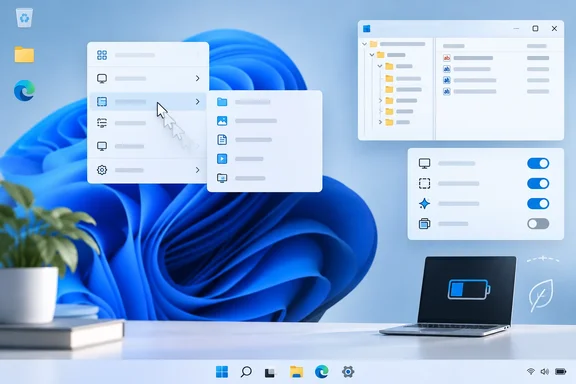
MenuShowDelay, a per-user registry value that makes cascading submenus wait about 400 milliseconds by default. Windows 11 also has toggles for animation, transparency, broad visual effects and power mode. How-To Geek's new guide, published September 25, 2026, puts these together as quick fixes for a slow-feeling desktop. They are real, reversible settings, but each one controls a different thing. Knowing what each setting actually does tells you which one fits the lag you're seeing, so you don't have to strip every visual effect from Windows just to get one submenu to open faster.
MenuShowDelay Is a Submenu Timer, and Windows 11 Still Defaults to 400ms
Microsoft's developer documentation describes the value precisely. It is the time, in milliseconds, that the system waits before displaying a shortcut menu when the mouse cursor is over a submenu item. It maps to SPI_GETMENUSHOWDELAY, the Win32 system parameter that apps read. In practice it controls one moment: you rest the pointer on a menu entry with an arrow, and Windows waits before opening the next level.
How-To Geek says the default is 400 milliseconds, and older and independent sources agree. Winaero says the default value is 400, it means 400 milliseconds of delay. Ten Forums' long-running tutorial also lists 400 as the default and says you can enter a number between 0 to 4000. Treat 400 as the usual value, not a guarantee. Your PC may have a different value if someone tweaked it before or if it came with a customized OEM image, so write down what you find before you change it.
The delay was added for a reason. MakeUseOf describes it as a guard to prevent menus from appearing too quickly when users accidentally hover over items while moving the cursor elsewhere. How-To Geek goes further and says the delay dates from the Windows 95 era. That history is plausible, but no Microsoft document here confirms it, and it doesn't affect what you should do.
The scope matters. The timer applies to submenus opened by hovering, such as "Send to", "Open with", "New" and "Sort by". It does not control how quickly a right-click menu first appears. If the first right-click on the desktop is slow, MenuShowDelay won't fix it. How-To Geek also points out that Windows 11 mixes newer XAML/WinUI surfaces, such as the Start menu, with older Win32 menus, so this tweak only affects some parts of the shell. That's How-To Geek's explanation of why results vary, not a Microsoft-documented map of which menus respect the setting.
Changing MenuShowDelay safely
- Press Windows key + R, type
regedit, and press Enter. - Go to
HKEY_CURRENT_USER\Control Panel\Desktop. - Double-click the
MenuShowDelaystring value and write down its current data. - Enter a lower number. How-To Geek suggests somewhere between 0 and 100.
- Sign out and back in, or restart. Ten Forums says to sign out and sign in, or restart the computer to apply.
Several guides warn against setting it to 0. Winaero says 0 will make your menus pop up too fast and will make them harder to use and suggests starting at 200. MakeUseOf's writer tried values and settled on the sweet spot between 20 and 100 milliseconds. Those are one writer's preferences, not measurements, but they agree on the risk: with no delay, submenus open whenever the pointer crosses an entry on its way somewhere else.
Undoing the change is easy. Winaero says to restore the default menus behavior, delete the MenuShowDelay value or set it to 400. How-To Geek also recommends exporting the Desktop key or creating a restore point first. Because the value sits under HKEY_CURRENT_USER, it only affects the signed-in user, so each profile has to be changed separately. How-To Geek says Group Policy may override it on managed PCs, but Microsoft's documentation here doesn't cover that. Admins shouldn't assume either way.
Windows 11's Animation and Transparency Toggles Are Accessibility Settings
The second group of fixes lives under Settings. Microsoft's accessibility guidance, which covers Windows 11 and Windows 10, tells users to go to Settings > Accessibility > Visual effects. There, turning off Animation effects stops Windows animations, and turning off Transparency effects makes window backgrounds more opaque.
Microsoft presents both as ways to reduce visual distraction, not as speed fixes. How-To Geek makes the speed argument itself. It says the fades, slides and scaling effects are drawn by the Desktop Window Manager (DWM), and that the translucent "acrylic" backgrounds behind Start, the taskbar and context menus require constant compositing work that adds up on integrated or older graphics. That is a fair explanation of why a PC can feel faster once animations are off, since there's simply less motion to wait for. But nothing here measures a speed gain from either toggle on any particular hardware.
The practical benefit is easy to see. With animations off, windows open, close, minimize and maximize without a transition, so an action looks finished sooner. How-To Geek says the change takes effect immediately with no restart. Transparency is a smaller change for most people and mainly a visual one. Try it if you're on modest integrated graphics, but don't expect a big difference.
Some people depend on these settings. Motion-sensitive users often turn animations off, while others use the transitions to track where a window went. Both toggles switch back just as easily, so the only real cost is how Windows looks.
"Adjust for Best Performance" Turns Off Far More Than Two Toggles
The older Performance Options dialog goes much further. Microsoft's performance guidance states plainly that Windows 11 visual effects use system resources and that adjusting them can improve responsiveness. The steps are to search Start for "Adjust the appearance and performance of Windows", open it, and choose "Adjust for best performance" on the Visual Effects tab.
This does not do the same thing as the two Accessibility toggles. How-To Geek says it turns off nearly every visual effect at once, including window shadows, smooth scrolling and font smoothing, not just animation and transparency. Losing font smoothing alone makes text look noticeably different on many screens, and most users would notice it straight away.
This dialog is best used as a test. Choose "Adjust for best performance", use the PC for a while, then go back and re-enable only the effects you miss, such as font smoothing. Microsoft's own note is worth keeping in mind here: older PCs with outdated hardware may not improve much from these steps, and upgrading may be the better long-term answer.
Best Performance Power Mode Trades Battery Life and Heat for Speed
How-To Geek's fourth fix is the Windows 11 power mode. Microsoft's path matches: Settings > System > Power & battery, then choose Best performance from the Power mode dropdown. Microsoft makes it conditional. The guidance says that if power use isn't a concern, Best performance can help the CPU run faster when needed.
Microsoft's warning is more cautious than How-To Geek's advice. Microsoft says Best performance raises power consumption, drains laptop batteries faster and may make the device run warmer, and it recommends the mode only when you need maximum performance and power isn't a limitation. How-To Geek says a plugged-in desktop has little reason not to stay in this mode permanently. That's a reasonable choice for many desktop owners, but it goes beyond Microsoft's advice, which still counts higher power draw as a cost on a desktop.
The mode is most likely to help on laptops that default to a conservative, battery-friendly setting, where clock limits can make everything feel slow, menus included. It isn't a menu fix as such. If the lag is the 400 ms submenu timer, a faster CPU won't shorten it, because the timer runs regardless of processor speed. How-To Geek's advice to switch back when unplugged is sensible.
Efficiency Mode and Startup Apps in Task Manager Help You Diagnose, Not Speed Up Menus
How-To Geek's other suggestions are general system-health checks. Its description of Task Manager's Efficiency mode, which it says arrived with Windows 11 22H2, is too simple. How-To Geek calls it a right-click control that lowers a background process's CPU priority. Microsoft describes something more automatic: a Windows 11 feature that limits the resources a single process or process group uses when high CPU use is detected, lowering background priority to keep active processes responsive.
You can toggle it per process. In Task Manager's Processes tab, right-click a process and choose Efficiency mode, and a green double-leaf icon shows it's active. Microsoft notes that the mode can't be switched on or off for most process groups, including the Windows Explorer group, though individual File Explorer folders inside it can be. Microsoft also warns that Efficiency mode may cause instability in some processes. Only use it on a specific background process that's hogging the CPU. It isn't a setting to apply everywhere.
Trimming startup apps is standard advice, and Microsoft agrees with it. Its performance guide says that startup apps can slow boot time and add background activity, and it recommends opening Task Manager with Ctrl + Shift + Esc, going to Startup apps, and disabling what you don't need. Microsoft also suggests checking the Performance and Startup apps tabs to find heavy resource use. How-To Geek goes further and says startup apps compete for the same GPU compositing resources that draw menus. That claim is unproven; the reliable point is that a busy PC responds more slowly overall.
Graphics drivers are in the same category. How-To Geek suggests updating them through the GPU maker's utility or Windows Update before blaming a setting. Microsoft's performance guide lists installing Windows updates and optional driver updates, found under Windows Update > Advanced options > Optional updates in Windows 11. It's reasonable to check drivers, but nothing here shows drivers cause menu lag specifically.
Match the Windows 11 Fix to the Lag You Actually See
Start by figuring out where the pause happens, then change only the setting that controls it. A slow submenu, a slow window transition and a slow PC have different causes, and changing everything at once makes it harder to tell what helped.
- Change
MenuShowDelayunderHKEY_CURRENT_USER\Control Panel\Desktoponly if the delay happens when you hover over an arrowed submenu entry. Write down the original value (usually 400), try 50–200 rather than 0, and sign out to apply it. - Turn off Animation effects under Settings > Accessibility > Visual effects if window transitions feel slow, and leave it on if you rely on motion cues.
- Treat the Transparency effects toggle on the same page as a small visual trade-off that may help modest integrated graphics, not as a guaranteed speed fix.
- Use "Adjust for best performance" in Performance Options as a test, then re-enable effects such as font smoothing if the stripped-down look bothers you.
- Try the Best performance power mode on laptops that feel slow overall, and expect shorter battery life and more heat, as Microsoft warns.
- Check Task Manager's Processes and Startup apps tabs and Windows Update's optional driver updates when the whole system feels slow. Keep Efficiency mode for individual processes that are using too much CPU.
Every change here can be undone from the same place you made it, so testing costs very little. The trade-offs are small but real: submenus that open too easily at 0 ms, a less polished desktop without animations or font smoothing, and a warmer laptop in Best performance mode. How-To Geek is right that these fixes take seconds. Its causal story, in which hybrid shell layers and constant compositing add up to measurable lag, is its own interpretation rather than something Microsoft documents. Of all these changes, lowering MenuShowDelay is the one most likely to make the "Send to" and "Open with" submenus feel faster, because it removes a pause Windows adds on purpose. The other settings help mainly when the PC itself is busy or held back by power settings.