

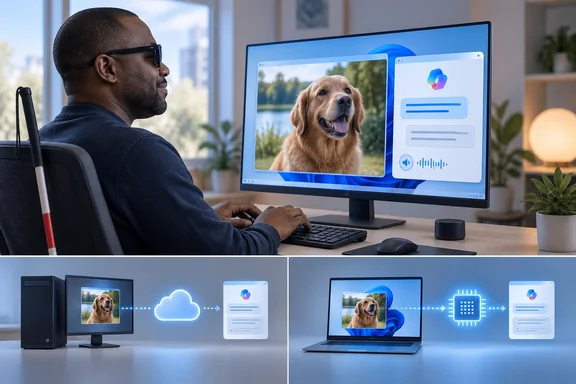
That matters because the feature exists for blind and low-vision users. For them, every extra keystroke and every unexpected window costs real effort.
What Microsoft says the feature does
Microsoft has been building toward this for more than a year. Its Complete Guide to Narrator says that rich image descriptions arrived in Narrator on Copilot+ PCs, making it possible for blind and low-vision users to hear detailed, AI-generated descriptions of images, charts, and graphs. That on-device version started on Snapdragon-based Copilot+ PCs. It later came to Copilot+ PCs with AMD and Intel processors.
The newer part is what reached everyone else. In the Windows Insider announcement for Build 26220.7535, Microsoft said Narrator can now work with Copilot on all Windows 11 devices to further understand images and visual elements on your screen. You can press Narrator key + Ctrl + D to describe the focused image or press Narrator key + Ctrl + S to describe the full screen.
The key detail is in the next line: Copilot opens with the image ready, allowing you to enter your own prompt and generate a description tailored to what you want to know. Copilot+ PCs work differently. There, Narrator continues to provide instant, on-device image descriptions using local AI. Press Narrator key + Ctrl + D/S, and Narrator immediately reads a rich description—highlighting people, objects, colors, text, numbers, and layout.
So the two paths were never designed to work the same way:
| Copilot+ PC | Other Windows 11 PCs | |
|---|---|---|
| Where the image is processed | On the device, using the NPU | Online, through the Copilot app |
| What happens after Ctrl + D | Narrator reads a description right away | Copilot opens with the image attached |
| What the user has to do | Nothing more (Ask Copilot is optional) | Type and submit a prompt |
| Availability in the EEA | Not limited in the reviewed notes | This feature is not available in the European Economic Area (EEA). |
Section summary: Microsoft's own documentation already says that on regular PCs, Copilot opens and you write the prompt yourself. Neowin's complaint is about how that handoff works in practice.
How the rollout reached general release
The Copilot handoff did not arrive with Windows 11 version 26H2. It first appeared in Insider builds in January 2026. Windows Report noted that the build came from KB5072046, which bumps your system to Build 26220.7535. It then reached regular releases. For the 26H1 branch, the release notes for April 30, 2026—KB5083806 (OS Build 28000.1896) Preview listed the feature and noted that it was previously disclosed in January 2026 (KB5074105) and is now beginning to roll out. Microsoft's Windows Update account also listed it among the version 25H2 highlights, describing how Narrator works with Copilot on all Windows 11 devices, allowing users to get instant on‑device descriptions or ask Copilot for more details.
This matches the Neowin author's framing: version 26H2 highlights features that had shipped earlier.
What Neowin found on a regular PC
Neowin's author tested the feature on a PC without Copilot+ hardware. Pressing Narrator key + Ctrl + D on a focused image opened Copilot with the image attached. The prompt box already contained this text: "Review this image attached and suggest five ways you can help me work with it. Keep each suggestion to a one-line bullet point."
That prompt doesn't ask for a description. It asks Copilot for ideas about what to do with the image. To actually hear what's in the picture, the author had to:
- Turn on Narrator.
- Move focus to the image.
- Press Narrator key + Ctrl + D.
- Wait for Copilot to open.
- Delete or replace the prefilled prompt.
- Ask Copilot to describe the image, then submit.
Neowin's question is fair: if everything goes through Copilot anyway, why not just open Copilot, attach the image and ask? The author also suggested a simple fix. If the prefilled text were something like "Describe this image in detail," one press of Enter would do the job. The answer could then be read by Narrator or by Copilot's Read aloud feature.
An important caveat: this prompt comes from one test. Microsoft's documentation doesn't say what text, if any, Copilot fills in. Copilot updates ship separately from Windows, so the prompt may differ between app versions, accounts or regions. Treat it as Neowin's reported result, not confirmed behavior on every PC.
The privacy question, minus the hyperbole
Neowin argues that the Copilot route effectively forces users to send their images to Microsoft's servers. The accurate version has two parts:
- The shortcut doesn't upload anything by itself. Microsoft says the image is only shared after you choose to describe it. The Neowin author agrees that the image is only attached, not sent.
- You can't get a description without sending it. On PCs that aren't Copilot+ models, Microsoft's FAQ on rich image descriptions says the standard experience relies on online services. Microsoft's general Copilot privacy FAQ says files shared with Copilot, such as uploaded images, may be stored for up to 18 months and then deleted automatically, depending on your conversation and personalization settings. That FAQ covers Copilot uploads in general. It doesn't specifically address the Narrator handoff.
By contrast, gHacks noted that on Copilot+ PCs, on-device AI descriptions continue to work instantly without sending data to the cloud. If you regularly need to describe sensitive images, such as scanned letters or work documents, that difference is a real reason to consider Copilot+ hardware.
What to do if you rely on Narrator today
Based on Microsoft's documentation, here's how to get the most out of the current setup:
- Know your Narrator key. Caps Lock and Insert both work as the Narrator key by default. You can change it in Narrator settings (Windows key + Ctrl + N).
- Check what has focus. Microsoft's keyboard command list describes Narrator key + Ctrl + D as "Describe image using an online service or get the webpage source of a link." If a link has focus instead of an image, you'll get the page title, not a description.
- Use Ctrl + S for the whole screen. Narrator key + Ctrl + S sends the full screen instead of one image. This helps when the image you want can't take focus.
- Rewrite the prompt. If Copilot opens with a prompt that isn't asking for a description, replace it with a direct request such as "Describe this image in detail, including any text." The feature is built for you to write your own prompt.
- Turn off online descriptions if you want. Microsoft's FAQ points to Settings > Accessibility > Narrator > Get image descriptions, page titles, and popular links.
- Double-check important results. Microsoft warns that AI descriptions can be wrong. It says not to rely on them for medical images, legal or financial documents, maps, flags or cultural symbols.
- Report problems. With Narrator running, Narrator key + Alt + F opens Feedback Hub.
The bigger picture
Credit where it's due: making AI image descriptions available beyond NPU-equipped PCs is a good idea. Back in January, Yahoo Tech called it a feature that, unlike most of Microsoft's AI features in Windows 11, is genuinely useful and helpful for people with vision impairment. Copilot's follow-up questions can also be valuable for charts and screenshots. Asking "what's the trend after 2010?" is something a fixed, one-time description can't answer.
But with accessibility features, the details decide whether something helps. A screen reader shortcut should give a screen reader user the answer. Here it opens a separate app, may prefill an unrelated prompt, and leaves the user to sort it out.
Neowin ties this to a wider pattern of inconsistencies in Windows 11's AI features. Its example: the policies for disabling the Settings AI agent are only available on Enterprise and Education editions. Whether you call that a pattern or a coincidence, the Narrator problem looks easy to fix. If Microsoft changes the default prompt, as Neowin suggests, the Copilot route would at least do what the shortcut promises.
Bottom line: On a Copilot+ PC, Narrator image descriptions work as you'd expect. On other Windows 11 PCs, the feature sends you to Copilot, and in Neowin's test the prefilled prompt didn't ask for a description, so you had to rewrite it. Until Microsoft changes the default, expect to replace that prompt yourself.
References
- Windows 11 Narrator's image descriptions make no sense on regular PCs - Neowin Neowin · 2026-10-01T18:46:02+00:00
- Windows 11 Insider Build 26220.7535 Adds Narrator Copilot Features and Removal Policy - gHacks Tech News ghacks.net
- Update Microsoft Windows 11 26H1: KB5083806: Narrator provides rich image descriptions on Copilot+ PCs devicebase.net