

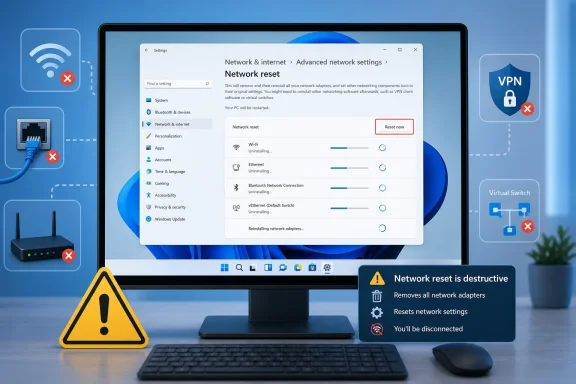
WindowsForum user reports show why that distinction matters. Members have asked for a reset button to move an Ethernet connection from 100 Mbps to 1 Gbps, struggled after changing routers, found that some browsers worked while other applications did not, needed to reset an adapter when moving between office and home networks, and encountered changing network settings after deleting a system driver. Those symptoms look similar from the desktop, but they do not necessarily have the same cause. Network Reset is appropriate only when the evidence points to a broad Windows-side configuration problem.
How do you run Network Reset in Windows 11?
Before starting, save your work and make sure you have a practical way to recover connectivity after the restart. This is especially important on a laptop without Ethernet, a remotely administered PC, or a work computer that depends on VPN software.
- Select Start > Settings.
- Select Network & internet.
- Select Advanced network settings.
- Select Network reset.
- Select Reset now.
- Select Yes to confirm.
- Allow Windows to restart without interrupting it.
After the restart, Windows reinstalls the network adapters with default settings. Reconnect to the required network, then test the original symptom before changing anything else.
Warning: Do not perform Network Reset over a remote connection unless someone can reach the PC locally or you have another reliable management path. Removing adapters and their configuration can immediately terminate the remote session.
What does Windows Network Reset actually change?
Microsoft describes Network Reset as an adapter-level reset. It removes installed network adapters and their settings, restarts Windows, and reinstalls the adapters with default settings.
The documented consequences include the following:
- VPN client software may have to be reinstalled or configured again.
- Hyper-V virtual switches may have to be reinstalled or reconfigured.
- Known network connections may be changed to the Public network profile.
- On a Public network, the PC is less discoverable to other devices, which can affect device discovery and local sharing.
That scope is both the feature’s strength and its risk. Network Reset can clear broad adapter or Windows networking configuration damage, but it can also disturb working parts of a customized setup.
It does not test or repair every component involved in a connection. It cannot prove that an Ethernet cable is sound, that a router port supports the desired speed, that a wireless access point is working, that a DNS server is responding, or that a remote VPN service is available.
The supplied documentation explicitly establishes removal of adapters and their settings, along with possible recovery work for VPN software and Hyper-V virtual switches. It does not establish that every saved Wi-Fi, proxy, DNS, VPN, or static-IP value will always be erased or preserved. WindowsForum’s editorial recommendation is therefore to inventory any configuration you cannot easily recreate rather than assuming it will survive unchanged.
When should you use Network Reset?
Network Reset becomes reasonable when all of the following are true:
- The fault appears to be on one Windows PC rather than across the entire router or network.
- The problem affects networking broadly rather than one website, application, cable, VPN, or Wi-Fi network.
- Restarting the PC and checking the relevant connection have not fixed it.
- The built-in Windows networking troubleshooter has not resolved it.
- You are prepared to recover VPN software, virtual switches, and other custom adapter configuration if necessary.
One WindowsForum member reported having to reset both Wi-Fi and Ethernet adapters whenever moving a laptop between office and home networks without rebooting. That kind of repeated transition problem can point toward a Windows-side adapter or configuration state. Even then, a full Network Reset should follow narrower checks, because resetting all adapters can conceal the real cause without fixing it permanently.
Another member reported constantly changing network settings after accidentally deleting an ACPI interface driver. That report illustrates an important boundary: when networking trouble begins after a driver or system-device change, the missing or damaged driver should be investigated first. Resetting network adapters does not necessarily repair the underlying system-device problem.
When is Network Reset the wrong first step?
Do not start with a system-wide reset when the symptom is narrow enough to investigate directly.
One application fails, but others connect
A WindowsForum member described a Windows 7 system where Chrome and Windows Media Center could not reach the Internet while Internet Explorer and Firefox still worked. Because some applications remained online, the network adapter and basic connection were functioning.
That pattern points more naturally toward application configuration, firewall behavior, proxy use, or another application-specific difference. Resetting every adapter would be disproportionate until those possibilities had been checked.
Ethernet connects at 100 Mbps instead of 1 Gbps
Another WindowsForum member wanted to reset an adapter to release it from 100 Mbps and make it connect at 1 Gbps. Network Reset should not be treated as a gigabit-enablement control.
Ethernet link speed depends on the network interface card, cable, connected router or switch port, driver, and the capability of the physical link. A reset may reinstall the adapter, but it cannot upgrade a port, replace a faulty cable, or correct damaged wiring.
Use the Ethernet checklist later in this guide before considering Network Reset.
Only a VPN fails
If ordinary Internet access works and only the VPN fails, investigate the VPN profile, credentials, client software, and service availability. Network Reset may add VPN reinstallation or reconfiguration to the original failure.
Hyper-V networking alone is broken
If the host’s ordinary Wi-Fi or Ethernet connection works but virtual machines do not, investigate the virtual switch and VM network configuration first. Microsoft warns that Network Reset may require Hyper-V virtual switches to be recreated.
The problem began with a router change
A WindowsForum member who changed to a Netgear router then encountered trouble copying the new network settings to a USB device was dealing with a configuration-transfer or device-detection workflow, not necessarily a damaged Windows network stack. A new router can introduce different network names, credentials, addressing, security settings, or management procedures. Confirm the new router’s setup and ordinary connectivity before resetting Windows.
What should you record before resetting?
The following is WindowsForum editorial guidance, not a claim that Network Reset always deletes each item.
- Identify essential connectivity. Note whether the PC normally uses Wi-Fi, Ethernet, VPN, virtual switches, or more than one of these.
- Record custom addressing. If the PC uses manually supplied IP or DNS values, copy them from the administrator, router documentation, or existing system configuration.
- Prepare VPN recovery. Make sure you know which VPN client is required and how it can be installed and configured again.
- Document virtualization. Record the names and purpose of Hyper-V virtual switches and which virtual machines use them.
- Preserve required credentials. Confirm that necessary Wi-Fi and VPN credentials are available through an approved source.
- Plan an alternate connection. If possible, have another computer or phone available so that you can obtain support or installation files.
- Avoid remote-only recovery. Arrange local access if loss of networking would leave the computer unreachable.
Do not treat Network Reset as a backup-and-restore feature. Its documented job is to remove and reinstall adapters with default settings, not to preserve a complete snapshot of a customized network environment.
Which repair should you choose instead?
Use the symptom to choose the smallest relevant repair.
Wi-Fi is slow, intermittent, or unavailable
Use this WindowsForum editorial checklist:
- Determine whether another device has the same problem on the same wireless network.
- Restart the PC and reconnect to the network.
- Check whether the issue occurs near the router as well as at the usual location.
- Restart the router only if you are authorized to do so and other users will not be disrupted.
- Confirm that the problem affects the entire PC rather than one application.
- Run the built-in Windows networking troubleshooter.
- Consider Network Reset only if the failure remains broad and appears limited to that PC.
If every device is affected, focus on the router, access point, Internet service, or upstream network. Resetting one Windows computer is unlikely to correct a network-wide outage.
Ethernet is connected at 100 Mbps
Use this WindowsForum editorial troubleshooting order:
- Disconnect and firmly reconnect both ends of the Ethernet cable.
- Test with a cable known to support a gigabit connection.
- Test another suitable router or switch port.
- Confirm that the PC’s network interface and the device at the other end support 1 Gbps.
- Check whether the correct adapter driver is installed.
- Compare the result with another gigabit-capable computer on the same cable and port, if available.
- Use Network Reset only if separate evidence indicates a broader Windows networking failure.
This order isolates the physical negotiation path. If changing the cable or port restores 1 Gbps, Network Reset was never required.
The PC appears connected but has no Internet access
Use this WindowsForum editorial checklist:
- Test more than one website or Internet service.
- Check whether another device can use the same network.
- Determine whether only one application is affected.
- Temporarily disconnect from a VPN and retest, if permitted.
- Review any organization-required proxy configuration with the appropriate administrator.
- Restart the PC.
- Run the built-in Windows networking troubleshooter.
- Restart the router only when appropriate and authorized.
- Consider Network Reset if multiple connection methods or applications remain affected only on this PC.
This guide does not prescribe a sequence of netsh or ipconfig repair commands because the supplied material does not establish the exact command order or when that sequence should be preferred.
Settings change whenever the PC changes networks
A WindowsForum member reported needing an adapter reset when moving between office and home connections. If that happens repeatedly:
- Confirm whether the issue affects Wi-Fi, Ethernet, or both.
- Note whether a reboot restores connectivity.
- Check for organization-managed VPN, security, or network software.
- Review recent driver or system-device changes.
- Run the Windows troubleshooter while the failure is present.
- Escalate persistent workplace issues to the network administrator.
- Use Network Reset only after recording the configuration needed for both locations.
If a reset works only temporarily, continue investigating. A recurring fault may indicate a driver, management-software, or network-transition issue that a broad reset merely clears until the next change.
How do you verify that Network Reset completed?
After Windows restarts, use this WindowsForum editorial verification procedure:
- Wait for Windows to finish loading and detecting hardware.
- Confirm that the expected Wi-Fi or Ethernet controls are available.
- Reconnect to the intended network.
- Test ordinary Internet access with more than one application or service.
- Retest the exact symptom that prompted the reset.
- Check local discovery or sharing if it is required on that network, remembering that known connections may return as Public.
- Test the VPN separately and reinstall or reconfigure its client if required.
- Test Hyper-V virtual-machine connectivity and recreate affected virtual switches if necessary.
- Stop making changes once the original problem is resolved.
If an expected adapter does not return, do not repeatedly run Network Reset. Restart once, check for an obvious hardware or driver problem, and obtain the correct support package from the PC or adapter manufacturer through another device if needed. That is WindowsForum editorial troubleshooting guidance; it is not presented as a Microsoft recommendation to create a driver backup before running Network Reset.
If the adapter returns but the original fault remains, reconsider the diagnosis. A persistent 100 Mbps Ethernet link still points toward the link-negotiation path. A single failing application still points toward that application or its configuration. A failure affecting every device still points away from the Windows PC.
Frequently Asked Questions
Will Network Reset make Ethernet change from 100 Mbps to 1 Gbps?
Usually not. Link speed depends on the network interface, cable, connected switch or router port, driver, and physical link capability. Test those components directly.
Does Network Reset delete my VPN?
Microsoft warns that VPN client software may need to be reinstalled or configured again. Prepare the information and installation access needed to recover it before resetting.
Why did local sharing stop after Network Reset?
Known connections may be changed to the Public profile. A Public profile makes the PC less discoverable to other devices and can affect local discovery and sharing. Confirm the network’s profile and security requirements before changing anything, particularly on a work-managed PC.
What if Windows does not reinstall my Wi-Fi or Ethernet adapter?
Restart the PC once and check whether the expected adapter returns. If it remains unavailable, investigate the hardware and driver rather than repeatedly resetting the network. Obtain the appropriate driver or support package from the PC or adapter manufacturer if necessary.
Should I reset the network when only one browser or app is offline?
No, not as the first step. If other applications can connect, Windows still has basic network access. Check the failing application, its proxy behavior, firewall permissions, and service status before resetting every adapter.
Will Network Reset fix a router problem?
No. It changes networking on the Windows PC. It does not repair the router, Internet service, Ethernet cabling, switch ports, wireless coverage, or remote services.
Is Network Reset safe on a Hyper-V host?
It carries additional recovery risk. Microsoft warns that Hyper-V virtual switches may need to be reinstalled or reconfigured afterward. Document the virtual network arrangement before proceeding.
What should I do if Network Reset fixes the problem only temporarily?
Record what triggers the failure and investigate the recurring cause. Pay particular attention to network changes, VPN or security software, drivers, and system-device problems. A reset that repeatedly provides only short-term relief is a workaround, not a diagnosis.
References
- Windows 11 Network Reset: When to Use It—and When It Will Make Things Worse learn.microsoft.com