

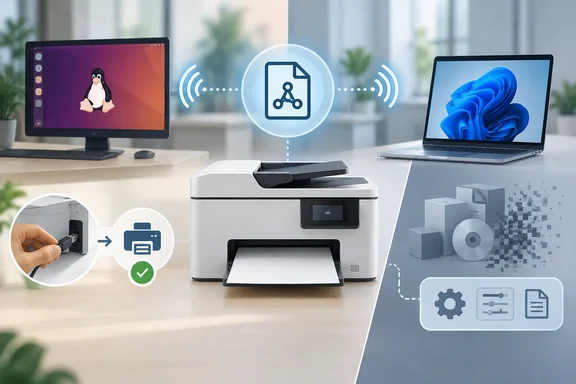
Here is how the standards-based approach works, where Microsoft's timeline stands at the end of September 2026, and where the "Linux wins" argument stops holding up.
Printers now describe themselves
The XDA piece, by Ty Sherback, starts with discovery. A modern network printer announces itself on the local network using multicast DNS and DNS Service Discovery (DNS-SD). Apple sells the same zero-configuration idea as Bonjour. CUPS, the print system behind almost every desktop Linux distribution, sees that announcement. It then asks the printer over the Internet Printing Protocol (IPP) what it can do: paper sizes, duplex, colour modes and the document formats it accepts.
OpenPrinting, the project that now develops CUPS, describes the same design. Printers advertise over DNS-SD, speak pure IPP, and take jobs in common formats: PDF, PWG Raster, Apple Raster and PCLm. Because the printer understands the format it's sent, the computer doesn't need model-specific code.
The approach has several brand names that overlap heavily:
- IPP Everywhere is the Printer Working Group standard.
- AirPrint is Apple's version.
- Mopria is the alliance-certified version used by Android and, more and more, Windows.
"Driverless" doesn't mean "no software." CUPS still converts documents with generic filters, and Windows ships its own class driver. What goes away is the model-specific binary that has to match your OS version, CPU architecture and print subsystem. Sherback's point is that when the printer states its own capabilities, a CUPS update can't strand it, because there's nothing model-specific to fall out of sync. CUPS can also create a queue on demand, so a print dialog can list a discovered printer before you've set anything up.
Section summary: the printer now carries the burden of describing itself, and the operating system speaks a standard language back.
Linux: mostly there, but it depends on your distro
OpenPrinting makes a bold claim: almost every printer made since 2010 supports IPP/2.0 with standard file formats. It names industrial label printers and some "vertical market" devices as the main holdouts. That's the project's broad estimate, not a guarantee for your particular model, but it explains why so many cheap home printers just work on Linux. Manufacturers added driverless IPP so people could print from phones, and Linux benefits too.
Distribution defaults still matter. Sherback writes that on CachyOS, the Arch-based distro he uses every day, printing isn't guaranteed to be ready on a fresh install. He says some users found no printer settings at all until they installed CUPS and a print manager themselves, and that network discovery can depend on Avahi and mDNS being set up. That's one writer's experience with one distribution, not a verdict on all Arch-based systems. It's still a fair warning that "driverless" assumes the discovery plumbing is installed and running.
If automatic discovery fails on a Linux machine, OpenPrinting documents two fallbacks:
- The CUPS web admin tool. Open
[url]http://localhost:631/admin/[/url]in a browser on the machine. Administrative tasks ask for credentials from root or a user in a group such aslpadmin. - The command line. This creates a queue for an IPP Everywhere printer at a known address, using the generic
everywheremodel instead of a vendor driver:
lpadmin -p myprinter -E -v "ipp://11.22.33.44/ipp/print" -m everywhere
Replace the IP address with your printer's.lpinfo -mlists available drivers andlpinfo -vlists detected devices.
If the everywhere queue prints a test page, your printer really is driverless, and you've confirmed it without installing anything from the vendor.
Section summary: on a mainstream distro with CUPS and Avahi running, a modern network printer usually needs no setup. On a minimal or DIY install, you may have to add those pieces first.
Windows: a four-stage timeline, with one stage already in effect
The XDA column outlines Microsoft's plan, but it skips a milestone that has already arrived, and that's the one most relevant to Windows 11 users right now.
The foundation is older than many people realise. With the release of Windows 10 21H2, Windows offers inbox support for Mopria compliant printer devices over network and USB interfaces via the Microsoft IPP Class Driver. Instead of Win32 utilities bundled with drivers, device experience customization is now available via the Print Support Apps that are distributed and automatically installed via the Windows Store.
The timeline Microsoft published, confirmed by 4sysops and Neowin:
| Date | What changes | Status on September 29, 2026 |
|---|---|---|
| September 2023 | End-of-servicing plan for legacy v3/v4 third-party drivers announced | Done |
| January 15, 2026 | No new third-party printer drivers are published to Windows Update for Windows 11 and Windows Server 2025. Existing drivers can still be updated on a case-by-case basis. | In effect |
| July 1, 2026 | Driver ranking changes so that the Windows IPP inbox driver is always preferred over third-party drivers during new printer installations. | In effect |
| July 1, 2027 | Third-party printer driver updates are no longer accepted, except for security fixes. | About nine months away |
The July 2026 change is the one you'll notice. As an earlier WindowsForum analysis put it, it means the OS may automatically select Microsoft's generic driver over a vendor's legacy driver during installation. If you've added a printer to a Windows 11 PC since the summer and wondered why the vendor's driver didn't install, this is probably why. Check the printer's properties: the Microsoft IPP Class Driver has likely taken the vendor driver's place.
Microsoft's own FAQ adds some limits that don't make the headlines:
- Vendor installers still work. Microsoft says Windows will keep allowing manufacturer-supplied drivers installed from separate installation packages.
- Existing drivers stay installable, even after end of servicing.
- Signing exceptions exist. New drivers can still be signed for printers that can't be Mopria certified, for packages whose highest supported version is Windows 10 or lower, and for native ARM64 drivers.
- Scope is limited. The change applies to Windows 11 and later and Windows Server 2025 and later.
- Multifunction devices are covered. On network devices, print and fax run over IPP and IPP Fax Out, and scanning uses WS-Scan or eSCL. On USB, those endpoints work only when the device is in IPP-over-USB mode, and scanning is eSCL only.
WindowsForum's earlier coverage sums it up: what's changing is the distribution, preference order, and long-term servicing policy for legacy drivers, not an overnight cutoff.
Section summary: Windows 11 already prefers the IPP class driver for new installs. Legacy drivers still install, but their route through Windows Update is closing.
Windows Protected Print Mode: optional today, not forever
Sherback is right that only the opt-in Windows Protected Print Mode (WPP) removes legacy drivers. When enabled, it prevents the use of third-party printer drivers and relies on the Windows built-in IPP-based print stack instead. Microsoft's WPP FAQ contains a detail the XDA piece leaves out: the company says WPP will be enabled by default at a future date. Microsoft hasn't published a date in the documentation reviewed here, but "optional" is a current state, not a promise.
Before you or your IT department turn it on, note these points from the same FAQ:
- Printers that aren't compatible are uninstalled and can't be reinstalled while WPP is on. If you turn WPP off later, you have to reinstall them manually.
- Some Mopria-certified printers were originally set up with a third-party driver. Those get removed too, though you can reinstall them through the IPP stack.
- Scanners are the usual weak spot. Microsoft says not all scanners are compatible and points users to Mopria's certified-product listings.
- Mopria-certified printers work on ARM PCs regardless of architecture. That's a real advantage for Snapdragon laptop owners, whose vendor x64 drivers may never have had ARM builds.
MyQ, a print-management vendor, adds a practical caution for administrators: even if a printer works with the IPP class driver, certain device-specific features or workflows may behave differently. Think finishing options, secure-release printing and department codes, the kind of features that used to live in vendor drivers.
Section summary: try WPP on a test machine first, keep an inventory of any printer that needs a vendor driver, and assume that one day WPP will be on by default.
Where the "Linux wins" story gets complicated
Legacy hardware is where the neat narrative breaks down, and to its credit, the XDA piece admits it.
OpenPrinting says its planned CUPS 3.x drops PPD files entirely, and PPDs are the classic driver model that non-IPP printers depend on. The replacement is Printer Applications, programs that pretend to be driverless IPP printers and convert jobs into the real printer's native language. OpenPrinting says it chose to have these ready before CUPS 3.0 ships. It also expects distributions to let people keep using classic drivers for a few more years after that release. No CUPS 3.0 release date appears in the sources reviewed here.
OpenPrinting's own compatibility table shows the gaps. Brother lasers (brlaser), HPLIP devices, Gutenprint inkjets, Samsung SpliX models, foo2zjs devices, and Zebra and Dymo label printers all have Printer Application replacements. Canon CAPT, Canon UFRII/UFRII-LT and Pantum GDI drivers are marked unsupported, with the advice to ask the manufacturer. If you own one of those host-based printers, Windows is clearly the safer bet for now. Sherback reaches the same conclusion about host-based lasers that don't speak IPP.
He also says some FreeBSD users lost working setups when deprecated components changed before their replacements reached the repositories. That's his account, and it isn't independently verified here. It's a believable example of the packaging lag OpenPrinting itself acknowledges.
Then there are vendor extras: ink dashboards, head alignment, firmware updaters. These usually exist on Windows and often have no Linux equivalent. Microsoft's answer is Print Support Apps. Whether your vendor has actually shipped one is a separate question.
Section summary: for modern IPP printers, Linux has had the easy path for years. For older host-based printers, Windows's legacy-driver tolerance is still the practical advantage.
What to check before you buy or migrate
This is what's useful in both ecosystems:
- Look for AirPrint, Mopria or IPP Everywhere support on the specific model, not just the brand. OpenPrinting says that if your current CUPS driver already shows as "AirPrint," "Driverless" or "IPP Everywhere," you don't need to do anything.
- For Windows fleets, check Mopria certification specifically. Microsoft builds Windows Ready Print around Mopria-certified devices.
- Confirm scanning separately. Printing over IPP doesn't guarantee eSCL scanning on either OS.
- Check USB mode if the printer isn't networked. Windows's IPP path over USB needs IPP-over-USB support.
- Save vendor installer packages for any legacy printers you can't replace, before July 2027 cuts Windows Update to security fixes only.
- Test WPP before rolling it out, because Microsoft intends to make it the default eventually.
The verdict
Is Windows "only now catching up"? Partly. Windows has had an inbox IPP class driver since Windows 10 21H2. What's new is Microsoft making it the default: since July 1, 2026, Windows 11 prefers the IPP class driver for new installs, and the legacy-driver pipeline narrows further next July. Linux got there first for modern printers because CUPS followed the Printer Working Group's standards for a long time, and cheap phone-friendly printers brought the rest of the industry along.
Both platforms are ending up in the same place. The printer describes itself, the OS speaks a standard protocol, and vendor code moves out of the privileged core into optional apps. For anyone buying a printer, the advice holds on both platforms: skip the driver hunt, look for the standards logo, then check the features you actually need.
Update: Epson and Brother document setup issues with Windows’ built-in printer driver (October 6, 2026)
According to XenoSpectrum’s October 5 report, Epson and Brother have published troubleshooting guidance for cases where Windows 11 selects its built-in IPP printer driver instead of the manufacturer’s driver. Epson says affected setups can include USB installations that stall or fail, and LAN installations where the printer appears installed but uses the Microsoft IPP Class Driver. Its guidance is to turn off the setting that prioritizes Windows Ready Print; if needed, remove the printer, restart Windows and reinstall the manufacturer’s package.
Brother’s guidance describes problems beyond basic printing, including its iPrint&Scan, PC-FAX and firmware-update tools, as well as label-size selection on some QL, RJ and TD printers. For certain USB setups, Brother recommends reinstalling its full software package and connecting the cable only when the installer prompts.
These are manufacturer-documented cases under specific conditions, not evidence that problems affect all printers. XenoSpectrum also notes that manufacturers describe effects beginning with Windows updates in June, while Microsoft’s milestone was July 1, 2026; the driver choice may therefore depend on a PC’s updates and settings. For Windows users and IT teams, a successful test page may not be enough: check the active driver and test the dedicated apps, scanning, faxing and model-specific settings before relying on the new setup.
References
- Windows 11 Shifts to Built-in Printer Drivers by Default, and Epson and Brother Warn of Setup Problems - XenoSpectrum XenoSpectrum · 2026-10-05T21:59:54.538000+00:00
- Windows Protected Print and IPP (Internet Printing Protocol): eliminating third-party printer drivers – 4sysops 4sysops.com
- Linux printing finally stopped being a nightmare, and Windows is only now catching up XDA · 2026-09-29T13:00:17+00:00